Training home / Bill of Materials and Routing
Bill of Materials and Routing
What must exist before you can make something on the shop floor: resources, operations, a bill of materials and a complete routing.
- Who it is for: Plant, Procurement and Admin users, who can change a BOM and a Routing.
- What you can do: set up a BOM and a routing so a job order can be created.
- What you need first: resources and operations, then an active BOM, then the routing.
Who this is for
Plant, Procurement and Admin users. These three roles can create and change a Bill of Materials (BOM) and a Routing. Other people can usually open the pages to look. If you are new to the shop floor side of WorkCrest, read the Plant guide and the shop floor process afterwards to see how jobs run once this setup is in place.
The chain at a glance
A job order can only be created for a part that has a finished chain of setup behind it. Work through it in this order, because each step depends on the one before.
- Resources - the machines, labour skills, tools and outside processes your jobs use.
- Operations - the named steps of work, such as cutting or bending.
- Bill of Materials - the components that go into one unit of a finished or semi-finished part.
- Routing - the ordered operations for that part, with time, resources and which components each step uses.
- Job order - copies the BOM and the routing so that material and time are planned for you.
1. Resources and Operations (brief)
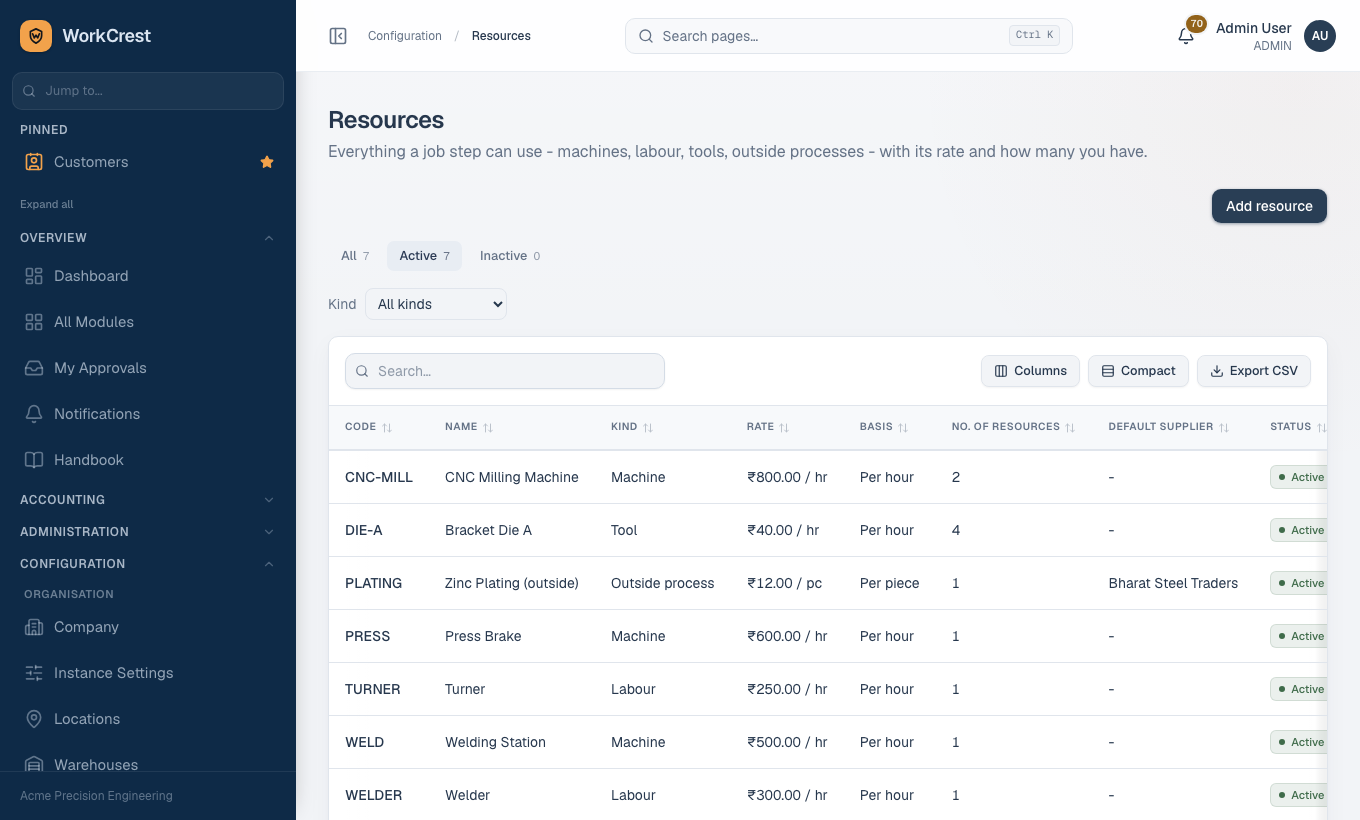
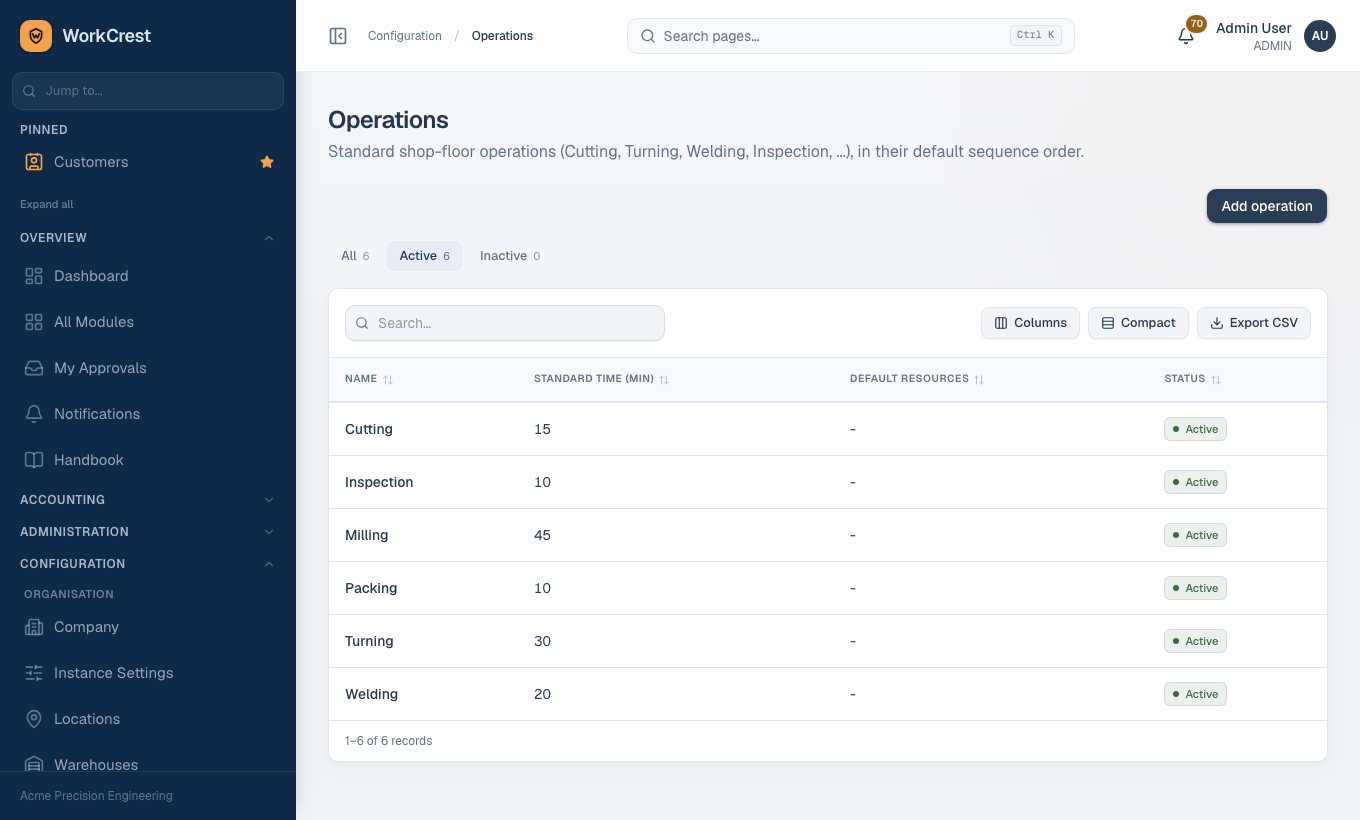
A Resource is anything a job step uses: a machine, a labour skill, a tool, an outside process or something else. Each has a rate (per hour, or per piece for outside and other kinds) and a count of how many you own. An Operation is a named step of work. You set both up once and rarely touch them again.
You find them at and . Only Admin and Plant can change them. The full field-by-field steps are in One-time setup masters, so they are not repeated here.
2. Bill of Materials
A BOM lists what goes into one unit of a part. It is single level: it lists direct components only. If a component is itself made in-house, give that component its own BOM.
Where to find it: . Who can change it: Admin, Procurement and Plant.
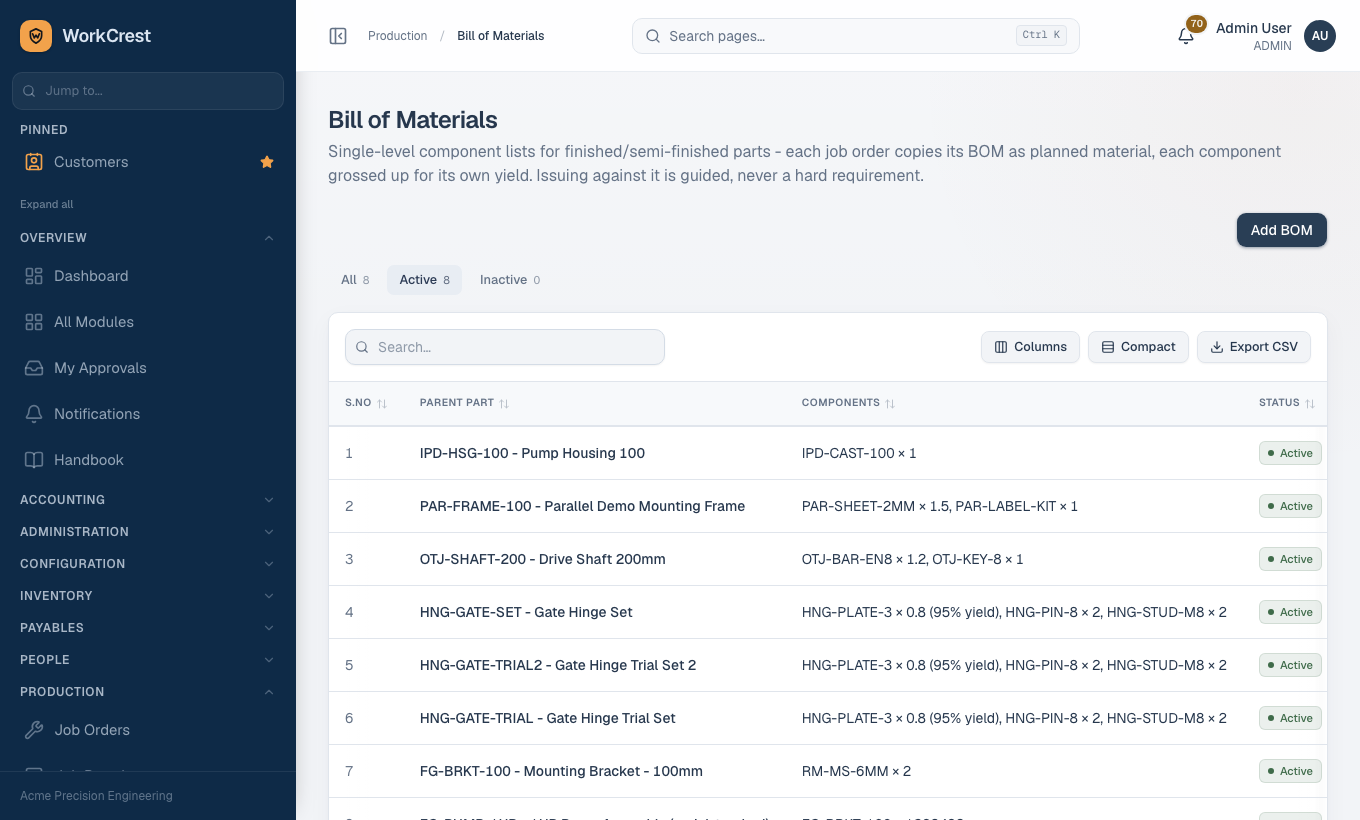
Create a BOM
- Open and click Add BOM.
- In Parent part, choose the part this BOM makes. Only parts whose item type is Finished Good or Semi-Finished are offered. Once a BOM is saved, its parent part cannot be changed.
- Under Components, choose a Component for the first line. The unit of measure for that part appears beside it.
- Enter Qty per unit: how much of the component goes into one unit of the parent. Up to three decimal places are kept.
- Leave Yield % at 100 unless this component is wasted in making the part. See the next section.
- Click Add component for each further line. A trash button removes a line (it is hidden when only one line is left).
- Leave the Active switch on, then click Create BOM. To change a BOM later, click its row in the list and use Save changes.
Yield % and how required material is worked out
Yield % is the good output you get per 100 you use, for that one component. At 100 there is no loss. At 95, you must start with a little more than the quantity that ends up in the product. It must be above 0 and at most 100.
When a job is made, WorkCrest works out the material to plan for each component like this:
Required material = Qty per unit x planned job quantity, divided by the yield as a fraction (yield % divided by 100), rounded up to three decimal places.
The rounding is always upward, so you never plan slightly less than you need. The extra amount over the plain quantity is the planned loss.
Scrap part
When you set a yield below 100, a Scrap part box appears on that line.
- Pick a part if the planned loss is received back into stock as scrap when the job is completed.
- Valuation. The scrap is valued at that part's standard cost.
- Leave it on None (no scrap part) if the loss is simply thrown away.
Active BOM
Only an active BOM counts. A routing can only be built for a part that has an active BOM with at least one line, and job orders copy the active BOM. Switching a BOM to inactive therefore also affects the routing, described next.
3. Routing
A routing says how a part is made: the operations in order, how long each takes, what resources each needs and which BOM components each step uses. There is one routing per part, and a part must already have an active BOM before you can create its routing.
Where to find it: . Who can change it: Admin, Procurement and Plant. The list opens on its Active tab and shows, for each part, the number of steps, minutes per unit, setup minutes, a Components badge (Complete or Draft) and a Status badge (Active or Inactive). If you hold the cost-viewing permission it also shows an estimated resource cost per unit.
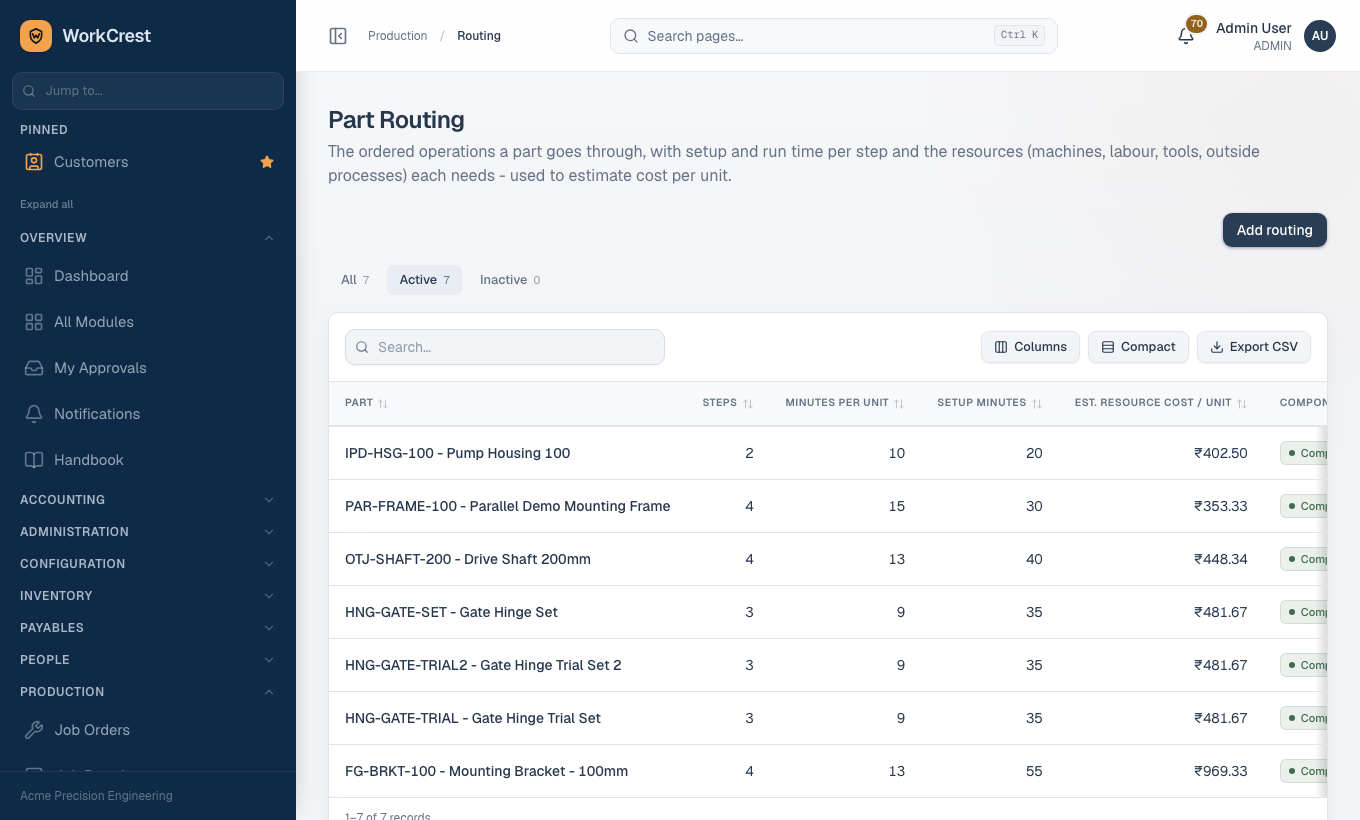
Create a routing
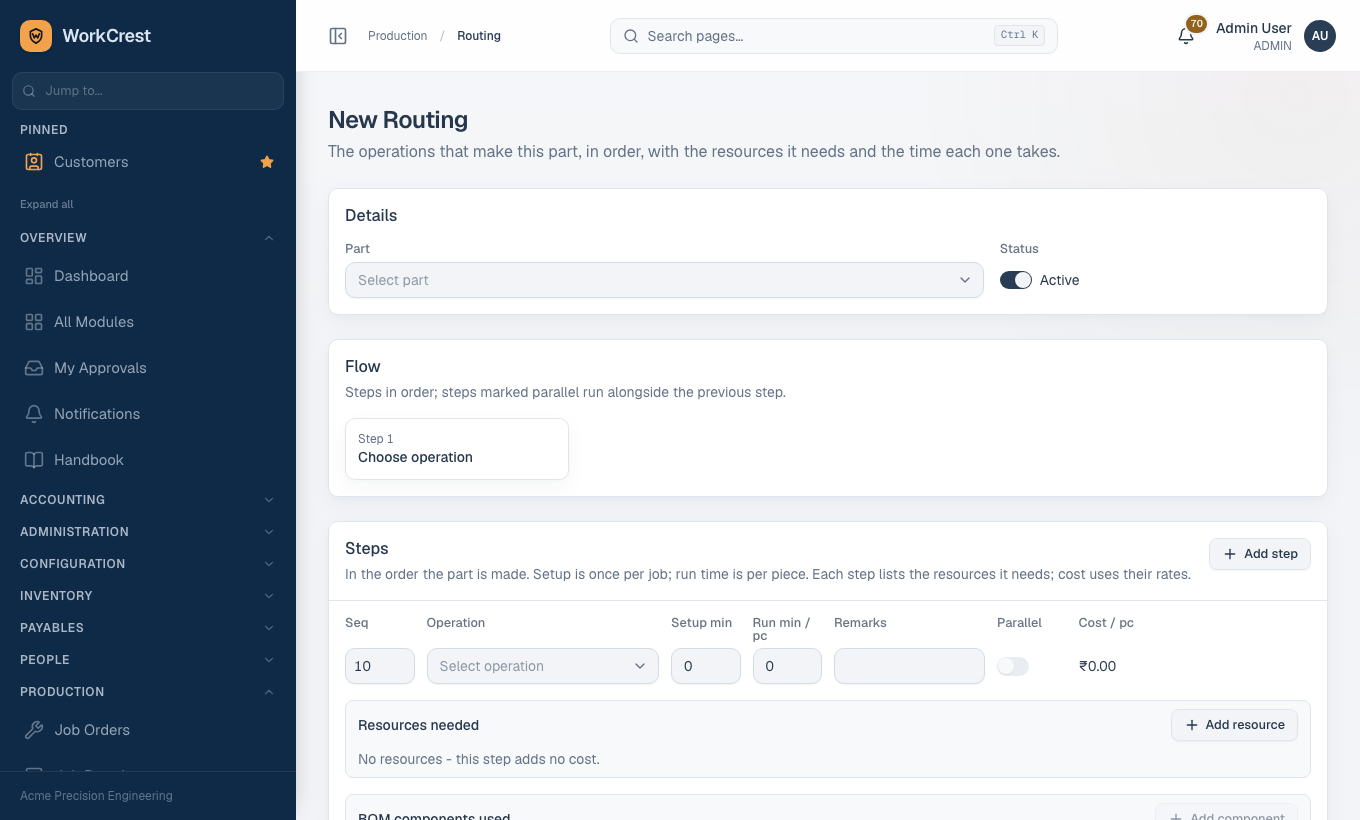
- Open and click Add routing.
- In the Details card, choose the Part. Only active parts with an active BOM are offered. The part cannot be changed after the routing is saved. Leave Status on Active.
- In the Steps card, fill the first step: Seq (a sequence number, 10 to start), the Operation, Setup min and Run min / pc. Add anything useful in Remarks.
- Under Resources needed, click Add resource, choose a Resource and enter its Quantity (for example 2 if two people or two machines work the step together).
- Under BOM components used, click Add component, choose a Component and enter Quantity per pc. This button stays greyed out until a part is chosen.
- Click Add step for each further step and repeat. Steps are saved in order of their sequence number.
- Watch the BOM components card near the bottom. It shows a Complete or Draft badge and a checklist of every BOM component and how much is still unassigned. Click the save button at the bottom of the page when you are done; Cancel takes you back to the list.
Setup and run minutes
Setup min is the time to get ready, counted once per job. Run min / pc is the time per piece. For a job of a given quantity, the planned time of a step is setup plus run per piece times the quantity. These planned minutes are copied onto the job and are what job cost uses (see the costing section below).
Parallel with previous
- The switch. Each step after the first has a Parallel switch. Turn it on when this step runs at the same time as the step above it.
- Groups. A step and the parallel steps that follow it form one group. Members can be done in any order or together.
- Waiting. The next step that is not parallel waits until every step in the group is completed or skipped.
- End date. A group counts as its longest step.
- First step. It cannot be parallel, so its switch is greyed out.
- Flow card. The Flow card above the steps draws this for you.
Resources per step
A step can need several resources, each with a quantity. For example a bending step may need one press brake and one operator skill.
- Estimated cost uses each resource's rate.
- Per-hour resources use the step's minutes.
- Per-piece resources use the number of pieces.
Which BOM components each step consumes
Inside each step, BOM components used says which components are used there and how much per piece. A component can be split across steps. For example, a part that needs 2 bolts could use 1 bolt at an assembly step and 1 at a fastening step.
The rule is strict: every BOM line must be covered exactly.
- Totals. For each component, quantities across all steps must add up to exactly the BOM's Qty per unit.
- Not on the BOM. A component that is not on the part's active BOM cannot be assigned at all.
- Too much. WorkCrest refuses to save if a component is assigned more than its BOM quantity.
- Too little. The routing saves, but as a Draft.
Draft and Complete
| Status | Meaning | Can it make jobs? |
|---|---|---|
| Draft | Saved, but at least one BOM component is not fully assigned to steps. | No. |
| Complete | Every BOM component is exactly covered by the steps. | Yes (also needs to be Active and have at least one step). |
- You do not set this yourself. WorkCrest works it out each time a routing is saved and each time the part's BOM is saved.
- BOM edits. Adding a component or changing a quantity can flip a Complete routing back to Draft.
- Removed components. Their assignments are removed from the routing's steps automatically.
4. How this feeds job orders
- A job needs a Complete, active routing for its output part. Customer-order jobs and make-to-stock jobs both check this.
- With no routing, or a Draft one, the job is refused.
- The job forms list only parts that qualify.
- Snapshots. A new job copies the routing steps, with their resources, parallel flags and planned setup and run minutes.
- The active BOM is also copied as planned material, each line grossed up for its yield.
- Later edits do not change existing jobs. Change the BOM or routing before creating jobs.
- Material is guided, not forced. The job page shows required, issued, balance, on hand and shortage per component. Issuing beyond the plan needs an approval, as described in the shop floor process.
- Standard cost roll-up. It sets each BOM part's standard cost from its component costs plus routing conversion cost. Stock valuation and job costing read that one cost.
More detail
- Component costs are taken after yield loss and include lower-level made parts.
- Conversion cost is added only when the routing is Complete. Setup time is spread over a lot size.
- It can run on a schedule when someone opens the dashboard. An Admin can also click Run rollup now at .
- Stock already on hand is not revalued.
- While the roll-up is on, purchase bills no longer change the cost of parts that have a BOM.
- Job conversion cost is the planned time times the resource rate, never clicked start and end times.
- Cost visibility. Resource rates and all cost figures on these pages appear only for people allowed to view costs. If you cannot see rates, that is by design and not a fault.
Worked example
Example only; these part names are invented for this page. You want to make a "Sample Mounting Bracket" (finished good). Make 100 pieces.
- Make sure the resources (say a press brake and an operator skill) and the operations "Cutting", "Bending" and "Deburring" exist.
- BOM. Create a BOM for the bracket with two components. "Sample Steel Sheet": Qty per unit 0.8, Yield % 95. "Sample Bolt": Qty per unit 2, Yield % 100. Active is on.
- Required material for 100 brackets. Sheet: 0.8 x 100 = 80, divided by 0.95 = 84.2105..., rounded up to 84.211. Bolts: 2 x 100 = 200 at 100% yield, so 200.
- Routing. Create a routing for the bracket with three steps:
- Seq 10, Cutting, setup 15, run 1. Resources: the operator skill, quantity 1. Components: Sample Steel Sheet, 0.8.
- Seq 20, Bending, setup 10, run 2. Resources: press brake 1 and operator skill 1. Components: Sample Bolt, 1 (used at a clip-on stage).
- Seq 30, Deburring, setup 0, run 1, Parallel switched on, so it runs alongside Bending. Components: Sample Bolt, 1.
- Planned time. For Cutting, 15 + 1 x 100 = 115 minutes. For Bending, 10 + 2 x 100 = 210 minutes. For Deburring, 100 minutes, which overlaps Bending, so Bending and Deburring count as one group with the longer step (210 minutes).
- Create the job. A job for 100 bracket can now be generated or created. It copies the three steps and the two planned material lines above.
Why can't I create a job order? Checklist
Work down this list for the part you want to make.
- Is it a finished or semi-finished part? A service part cannot be the output of a job, and a BOM's parent must be Finished Good or Semi-Finished. Parts of other item types will not appear as a BOM parent.
- Does the part have a BOM, and is it Active? Check , and look under the Inactive tab too.
- Does the part have a routing? Without one you are told to create and complete one before making a job. Check .
- Is the routing Active? An inactive routing is ignored.
- Is the routing Complete, not Draft? Open it and look at the checklist in the BOM components card for lines with an amount still remaining. Assign it, save, and the badge turns Complete.
- Did someone change the BOM recently? A new component or a changed quantity can send a Complete routing back to Draft. Open the routing and reassign.
- Does the routing have at least one step? A routing with no steps is refused.
- Are the operations and resources on it still active? The routing cannot be saved with an inactive one, so re-activate it or swap it in the routing.
Common mistakes
- Creating the routing before the BOM. A routing needs an active BOM with at least one line first.
- Entering yield as a loss. Yield % is good output per 100 used, so a 5% loss is entered as 95, not 5.
- Leaving a component unassigned. The routing stays a Draft and silently blocks job creation. Check the badge after every save.
- Assigning more than the BOM quantity. The save is refused. The step quantities for a component must add up to exactly the BOM's Qty per unit.
- Editing the BOM and forgetting the routing. BOM changes can drop the routing to Draft. Re-open it after any BOM edit.
- Switching Parallel on for a step that depends on the one above it. Parallel steps are meant to run at the same time. If the work truly follows, leave the switch off.
- Expecting old jobs to change. Jobs keep the BOM and routing snapshot taken when they were created.
- Wanting to delete a part. Parts are never deleted, only made inactive.
Related pages
- One-time setup masters for Resources and Operations
- Plant guide
- Shop floor process
- Training home