Getting started with WorkCrest
For everyone. Read this first, then open the guide for your role.
- Who it is for: everyone who uses WorkCrest.
- Main things you can do here: sign in, use the bell and My Approvals, work with lists and find your way around.
- What you need first: a WorkCrest login. Then open the guide for your role.
1. Sign in
- Open the WorkCrest address your administrator gave you.
- Type your username and password and sign in. You land on the Dashboard (
/). - If you type the wrong password too many times, the account locks for a few minutes (default: 5 wrong tries, 15 minutes). Wait, or ask an Admin to unlock it.
2. Session timeout and the "Still there?" warning
- If you do not click or type for a while (default 30 minutes), you are signed out. A "Still there?" warning appears one minute before. Click anywhere or press a key to stay signed in.
- Everyone is also signed out after a maximum time (default 12 hours) even if active. Sign in again.
- Save your work before leaving a long form. An unsaved form is lost when you are signed out.
3. Dashboard layouts
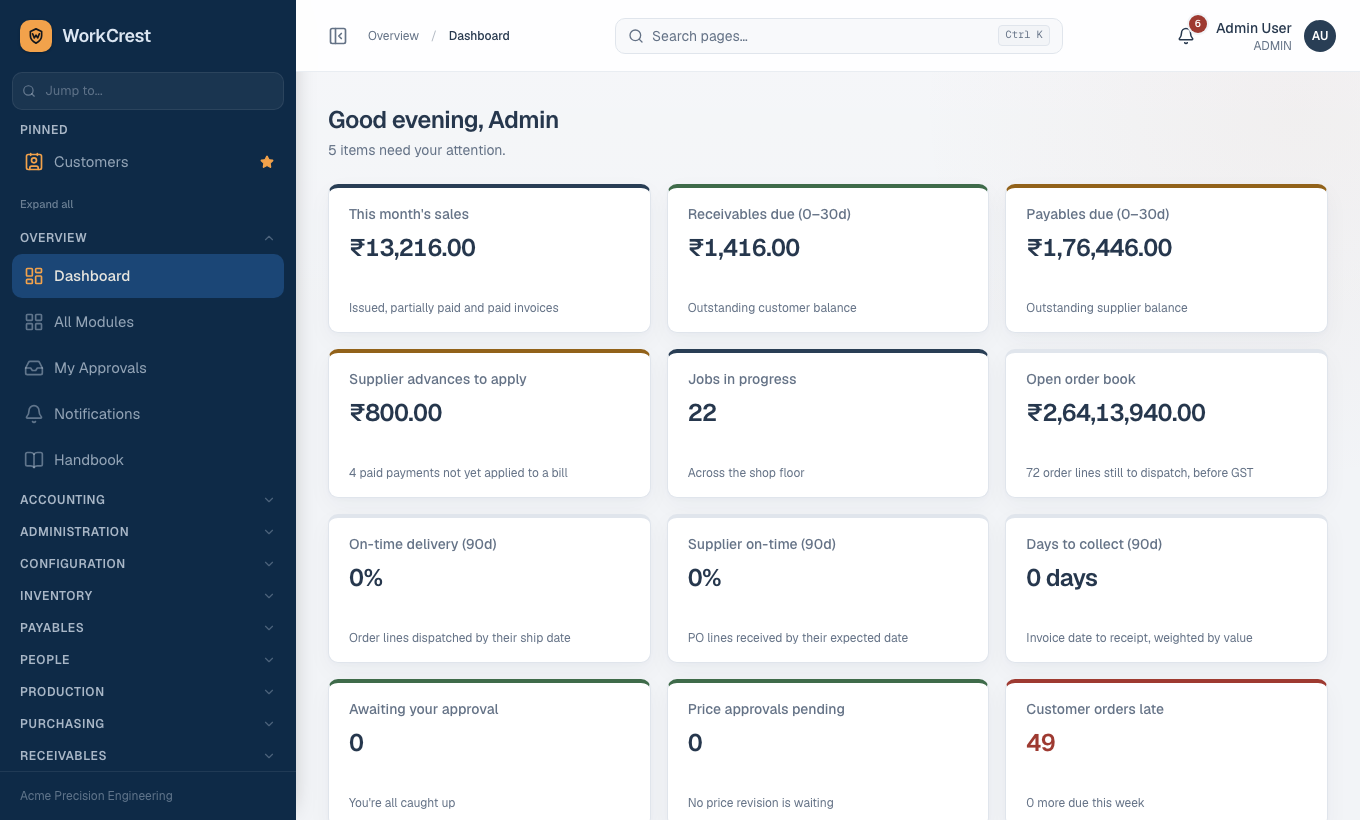
On the Dashboard there is a switch with two options: Tiles (default) and Classic. Your choice is saved for your login. You can also change it on the Account page (click your name at the top right, then Account). Only items for screens you are allowed to open are shown.
4. Notification bell
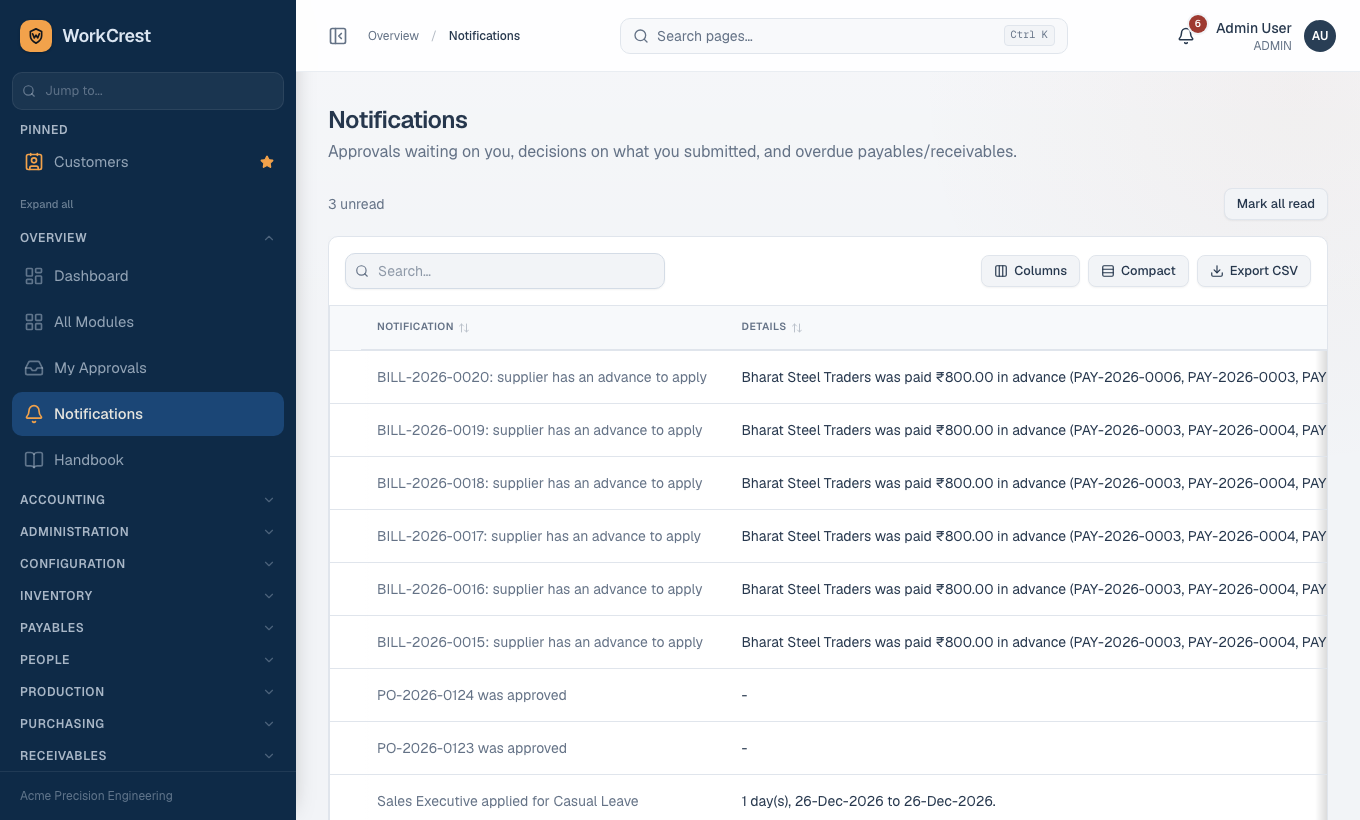
- Click the bell in the top bar. It refreshes about once a minute and again when opened.
- Click a notification to jump to the document. Mark one or all as read.
- The full list is at .
You are notified when something is waiting for your approval, when your own document is approved or rejected, and about overdue items.
5. My Approvals ()
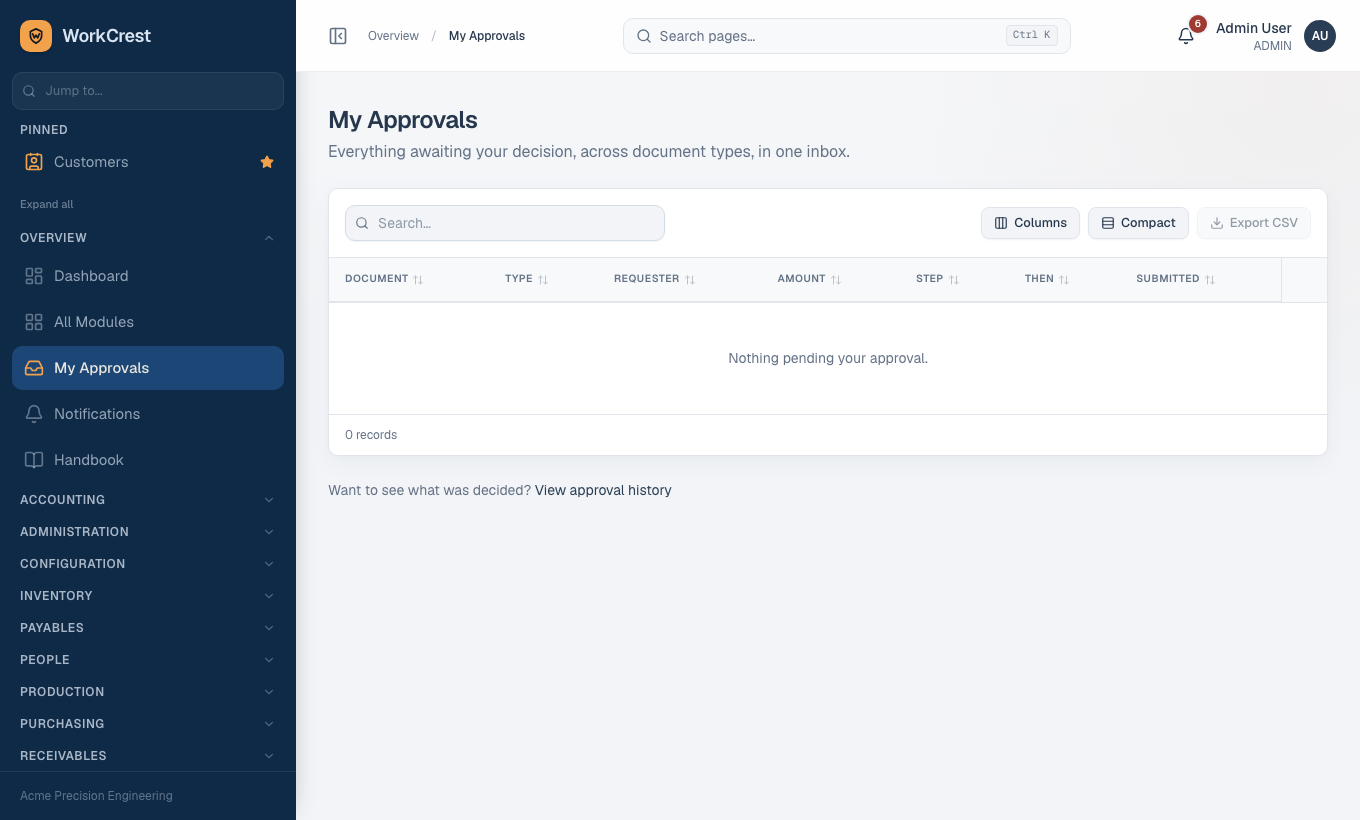
One inbox for every document waiting on you: purchase orders, payments, quotations, supplier bills and others.
- Open My Approvals in the sidebar.
- Click a row to open the document and check the details.
- Add a comment if you wish, then press Approve or Reject.
6. Working with list pages
| Feature | How to use it |
|---|---|
| Search | Type in the search box above the table. |
| Status tabs | Tabs such as Draft / Pending / Approved show counts. Master lists (customers, parts, suppliers...) open on Active. |
| Date range | Document lists have a date range filter. |
| Sort | Click a column heading. |
| Open a record | Click anywhere on the row. |
| Export CSV | Use the Export CSV button. Exports are recorded for the Admin. |
| Page size | 25 rows per page by default; a page-size picker appears on longer lists and is remembered. |
| Totals | Money columns show a footer total for all filtered rows. |
Filters are kept in the web address, so you can bookmark or share a filtered view.
7. How documents behave
- Draft: still being written. Edit freely. Nothing is posted to stock or accounts.
- Submit for approval sends it to the approver(s) set by the amount band. While Pending you usually cannot edit it.
- Approved: the document is final. Stock or accounts are posted only at the step the guide describes (for example a payment posts when it is marked paid).
- Rejected: use Revise (reopen as Draft) or Resubmit as-is where offered. History is kept.
- Copy button on a quotation, purchase order, blanket agreement or customer order opens a new form filled from it.
- Discard (on a form) means leave without saving. Cancel order / PO / agreement (on a saved document) is a real action, usually with a reason.
- Printing of a PO, release PO, agreement and quotation is allowed only once Approved.
- Approval status and fulfilment status are separate: a PO can be Approved and still Open or Partially Received.
8. The roles
Your Admin gives you one or more roles. The sidebar only shows screens your roles can open; a page you cannot open stays hidden. Admin can change this at .
| Role | Typical work |
|---|---|
| Admin | Everything, plus users, approval rules and settings. |
| Sales | Quotations, orders, challans, invoices, receipts. See Sales guide. |
| Procurement | Purchase orders, blanket agreements, approved suppliers, goods receipts. See Procurement guide. |
| Accounts | Supplier bills, payments, invoices, receipts, ledgers and reports. |
| Plant | Plant Head: job orders, shop floor, stock, many approvals. |
| Quality | Inspections, non-conformances, corrective actions. |
| HR | Employees, leave types, leave balances. |
| Employee | Apply for leave, claim reimbursements, view own items. |
Finding your way: the sidebar, All Modules and pinned links
Everything you can open is listed in the left sidebar, grouped in sections. Anything your role cannot open is simply not shown.
All Modules ()
- Open All Modules from the sidebar (or go to ).
- You see one card per screen, grouped by the same sections as the sidebar, each with a one-line description. Click a card to open that screen.
Who can open it: everyone who is signed in. The page lists only the modules your role can open, built from the same list as the sidebar, so the two always match.
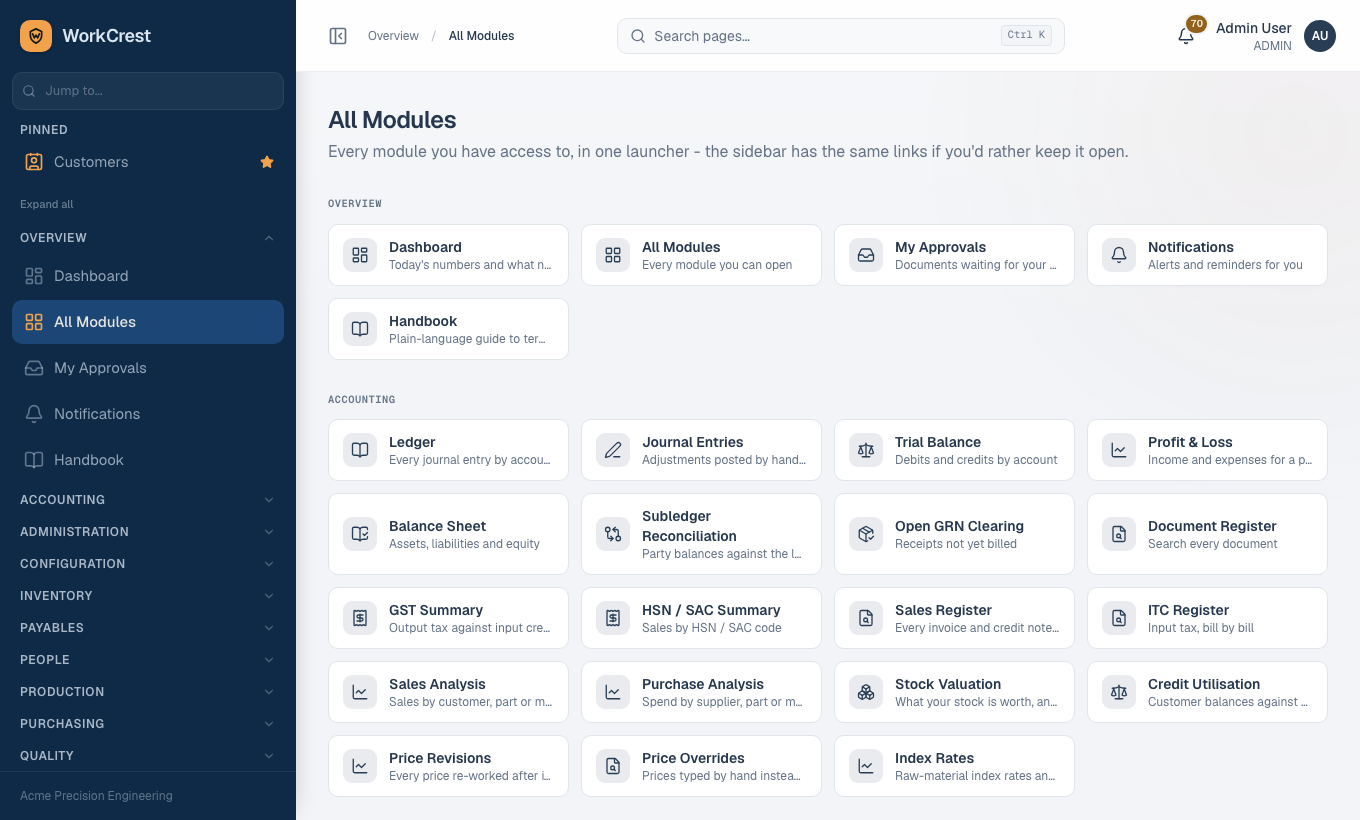
Jump to... search and Pinned links
- At the top of the sidebar, type in Jump to... to filter the screens by name. Use the x button to clear it.
- Each screen in the sidebar has a pin (star) button. Pin the screens you use daily and they appear under Pinned at the top, in the order you pinned them. Press the same button, or the unpin button in the Pinned list, to remove one.
- Pins are saved to your own account. If your role later loses access to a pinned screen, it is hidden from your Pinned list.
The in-app Handbook ()
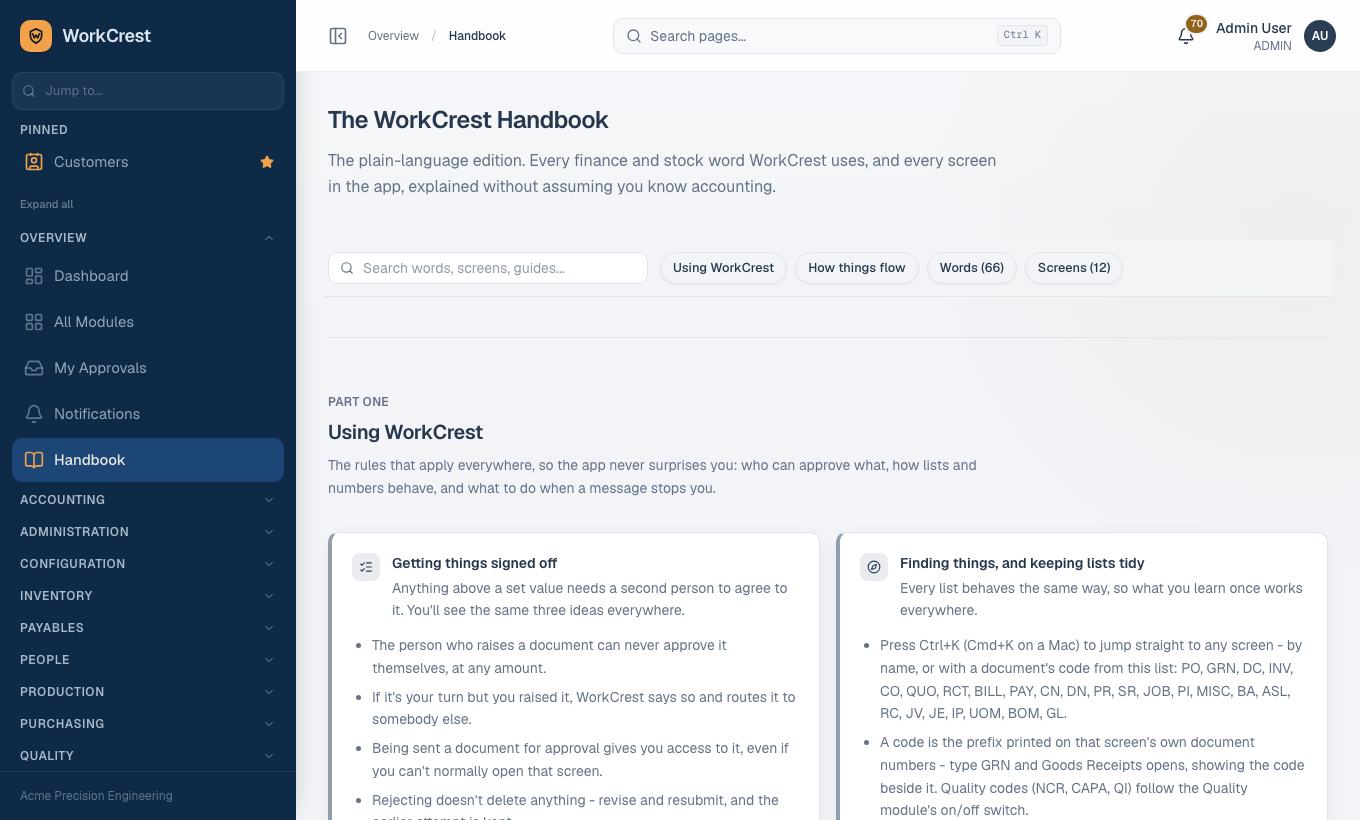
The Handbook is the plain-language guide built into WorkCrest. It explains the words you will see (GST, receivable, GRN and so on) and every screen, without assuming accounting knowledge.
Who can open it: everyone who is signed in. Screen descriptions are shown only for the areas your role can open.
- Open Handbook ().
- Use the four tabs at the top: Using WorkCrest (rules that apply everywhere), How things flow (end-to-end journeys), Words (the glossary) and Screens (every screen in detail).
- Or type in Search words, screens, guides.... Results mix glossary terms, journeys, rules and screens. A plain word works: "tax" finds GST, "owe" finds payable. Clear the search with the x button.
- A screen result opens that screen in the app; the other results jump to their own section of the Handbook.