Sales guide
For people with the Sales role: quote, order, dispatch, invoice and collect. New here? Read Getting started first.
- Your main tasks: Quote, get it approved, confirm the order, dispatch with a challan, issue the GST invoice, record receipts.
- Before you start: Quotes up to Rs 50,000 need the Plant Head; above that the Admin also approves. Job orders need a part with a complete routing.
- Watch out for: Approval does not confirm an order for you. After a credit-limit approval, press Confirm order yourself.
Screens you can open
| Screen | Path |
|---|---|
| Quotations | |
| Customer Orders | |
| Delivery Schedule | |
| Delivery Challans | |
| Sales Returns | |
| Invoices | |
| Receipts, Credit Notes | , |
| Receivables ageing and customer statement | |
| Customers, Currencies, Shipping Terms | |
| Price lists, customer prices | , |
| Part Cross-References | |
| Job Orders and Board (view) | |
| Open Order Book, On-time Delivery | , |
1. Create a quotation
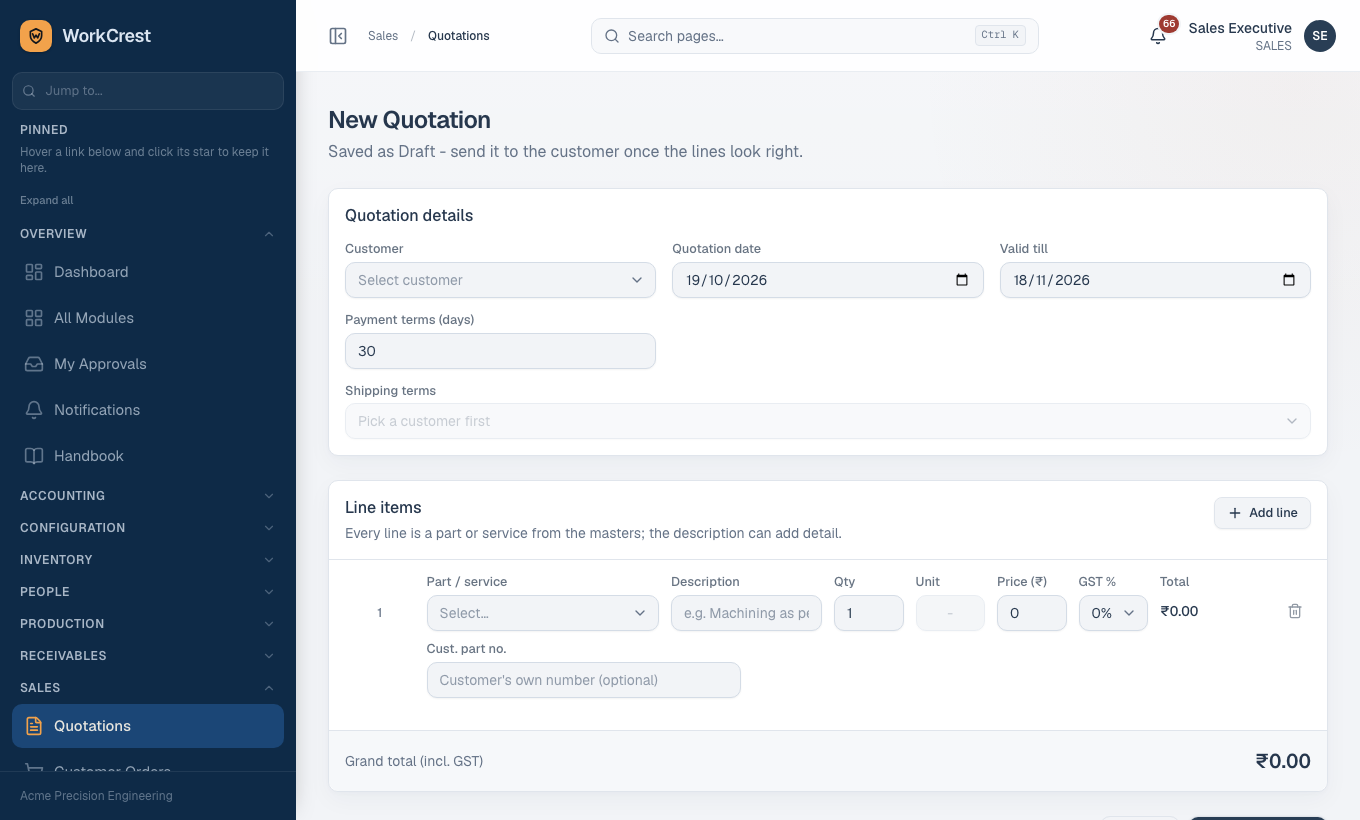
- Go to Quotations and press the new-quotation button (or open an old one and press Copy).
- Pick the customer. Payment terms (days) are filled from the customer and can be edited.
- Pick a shipping term from those set up for that customer. The wording is saved on the quote, so later master changes do not alter it.
- Add lines: a master part or service, or a free-text line. Quotations are in rupees only.
- Check the price chip next to each price. It tells you where the price came from (the customer's price, a price list, the part's selling price). If you type a price that differs from the lookup, it is recorded as a manual price.
- Save. The quotation stays Draft.
2. Submit for approval and send
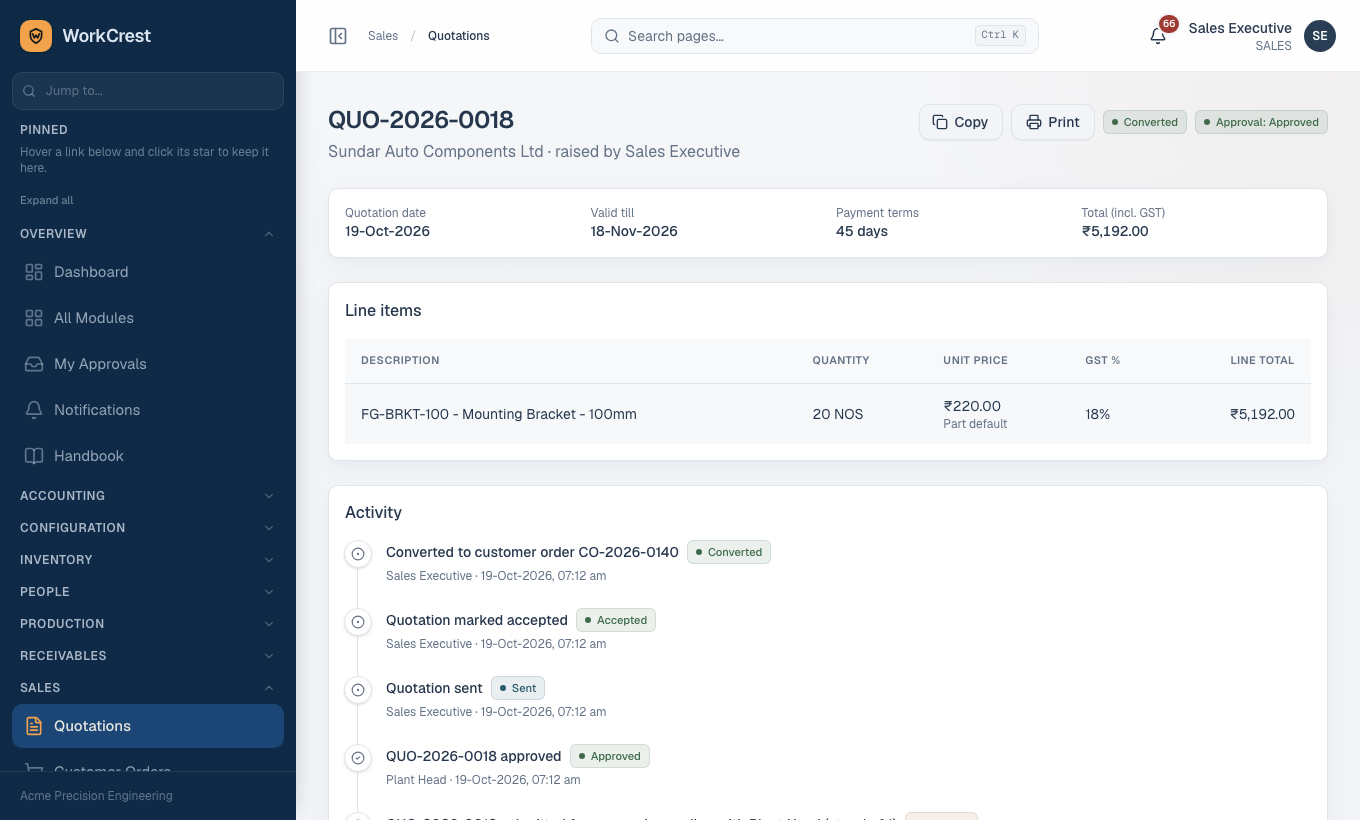
- Open the Draft and press Submit for approval. Quotes up to Rs 50,000 go to the Plant Head; above that the Admin also approves.
- When approved, press Mark as sent after you actually send it. You cannot send before approval.
- Print is available only once approved ().
- Record the outcome: Mark accepted, Mark rejected or Mark expired.
- For an accepted quote, press Convert to order. This opens a pre-filled New Customer Order that you review before saving.
3. Create a customer order
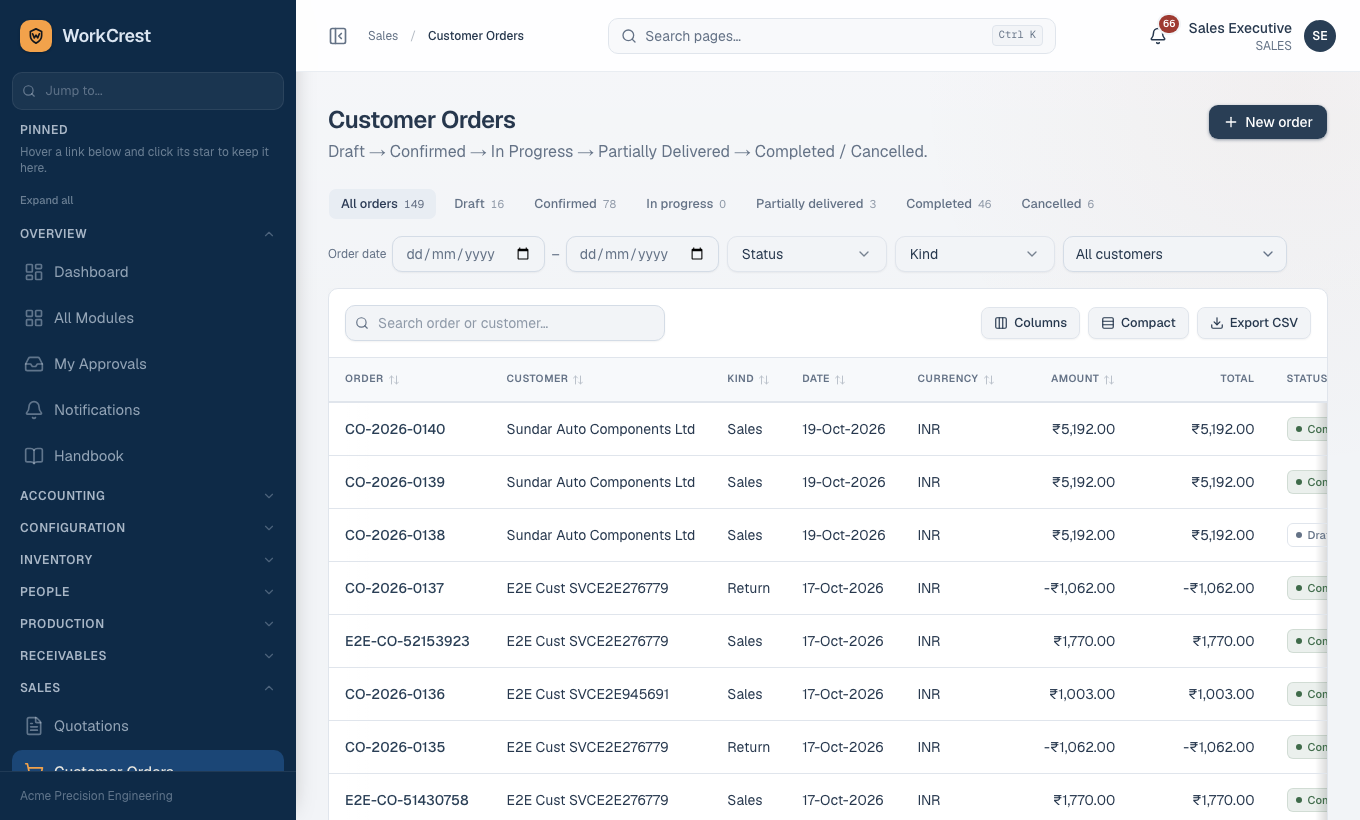
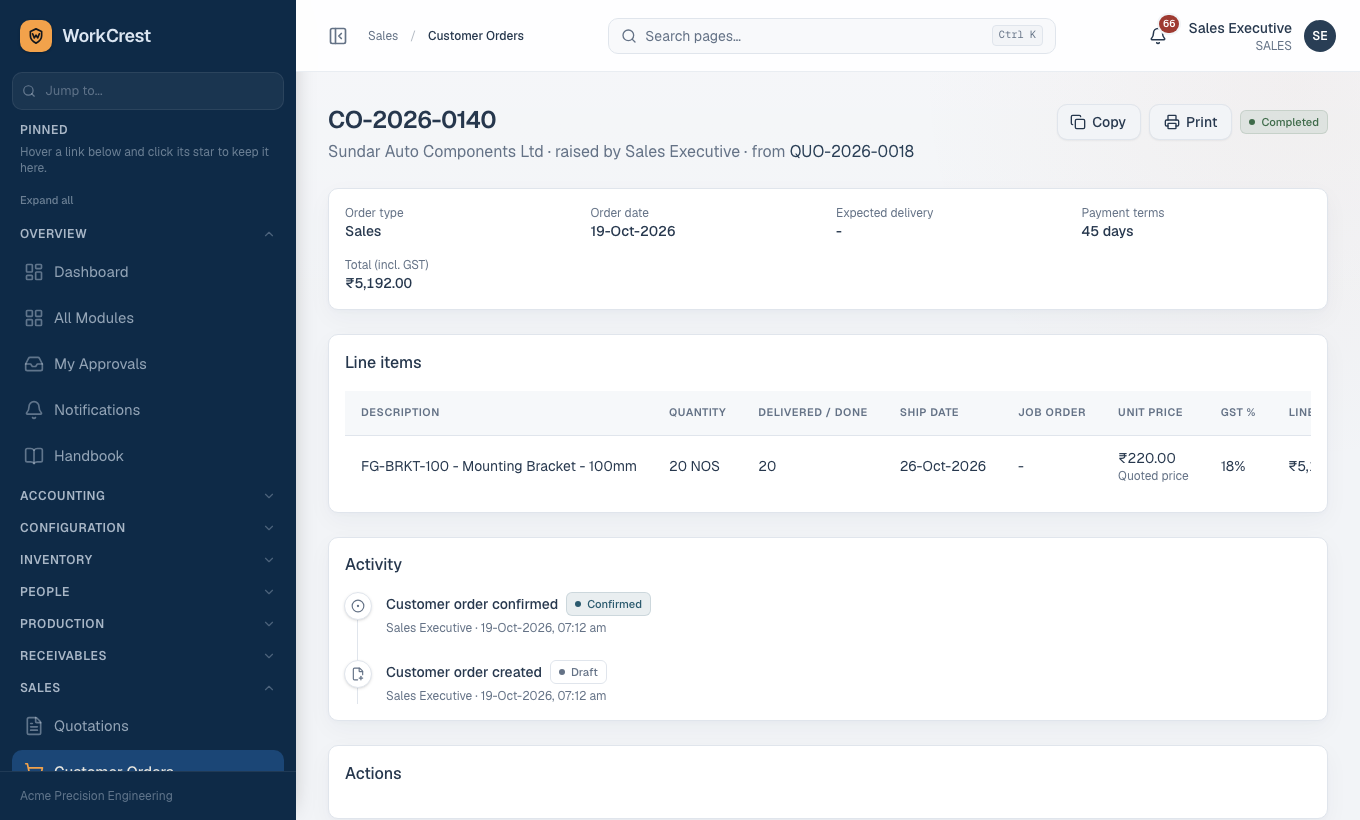
- Go to Customer Orders and choose a normal Sales order, or convert a quote.
- Fill customer, lines, prices and the expected delivery date (each line gets a default ship date from the part's lead time). For a foreign-currency order, set the currency and rate.
- Save as Draft, then press Confirm order.
4. Credit limit approval
- If confirming would take the customer over their credit limit, confirm is blocked and Request credit approval appears.
- Type the reason (required) and press Send for approval. The approval is on the amount over the limit (up to Rs 50,000 Plant Head, above that Admin also).
- When approved, come back and press Confirm order. Approval does not confirm it for you.
5. Return orders and sales returns
- For goods coming back, create a Return order at , pointing at the delivered sales order. It is priced from the original and cannot be edited.
- Press Submit for approval, then Confirm order once approved. Quantities show as negative.
- Go to Sales Returns and raise the return against the confirmed Return order. It goes through approval too.
- After approval you can Generate credit note from the order. If the part has a customer-return inspection plan, returned goods wait in quarantine for Quality.
6. Cancel an order
- A Draft order: Cancel order works at once.
- A Confirmed order: press Request cancellation, give a reason and Send for approval. It is cancelled only after approval.
7. Hand off to production: job orders
- On a Confirmed order, part-backed lines show Generate job order.
- Choose the output part (it must be a stockable part with a complete routing). Plant takes it from there on the Job Board.
- Service-only lines do not get job orders.
8. Dispatch with a delivery challan
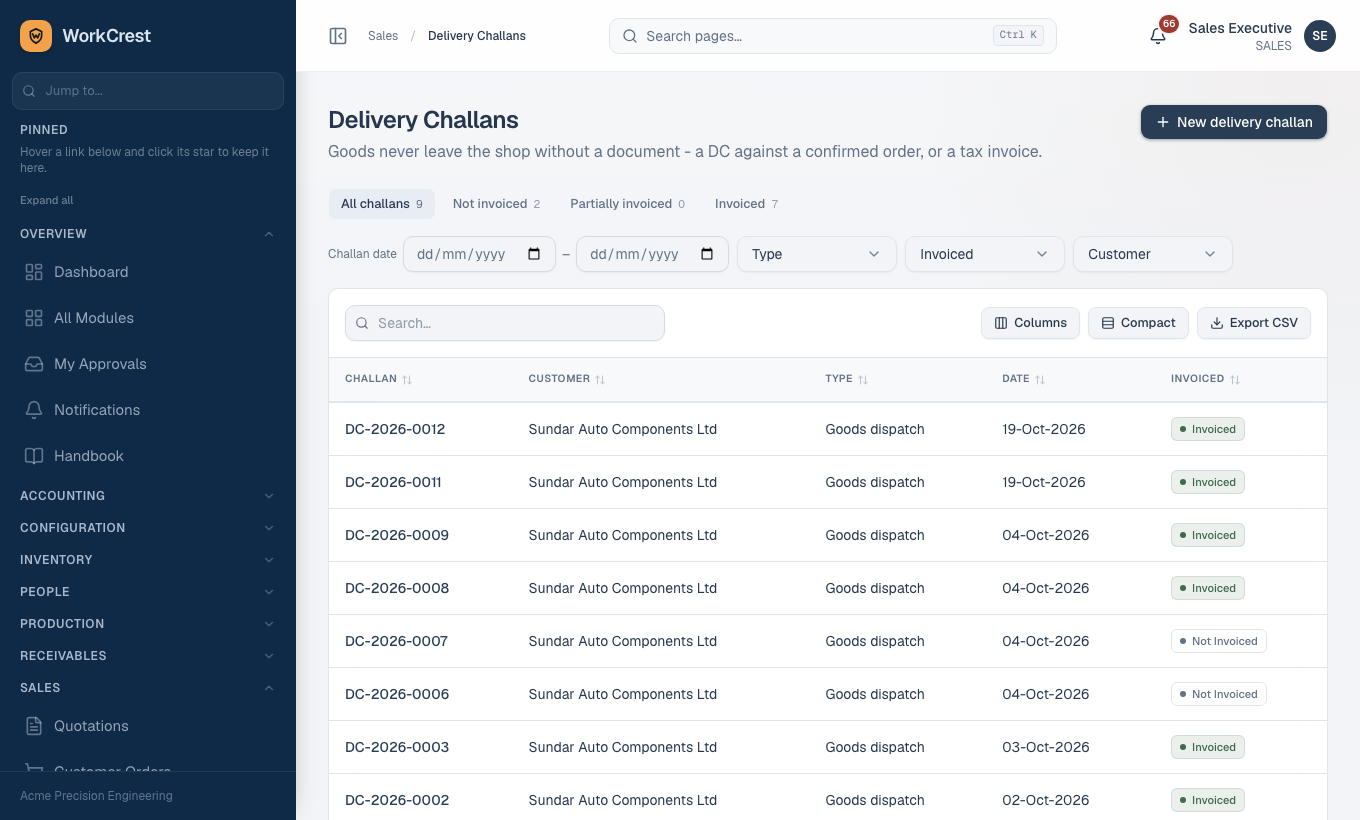
- Go to Delivery Challans → new, and choose the confirmed order.
- Enter the quantity per line. You cannot dispatch more than ordered less already delivered, nor more than stock.
- Save. Stock goes out immediately.
- On the challan, Create invoice opens an invoice pre-filled with those quantities.
9. Mark service done
A service line is not dispatched. On the order page press Mark service done and enter how much is done. It cannot be lower than already invoiced or more than ordered. It posts no stock.
10. GST invoice and receipts
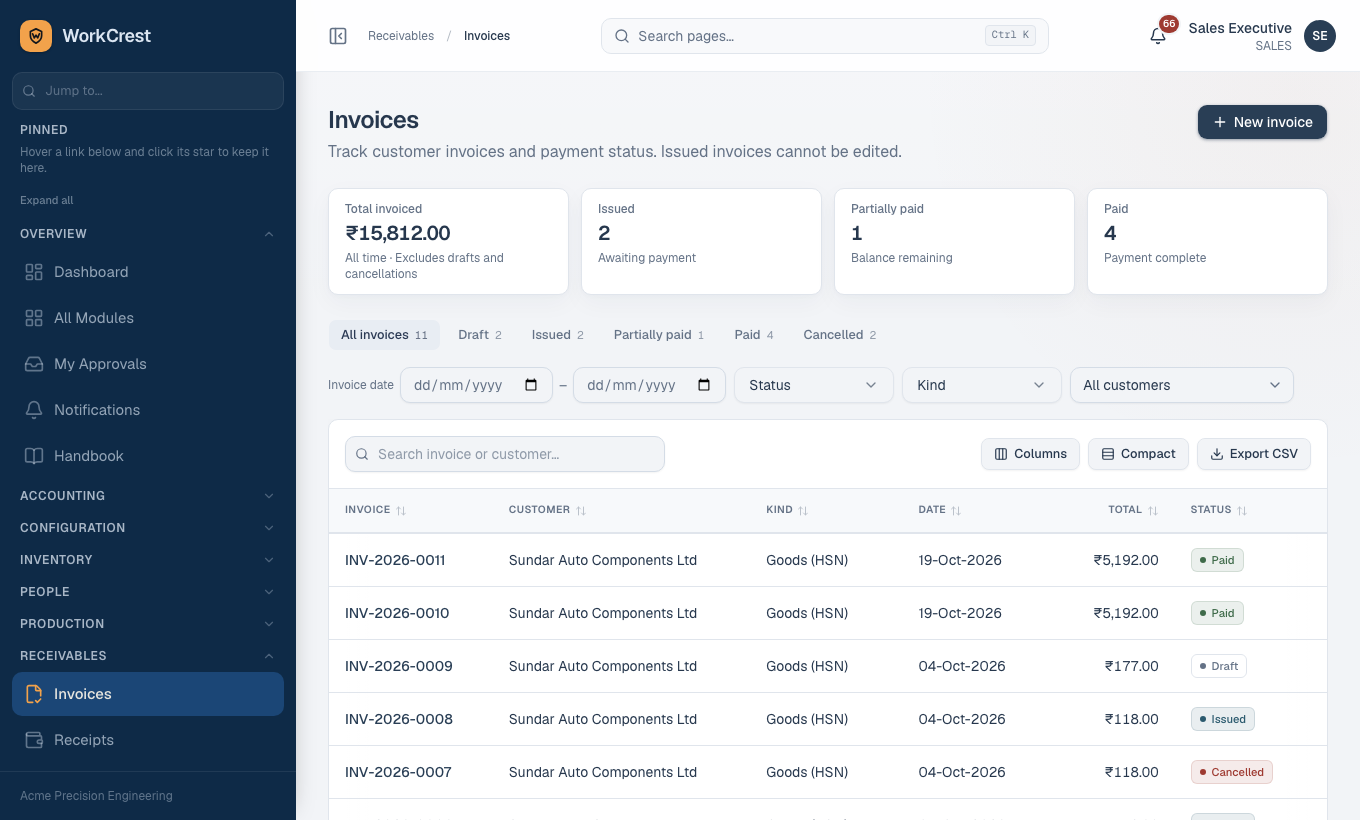
- Go to Invoices → new, from the order (or the challan button). Goods lines can be invoiced up to delivered quantity; service lines up to done quantity.
- GST is split per line: CGST+SGST if the customer's state equals ours, otherwise IGST. HSN/SAC and total in words are included.
- A new invoice is a Draft. Use Add lines if needed, then Issue invoice. It becomes a receivable and posts to accounts only when issued.
- Cancel a Draft invoice with Cancel invoice. Once an invoice is issued it can no longer be cancelled: ask Accounts to raise a credit note.
- When money arrives, record it in Receipts. It is allocated to invoices immediately and cannot be un-allocated.
- See what a customer owes at and the customer statement from there.
11. Customer part numbers
At map our part to the customer's own part number. It then pre-fills on quotation, order and invoice lines and prints. A number you type on a line wins; a blank clears it. Changing the mapping later does not change old documents.
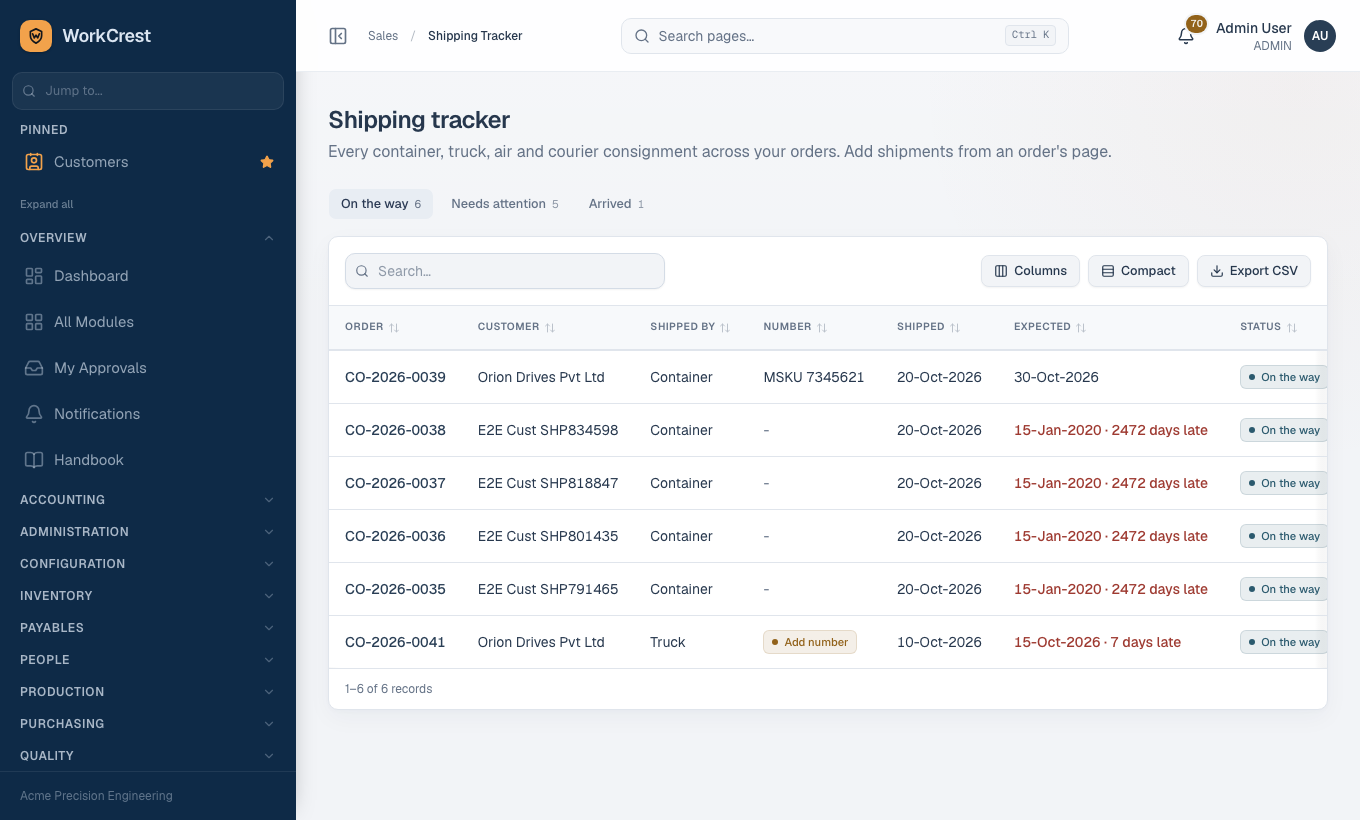
Shipping Tracker ()
A shipment is one container, truck, air or courier consignment on a sales order. The tracker is deliberately basic: it records how and when goods left and whether they have arrived. It holds no item contents, and it does not link to a delivery challan or an order line. It moves no stock, posts nothing to the ledger and needs no approval.
Who can open the list: Sales, Plant and Accounts (and Admin). Who can add, edit, mark arrived or remove shipments: Admin, Sales and Plant. Accounts can view only.
- Open the order () and press Shipments (the count shows how many exist), or click an order number in the tracker. This opens .
- Add a shipment and choose the shipping method.
- Container, Truck, Air and Courier are seeded.
- The list is a master at .
- Optional: the container / truck / AWB number, the shipped date and the expected date.
- Shipped date defaults to today.
- Edit it later to add the number or change dates. When the goods reach the customer, press the mark-arrived action and give the arrival date. It cannot be before the shipped date.
- Back on the list defaults to everything still On the way. Use the tabs Needs attention and Arrived. Click a row to open that order's shipments.
- Status is worked out from the arrival date: no arrival date means On the way, otherwise Arrived. It is never typed in.
- Needs attention means an on-the-way shipment with no number 7 or more days after shipping, or one past its expected date. Sales and Admin also get a notification for each.
- Every add, edit, arrival and removal is written to the order's activity timeline.
| Problem | Reason |
|---|---|
| I cannot add a shipment to this order | Only Confirmed, In progress, Partially delivered or Completed orders accept shipments. A Draft or Cancelled order does not, and a Return order never does because goods come back, not out. |
| It says my login is not linked to an Employee | Shipment actions record who did them. Ask an Admin to link your login to an Employee under Users & Roles. |
| I cannot remove or re-mark a shipment | An arrived shipment cannot be removed and cannot be marked arrived twice. |
| A shipping method is missing or refused | Inactive methods cannot be chosen for a new shipment. Ask an Admin to reactivate it or pick another. |
| The tracker does not show a shipment I made | The default view hides Arrived ones; open the Arrived tab. |
A delivery challan (step 8) is what takes stock out and drives delivered quantity; the shipment only tracks the journey. Raise the challan for stock and the shipment for tracking.
"Why can't I..."
| Problem | Reason |
|---|---|
| Cannot print the quotation | It is not approved yet. |
| Cannot confirm the order | Credit limit exceeded, or a Return order not yet approved. |
| Cannot edit a quotation | Pending approval, or already sent. |
| Cannot dispatch a service line | Services use Mark service done. |
| Cannot invoice more | Goods are capped at delivered, services at done. |
| Cannot create a job order | The output part has no complete routing, or the order is not confirmed. |