Training home / Accounting setup
Setting up and reading the books
How the accounts are set up once, how every document finds its accounts, and how to read the ledger and trial balance. Written for the person doing the setup and the accountant who checks it.
- Who it is for: the person doing the accounting setup and the accountant who checks it.
- What you can do: set up accounts and GL mappings, manage currencies, and read the ledger and trial balance.
- What you need first: this setup done before the first real transaction.
WorkCrest keeps proper double-entry books. You never type a journal for a normal bill, payment, invoice or receipt: the document posts it for you.
You control two things: the list of accounts, and the mapping that tells each document which accounts to use. Get both right before the first real transaction and the rest looks after itself.
Related pages: Accounts role guide, Master data setup, Month-end checklist, Training home.
1. Chart of Accounts
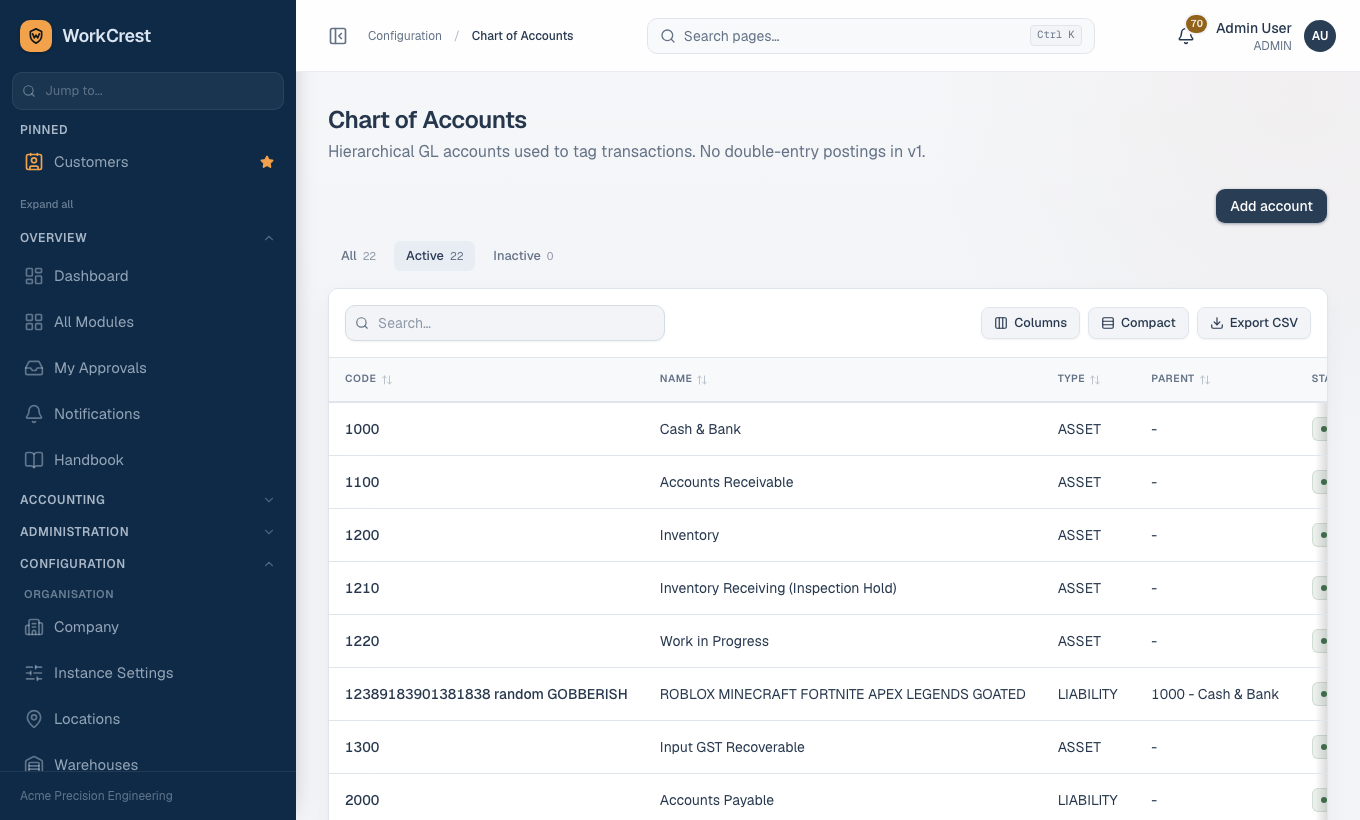
The chart of accounts is your list of ledger accounts. Open . Admin and Accounts can add and edit accounts.
What an account has
| Field | What to enter |
|---|---|
| Code | A short unique code, for example 1000 or 2000. No two accounts can share a code. Lists are sorted by code, so a consistent numbering scheme makes every picker easier to read. |
| Name | Plain-language name, such as "Cash & Bank". |
| Type | One of five: Asset, Liability, Income, Expense, Equity. The type decides how the account behaves in reports (see below). |
| Parent account | Optional. Pick a parent to group accounts under a heading; leave as "None (top-level)" otherwise. An account cannot be its own parent. |
| Active | Tick to make the account available in pickers. Untick to retire it. |
Choosing the type
| Type | Plain meaning | Normal balance |
|---|---|---|
| Asset | What the business owns or is owed: bank, receivables, stock, work in progress, recoverable GST. | Debit |
| Expense | What the business spends: purchases, services, variances, cost of goods sold. | Debit |
| Liability | What the business owes: payables, GST payable, goods received but not yet billed. | Credit |
| Income | What the business earns: sales. | Credit |
| Equity | Owner's capital and reserves. | Credit |
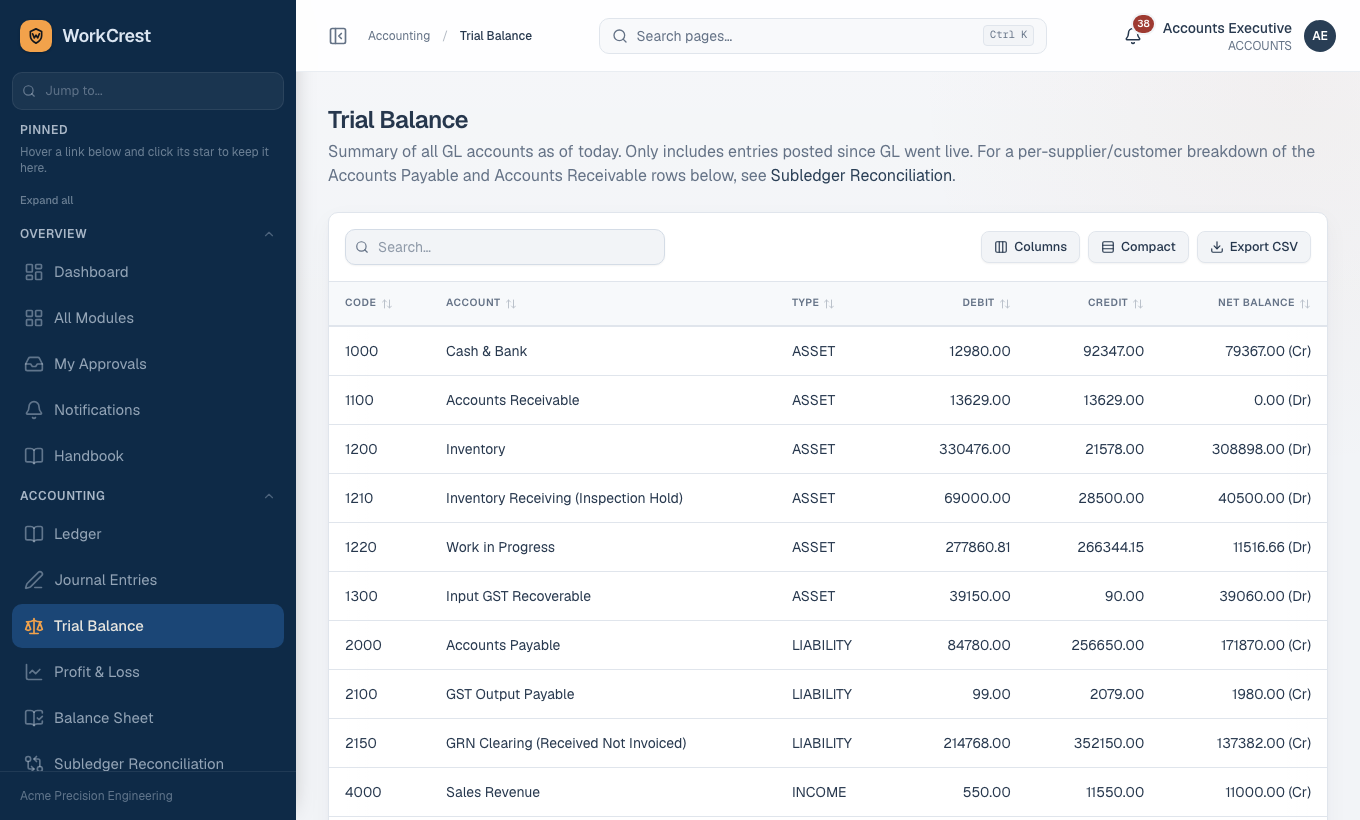
The Trial Balance uses this to print each balance as Dr or Cr: assets and expenses are shown as debit when positive; liabilities, income and equity as credit when positive. If a balance shows on the "wrong" side, the account is simply in the opposite position to its normal balance, which is worth a look but is not always an error.
Adding an account
- Open and choose Add account.
- Enter the code, name and type; choose a parent if you want grouping.
- Leave Active ticked and save.
Active and inactive
The list opens on the Active tab; use All or Inactive to see the rest. Only active accounts are offered when you map control accounts, so retire an account by unticking Active rather than reusing its code for something else. Entries already posted to an account stay in the ledger.
2. GL control accounts: telling documents where to post
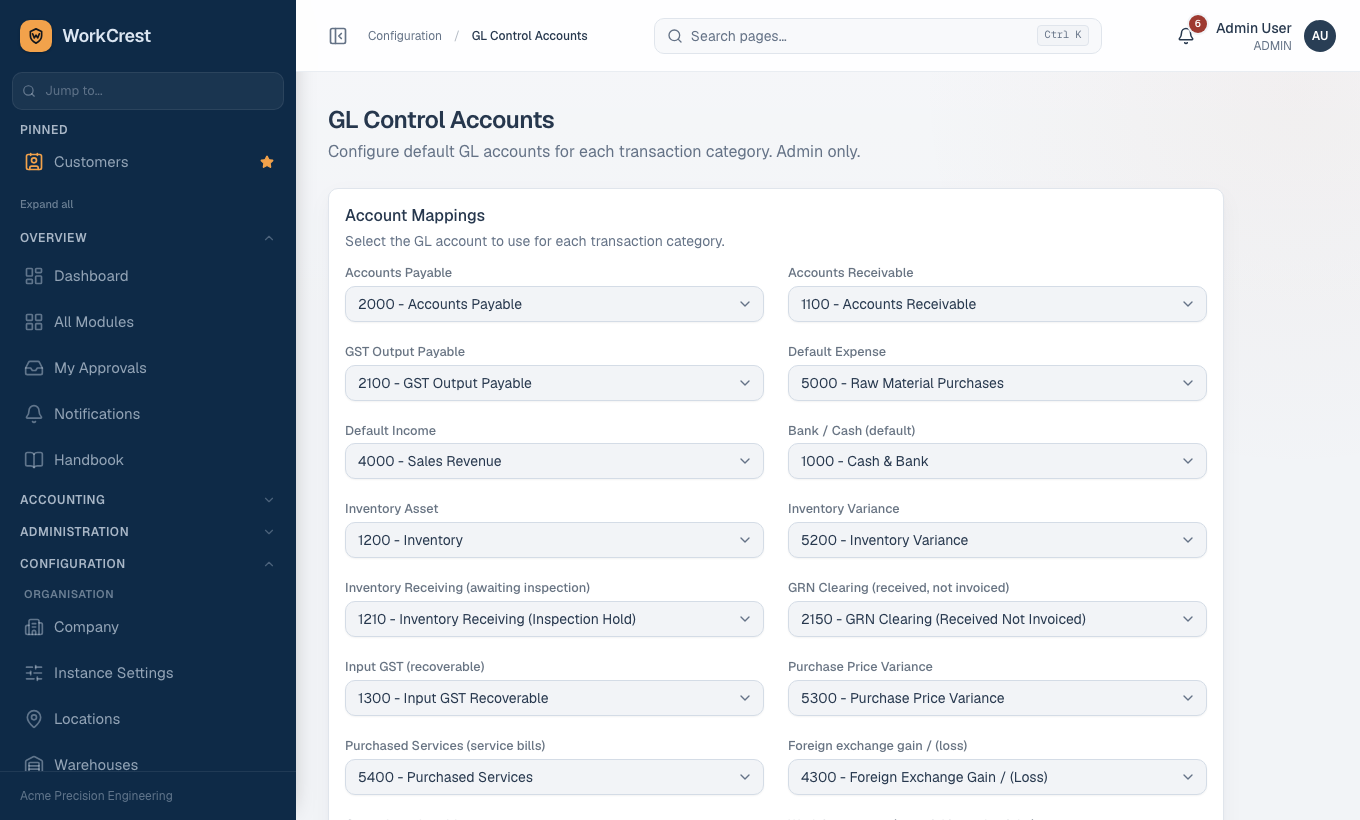
A control account is a purpose, such as "Accounts Payable", pointed at one real account from your chart. Documents never choose accounts themselves; they ask for the account that serves a purpose. Open . This screen is Admin only.
The full list of purposes
There is one drop-down per purpose. Names below are exactly as shown on the screen.
| Purpose on screen | Used for |
|---|---|
| Accounts Payable | What you owe suppliers. Credited when a supplier bill is approved and debited when a supplier payment is marked paid. |
| Accounts Receivable | What customers owe you. Debited when an invoice is issued, credited when a receipt is recorded. |
| GST Output Payable | GST you collect on invoices. Credited on an invoice, debited by a credit note. |
| Default Expense | Purchases that are not matched to received goods or a service, and payments to non-suppliers such as employee reimbursements. |
| Default Income | Sales value on invoices (before GST). Debited by credit notes. |
| Bank / Cash (default) | The account money leaves and enters. Receipts debit it; supplier payments credit it. |
| Inventory Asset | Stock on the books at standard cost. |
| Inventory Variance | Misc stock in/out, physical-count differences, and what is left in a job's work in progress at completion or cancellation. |
| Inventory Receiving (awaiting inspection) | Goods received for parts that need inspection, held here until accepted. |
| GRN Clearing (received, not invoiced) | The bridge between a goods receipt and the supplier's bill. Credited when goods arrive, debited when the bill is booked. |
| Input GST (recoverable) | GST you can claim back, from approved supplier bills. |
| Purchase Price Variance | The difference when a bill's price is not the PO price. |
| Purchased Services (service bills) | Cost of purchased service lines (outsourced work, repairs, freight), kept apart from raw materials. |
| Foreign exchange gain / (loss) | The rupee difference when a foreign-currency invoice is settled for more or less than it was booked at. |
| Cost of goods sold | Standard cost of goods dispatched to customers. |
| Work in progress (material issued to jobs) | Material issued to jobs, plus conversion cost and outside processing, until the job completes. |
| Conversion cost absorbed (machine / labour applied to jobs) | The credit side when machine, labour and tool time is applied to a job as an operation completes. |
| Quality scrap loss (scrapped non-conforming stock) | Loss on scrapping non-conforming stock that the supplier does not bear. |
| Quality rework cost (rework job cost beyond standard) | Where a rework job's leftover cost goes when the job completes, in place of the general variance account. |
Which document posts to which pair of accounts
Every posting is one balanced entry (total debits equal total credits). This is what each document does, in words you can check against your chart.
| Document and moment | Debit | Credit |
|---|---|---|
| Goods receipt, part received straight to stock | Inventory Asset | GRN Clearing |
| Goods receipt, part needing inspection | Inventory Receiving | GRN Clearing |
| Inspection accepted | Inventory Asset | Inventory Receiving |
| Supplier bill (goods matched to receipts) | GRN Clearing, with Purchase Price Variance for any price difference; Input GST | Accounts Payable (bill total) |
| Supplier bill (service line) | Purchased Services; Input GST | Accounts Payable |
| Supplier bill (any other line) | Default Expense; Input GST | Accounts Payable |
| Payment to a supplier, when marked paid | Accounts Payable | Bank / Cash |
| Payment to someone else, such as a reimbursement | Default Expense | Bank / Cash |
| Invoice, when issued (a Draft posts nothing) | Accounts Receivable (total) | Default Income (value); GST Output Payable |
| Receipt from a customer | Bank / Cash | Accounts Receivable; foreign exchange gain / (loss) on the difference for foreign-currency invoices |
| Credit note | Default Income; GST Output Payable | Accounts Receivable |
| Debit note | Accounts Payable | The same cost accounts the bill used |
| Purchase return | GRN Clearing | Inventory Asset |
| Dispatch of own stock (delivery challan) | Cost of goods sold | Inventory Asset |
| Sales return restocked | Inventory Asset | Cost of goods sold |
| Material issued to a job | Work in progress | Inventory Asset |
| Operation completed | Work in progress | Conversion cost absorbed |
| Outside service received against a job | Work in progress | GRN Clearing |
| Unused material returned from a job | Inventory Asset | Work in progress |
| Job completed | Inventory Asset (finished goods at standard cost); any remainder to Inventory Variance (or Quality rework cost for a rework job) | Work in progress |
| Job cancelled with work in progress | Inventory Variance (or Quality rework cost for a rework job) | Work in progress |
| Scrap of non-conforming stock | GRN Clearing if the supplier bears it, otherwise Quality scrap loss | Inventory Asset |
| Misc stock in, approved | Inventory Asset | Inventory Variance |
| Misc stock out, approved | Inventory Variance | Inventory Asset |
A part with a zero standard cost posts nothing on the cost side, because a journal line cannot be zero. If stock valuation looks low, check for parts with no standard cost.
3. Currencies and exchange rates
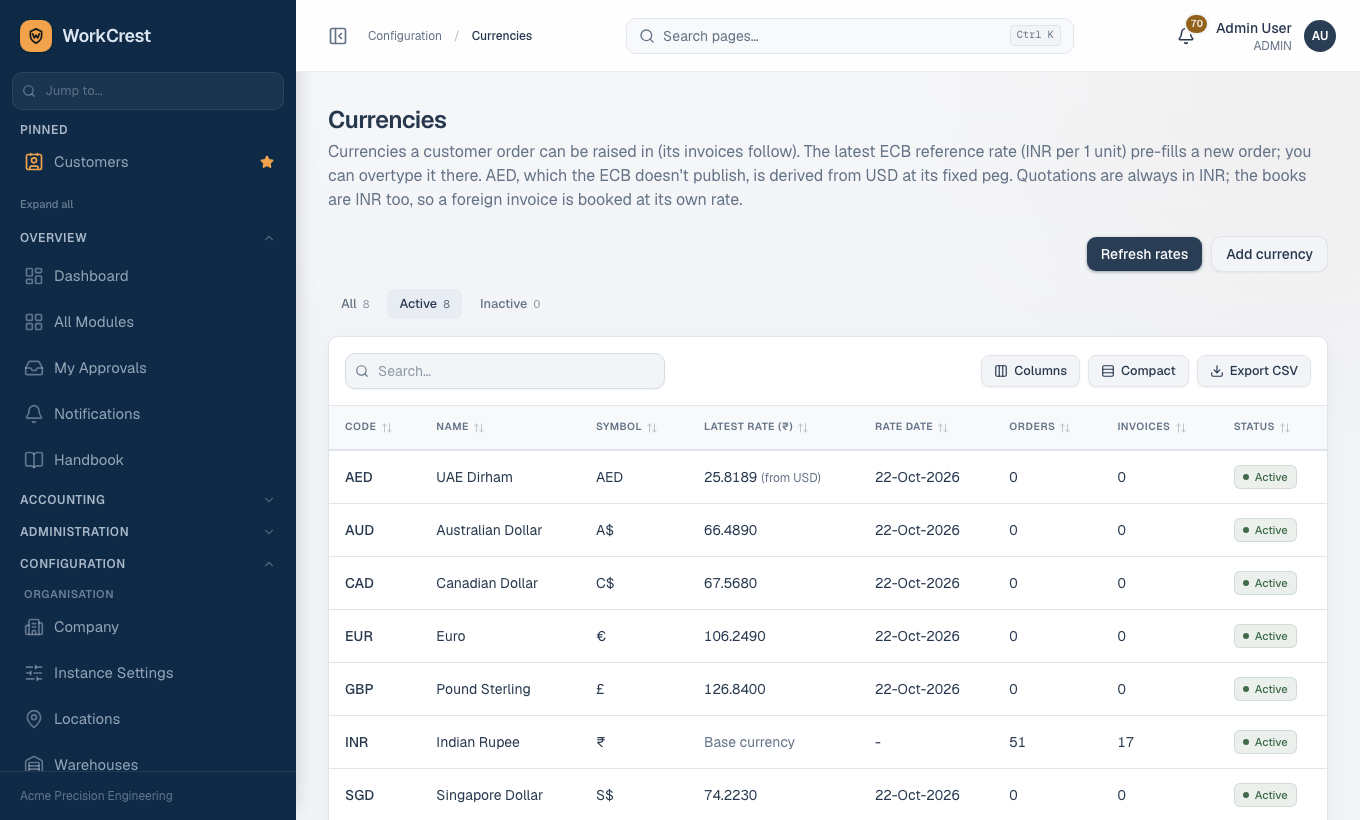
Open . The books are kept in Indian rupees. INR is the base currency: it cannot be deactivated and its code cannot be changed. Other currencies exist so that a customer order, and the invoices that follow it, can be raised in that currency.
- Each currency has a code, name, symbol and an Active flag. A currency's code cannot be edited once saved; add a new one instead. The list shows the latest rate (rupees per 1 unit), its date, and how many orders and invoices use the currency.
- Refresh rates pulls the latest European Central Bank reference rates.
- Rates also refresh automatically when the dashboard loads.
- A failed refresh is silent.
- AED is not published by the ECB, so it is derived from the US dollar at its fixed peg and marked "from USD".
- The ECB rate is only a suggestion. It pre-fills the rate on a new customer order, and you can overtype it. Quotations are always in rupees.
- Each document keeps its own rate.
- An invoice takes its currency from the order and records its own rate.
- The rate defaults to the order's. You can change it to the rate on the invoice date.
- Later changes to the master rates never alter a saved document.
- Every invoice amount is stored in rupees.
- That rupee value is what ageing, receipts, GST and the ledger use.
- When money is received, the difference between rupees received and the invoice's booked value goes to the foreign exchange gain / (loss) account.
- Credit notes against a foreign-currency invoice are in rupees.
4. The General Ledger
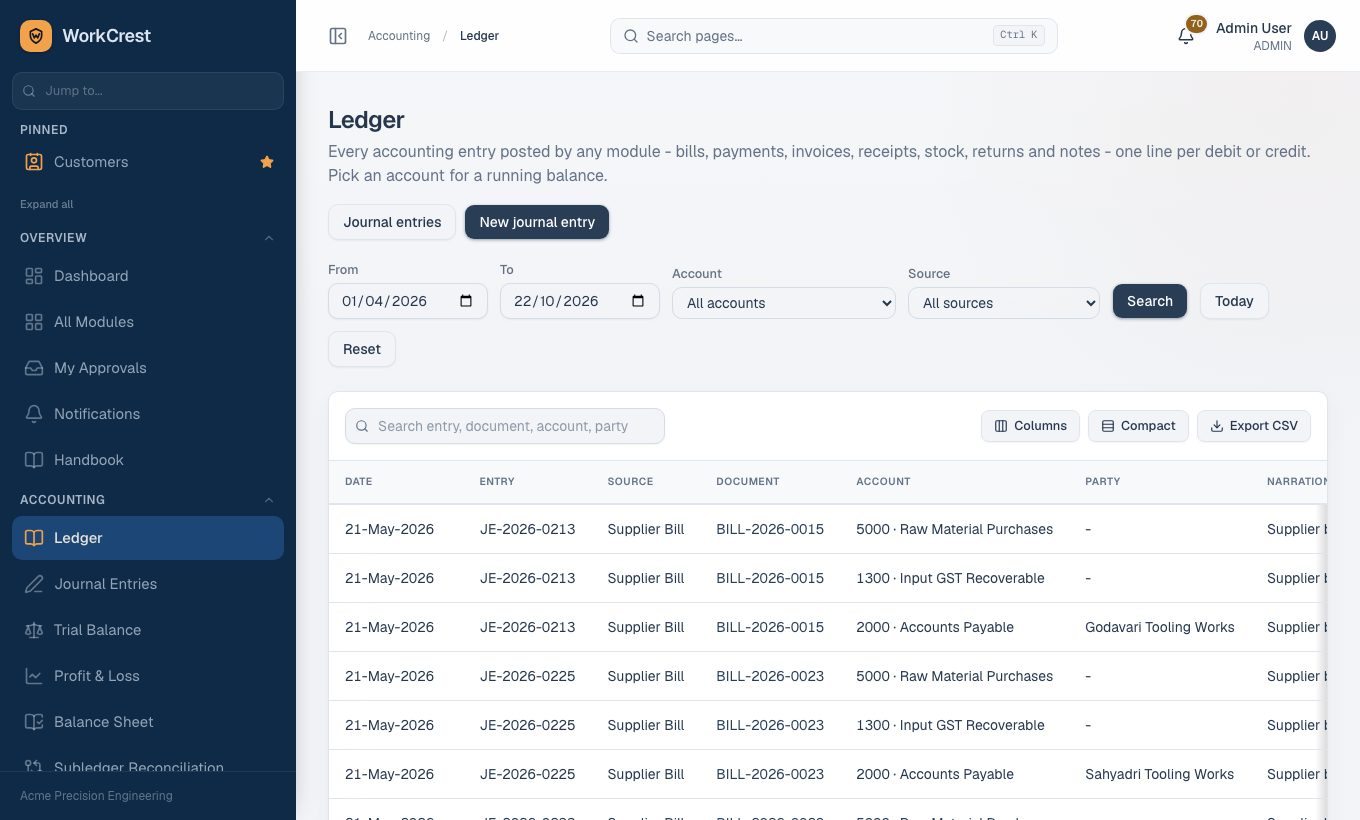
Open . It lists every accounting entry posted by any module, one line per debit or credit.
How to read an entry
| Column | Meaning |
|---|---|
| Date | The posting date: the date of the business event (bill date, payment date, receipt date and so on), stored as a whole day. Lines on the same day sort by entry number. |
| Entry | The journal entry number. All lines with the same entry number belong together and add up to equal debits and credits. |
| Source and Document | The kind of document that caused the entry (supplier bill, payment, invoice, receipt, goods receipt, credit note and so on) and its number, so you can trace any line back to its paper. |
| Account | Code and name from the chart. |
| Party | The supplier or customer, shown on the payable and receivable lines. |
| Narration | A short description written by the posting. |
| Debit / Credit | The amounts. Each line has one or the other. |
Using it
- Set From and To dates (the default is the current financial year to date).
- Optionally pick an Account or a Source, then press Search.
- When one account is selected you also see an opening balance at the start date and a running balance column. That balance is hidden while a text search is active, because it only means something over the whole account.
- Use Export CSV to take the filtered lines to a spreadsheet.
The ledger is append-only. Nothing is edited or deleted. Cancelling a document posts a mirror-image entry that reverses it, so you will see the original and the reversal side by side.
5. Trial Balance
Open . It lists every account that has postings, with total debits, total credits and the net balance marked Dr or Cr, as of today. At the bottom are total debits, total credits and a Balance Check that shows Balanced or Out of Balance.
What "debits = credits" proves, and what it does not
- It proves that every entry was posted in balance: nothing was recorded on one side only.
- The system refuses to save an unbalanced entry.
- If Out of Balance ever appears, something is seriously wrong. Raise it with your administrator.
- It does not prove that the right accounts were used, that nothing was missed, or that amounts are correct. A bill posted to the wrong expense account still balances. So read the balances, not just the footer.
Things to check as an accountant:
- Receivables and payables are on their normal side.
- GRN Clearing is a credit that falls as bills arrive.
- Work in progress is not growing without bound.
- The foreign exchange account is small.
- Stock agrees with the stock valuation report.
For a month-end routine see the month-end checklist.
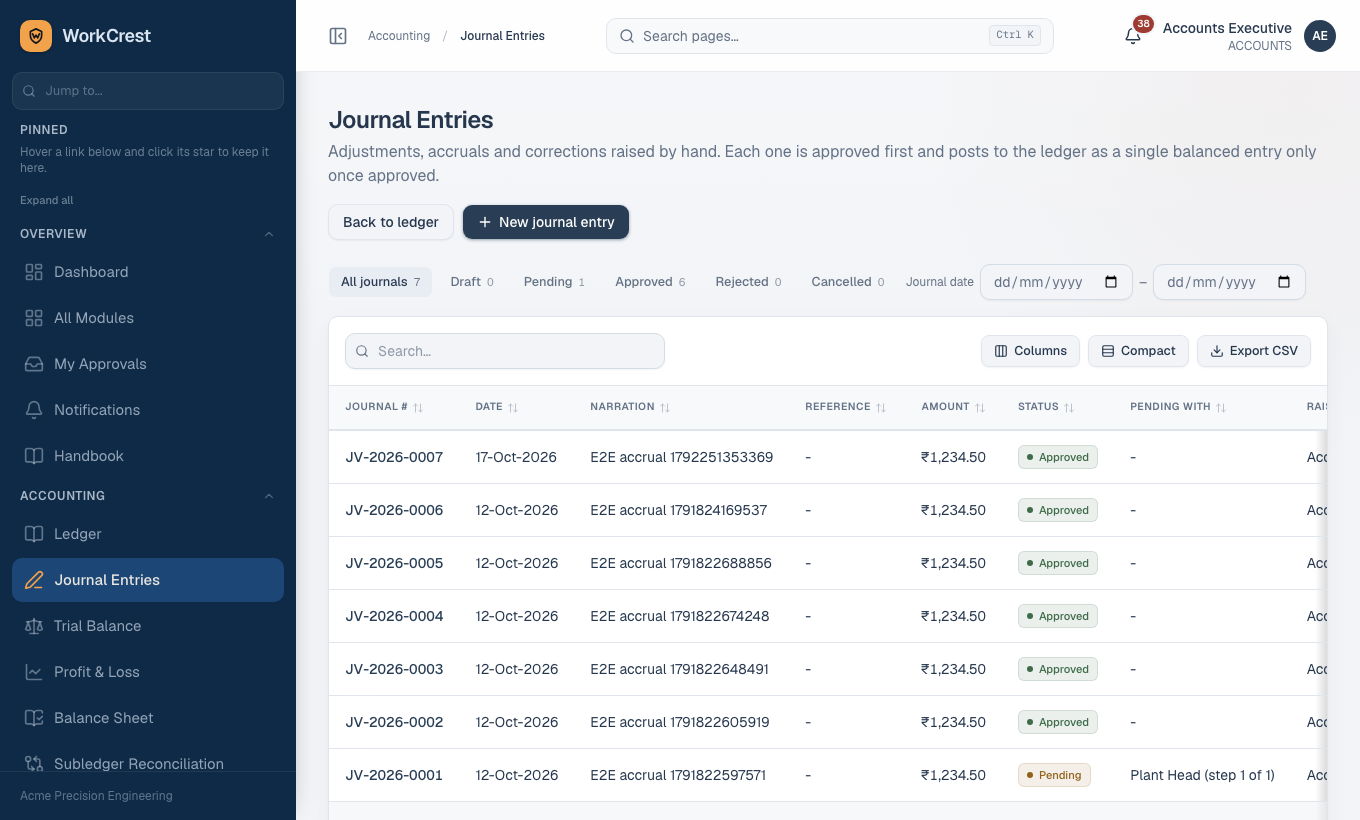
6. Manual journals (maker-checker)
For adjustments, accruals and corrections that no document covers, use and New journal entry. Accounts or Admin draft the journal; someone else approves it.
- The journal needs a reason, because it bypasses every module's own checks.
- The form and the server both check these rules:
- Debits equal credits.
- Each line has one side only.
- An Accounts Payable line names a supplier, and an Accounts Receivable line names a customer.
- No other account carries a party.
- A draft goes through the approval flow. It reaches the ledger only when finally approved, as a single balanced entry. Pending, rejected and cancelled journals post nothing. The person who raised it cannot approve it.
- Posted journals appear in the Ledger with source "Manual" and the journal number (JV-year-number).
- To undo a posted journal, draft a reversing journal; it needs its own approval.
7. Payables and receivables reconciliation
The ledger has a single Accounts Payable account and a single Accounts Receivable account. To see who owes what, supplier and customer lines carry a party tag.
Open to compare, per supplier and per customer, the ledger balance against the document balance.
- A difference of less than one paisa counts as reconciled. Anything larger means a posting and a document disagree: investigate it.
- Older entries with no party tag are shown separately as unassigned rather than hidden.
- Draft invoices are not receivables and are not in the comparison.
8. Before go-live accounting checklist
| # | Check | Where |
|---|---|---|
| 1 | Chart of accounts is complete, with unique codes and the right type on every account. | |
| 2 | Accounts exist for every purpose in the control account list, including stock, work in progress, GST both ways, GRN clearing, variances, exchange difference and the quality accounts. | |
| 3 | All 19 control accounts are mapped, by an Admin, to the right accounts. | |
| 4 | Currencies you trade in are active; rates have been refreshed once. | |
| 5 | Company state and financial year start are right (they drive GST split and document numbering). See master data setup. | |
| 6 | Parts have standard costs, or you accept that cost postings skip them. | Parts master |
| 7 | Post one test of each: a goods receipt, a supplier bill, a payment, an invoice and a receipt. Check each in the Ledger. | |
| 8 | Trial Balance shows Balanced and Subledger Reconciliation shows no differences. | , |
| 9 | If opening balances are needed, enter them as an approved manual journal. | |
| 10 | Approval rules and Accounts users are set up. See the Accounts role guide. |
9. Common mistakes
| Mistake | What happens | Fix |
|---|---|---|
| A control account left unmapped | The first document needing it fails to save with a "not configured" message. | Map it at GL Control Accounts (Admin). |
| Wrong account type on a new account | Balances show on the unexpected side and profit and loss groups it wrongly. | Correct the type before posting to it. |
| Pointing two purposes at the same account | Reports can no longer separate them, for example price variance from stock variance. | Give each purpose its own account. Each account can serve only one purpose. |
| Expecting a Draft invoice in receivables | It is not there until it is issued. | Issue the invoice. |
| Expecting a pending bill, payment or journal in the ledger | Nothing posts until approval (and, for a payment, until it is marked paid). | Clear . |
| Relying on the balance check alone | A wrongly coded entry still balances. | Read the account balances too, and run the reconciliation. |
| Typing a foreign rate once and forgetting it | The invoice is booked at its own rate; the master rate does not change it. | Check the rate on the invoice itself before issuing. |
| Trying to delete or edit a posted entry | The ledger cannot be edited. | Cancel the document (this reverses it) or raise an approved manual journal. |
For the routine that follows go-live, see the month-end checklist; for daily Accounts tasks, the Accounts role guide.