Training home / Accounts
Guide for Accounts
Bills, payments, invoices, receipts, journals and the books.
At a glance
- Your main tasks: Enter and approve supplier bills, pay suppliers, issue invoices, record receipts, post manual journals.
- Before you start: Bills up to Rs 50,000 go to the Plant Head; above that the Admin also approves. Open first.
- Watch out for: A Draft bill or invoice is not in the books. Bills post on final approval; invoices post only when issued.
Who this is for and what you can open
You use the Accounts role. Admin can do everything you can. Some screens are also open to Sales or Procurement; ask an Admin if one is missing (Administration, Page Access).
| Menu section | Screens |
|---|---|
| Payables | Supplier Bills , Payments , Debit Notes , Upcoming Payments , Payables Ageing , Supplier ledger |
| Receivables | Invoices , Receipts , Credit Notes , Receivables Ageing , Customer statement |
| Accounting | Ledger , Journal Entries , Trial Balance, Profit & Loss, Balance Sheet, Subledger Reconciliation, Open GRN Clearing, Document Register, GST and HSN summaries, Sales and ITC registers, Stock Valuation, Credit Utilisation |
| Configuration | Chart of Accounts , Currencies |
| Everyone | My Approvals , Reimbursements , Notifications |
GL Control Accounts () are set up by an Admin. You normally never touch them, but they decide which ledger account each document posts to.
1. Enter and approve a supplier bill
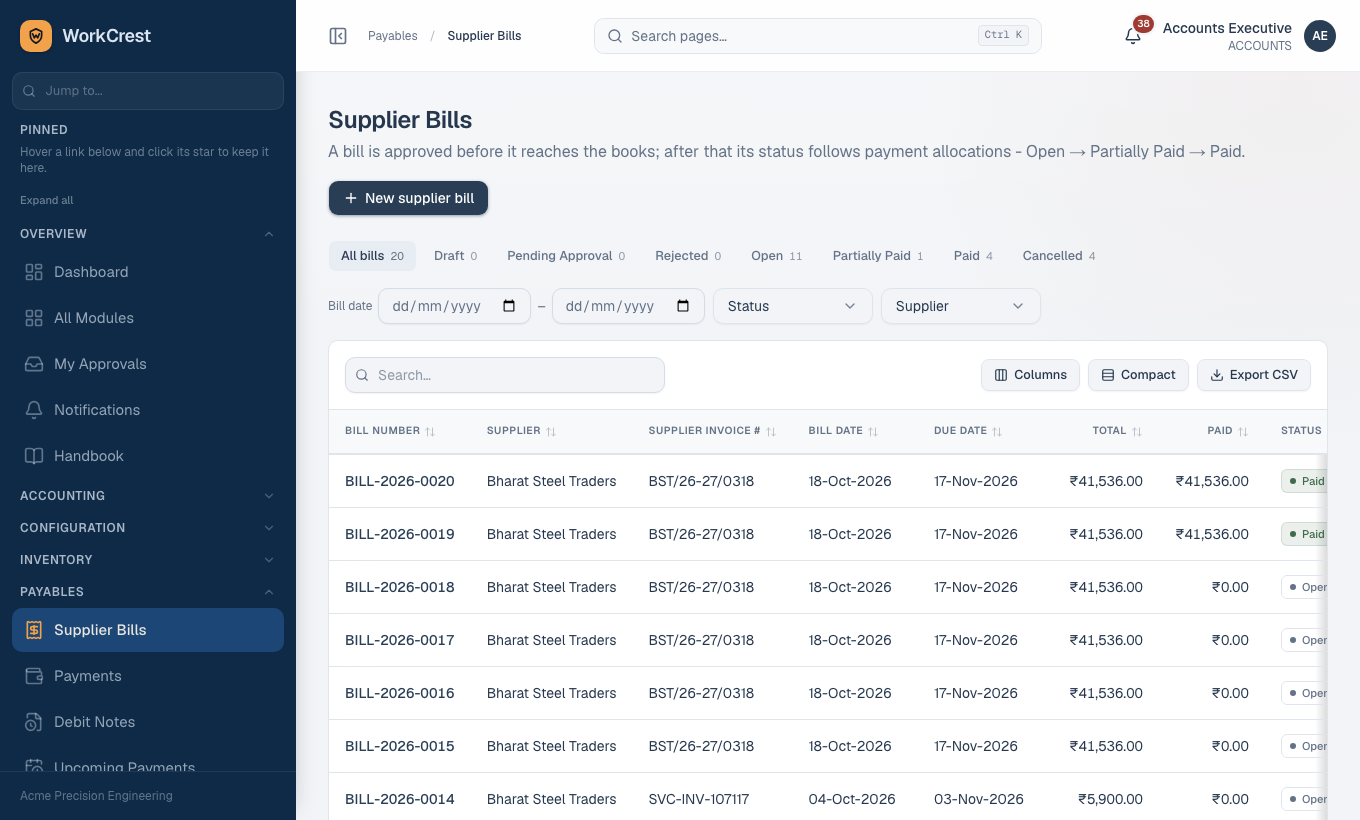
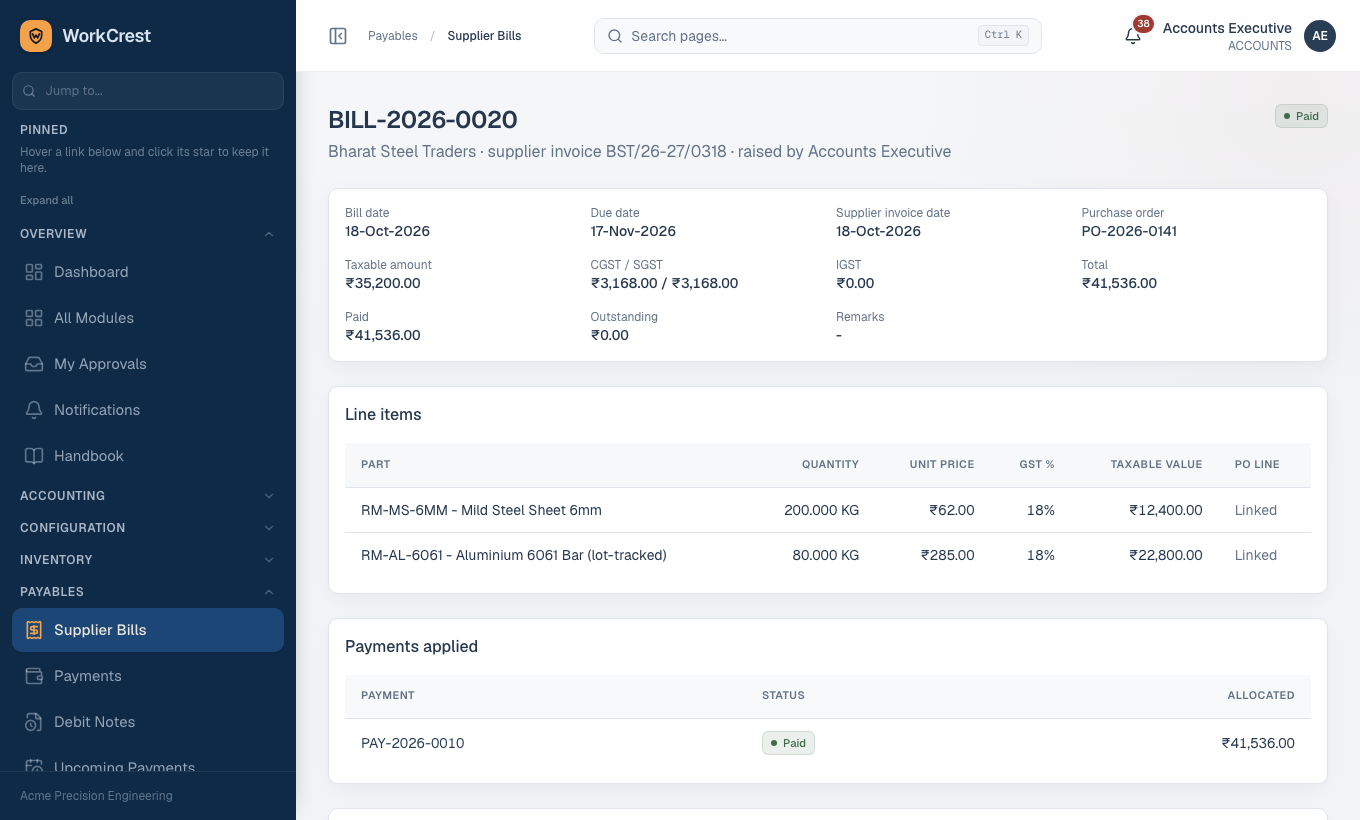
- Open Supplier Bills and start a new bill. Pick the supplier and, where the bill is for goods you ordered, the purchase order. GST (CGST+SGST, or IGST) is split once, when the bill is created.
- Save. The bill is a Draft. It is not in the books yet, and does not show in ageing, the payment picker, the supplier ledger or debit notes.
- On the bill page click Submit for approval. Up to Rs 50,000 goes to the Plant Head; above that the Admin also approves.
- When the last approver approves, the bill is posted to the books automatically and the PO's received/billed position is updated.
A Draft, Pending or Approved bill still reserves quantity against over-billing. A Rejected or Cancelled bill releases it. Cancelling an unapproved bill needs no reversal; cancelling an approved one posts a reversing entry.
Bills for goods against a PO are matched to what was received. If the price differs from the PO, the difference goes to a price-variance account. For an outside-processing service, billing cannot exceed the quantity received.
2. Pay a supplier
- Open Payments and create a payment. Choose the payee and the bills to allocate against. The payment type and the bank/cash account are chosen for you.
- Save as draft, then Submit for approval. Approval is the same engine as for POs.
- After approval the payment is only earmarked. The bill's paid amount does not change yet.
- When the money has actually gone out, open the approved payment and click Mark as paid. Enter the actual payment date and reference number. Now the bill's paid amount and status move and the books are posted.
Employee reimbursement: an Approved claim (from ) is paid by choosing
Employee as payee on a new payment and picking the claim. The amount must match the claim exactly. Marking the payment paid flips the claim to Paid.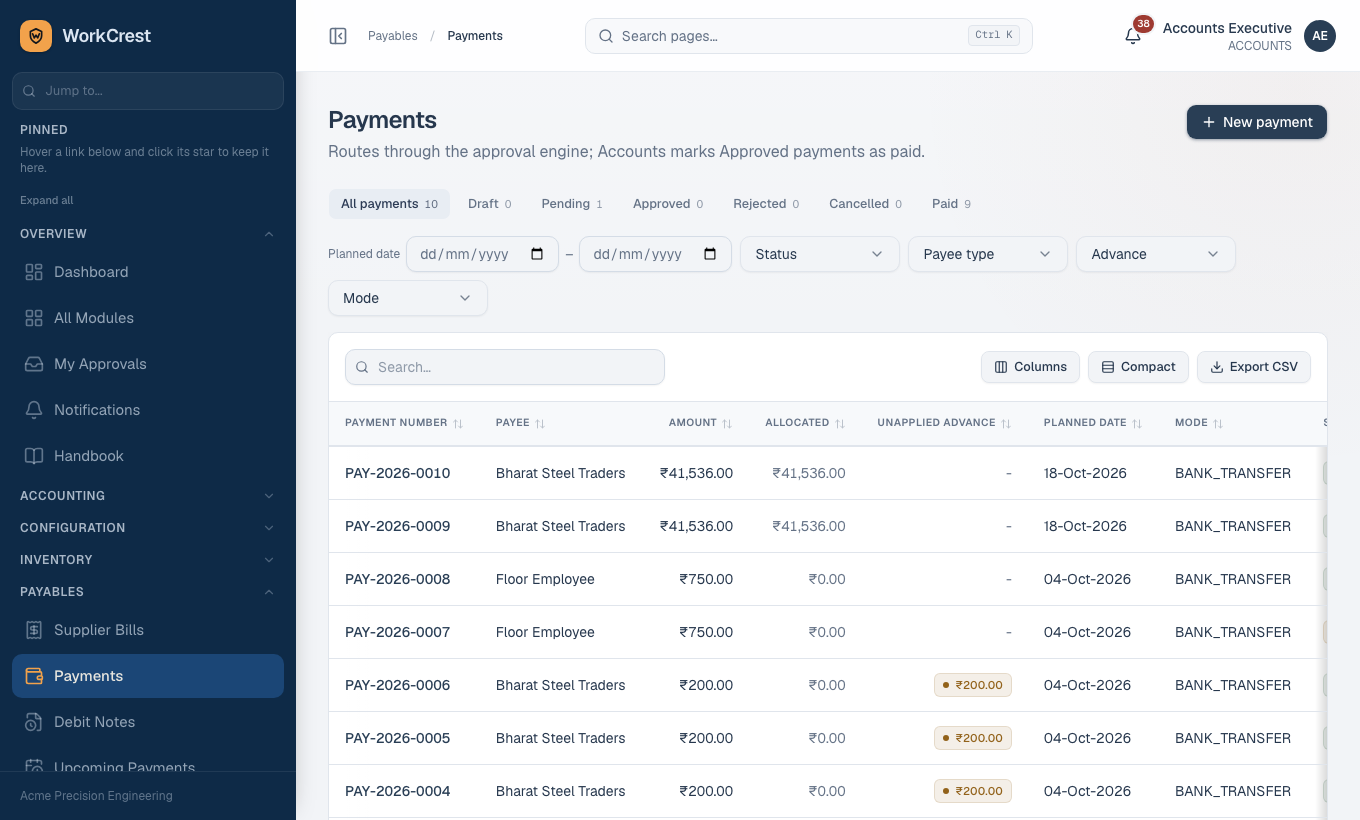
3. Supplier advances
If you pay before the bill arrives, the unallocated part of a paid payment is an advance. It is worked out on demand, never typed in.
- Look for the Unapplied badge or filter on , or the advances table on Payables Ageing.
- When the bill is entered, an apply banner shows on the bill page (and a note on New Bill). Apply the advance there.
- Applying moves the bill's paid amount straight away. It adds no new journal entry because the payment already reduced the payable.
Applications are add-only: you cannot undo one. You get a notification when an advance is waiting, and again if it stays unapplied for a long time.
4. Customer invoices: draft versus issue
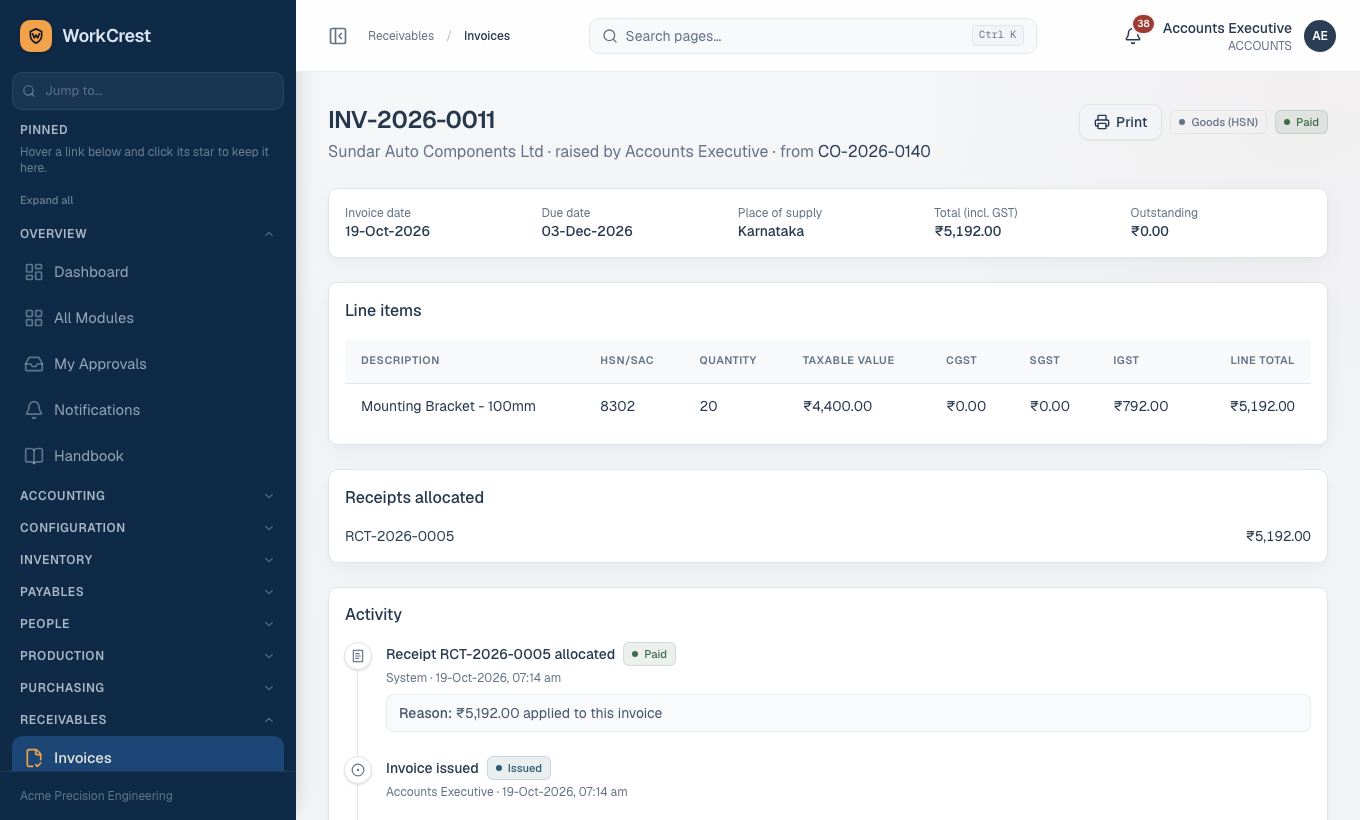
- Open Invoices and create from a Customer Order. Or use Create invoice on a delivery challan to prefill its delivered quantities.
- Goods lines are limited to what was delivered less what is already invoiced.
- Service lines are limited to what is marked done.
- The invoice starts as a Draft. You can Add lines or Cancel invoice; a draft is not a receivable, so nothing is in the books and it is left out of customer statements and ageing.
- Click Issue invoice. Only now does the one journal entry post (Dr Receivables, Cr Income and GST Output). GST is calculated per line, on the rupee value, and HSN/SAC codes are copied onto each line.
- For a foreign-currency order, the invoice keeps the order's currency but books in rupees. You may change the invoice's own exchange rate to the invoice-date rate.
Only a Draft invoice can be cancelled. To correct an issued invoice use a credit note.
Credit exposure counts drafts on purpose. Issuing an invoice over a customer's credit limit shows a warning, or blocks it, depending on the instance setting.
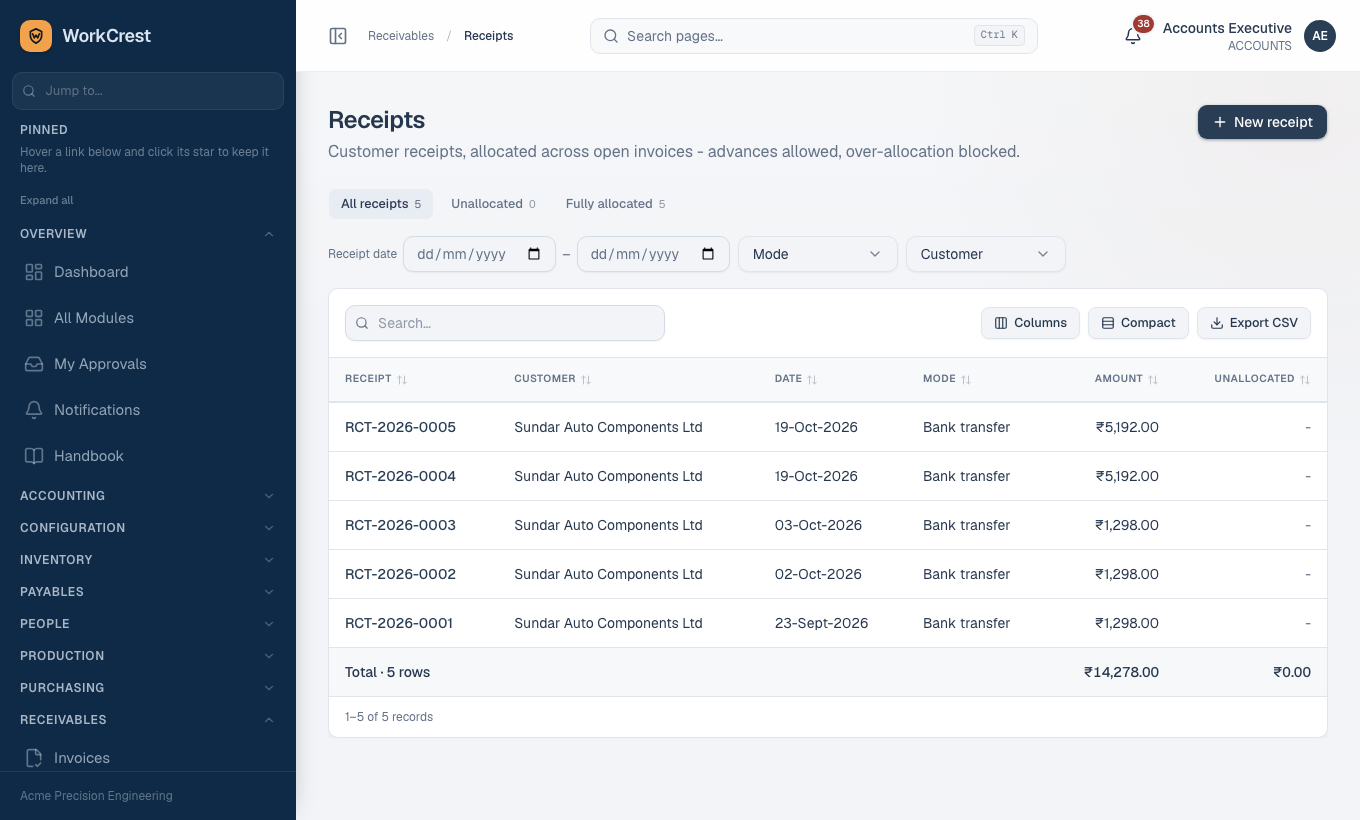
5. Receipts and allocations
- Open Receipts and record money that has already arrived. Pick the customer and the invoices it pays.
- Allocation takes effect immediately. Allocations cannot be edited later.
- If part of the receipt is not allocated, open the receipt and use the allocate-remaining form later.
- Foreign-currency invoices: enter the exchange difference in rupees.
- It is the rupees actually received minus the invoice's booked value.
- Plus is a gain; minus is a loss.
- It is posted to the FX gain/loss account, so the receivable still clears to zero.
6. Credit notes and debit notes
- Credit Notes (, also open to Sales): start from an issued or part-paid invoice (the invoice page has Create credit note). It reduces what the customer owes.
- Debit Notes (, also open to Procurement): start from an approved supplier bill. It reduces what you owe the supplier.
Credit notes against a foreign-currency invoice stay in rupees.
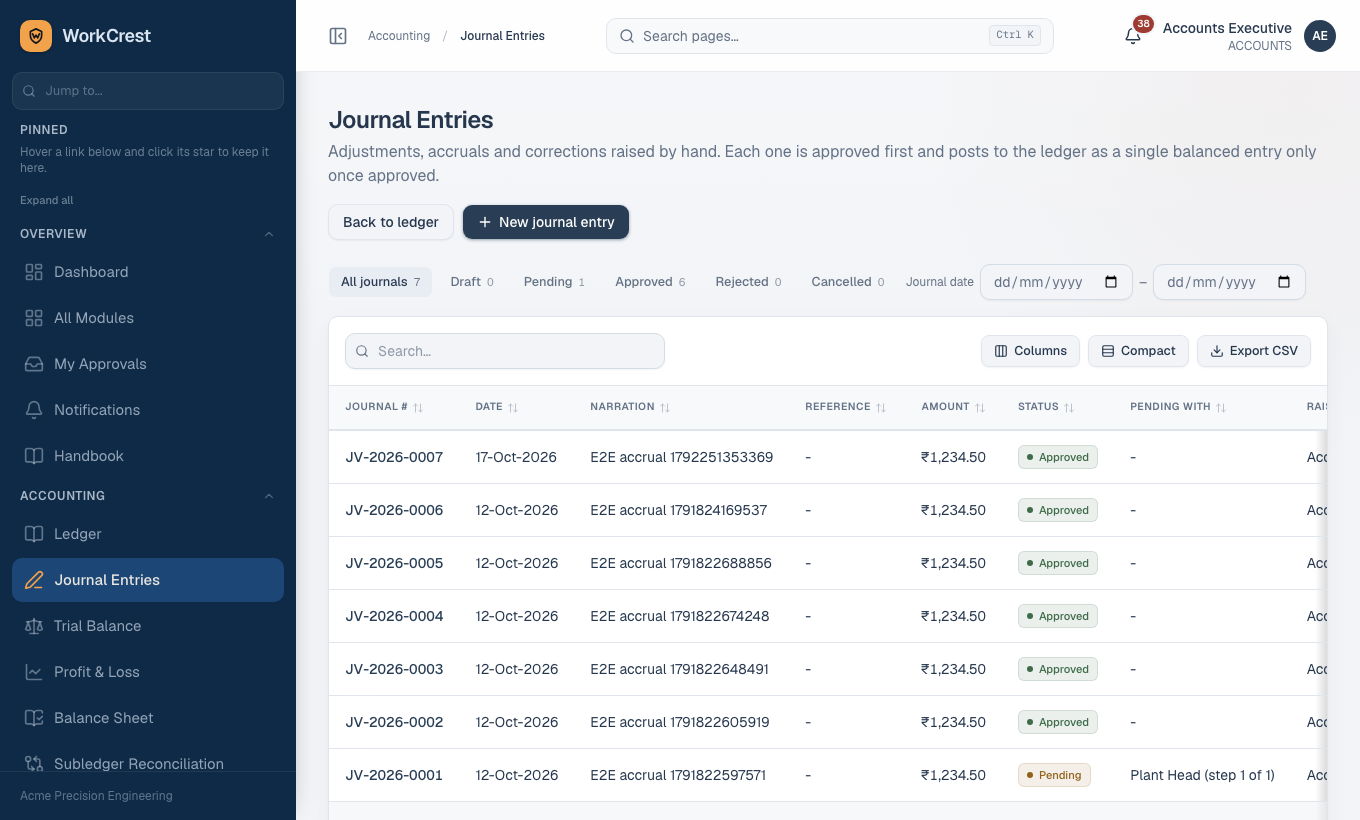
7. Manual journals
- Open Journal Entries () and create a journal.
- Debits must equal credits.
- Each line is debit or credit.
- A line on the payables account needs a supplier; one on receivables needs a customer.
- Click Submit for approval. Nothing reaches the ledger until the final approval.
- To undo a posted journal use Reverse this entry. That drafts a mirrored journal which needs its own approval.
Manual journals normally need a different approver. If your Admin has turned on auto-approve for sensitive items, the rule may differ.
8. Ageing, ledgers and statements
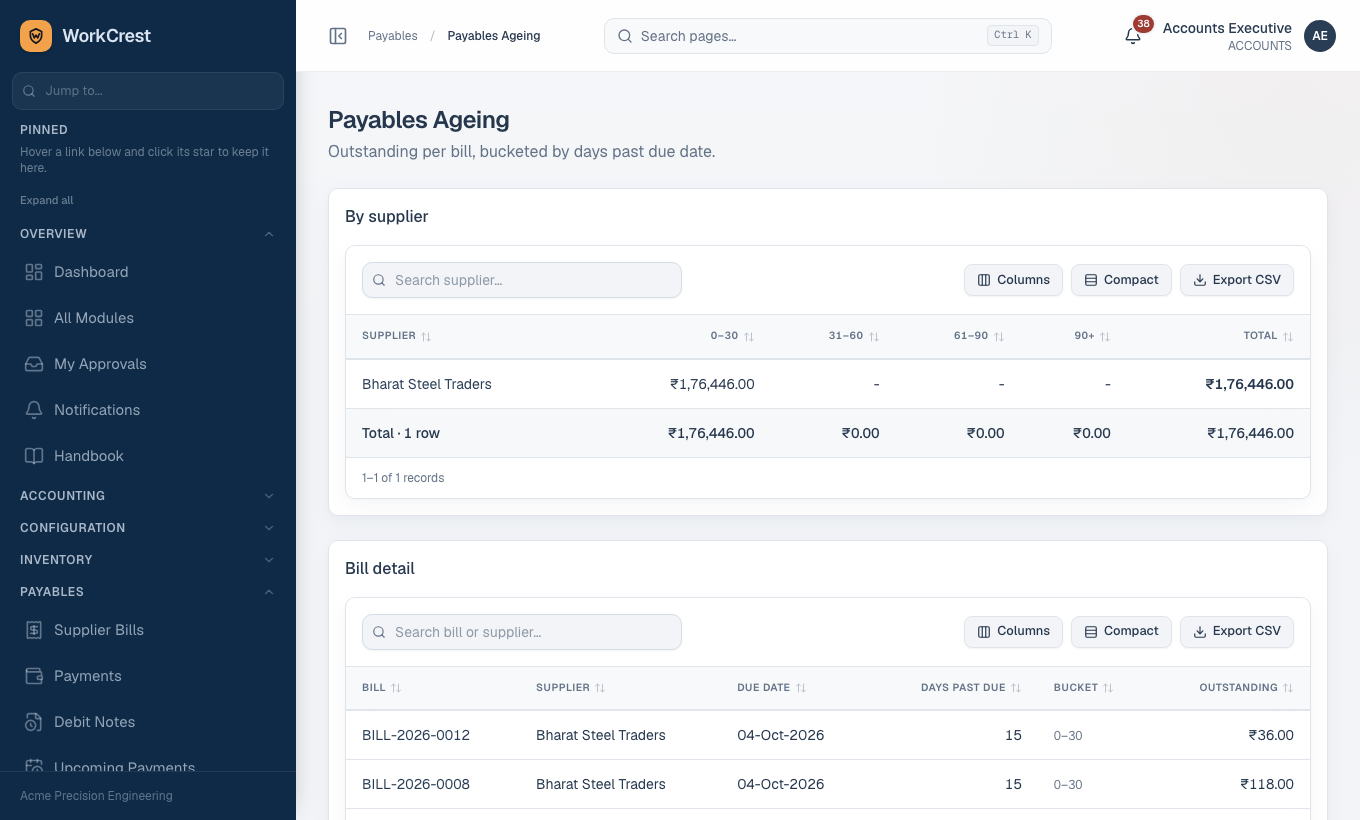
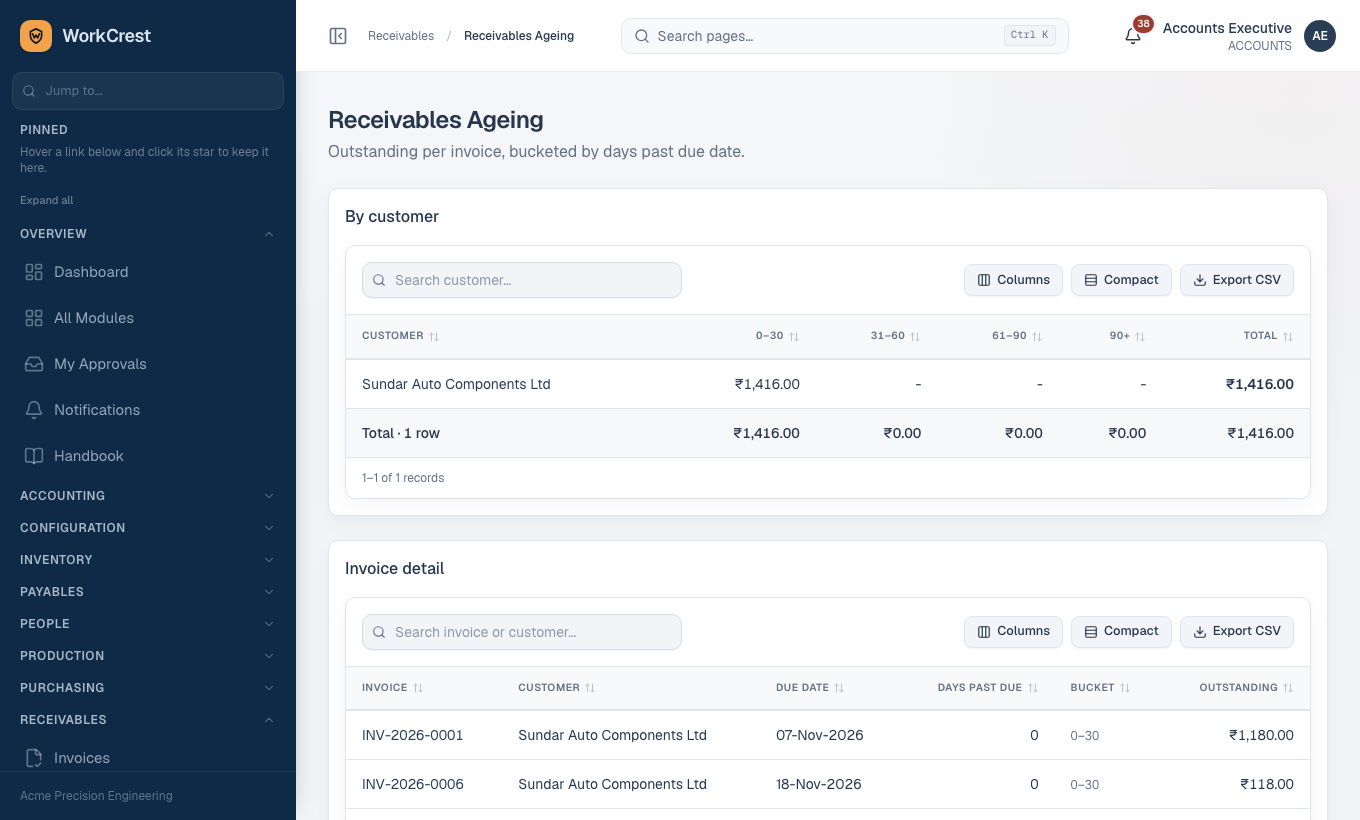
- Payables Ageing and Receivables Ageing show 0-30, 31-60, 61-90 and 90+ days. Use Export CSV for Excel. Payables ageing also lists unapplied advances.
- Click a supplier to see the supplier ledger: POs, bills, payments and net position. Click a customer for the statement: invoices as debits, receipts as credits, running balance.
- Upcoming Payments lists what falls due soon.
9. The books
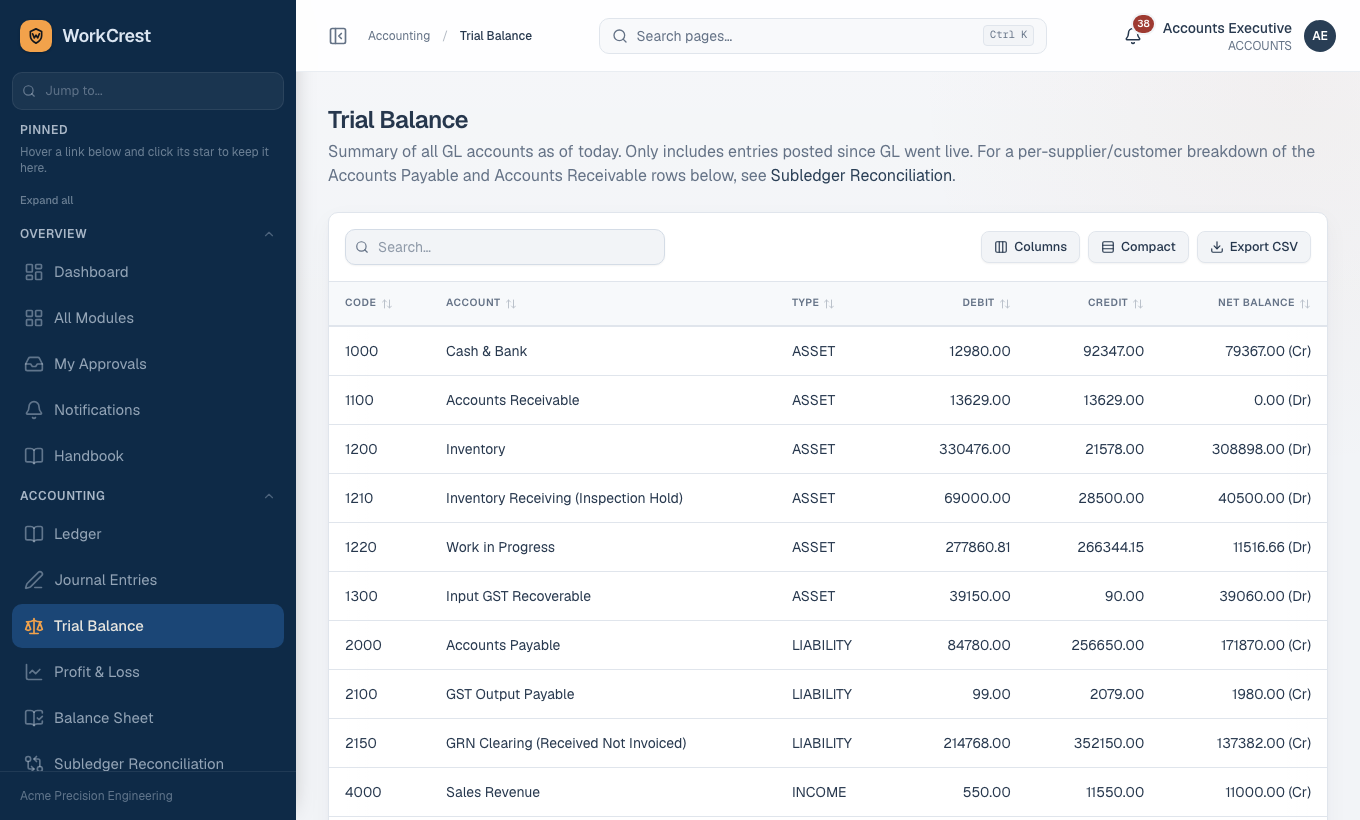
- Ledger shows every journal line. Trial Balance lists every account with a check that total debits equal total credits.
- Profit & Loss and Balance Sheet are built from the same ledger.
- Subledger Reconciliation compares each supplier's and customer's ledger balance with their documents. Older entries without a party show under an "unassigned" bucket.
- Open GRN Clearing shows goods received but not yet billed.
- GST Summary, HSN Summary, Sales Register and ITC Register are working summaries, not filing returns. Reverse charge and ITC eligibility are not modelled.
10. Cost visibility
Standard costs, resource rates, job costs and valuation are visible only with the View costs permission. Accounts and Admin have it by default. If a cost column is blank or zero for a colleague, they lack this permission. An Admin can grant it at .
Why can't I...
| Problem | Reason |
|---|---|
| See a new bill in ageing or the payment picker | It is not approved yet. |
| Mark a payment paid | It must be approved first. Only Accounts and Admin can mark paid. |
| Approve my own submission | Self-approval is blocked unless an Admin enables it in Instance Settings. |
| Cancel an invoice | Only a Draft can be cancelled. Raise a credit note for an issued invoice. |
| Save a journal | It does not balance, or a payables/receivables line has no party. |
| Pay a reimbursement for a different amount | Partial reimbursement is not supported; the amount must equal the claim. |