Training home / Planning what to buy, make and deliver
Planning what to buy, make and deliver
Six screens that tell you what is running short, what is arriving late and what must go out this week.
- Who it is for: Plant, Procurement, Accounts and Admin, who plan stock, buying and deliveries.
- What you can do: spot reorder needs, late supply and due deliveries, run stock counts and review rejections and scrap.
- What you need first: reorder levels and lead times set on the part, and expected dates on purchase orders.
The big picture
WorkCrest watches your own stock, your approved purchase orders, your open jobs and your customer orders. These screens turn that data into a to-do list.
| Screen | Where to find it | The question it answers |
|---|---|---|
| Reorder Alerts | Which parts are below their reorder level right now? | |
| Min/Max Planning | How much should I order to get each part back up to its maximum? | |
| Supply & Demand | Will supply cover everything customers and jobs need, and on time? | |
| Delivery Schedule | What must ship, and what must arrive, and what is overdue? | |
| Physical Inventory | Does the shelf match the book, and how do I correct it? | |
| Rejections & Scrap | Where are we losing material to bad supply, returns and scrap? |
Before you start: set the numbers on the part
Reorder Alerts and Min/Max Planning only work for parts that have the right numbers filled in.
- Open the part () and choose to edit it.
- Fill in Reorder level for Reorder Alerts.
- Fill in Min quantity and Max quantity for Min/Max Planning.
- Save. Only active, stockable parts appear on these screens. Services and deactivated parts are left out.
1. Reorder Alerts
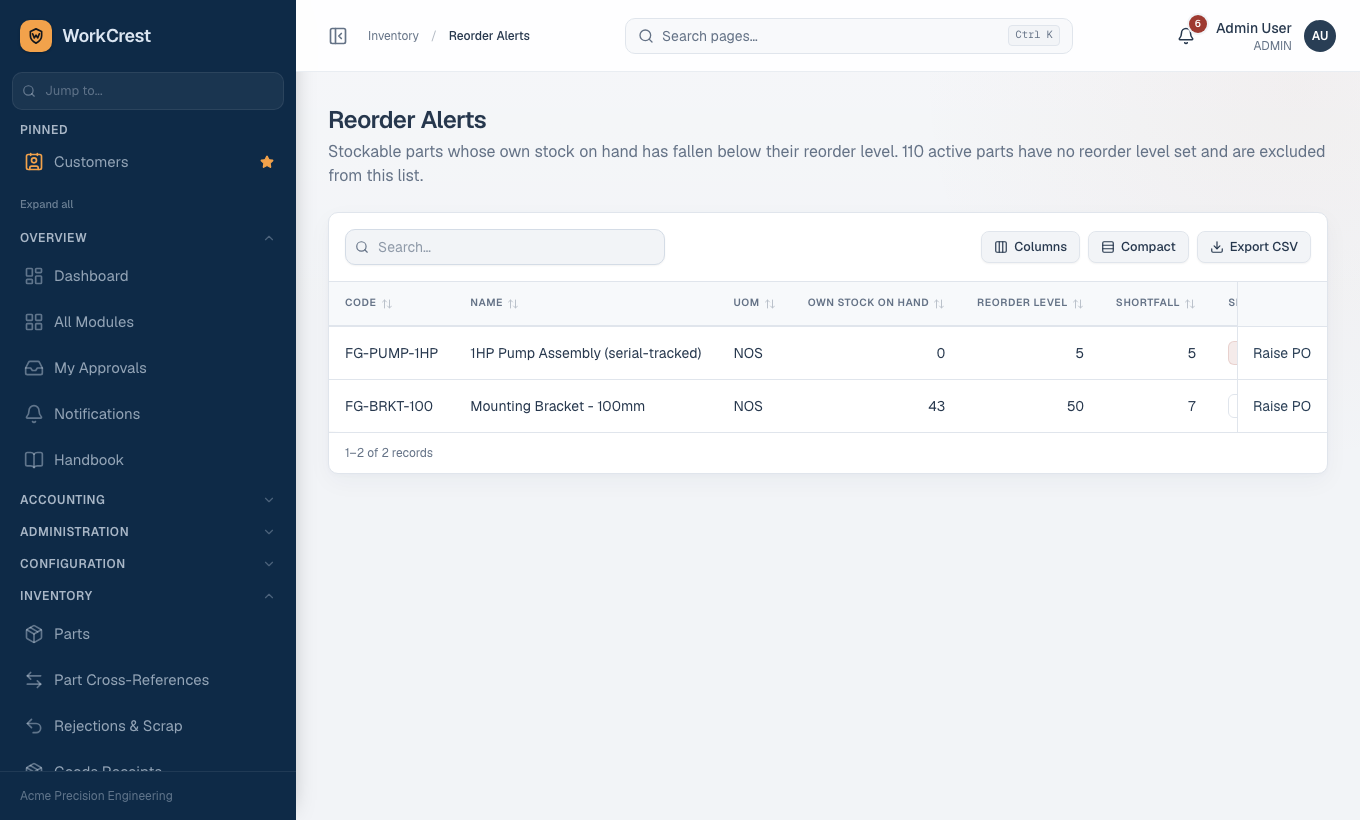
Purpose. A simple list of parts whose own stock on hand has fallen below the reorder level you set. Who can open it: Procurement, Sales, Plant, Accounts and Admin.
How to read it
| Column | What it means |
|---|---|
| Code, Name, UoM | The part and its unit of measure. |
| Own stock on hand | Your own stock across all warehouses, not counting the Receiving warehouse. |
| Reorder level | The level you set on the part. |
| Shortfall | Reorder level minus stock on hand. |
| Severity | Out of stock (red) means nothing is on hand. Below reorder means some stock remains but under the level. |
| (last column) | A Raise PO link, or "Not purchasable" if the part is made in-house. |
The list is sorted with out-of-stock parts first, then by how large the shortfall is compared with the reorder level. A line at the top of the page tells you how many active parts have no reorder level and are therefore not checked.
What to do
- Start at the top of the list.
- For a bought part, click Raise PO. A new purchase order opens with the part and the shortfall quantity filled in.
- For a part you make, create a stock job instead (see the Plant guide).
2. Min/Max Planning
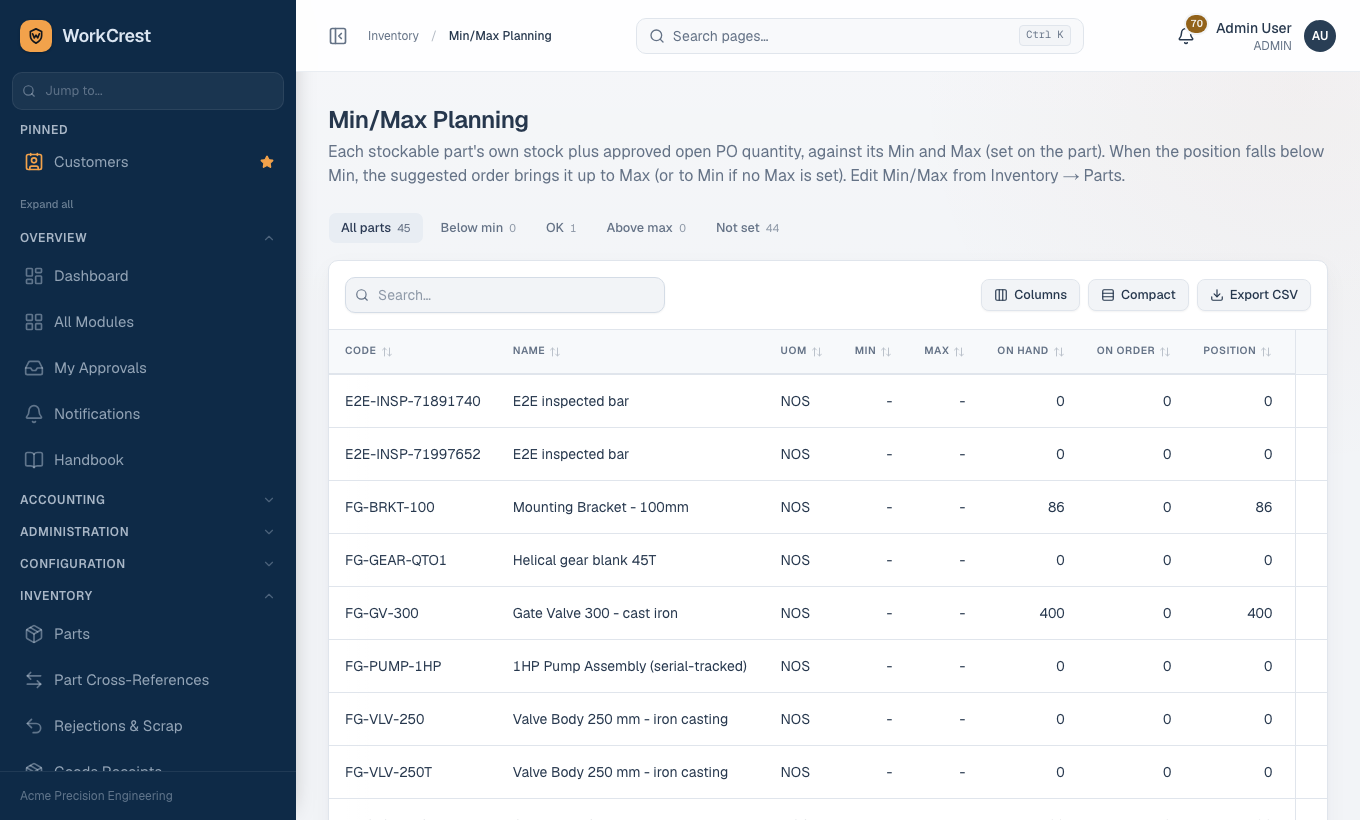
Purpose. Like Reorder Alerts, but smarter: it adds the quantity already on approved purchase orders, so stock that is on its way does not trigger a second order. Who can open it: Procurement, Sales, Plant, Accounts and Admin.
How to read it
| Column | What it means |
|---|---|
| Min, Max | The limits set on the part. A dash means not set. |
| On hand | Your own stock, excluding the Receiving warehouse. |
| On order | Quantity still to arrive on approved purchase orders that are open or partly received. Draft and pending orders are not counted. |
| Position | On hand plus On order. This is the number compared with Min and Max. |
| Suggested order | Only shown when Position is below Min. It is the amount needed to reach Max, or to reach Min if no Max is set. |
| Status | Below min (red), OK, Above max (grey) or Not set. |
| (last column) | Raise PO when there is a suggested quantity and the part is purchasable. |
The tabs above the table filter by status: All parts, Below min, OK, Above max and Not set, each with a count.
What to do
- Open the Below min tab.
- Click Raise PO on each row. The suggested quantity is filled in. Change it if a supplier has a minimum order or a better pack size.
- Look at the Above max tab now and then. Those parts are over-stocked: hold back new orders and consider whether the maximum is set too low.
- Look at the Not set tab to find parts that need a Min and Max.
3. Supply & Demand
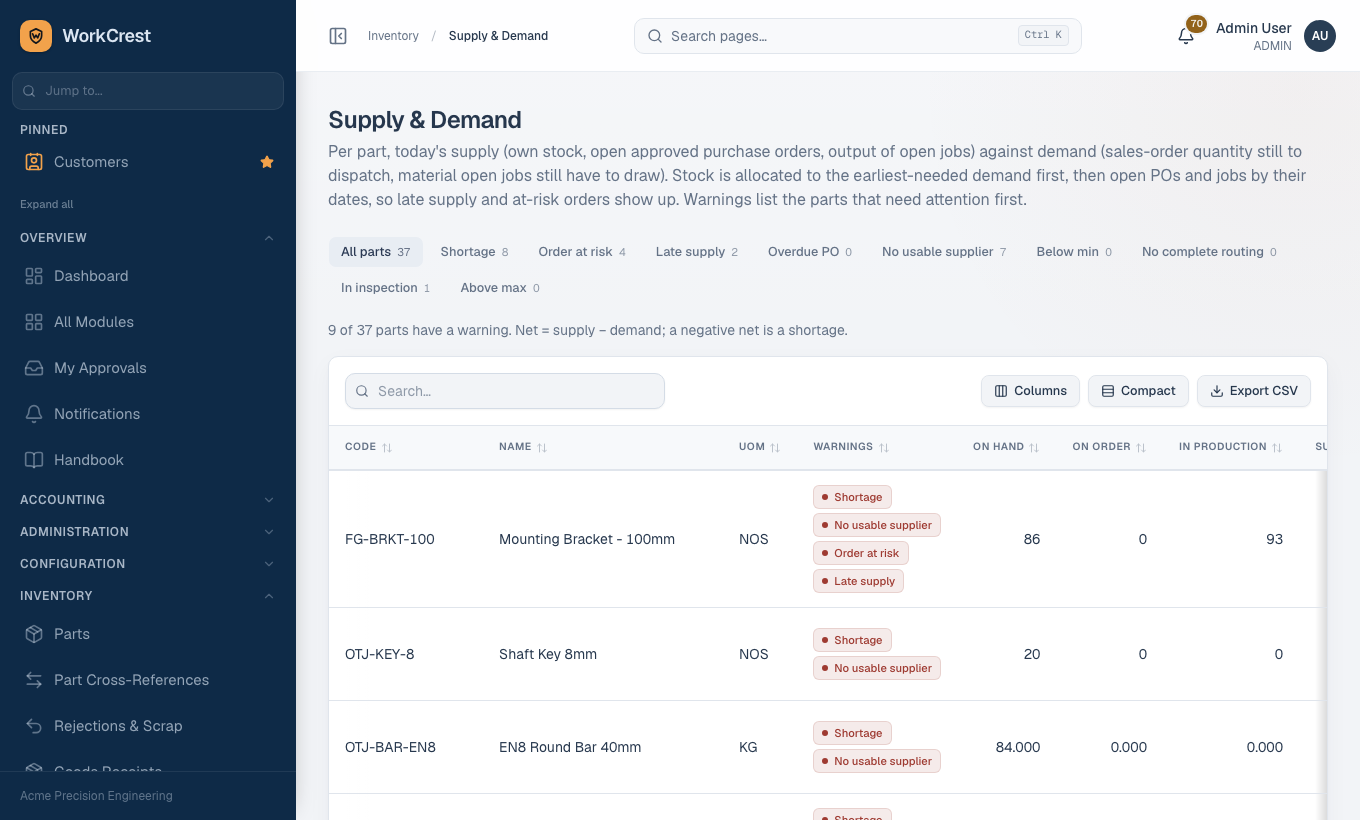
Purpose. The full picture for each part: everything that will arrive, against everything that is wanted, with dates. It is the best single screen to find out what to buy or make first. Who can open it: Procurement, Sales, Plant, Accounts and Admin.
The columns
| Column | What it means |
|---|---|
| Warnings | Coloured badges, worst first. Hover over a badge for a short explanation. "OK" means no warning. |
| On hand | Own stock available. |
| On order | Open quantity on approved purchase orders. |
| In production | Quantity still to be made on open jobs that produce this part. |
| Supply | On hand + On order + In production. |
| Customer orders | Quantity still to dispatch on confirmed, in-progress and partly delivered sales orders. |
| Job material | Material that open jobs still have to draw for this part. |
| Demand | Customer orders + Job material. |
| Net | Supply minus Demand. Negative (red) means a shortage. |
| Needed by | The earliest date something needs this part. For orders it is the line's ship date, or else the order's required delivery date. For job material it is the job's planned start. |
| Next supply | The earliest date something is promised to arrive: a purchase order's expected delivery date or a job's planned end. |
| Orders, Jobs needing it, Jobs making it | Links to the customer orders and jobs behind the numbers (the first three are shown, then "+ more"). |
The warnings
| Warning | Meaning | Action |
|---|---|---|
| Shortage | Demand is more than stock, open purchase orders and jobs in progress can cover. | Raise a PO or create a job. |
| No usable supplier | The part is short, but no approved supplier in good standing is listed for it. | Add or fix an entry in the Approved Supplier List first (see the Procurement guide). |
| Order at risk | A customer order line cannot be met by its date: supply arrives after it, or does not cover it. | Chase the supplier or job, or tell the customer early. |
| Late supply | Supply that would cover an order or job material arrives after the date it is needed. | Ask the supplier to expedite, or move the need date. |
| Overdue PO | An approved purchase order is past its expected date and not fully received. | Call the supplier. |
| Below min | On hand plus on order is under the part's Min. | Same as Min/Max Planning. |
| No complete routing | A made part is needed and short, but it has no complete routing, so no job can be created. | Complete the Routing master first. |
| In inspection | Received stock is waiting in the Receiving warehouse and is not available yet. | Ask Quality or stores to finish the inspection. |
| Above max | On hand plus on order is over the Max. | Hold back orders. |
The tabs across the top filter by warning and show how many parts have each one. A line under them says how many parts have a warning.
How the dated check works
WorkCrest serves the earliest-needed demand first. It uses stock on hand first, then the purchase orders and jobs that arrive earliest.
- If the only supply that covers a demand arrives after its date, you get Late supply.
- If nothing covers it, the order is at risk.
- A purchase order with no expected date is never called late, because there is nothing to be late against.
4. Delivery Schedule
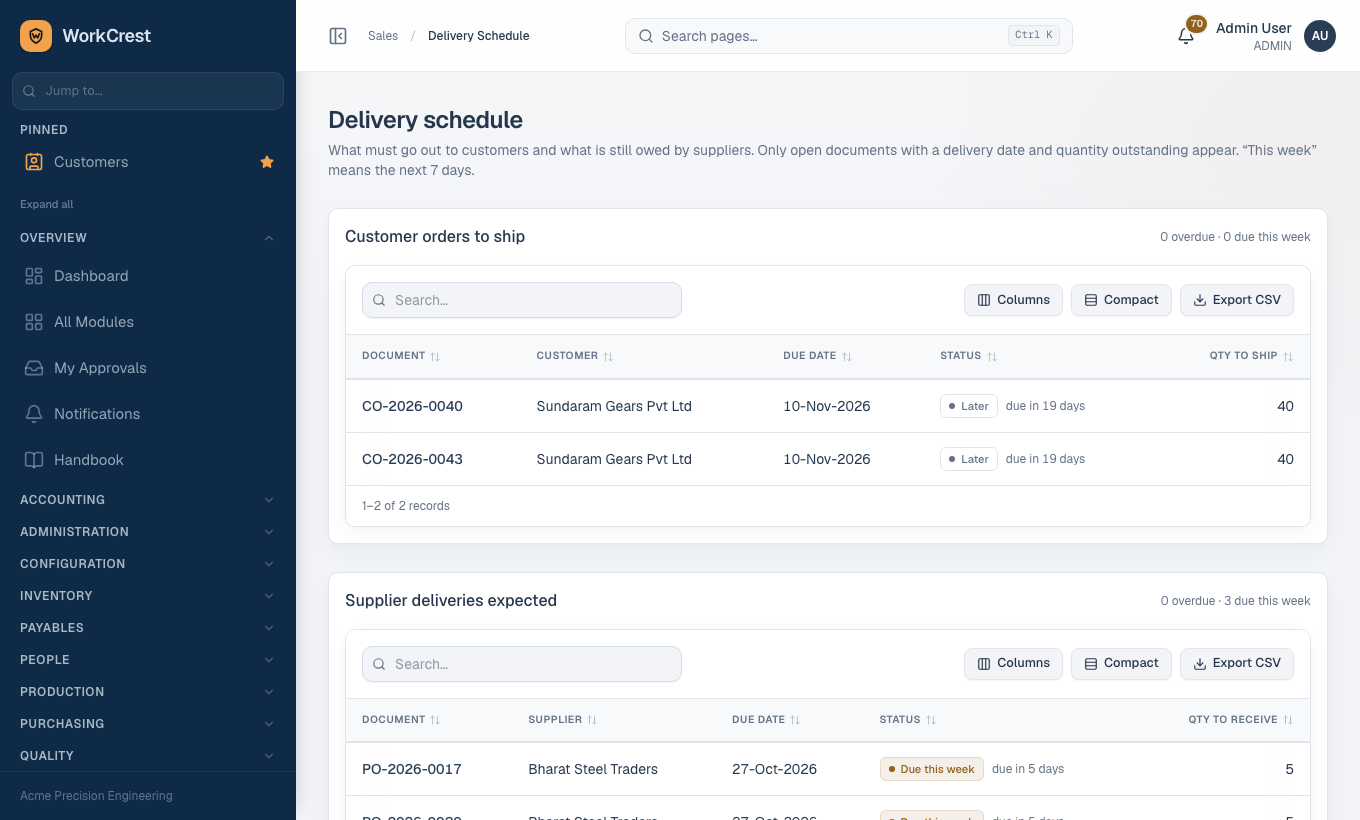
Purpose. A date-ordered list of what must go out to customers and what suppliers still owe you. Who can open it: Sales, Plant and Admin.
The page has two panels, each with its own count of overdue and due-this-week items.
| Panel | What is listed |
|---|---|
| Customer orders to ship | Confirmed, in-progress and partly delivered customer orders that have a required delivery date and quantity still to ship. |
| Supplier deliveries expected | Approved purchase orders that are open or partly received, with an expected date and quantity still to receive. |
The columns
| Column | What it means |
|---|---|
| Document | The order or PO number. Click it to open the document. |
| Customer / Supplier | The other party. |
| Due date | The delivery date on the document. |
| Status | Overdue (red), Due this week (amber, the next 7 days) or Later, with a note such as how many days late. |
| Qty to ship / Qty to receive | The total quantity still outstanding on the document. |
Overdue items are listed first, then items due this week, then the rest, each in date order.
What to do
- In Customer orders to ship, open each overdue order. Make sure the job is moving or the goods are ready, then create the delivery challan.
- In Supplier deliveries expected, phone the supplier for each overdue line. If the supplier gives a new date, update the PO.
- Match this screen with Supply & Demand: a supplier delivery that is overdue here is usually the reason for a Late supply warning there.
5. Physical Inventory (stock counts)
Purpose. To check the shelf against the book and correct the book when they differ.
- A count freezes the quantities the system expects.
- You enter what you actually counted.
- Any difference goes through approval before stock is changed.
Who can open it: Plant, Procurement, Accounts and Admin. Only Plant and Admin can create or submit a count, and your login must be linked to an employee record.
The list
| Column | What it means |
|---|---|
| Count | The count number. Click to open it. |
| Warehouse | The warehouse being counted. |
| Date | The count date. |
| Lines | How many part and lot lines were frozen. |
| Status | Draft, pending approval, approved, rejected or cancelled. |
| Pending with | Who must approve it next. |
Use the status tabs and the Warehouse filter to narrow the list.
Run a count, step by step
- Click New count.
- Choose the Warehouse and the Count date.
- Under Parts to count, leave it empty to count everything in the warehouse, or pick some parts to narrow it. The warehouse must hold some own stock or the count cannot be created.
- Optionally tick the option to show the snapshot quantity on the count screen. Leave it off for a blind count, where the counter cannot see the book quantity. Add Remarks if useful, then save.
- The count opens as a Draft with its lines frozen. Click Enter counted quantities. This takes you to , where the counter types in what is on the shelf. Counted quantities for parts that use lots are entered per lot.
- Back on the count, check the Frozen lines table: Part, Lot / Serial, Book, Counted and Variance. A green badge is a surplus (more found than expected). An amber badge is a shortage. The heading tells you how many lines have a variance.
- Click Submit for approval. WorkCrest refuses if counted quantities have not been entered yet.
- The approver opens the count and sees Approve and Reject buttons, with a comments box. On Approve, the variances are posted to stock. The approval route is shown at the bottom of the page.
Other buttons
| Button | When it appears |
|---|---|
| Cancel count | While the count is a Draft. |
| Revise (back to Draft) | After a rejection. Recount, then submit again. |
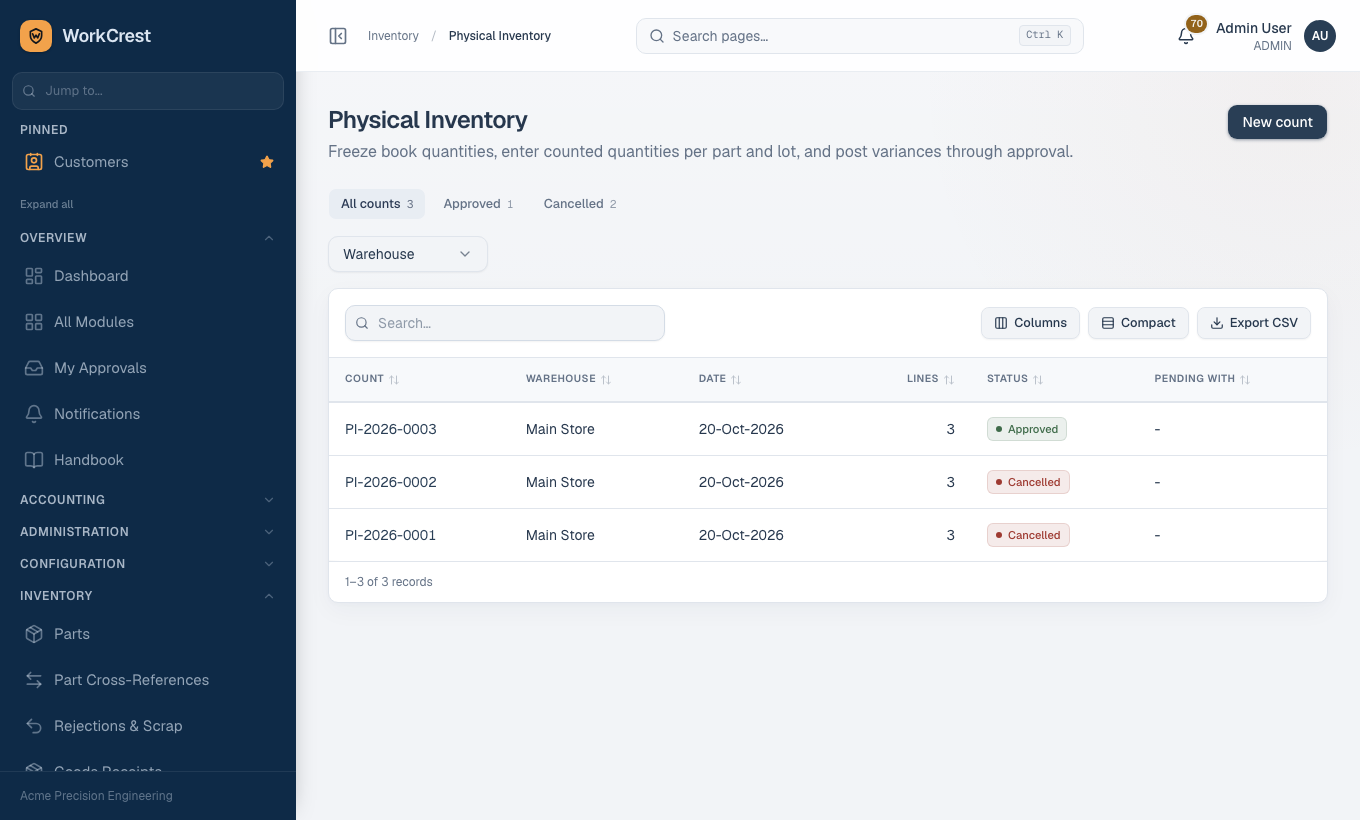
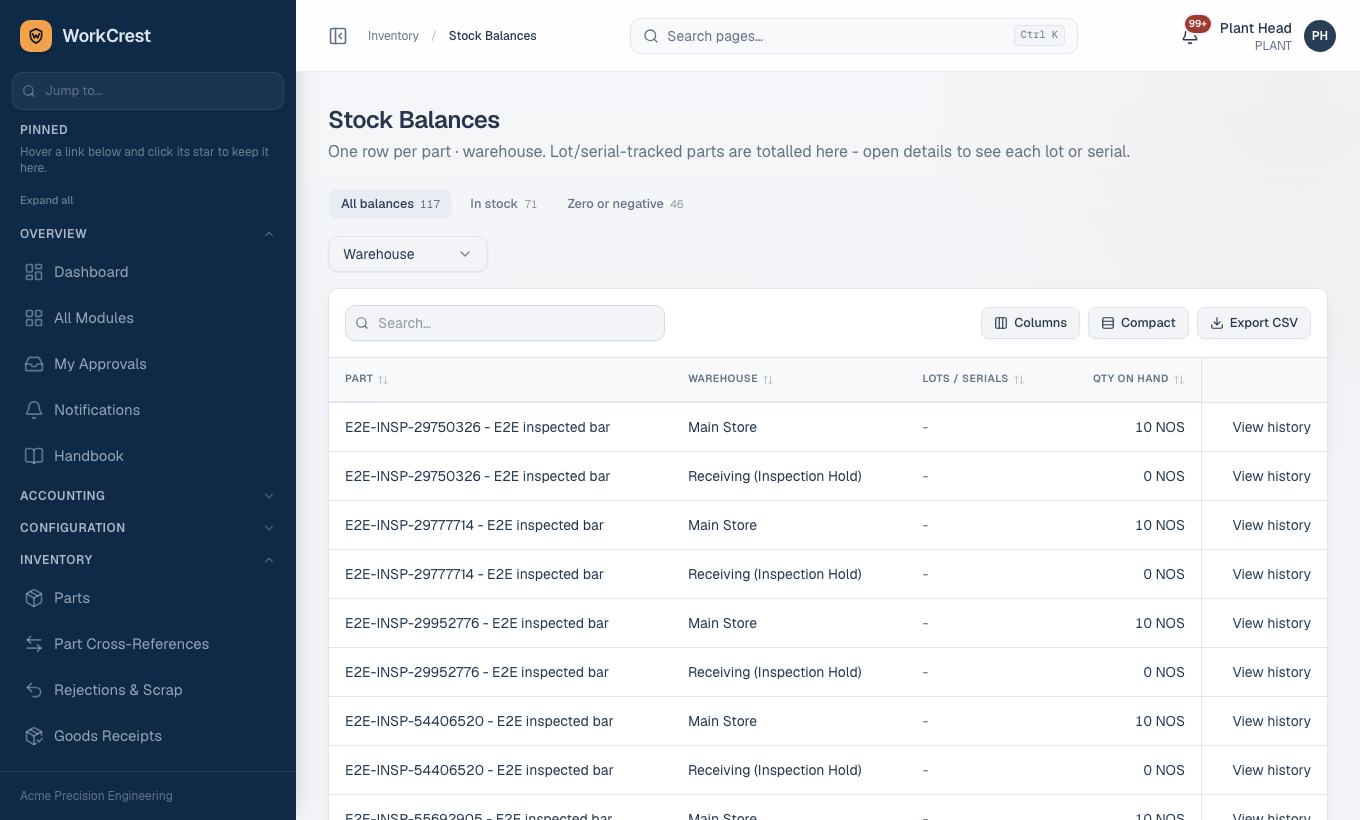
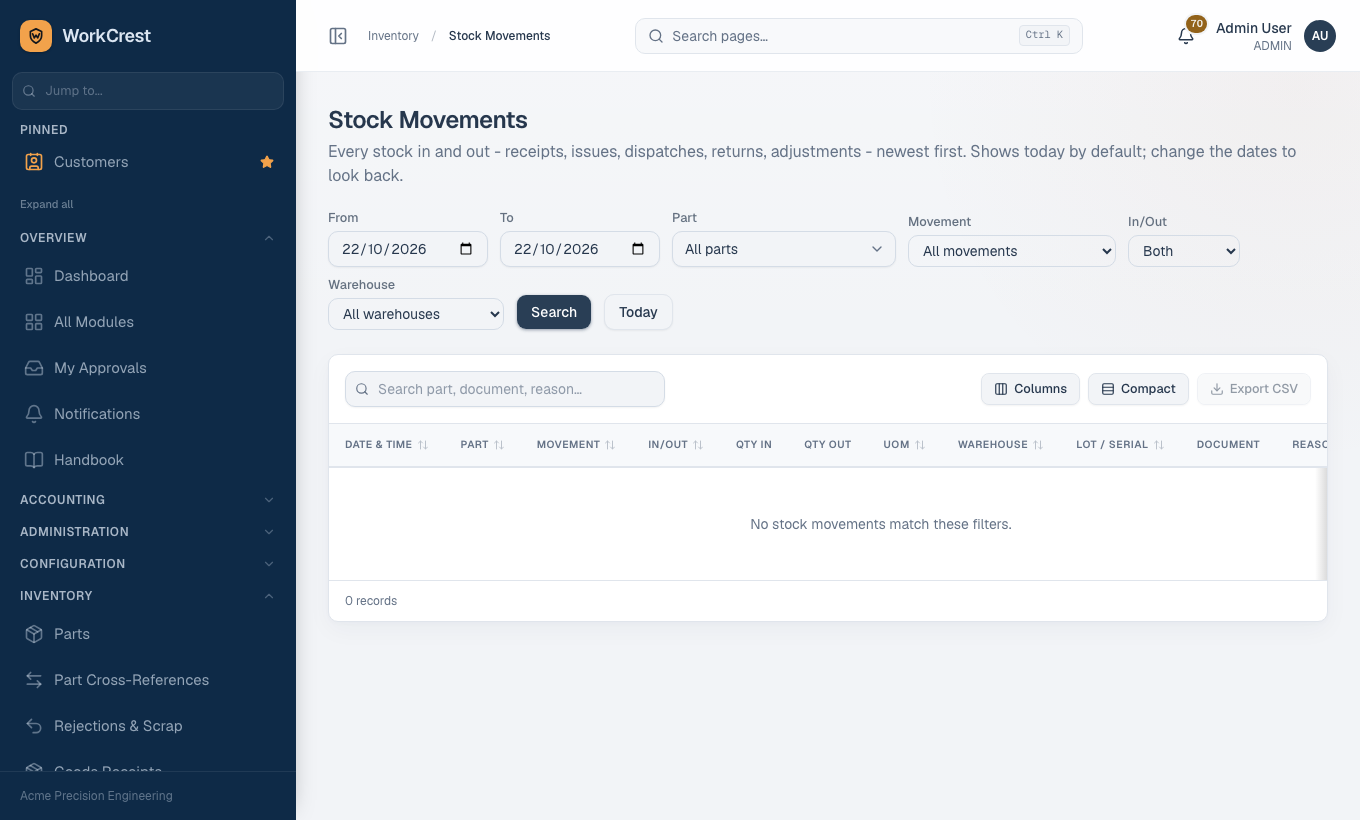
For the stock on hand you are comparing against, see , and for the history of a correction, .
6. Rejections & Scrap
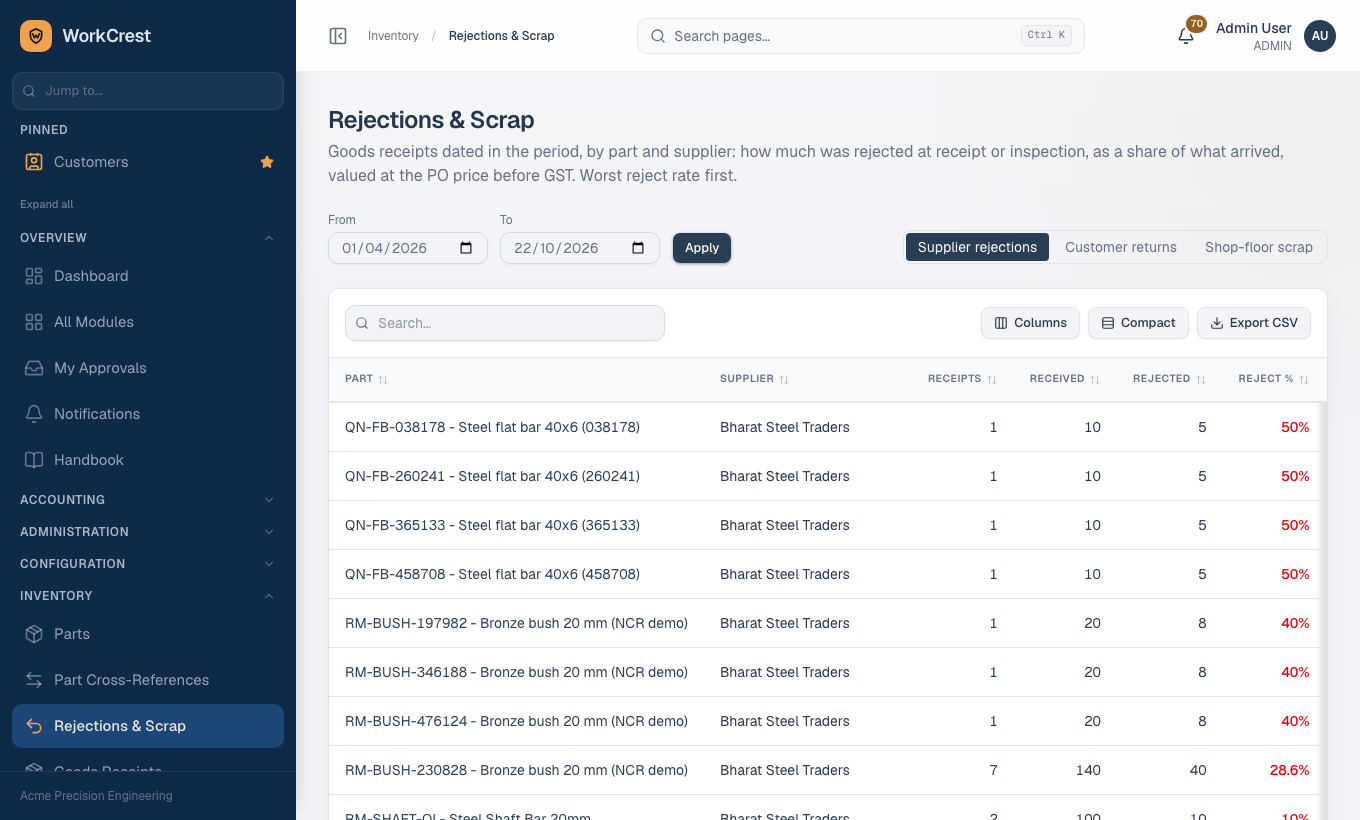
Purpose. A report on where material is being wasted, so you can raise it with a supplier, a customer or the shop floor. Who can open it: Plant, Procurement, Accounts, Sales, Quality and Admin.
Choose the dates at the top and apply them. Then pick one of three tabs. The text under the heading changes to explain the tab you are on. Every table can be sorted and exported.
Supplier rejections
Goods receipts dated in the period, by part and supplier, worst reject rate first.
| Column | What it means |
|---|---|
| Part, Supplier | What was received, and from whom. |
| Receipts | Number of goods receipts. |
| Received | Quantity that arrived. |
| Rejected | Quantity rejected at receipt or inspection. |
| Reject % | Rejected as a share of received. Red when above zero. |
| Rejected value | Valued at the PO price before GST. |
| Main reason | The most common rejection reason. |
Action: take the worst supplier and part pairs to the supplier, ask for a corrective plan and, if it keeps happening, review them in the Approved Supplier List.
Customer returns
Approved sales returns dated in the period, by part, against what was dispatched in the same period.
| Column | What it means |
|---|---|
| Part | The returned part. |
| Returns, Customers | How many returns and from how many customers. |
| Returned, Dispatched | Quantity sent back, and quantity sent out in the same period. |
| Return % | Returned as a share of dispatched. |
| Returned value (cost) | Valued at standard cost. Shown only if you have the View costs permission. |
| Main reason | The most common return reason. |
Action: look for a part that keeps coming back and ask Quality to investigate. Read it as the return rate for the period, not for the whole life of the goods.
Shop-floor scrap
Scrap recorded on job steps in the period, by the part the job makes.
| Column | What it means |
|---|---|
| Part | The part the jobs make. |
| Jobs | Number of jobs involved. |
| Planned, Scrapped | Planned quantity of those jobs, and pieces scrapped. |
| Scrap % | Scrapped as a share of planned. |
| Scrap value (std cost) | Valued at the part's standard cost. Needs the View costs permission. |
| Main step, Main reason | The operation and reason behind most of the scrap. |
Action: start with the Main step of the highest-scrap part. A high figure usually means a machine, tool or method problem at that step. Feed it back into your routing and planned quantities.
Weekly planning routine
Do this once a week, for example on Monday morning.
- Delivery Schedule. Note everything overdue or due this week, for customers and suppliers. Phone suppliers for overdue lines.
- Supply & Demand. Go through the Shortage, Order at risk, Late supply and Overdue PO tabs. For each part decide: buy, make, expedite or warn the customer.
- Min/Max Planning. Open Below min and raise purchase orders from the suggested quantities. Skim Above max for over-stock.
- Reorder Alerts. Check that any out-of-stock part is already covered by an order. Raise any that are not.
- Approvals. Send the new purchase orders for approval. Orders that wait in the approval queue do not count as supply (see Approvals).
- Physical Inventory. Once a month, or on a rolling cycle, count a few fast-moving or high-value locations. Submit the count and chase its approval.
- Rejections & Scrap. Once a month, set the period to last month. Take the top supplier, return and scrap items to the right person.
Common mistakes
| Mistake | What happens | Fix |
|---|---|---|
| Min, Max or Reorder level left empty on a part | The part never shows an alert or a suggestion. | Use the Not set tab on Min/Max Planning to find them. |
| Raising a PO from Reorder Alerts without checking what is on order | You double-order. | Check On order on Min/Max Planning or Supply & Demand first. |
| Leaving purchase orders in Draft or pending approval | They do not count as On order, so the part keeps showing as short. | Submit and get them approved. |
| No expected delivery date on POs or no delivery date on orders | No Late supply warning, and the document is missing from Delivery Schedule. | Always fill in the dates. |
| Stock still sitting in Receiving | It shows as In inspection and is not counted as available. | Finish the inspection and put the stock away. |
| Moving stock during a physical count | False variances are posted when the count is approved. | Count while the warehouse is quiet, or recount after a rejection. |
| Short part with no approved supplier | "No usable supplier" and nobody can buy it. | Fix the Approved Supplier List. |
| Made part with no complete routing | "No complete routing": no job can be created. | Finish the routing. |
Back to the training home.