Training home / Process walkthroughs
Approvals
How rules, bands, steps and the inbox work across every document.
At a glance
- The flow: Submit → Rule picked by amount band → Step approver notified → Approve / Reject → Posting runs on Approved.
- Who is involved: Submitters, the approvers named on each rule step, and Admin, who maintains the rules.
- Watch out for: Stock, GL and status post only when the instance reaches Approved, never at Draft, Pending or Reject.
Submit→Rule picked by amount band→Step approver notified→Approve / Reject→Posting runs on Approved
How it works
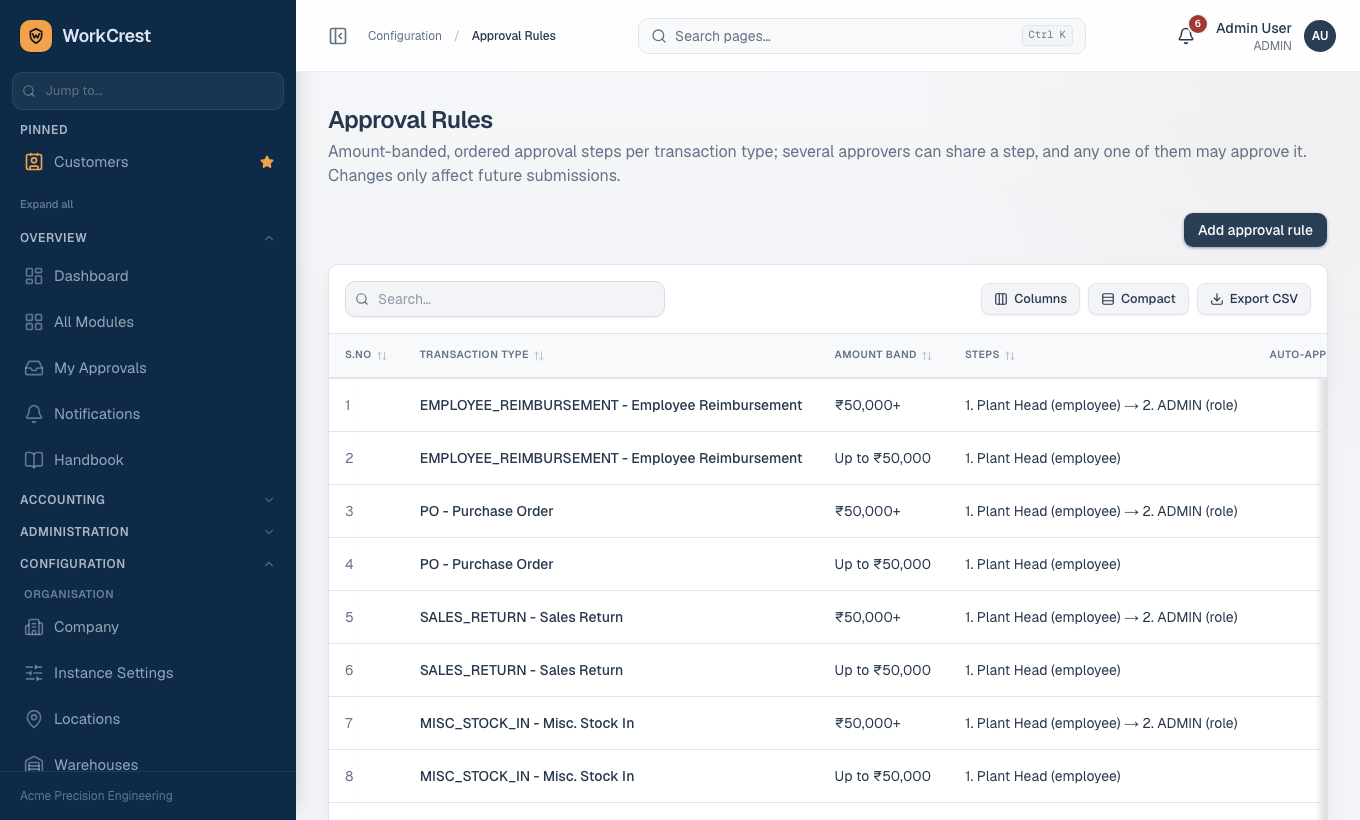
- A document is created as a Draft and submitted. The engine picks the rule for that document type whose amount band fits (most specific minimum first).
- A rule has ordered steps; each names an employee or a role. Typical set-up: up to Rs 50,000 Plant Head, above that Plant Head then Admin.
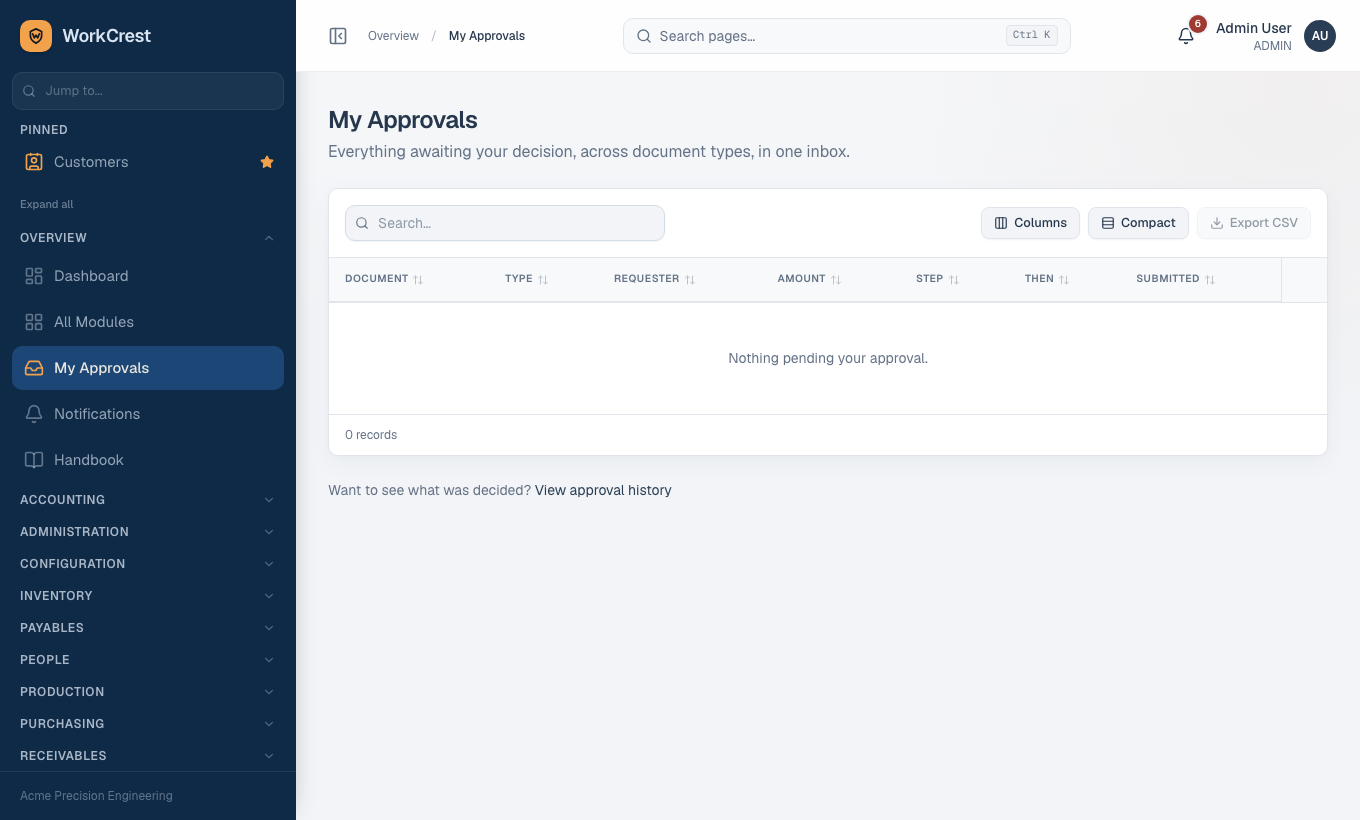
- The step's approver gets a notification and the document appears in (My Approvals), one inbox for every document type. Role-based steps notify every holder of the role.
- Approve moves to the next step, or finishes the instance as Approved. Reject ends it as Rejected. On a terminal decision the submitter is notified.
- Whatever the document posts (stock, GL, status) happens only when the instance reaches Approved, in the same transaction as the decision. Never at Draft or Pending, never on Reject.
- After a rejection, resubmitting creates a fresh instance; history is kept. Editing a document while Pending withdraws the old instance.
Rules are maintained by Admin at . Decision history is at .
Documents that use the engine
| Document | What approval gates |
|---|---|
| Purchase order, blanket agreement | Receiving and releases |
| Supplier bill | GL entry, payment eligibility |
| Payment | Mark as paid |
| Misc stock in/out | Stock posting |
| Stock count (variance) | Adjustment posting |
| Purchase return, sales return | Stock and money reversal |
| Reimbursement claim | Becomes payable by Accounts |
| Approved Supplier List entry | Qualification |
| Quotation | Send and print |
| Order cancellation, Return order | Cancel; confirm |
| Credit-limit override | Confirming an over-limit order |
| Job material over-issue | Stock and WIP posting |
| Manual journal | Posting to the ledger |
| Quality concession (use-as-is) | Release from quarantine |
| Price revision | Order confirm or dispatch billing |
Documents that do not
- Leave: single-level approval by the employee's reporting manager, falling back to any Admin or HR user when no manager is set. Not in the engine; see HR and employees.
- Goods receipts, customer orders (apart from cancel/credit/return), delivery challans, invoices, receipts, job orders and normal material issues: authorisation already happened upstream, so they post immediately.
Settings that change behaviour
- Self-approval: off by default. When an Admin turns it on in , a submitter may decide a step that matches them; the action is stamped as self-approved. Leave never allows it.
- Auto-approve bands: a rule band can be marked auto-approve; a submitter who is an approver at every level of that band skips Pending. Manual journals and credit-limit overrides are excluded unless the sensitive auto-approve setting is on.
Notifications
The bell in the header polls every minute; lists everything with mark-read. Overdue and stale items are generated when the dashboard loads.
What can go wrong
"Not your step": you hold a role or name that is not on the current step. Only the current step's approver can decide.
You submitted it: self-approval is blocked unless enabled by Admin.
Nothing happened after approval: for multi-step bands, an earlier or later step may still be waiting. Check the document's approval panel.
Amounts for cost-valued approvals (for example misc stock) are blanked in the inbox for viewers without the cost-visibility capability.
Related pages
Training home · Cheat sheets · Sales · Procurement · Plant · Accounts · Quality · HR and employees · Admin