Training home / Setup masters
One-time setup masters
The small lists you fill in once, before anyone raises a purchase order, quotation or job. Do them in the order below.
- Who it is for: the Admin, and whoever Admin names, setting up the company.
- What you can do: fill in company, locations, warehouses, units, shipping and other small lists.
- What you need first: nothing else. Do these before any purchase order, quotation or job.
Who this is for
The Admin (and whoever Admin names) setting WorkCrest up for your company.
- Each section says who can change that list.
- Most people can open these pages, but only the roles named can save changes.
- Admin can always do everything.
See the Admin guide and Getting started for sign-in and the wider checklist.
Setup order
Later items depend on earlier ones, so work top to bottom.
| # | Master | Where to find it | Who can edit | Needed before |
|---|---|---|---|---|
| 1 | Company | Admin | Any tax invoice, bill or print | |
| 2 | Locations | Admin | Purchase orders | |
| 3 | Warehouses | Admin | Receiving and issuing stock | |
| 4 | Units of measure | Admin, Procurement, Sales | Parts | |
| 5 | Item types | Admin, Procurement, Sales | Parts | |
| 6 | Transaction types | Admin, Accounts | Approval rules | |
| 7 | Shipping terms | Admin, Accounts, Sales | Customers and quotations | |
| 8 | Shipping methods | Admin, Accounts, Sales | Shipments | |
| 9 | Scrap reasons | Admin, Plant | Recording job scrap | |
| 10 | Resources | Admin, Plant | Operations, routing, costing | |
| 11 | Operations | Admin, Plant | Routing and jobs |
1. Company
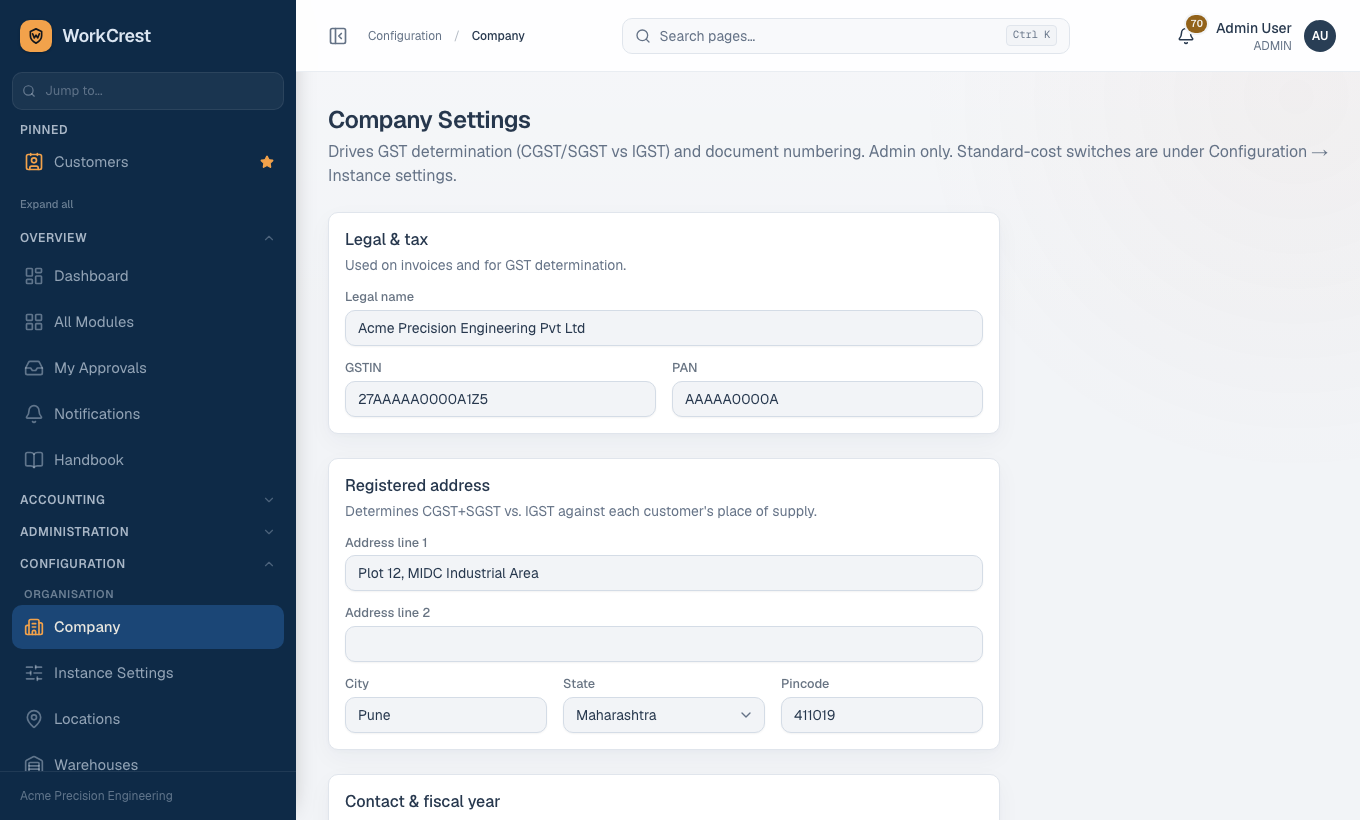
What it is: your legal details. They print on invoices, orders and other documents.
Who can edit: Admin only. Where to find it:
Fields that matter:
- Legal name, GSTIN, PAN - required, and printed on tax documents.
- State - drives the GST split.
- If a customer's state matches this state, invoices charge CGST + SGST. If not, they charge IGST.
- The split is worked out once when the invoice is created and is never recalculated.
- Set State correctly before the first invoice.
- Address, city, pincode - required. Phone and email are optional.
- Financial year start month - invoice numbers restart each financial year from this month.
- Bank name, branch, account number, IFSC - optional, but fill them so customers know where to pay.
2. Locations
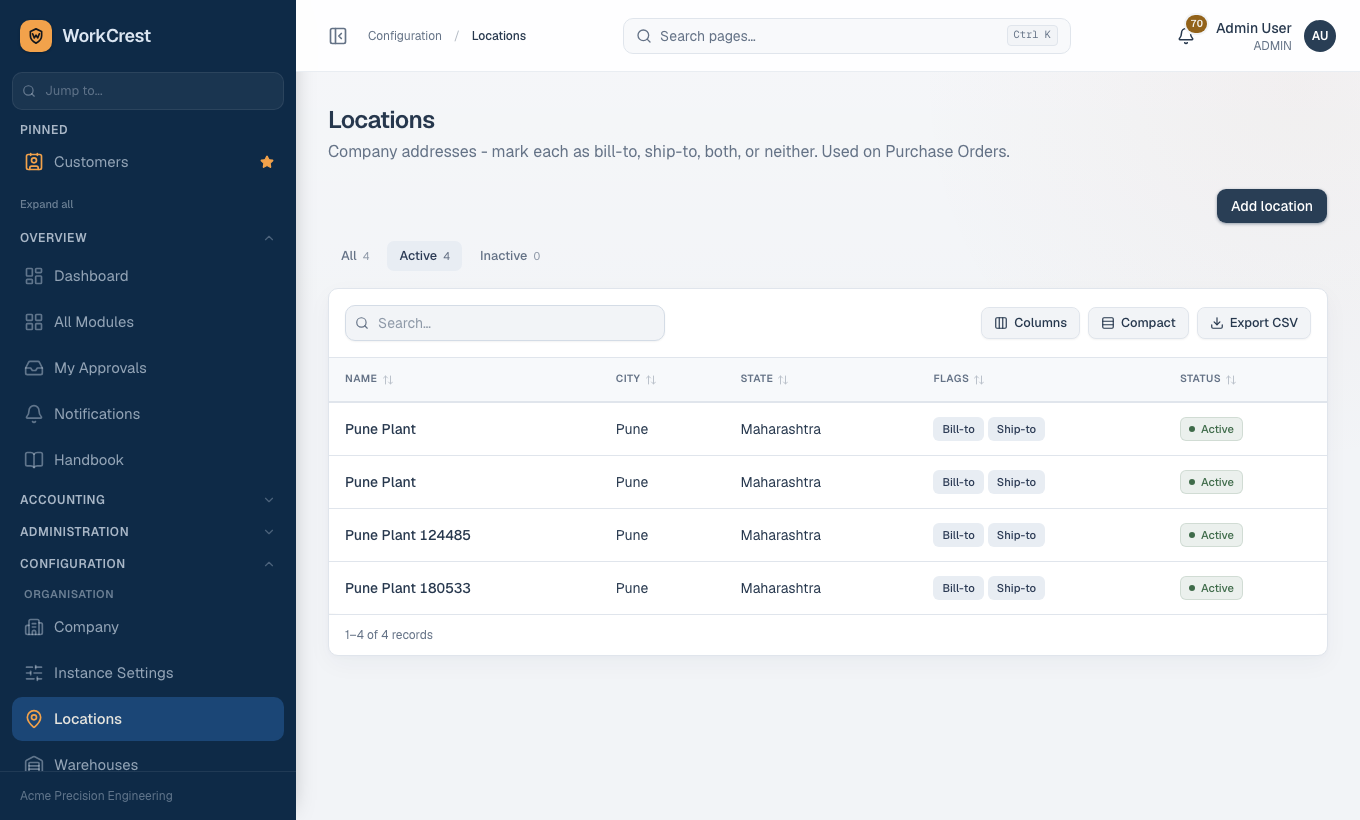
What it is: your company's addresses (head office, plant, warehouse site).
Who can edit: Admin only. Where to find it:
Fields that matter: Name, contact person, address, city, state, pincode, phone, and three switches.
- Bill-to - tick for an address that can be the billing address on a purchase order.
- Ship-to - tick for an address where suppliers should deliver.
- Active - untick to retire an address.
3. Warehouses
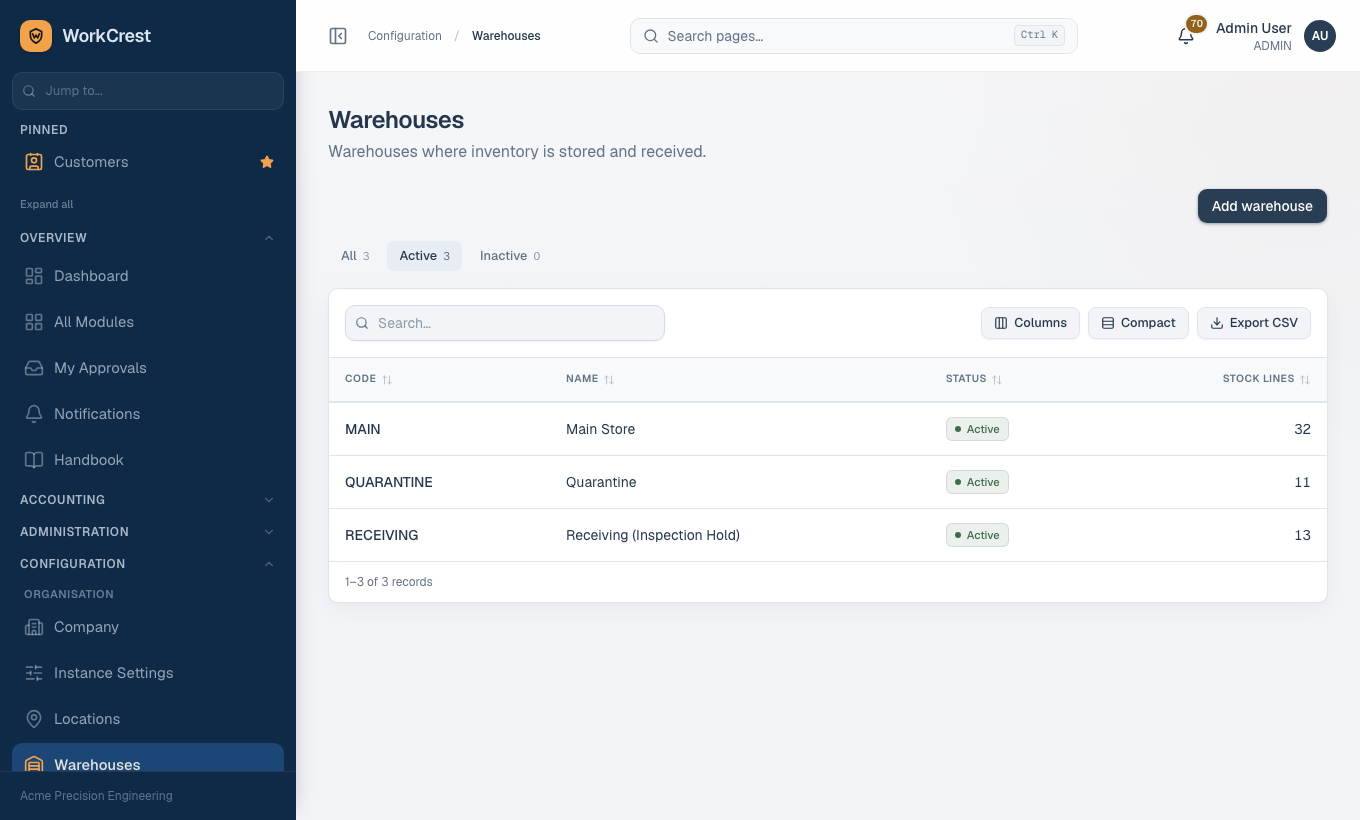
What it is: the places stock is kept. Every stock movement names a warehouse.
Who can edit: Admin only. Where to find it:
Fields: Code (up to 20 characters), Name, Active.
- Main Store is created for you. Use it for ordinary stock and pick it explicitly in pickers.
- Receiving and Quarantine are special holding warehouses used by the quality flow.
- Goods waiting for inspection sit in Receiving. Rejected goods go to Quarantine.
- Both are kept out of available stock and the normal warehouse pickers, so material in them can't be promised or issued by mistake.
- Do not edit or reuse them for ordinary storage.
- The code is frozen once a warehouse has stock history. You can't deactivate a warehouse that still holds stock.
4. Units of measure (UoM)
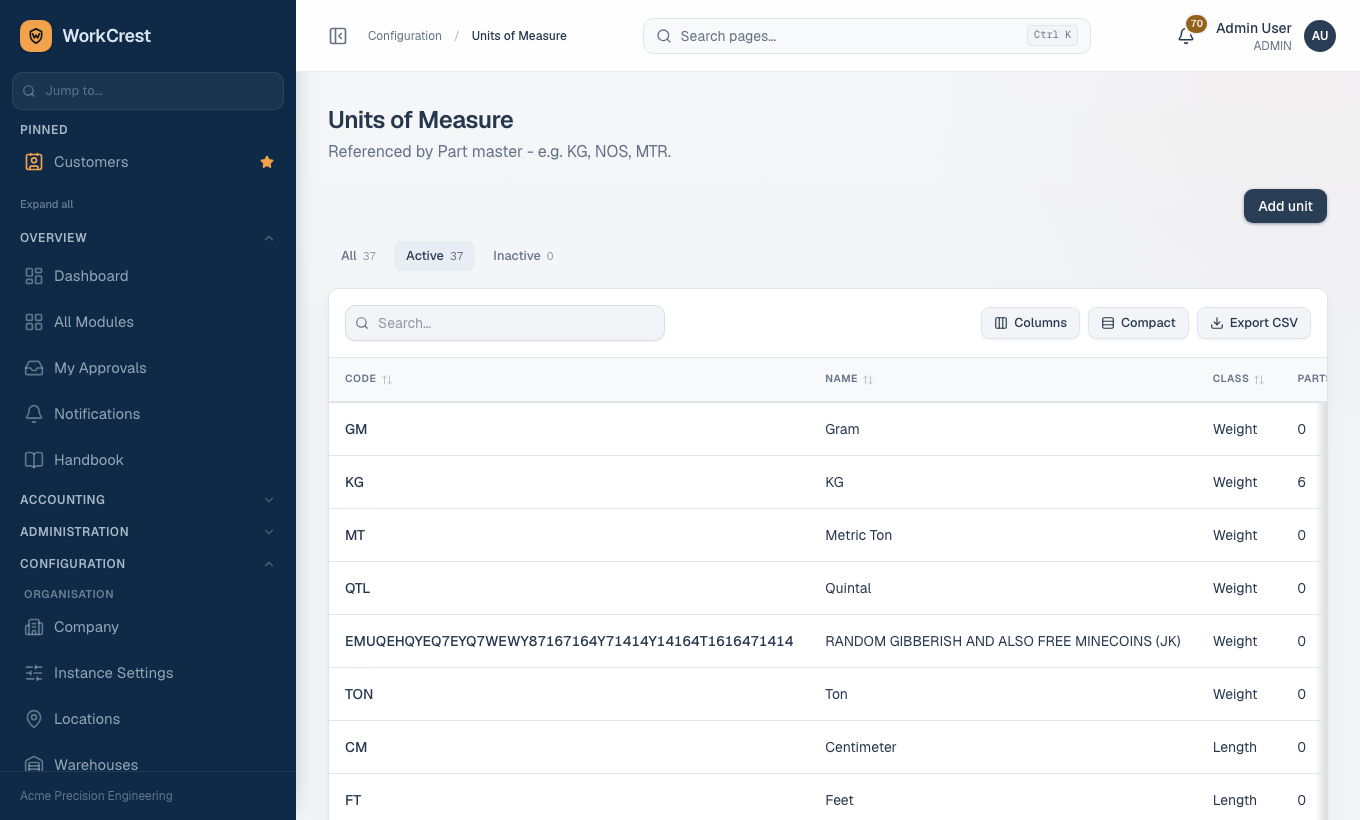
What it is: how a part is counted: nos, kg, metre and so on.
Who can edit: Admin, Procurement, Sales. Where to find it:
Fields: Code (saved in capitals), Name, Class, Active.
Why Class matters: it groups units into families - Weight, Length, Area, Volume, Count, Packing, Time, Other - so a part's unit is easy to find and filter. Choose the family the unit really belongs to.
5. Item types
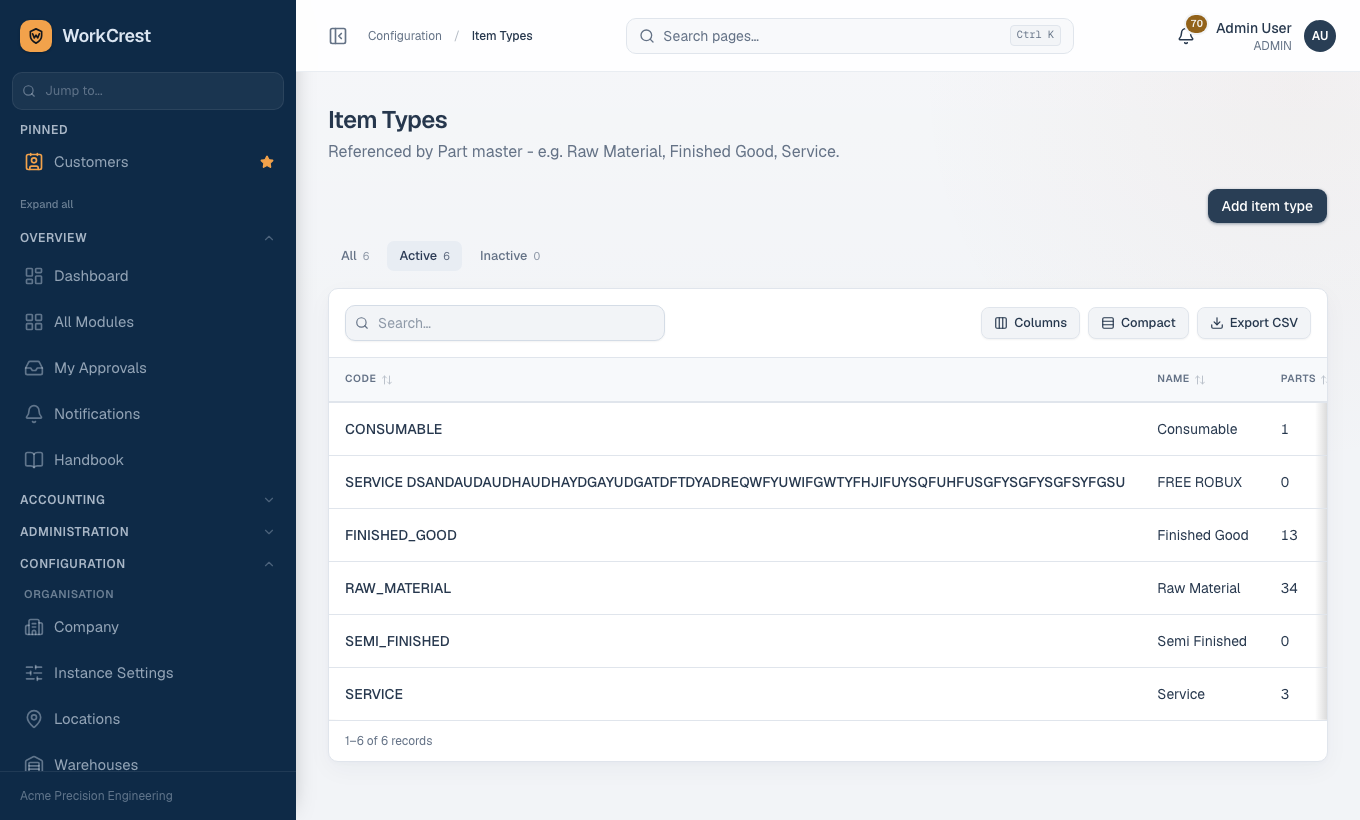
What it is: a simple category label for parts (for example Raw Material, Finished Good, Consumable).
Who can edit: Admin, Procurement, Sales. Where to find it:
Fields: Code (capitals), Name, Active. Every part is given an item type, so create them before adding parts.
6. Transaction types
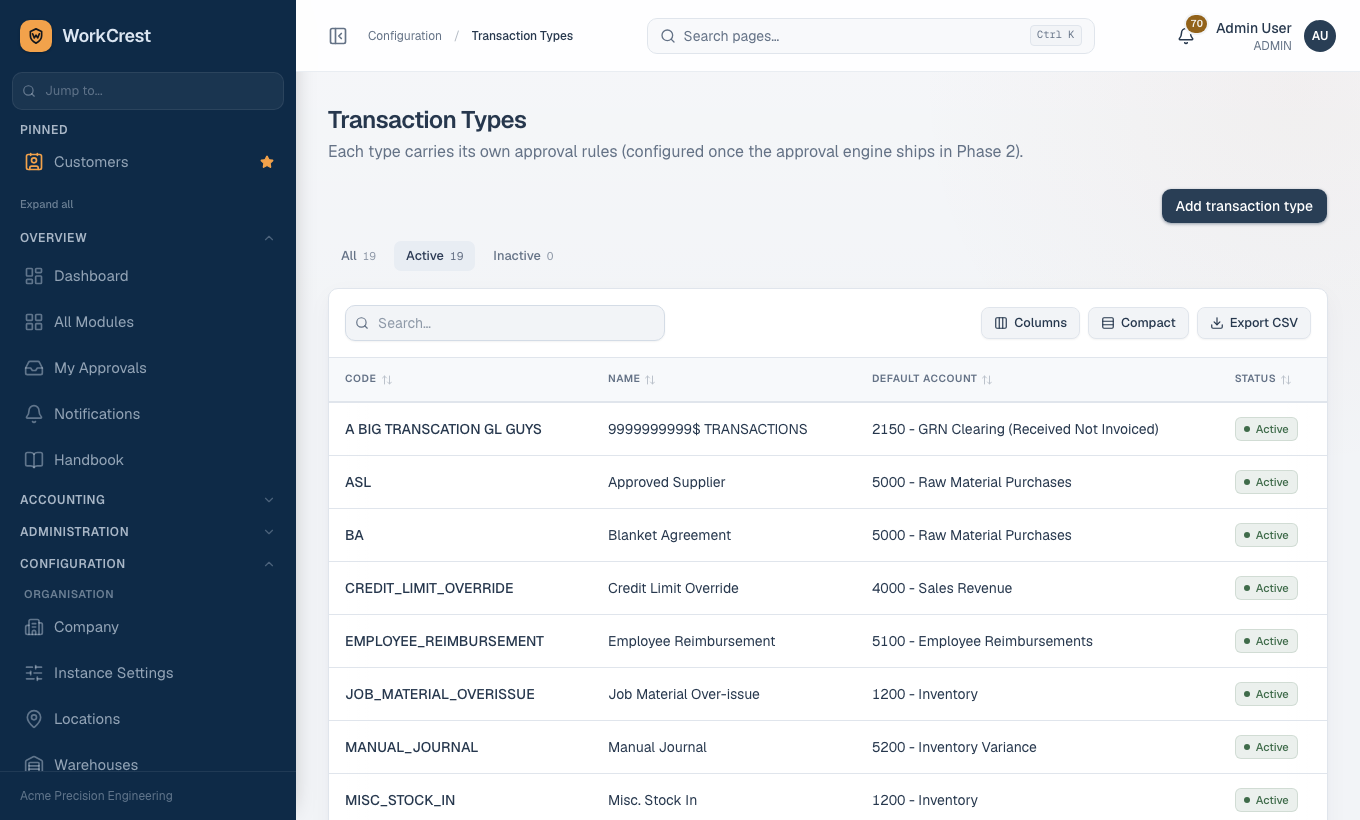
What it is: the kinds of document that need approval and accounting (purchase order, payment, misc stock and so on). Most are set up for you.
Who can edit: Admin, Accounts. Where to find it:
Fields: Code, Name, Default GL account (optional), Active.
Why it matters: approval rules are attached to a transaction type. The amount bands and approvers are set in Approval Rules (, Admin), described in the Admin guide. If a type has no rule, documents of that type cannot be submitted for approval.
7. Shipping terms
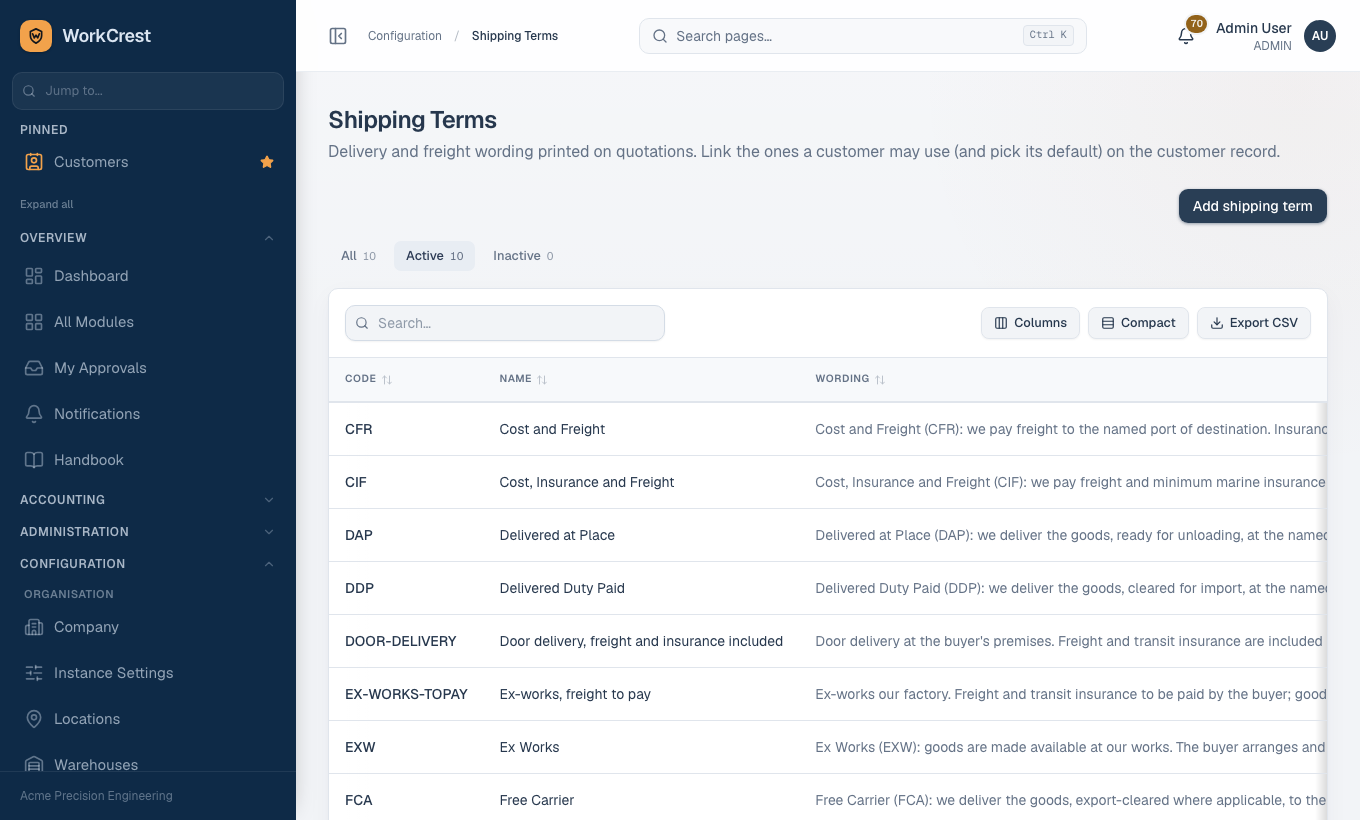
What it is: the delivery and freight wording printed on quotations (for example "Ex-works" or "Freight paid by supplier").
Who can edit: Admin, Accounts, Sales. Where to find it:
Fields: Code (letters, digits, hyphens, up to 20), Name, Wording printed on quotations, Active.
- Link the terms a customer may use on the customer record, and pick one as that customer's default. A new quotation starts with the default.
- The wording is copied onto the quotation when it is made, so editing a term later does not change quotations already issued.
8. Shipping methods
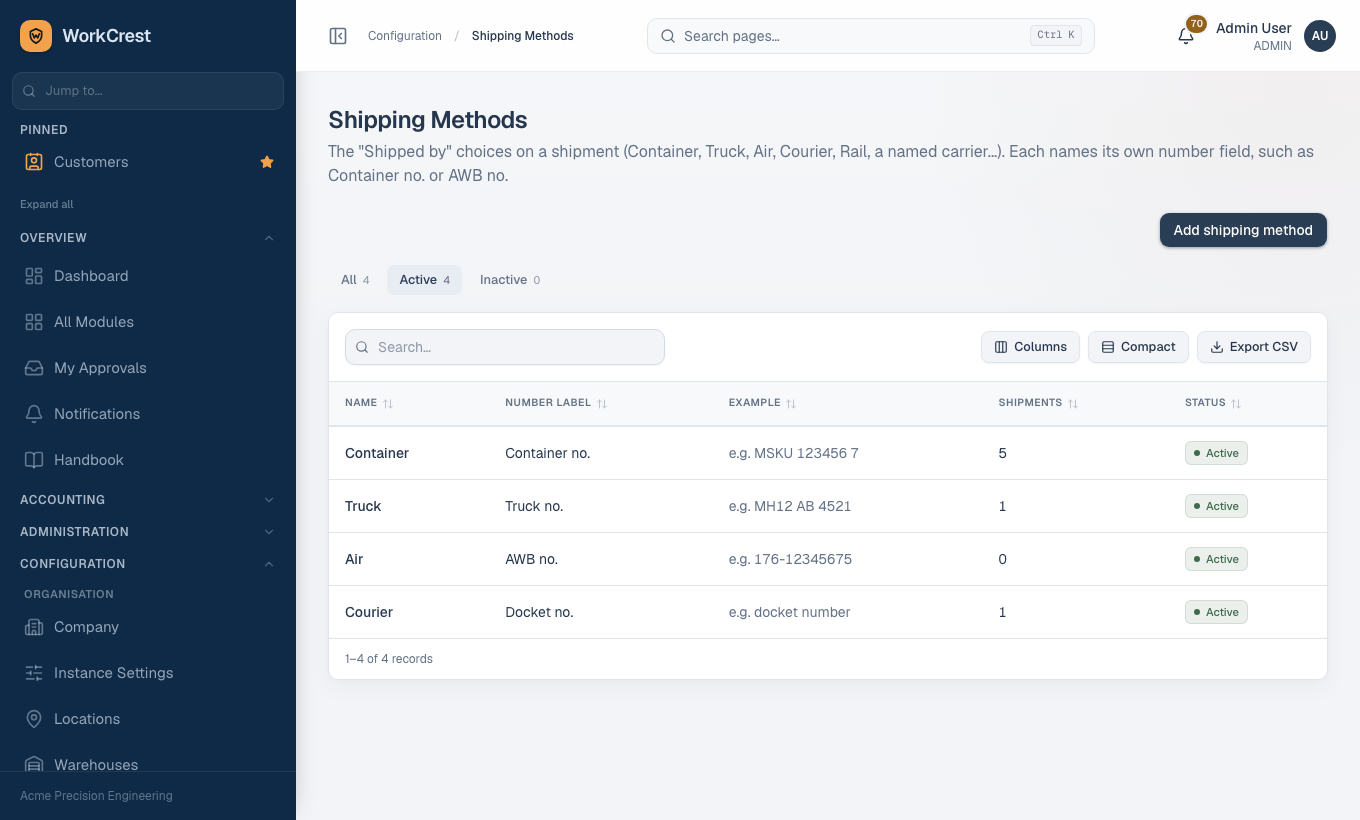
What it is: the "Shipped by" choices on a shipment: Truck, Container, Air, Courier, Rail or a named carrier.
Who can edit: Admin, Accounts, Sales. Where to find it:
Fields: Name, Number label (what the tracking number is called, such as "Container no." or "AWB no."), Number example (optional hint), Active.
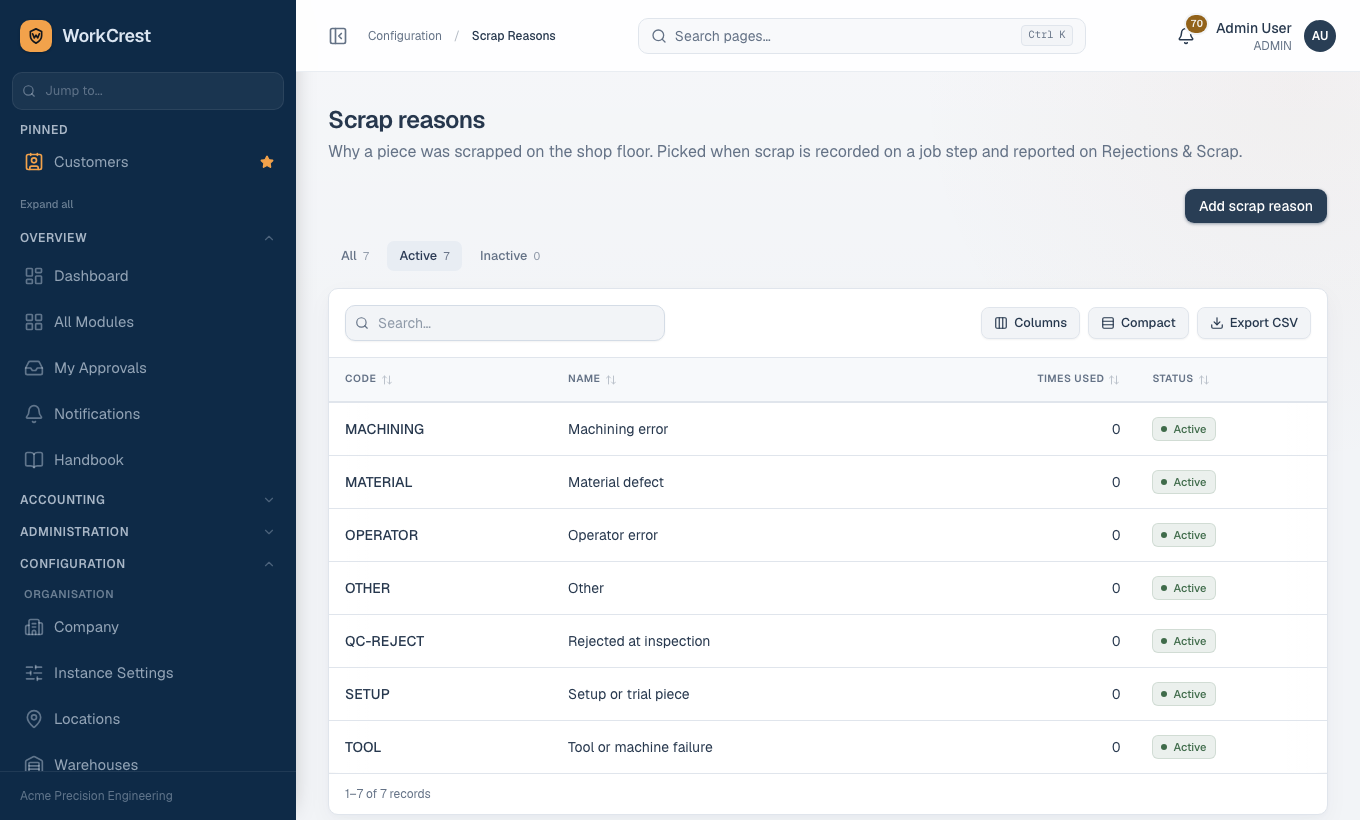
9. Scrap reasons
What it is: the list of reasons offered when someone records scrap on a job (for example Machining error, Material defect).
Who can edit: Admin, Plant. Where to find it:
Fields: Code (capitals), Name, Active. Keep reasons specific; scrap reports are only as useful as these labels.
10. Resources
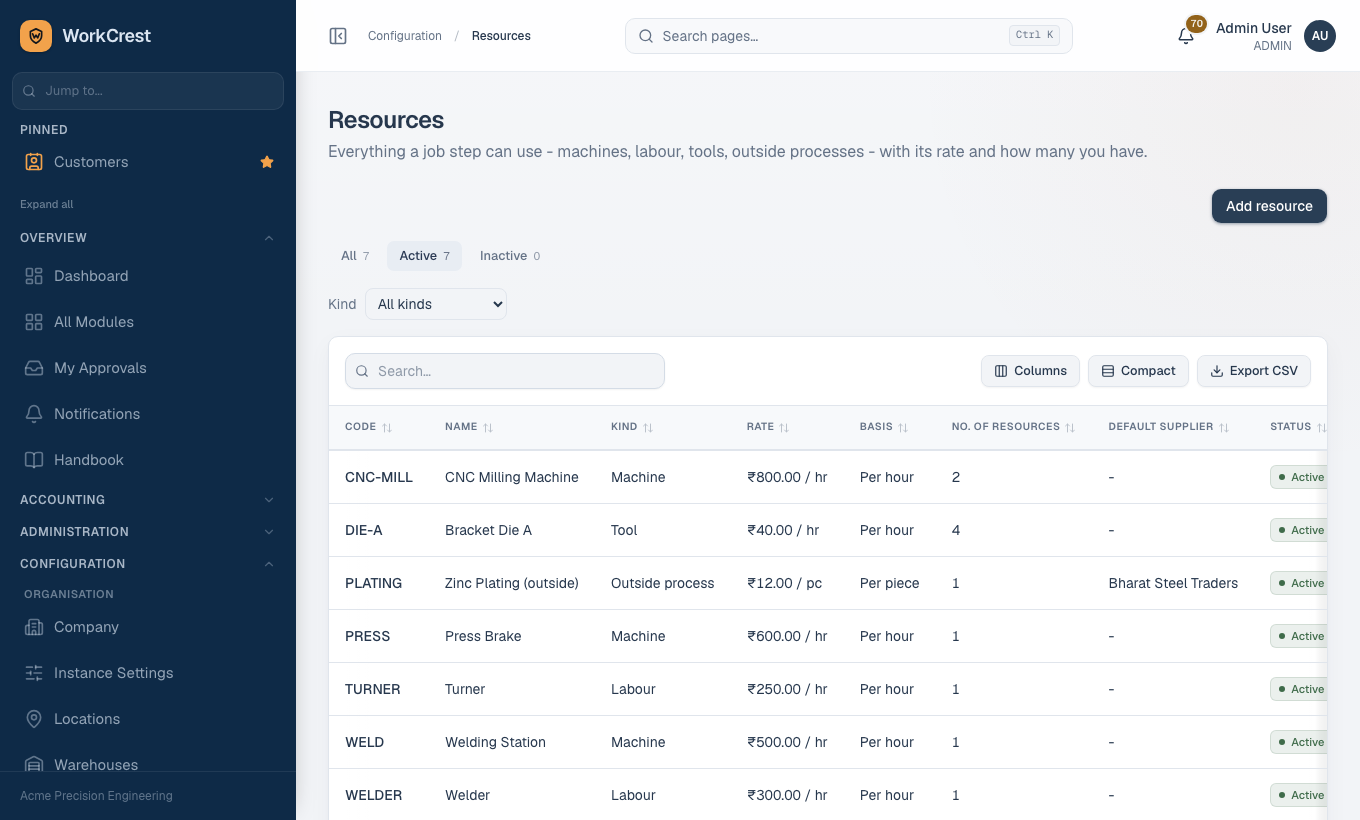
What it is: the things a job uses up: machines, people, tools and outside processors. Their rate becomes part of job cost. Create these before Operations, because an operation names the resources it needs.
Who can edit: Admin, Plant. Where to find it:
Fields that matter:
- Code, Name.
- Kind - Machine, Labour, Tool, Outside process, or Other.
- Cost basis - Per hour or Per piece. Per piece is allowed only for Outside process and Other.
- Rate - rupees per hour or per piece, matching the cost basis. Job cost uses planned time multiplied by this rate, so keep it current.
- No. of resources - how many you own (at least 1), such as three lathes.
- Default supplier and Process (service part) - for Outside process only. They say who normally does the work and which service part a purchase order line buys. Set both or neither.
11. Operations
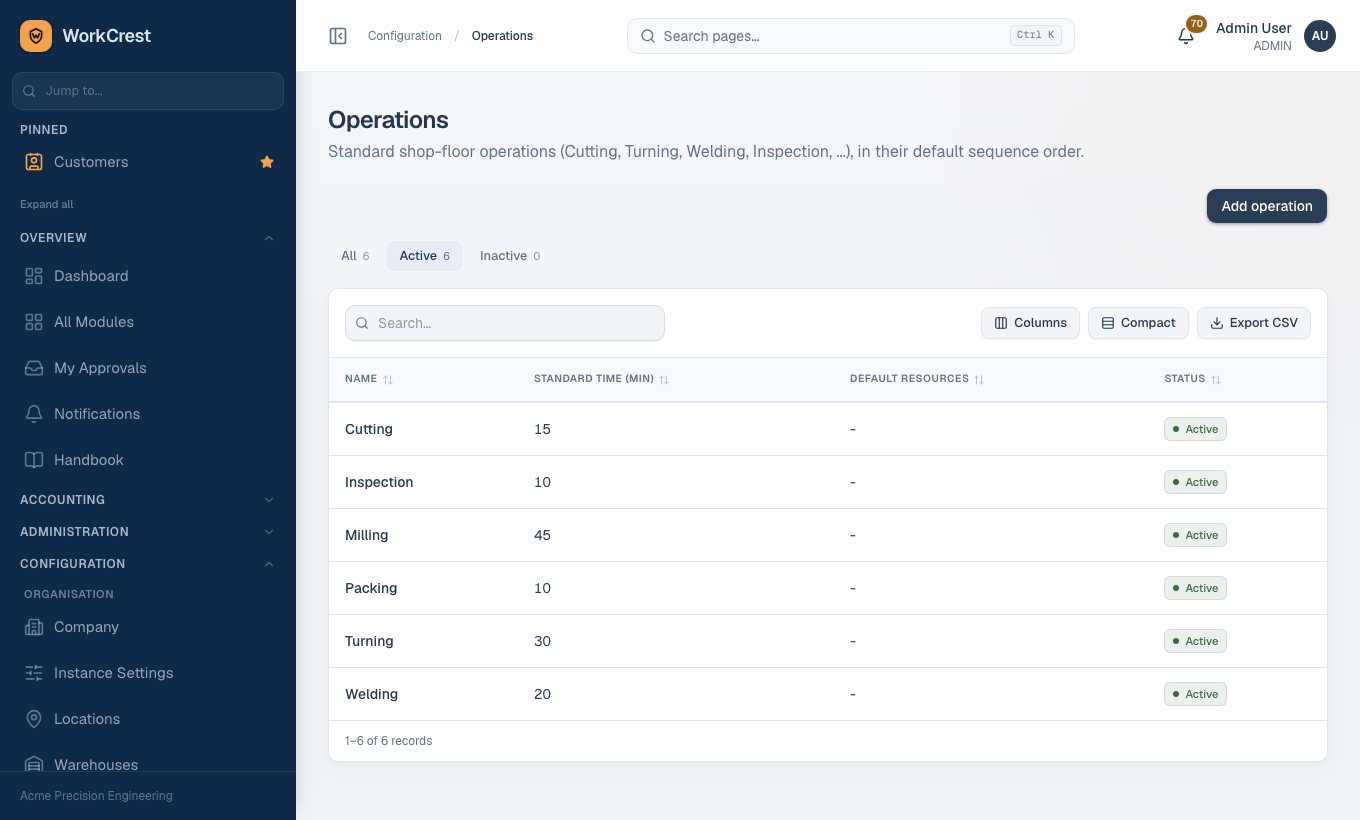
What it is: the steps a part goes through on the shop floor (cutting, turning, grinding, inspection). Routings are built from them.
Who can edit: Admin, Plant. Where to find it:
Fields: Name, Standard time (min) (optional), Active, and an optional list of default resources (a Resource and a Quantity per line). A routing step, or a job without a routing, starts from these defaults. A resource may appear only once per operation.
Common mistakes
- Wrong company state. Every invoice then splits GST wrongly, and the split is not recalculated later. Check State first.
- No location with Bill-to and Ship-to. Purchase orders cannot be completed.
- Using Receiving or Quarantine as normal storage. Stock there is not available, so it will look like it vanished.
- Picking the wrong warehouse. Old test warehouses can sort ahead of Main Store. Choose Main Store explicitly.
- Transaction type with no approval rule. Nothing of that type can be submitted. Add the rule in Approval Rules.
- Forgetting to link shipping terms on the customer. A quotation then has no default term to start from.
- Out-of-date resource rates. Job cost uses the rate, so stale rates mean stale costs.
- Trying to delete. Masters are retired by switching Active off, not deleted.
Next
Continue with the Admin guide for users, access and approval rules, Getting started for signing in and finding your way, or go back to the training home.