Training home / Admin
Admin guide
Set WorkCrest up for your company, decide who can do and see what, and keep it safe.
- Your main tasks: First-time setup, users and roles, page access, approval rules, GL control accounts, instance settings, print settings.
- Before you start: Change the starting Admin password, then enter company details including GSTIN and state. Open .
- Watch out for: Bills, invoices and receipts will not post until every GL control account is mapped.
Who this is for
People with the Admin role. Admin can open every page. These screens are Admin-only by default:
| Screen | Where to find it |
|---|---|
| Users & Roles | |
| Page Access | |
| Approval Rules | |
| Approval History | |
| GL Control Accounts | |
| Instance Settings | |
| Print Settings | |
| Export Log | |
| What's New |
See also Getting started and the approvals process.
1. First-time setup
Order matters: later steps depend on earlier ones.
- Change the starting Admin password. A new installation comes with a starter Admin login. Replace its password before anyone else signs in.
- Company details: name, GSTIN, state (this decides CGST+SGST versus IGST), address and bank details (printed on invoices).
- Users: create logins only for people who need them (see section 2). Shop-floor workers can exist as employees with no login.
- Master data, in this order:
- Departments, then Employees (set each reporting manager).
- Warehouses ("Main Store" is already there).
- Parts (HSN for goods, SAC for services, unit, standard cost, reorder level).
- Customers (GSTIN, billing state, payment terms, credit limit) and Suppliers.
- Operations and Resources.
- Leave types with annual quotas.
- Approval rules: nothing can be submitted for approval until a rule exists for it (section 4).
- Chart of accounts () and then GL control accounts (section 5). Bills, invoices and receipts will not post without them.
- Opening position: opening stock through Misc Stock In (needs approval), leave balances allocated by HR, and a decision on how to enter unpaid invoices and bills at go-live (standalone invoices are not supported).
- Dry run the sales cycle and the purchase cycle, check balances and the ageing reports, then clear out test data before going live.
2. Users and roles
- Open (the list opens on Active users).
- Create a user: Email, Username, Password, Linked employee and Roles. A user can hold several roles.
- To edit a user, click the row. Reset password is a row action.
- If someone is locked out after too many wrong passwords, use the Unlock action on their row (Reset password also clears the lock).
Roles: Admin, HR, Procurement, Accounts, Sales, Plant, Employee and Quality. Roles are re-read on every request, so a change or a deactivation takes effect on the person's next click.
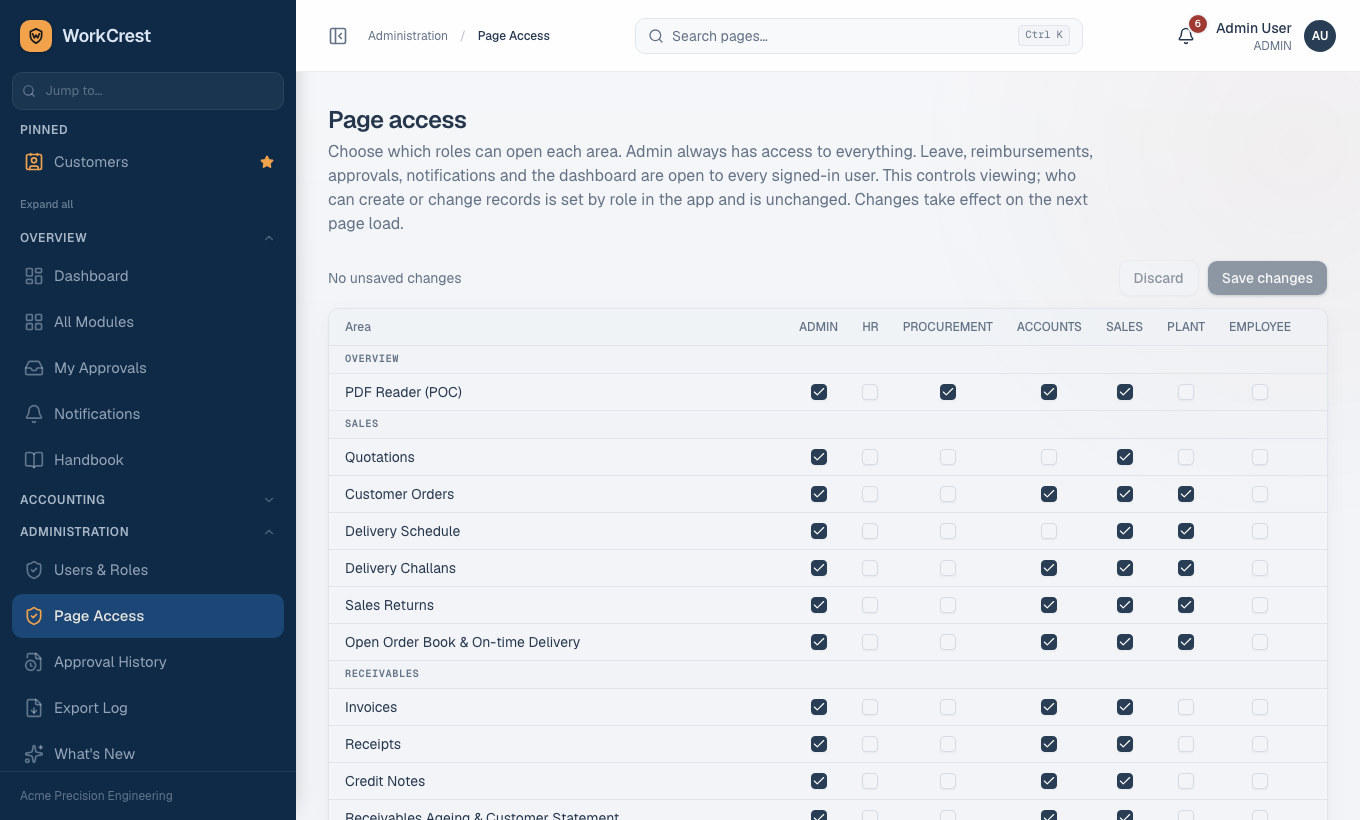
3. Page access
Who may open a page is separate from who may change data. Open , a grid of screens against roles.
- Find the area (a module's whole set of screens).
- Tick or untick the roles that may open it. A row is stored only where you differ from the built-in default.
- Save.
4. Approval rules, bands and auto-approve
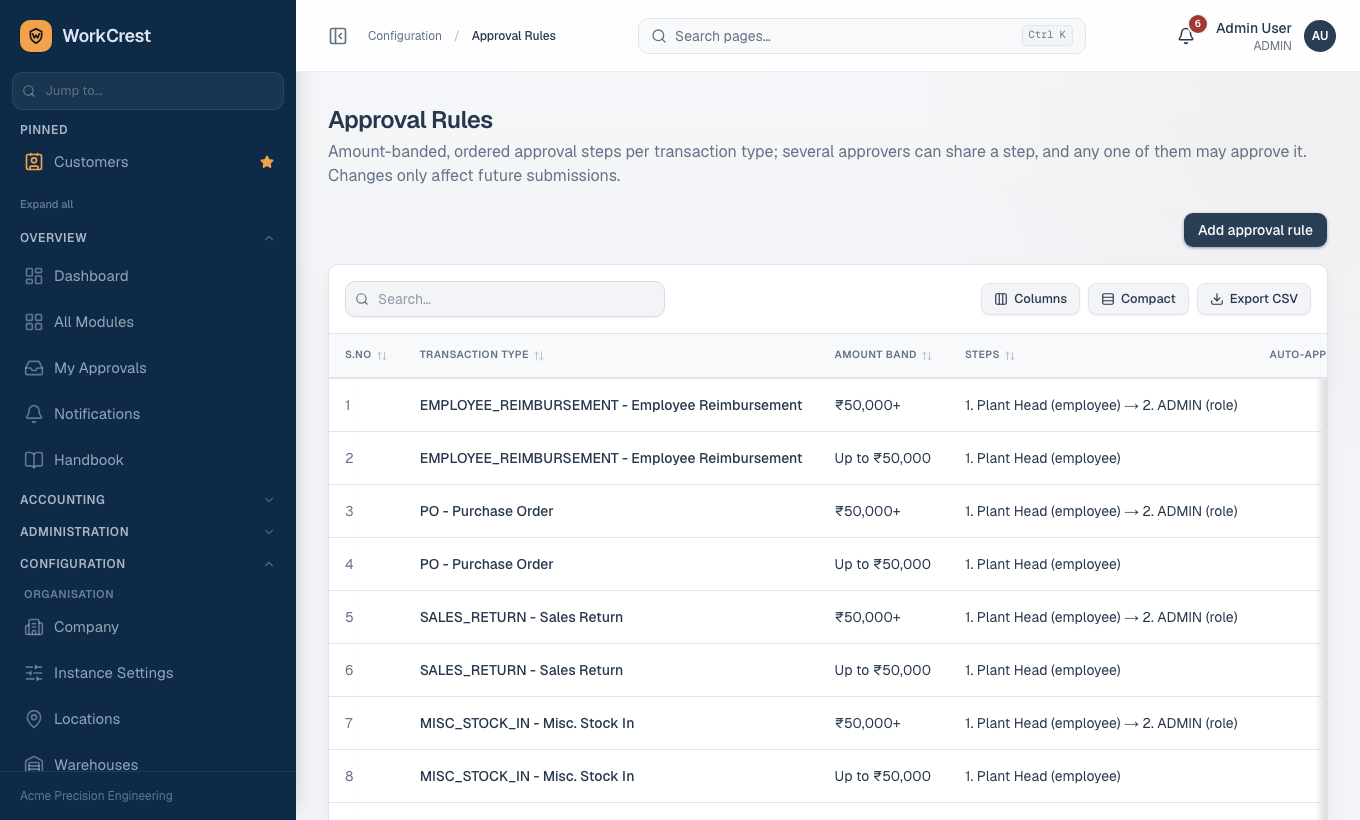
One approval engine serves purchase orders, payments, misc stock, reimbursements, supplier bills, quotations, returns, journals, quality concessions, price revisions and more. Leave is the exception; it uses the reporting manager.
- Open and add a rule.
- Choose the Transaction type and the amount band: Min amount and Max amount. The most specific band for the document's amount is used. Leave bands without gaps or overlaps.
- Add Approval steps in order. Each step names a person or a role. A two-step band could be Plant Head, then Admin.
- Keep Active ticked and save.
Auto-approve: tick it on a band. A submitter who is an approver at every step of that band skips Pending and is approved at once.
The submitter normally cannot approve their own document. Instance Settings has an Allow self-approval switch (off by default); leave never honours it. Review everything decided so far at .
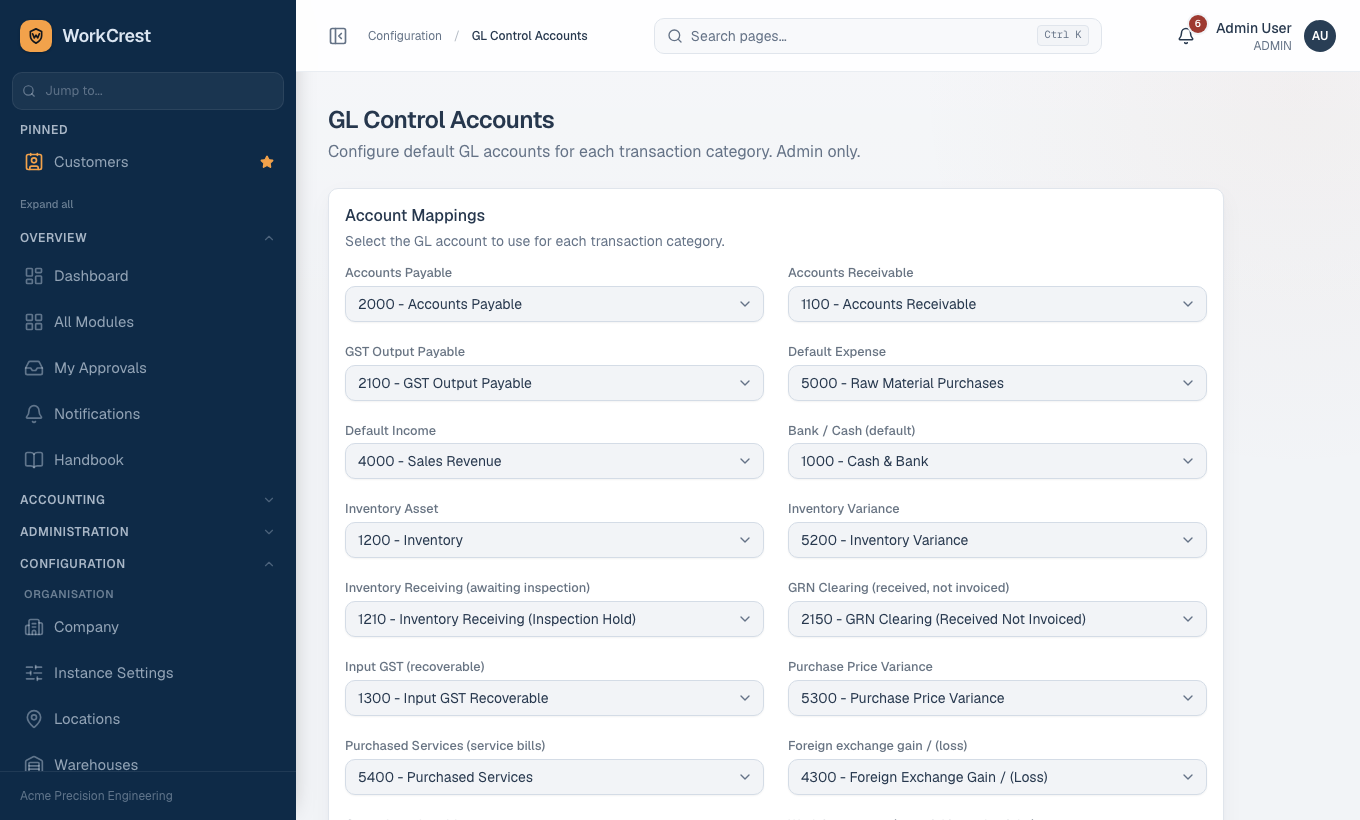
5. GL control accounts
- Make sure the chart of accounts has the accounts you need.
- Open and map each control account to a real account.
- Payable, receivable, default income and expense.
- GST output and input, bank and cash.
- Inventory asset, inventory variance, GRN clearing, work in progress.
- The others listed on the page.
- Check the Trial Balance afterwards.
6. Instance settings
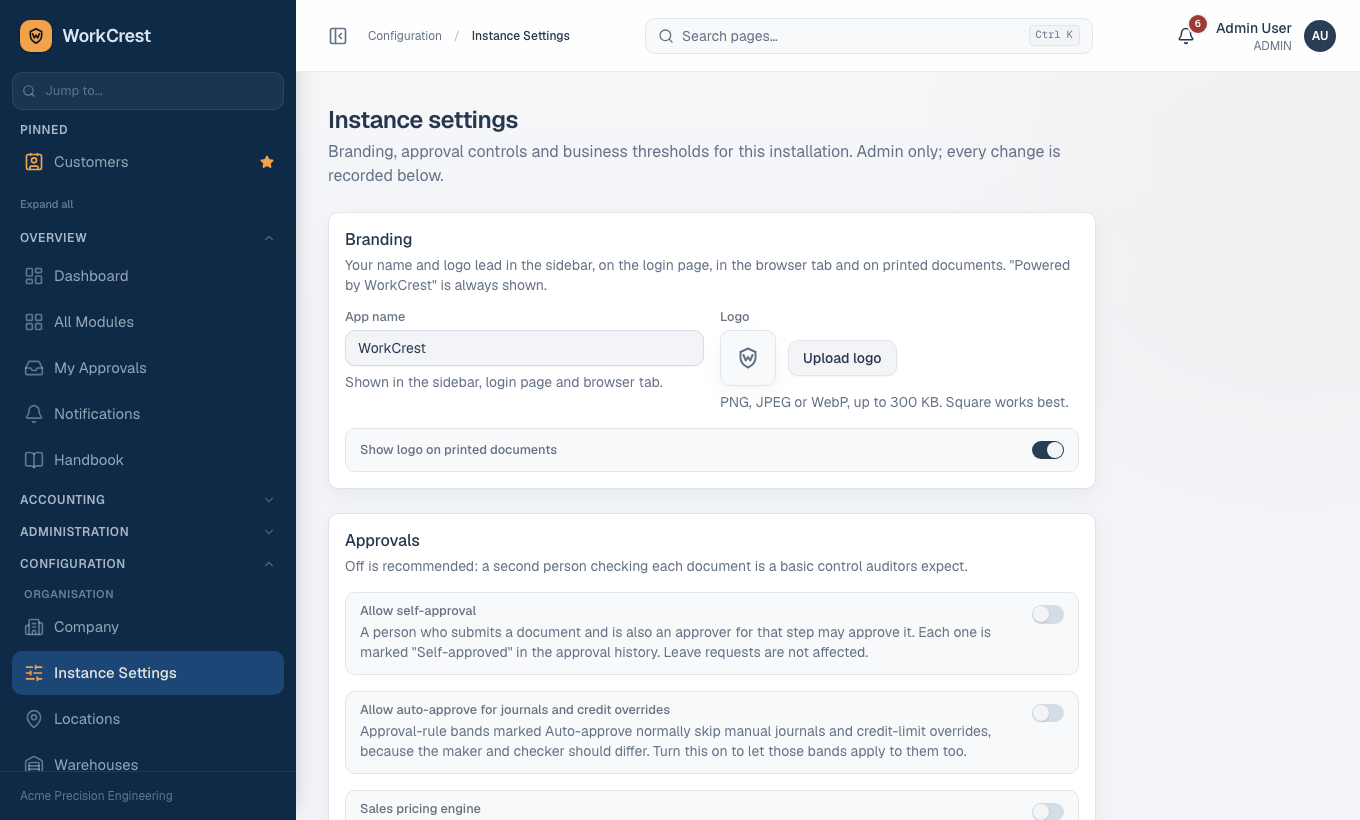
Open . Saves are logged.
| Setting | What it does |
|---|---|
| App name, logo, show logo on printed documents | Branding. Logo must be a PNG, JPEG or WebP up to 300 KB. |
| Allow self-approval | Lets a submitter decide their own document where the approval step matches them. Off by default. |
| Allow auto-approve for journals and credit overrides | Extends auto-approve bands to those sensitive documents. |
| Sales pricing engine | Turns on formula-based pricing (see section 9). |
| Material over-issue tolerance (%) | How far past plan a job's material issue may go before it needs approval. |
| Flag unapplied supplier advances after (days) | When an unused supplier advance raises a reminder. |
| Supplier quality alert above (ppm) | Reject level that triggers a supplier quality alert. |
| Invoice over customer credit limit | Warn or block when issuing an invoice past the credit limit. |
Sign-in security
| Setting | Meaning |
|---|---|
| Maximum session (hours) | Hard limit from sign-in. Default 12. |
| Sign out after idle (minutes) | Based on real clicks and key presses. A warning appears a minute before. Default 30. |
| Lock after failed sign-ins | Wrong passwords before the account locks. Default 5. |
| Lockout length (minutes) | How long the lock lasts. Default 15; Admin can unlock sooner. |
Costing switches are also edited on this page. Not available yet: password rules, forced password change at first sign-in, and two-factor sign-in.
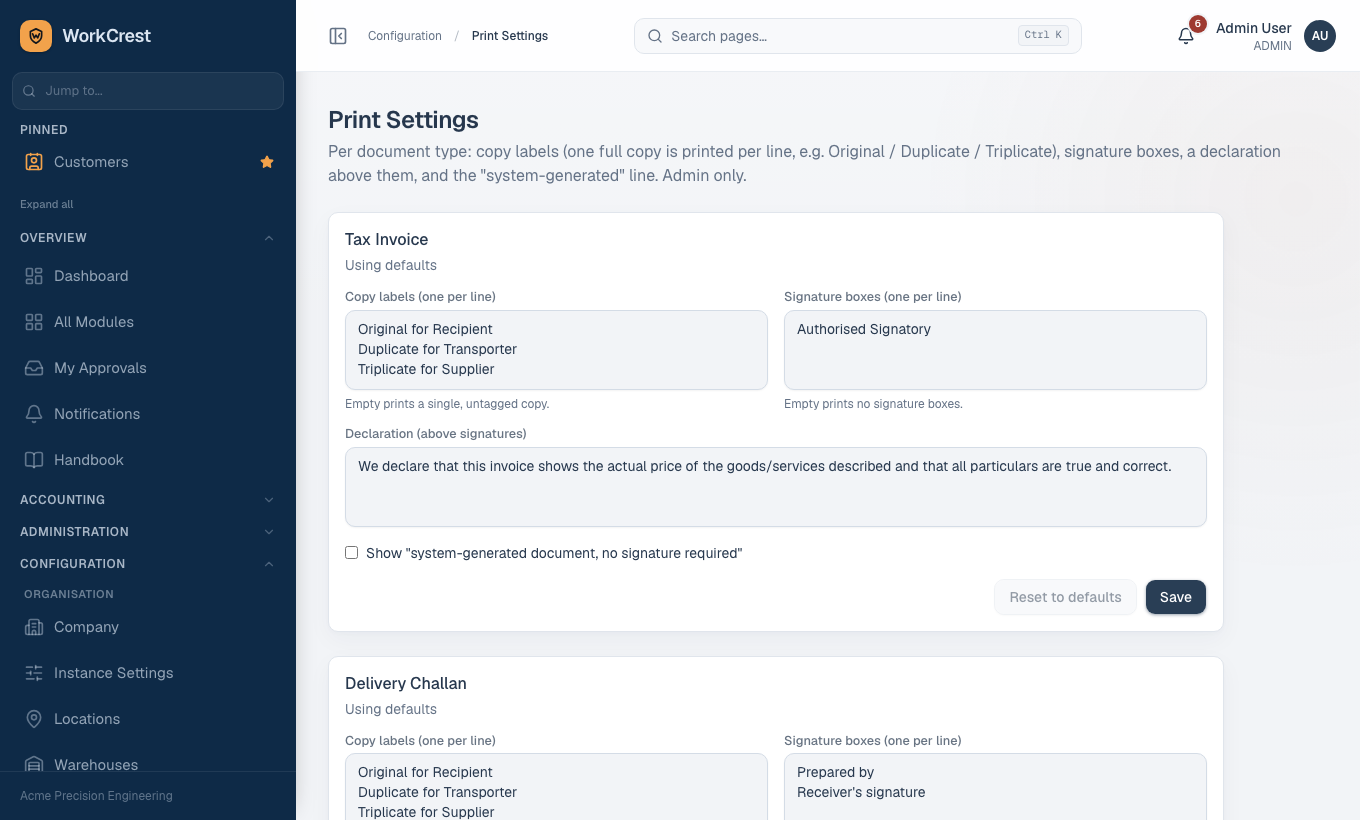
7. Print settings
- Open .
- Pick a document type and set its copy labels (one full page per label, for example Original, Duplicate, Triplicate), signature boxes, declaration and the system-generated line.
- Save. Use reset to delete your row and return to the built-in defaults.
With no saved row, invoices and challans print Original, Duplicate and Triplicate. A saved row fully replaces the defaults.
8. Logs, What's New and Switch-to-user
- Export Log (): every "Export CSV" click on a list is recorded. It is a record of who exported, not a block on exporting.
- Activity timelines: documents show their own history (created, edited, cancelled, settings saved).
- What's New (): a testing checklist of recent changes, newest first, linking to the screens. Ticks are kept in your browser only.
Switch to user (testing only)
This lets an Admin see the app exactly as another user to check their access. It is switched on only for test or staging servers, never for a live system, and only your system administrator can turn it on.
- On , use the switch action on an active non-Admin user's row.
- Enter the mandatory reason.
- A red banner shows on every page. Use Return to admin (also in the user menu) to stop.
9. Pricing engine masters (brief)
Base prices always work. The lookup order is:
- A quotation price.
- A customer-specific price.
- The customer's price list.
- The standard price list.
- The part's selling price.
Prices are dated and never edited, so a change adds a new row. The masters are and .
Formula pricing is optional and needs the "Sales pricing engine" switch in Instance Settings. Its screens are:
- : raw-material rates, which must be fresh or pricing is blocked.
- : versioned. An Active formula is cloned, not edited.
- : which customer or part uses which formula.
Price changes beyond a formula's tolerance need approval. Reports: , and .
Common mistakes
| Problem | Reason |
|---|---|
| "No approval rule" when submitting | Create an active rule whose amount band covers the document. |
| Bill, invoice or receipt will not post | A GL control account is not set. |
| GST shows IGST when it should not | Check the company state and the customer's billing state; they are compared as text. |
| A user cannot see a screen | Check their roles, then the Page Access grid. |
| User cannot sign in | They may be locked out or deactivated; unlock or reactivate on the Users page. |
| Quality menu is missing for everyone | The Quality module has been switched off by your system administrator. |