How a sales line gets its price
For Sales, Accounts, Plant Head and Admin. This page explains where the price on a quotation or order line comes from, how the optional formula pricing works, when a price is re-worked, and what to do when a price is held.
- Who it is for: Sales, Accounts, Plant Head and Admin.
- What you can do: see where a line price comes from, use optional formula pricing, and release held prices.
- What you need first: price lists and customer prices. Formula pricing also needs an Admin to switch it on.
Day-to-day selling is in the Sales guide. Switching features on is in the Admin guide.
The big picture
Every quotation and order line is priced by the system, not by the form.
- You can still type a different price. A salesperson may negotiate.
- The system checks what you typed against what it worked out.
- It records where the price came from.
There are two layers:
- Base lookup is always on. It finds a price from your quote, price lists and the part itself.
- Formula pricing is optional. An Admin switches it on, and then formulas can calculate the price from the base price, weight, raw-material rates and your own settings. It can also re-work the price at order confirmation and at dispatch.
1. The base lookup (always on)
For each line the system checks these places in order and uses the first that has a price:
- The quotation. If the order comes from a quotation, the price the customer was quoted wins.
- The customer's own price for the part (), in the same currency as the document.
- The customer's price list (the list chosen on the customer, shown under ). It is used only if the list is active and in the document's currency.
- The standard price list for that currency (the active list ticked Standard).
- The part's own selling price. For a foreign-currency document it is converted at the document's exchange rate.
If none of these has a price, the form keeps whatever you typed. A line with no part (free text) is always treated as a manual price.
Dated rows and quantity breaks
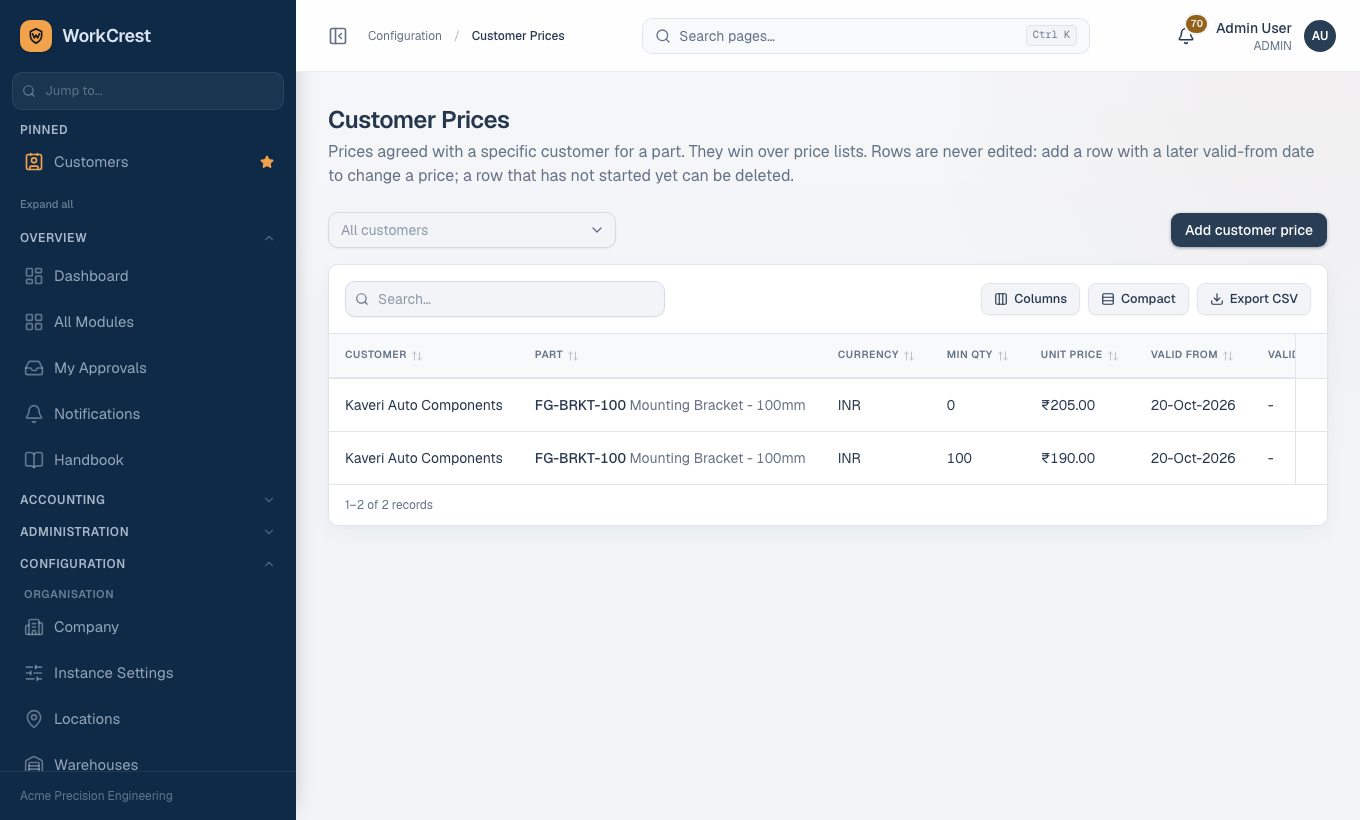
- Prices are dated rows with a valid-from date and an optional valid-to date. They are never edited. To change a price, add a new row that starts on a later date. The row with the latest start date that is valid on the document date is used.
- A quantity break is simply another row with a higher Minimum quantity. The system picks the tier from the line's own quantity (the highest minimum quantity the line reaches).
- You cannot add a second price for the same customer or list, part, quantity and start date. Use a later valid-from date.
- A price that has not started yet can be deleted. Once it has started, add a newer price instead.
The price chip
On quotation and order forms, the chip next to each price tells you where it came from: customer price, a price list, the part's selling price, a formula, or manual.
- If the price you type matches what the system found, the real source is kept.
- If it differs, the line is recorded as Manual (see Manual prices).
Price lists
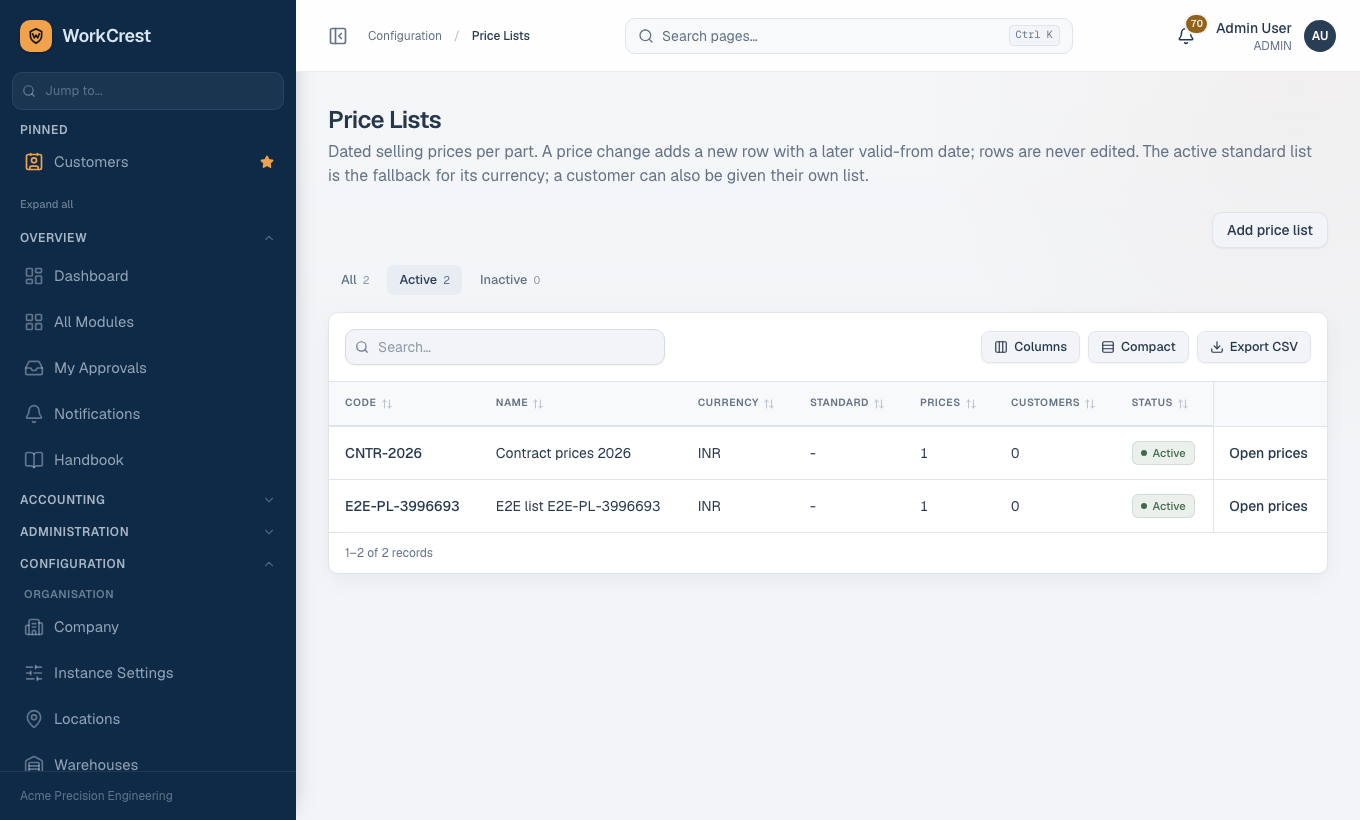
Open . Each list has a code, name and currency, and can be ticked Standard for that currency.
- Only one active list per currency can be the standard.
- The currency cannot change once the list has prices.
- Open a list to add price rows: part, minimum quantity, unit price, valid from, valid to.
Customer prices
Open to give one customer an agreed price for one part. Pick the customer, part and currency, then enter minimum quantity, unit price and the dates.
2. The optional formula engine
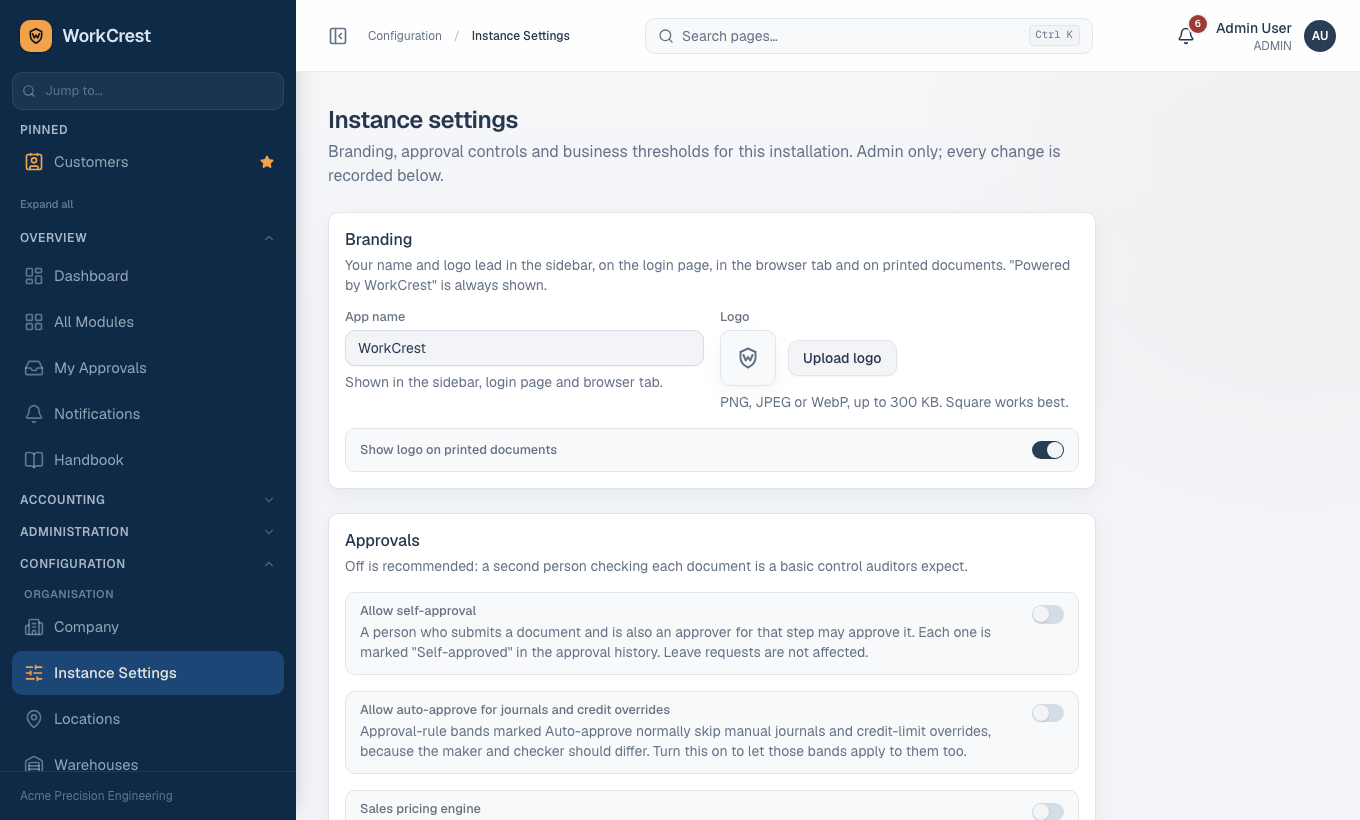
An Admin switches it on in with the Sales pricing engine switch.
Its description there reads: turn on formula-based pricing (raw-material indices, repricing at confirmation and dispatch). While off, prices come from price lists and customer prices only.
With the engine on, a formula is set up in three steps: record the raw-material rates, write the formula, then assign it to customers and parts.
Step 1: Price indices (raw-material rates)
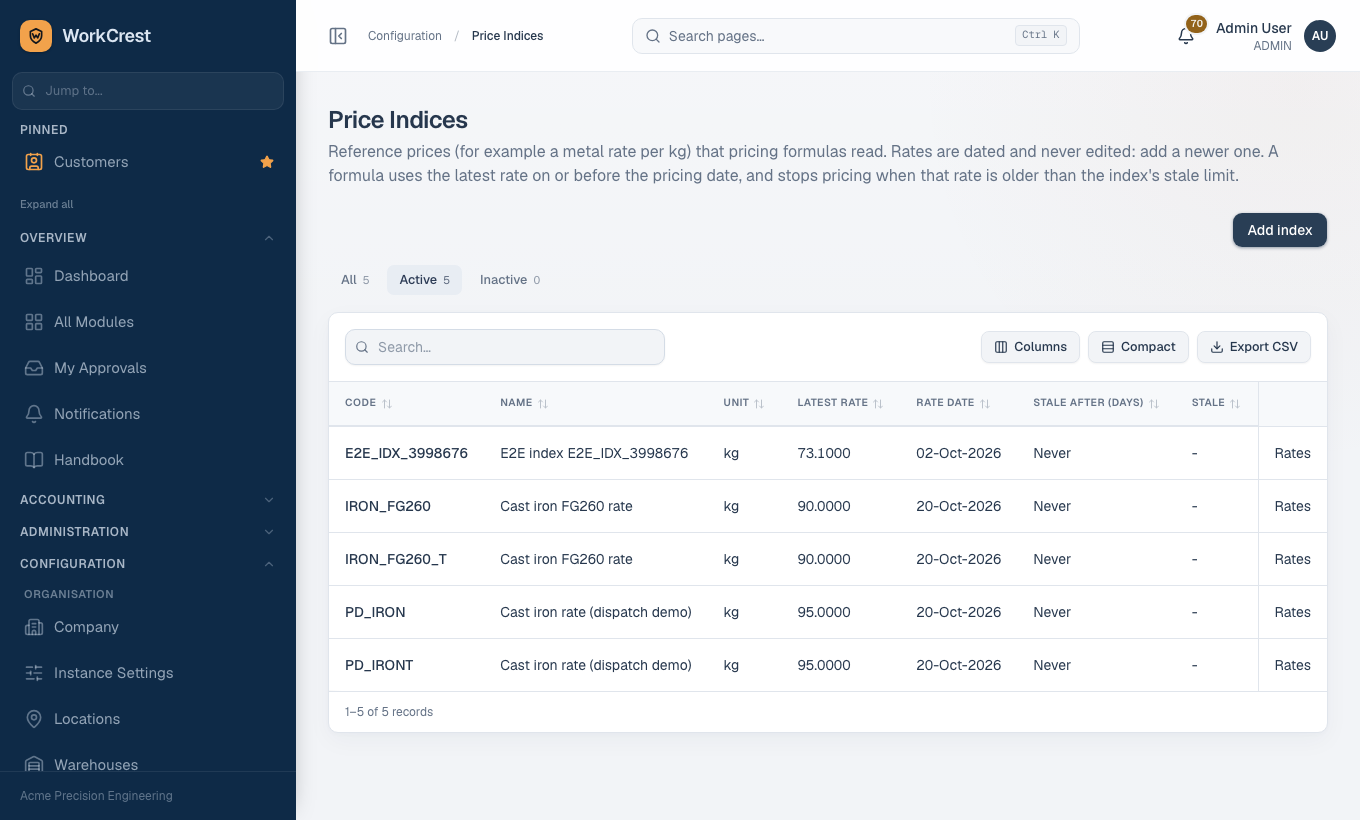
Open . An index is a named rate such as a metal price per kg, with a code, name and unit.
- Rates are append-only. You add a rate for a date; you never edit one. Adding a second rate for a date that already has one is refused. You can add rates one at a time or import many (up to 2,000 per import).
- A formula uses the latest rate on or before the date it is pricing on.
- Stale after (days) sets how old that latest rate may be. If it is older, pricing is blocked with a message such as "Price index ... is stale". Zero means it never goes stale.
- An index with no rate on or before the date, or one marked inactive, also blocks pricing.
- An index code cannot be changed after it is created, because formulas refer to it. Add a new index instead.
Step 2: Pricing formulas
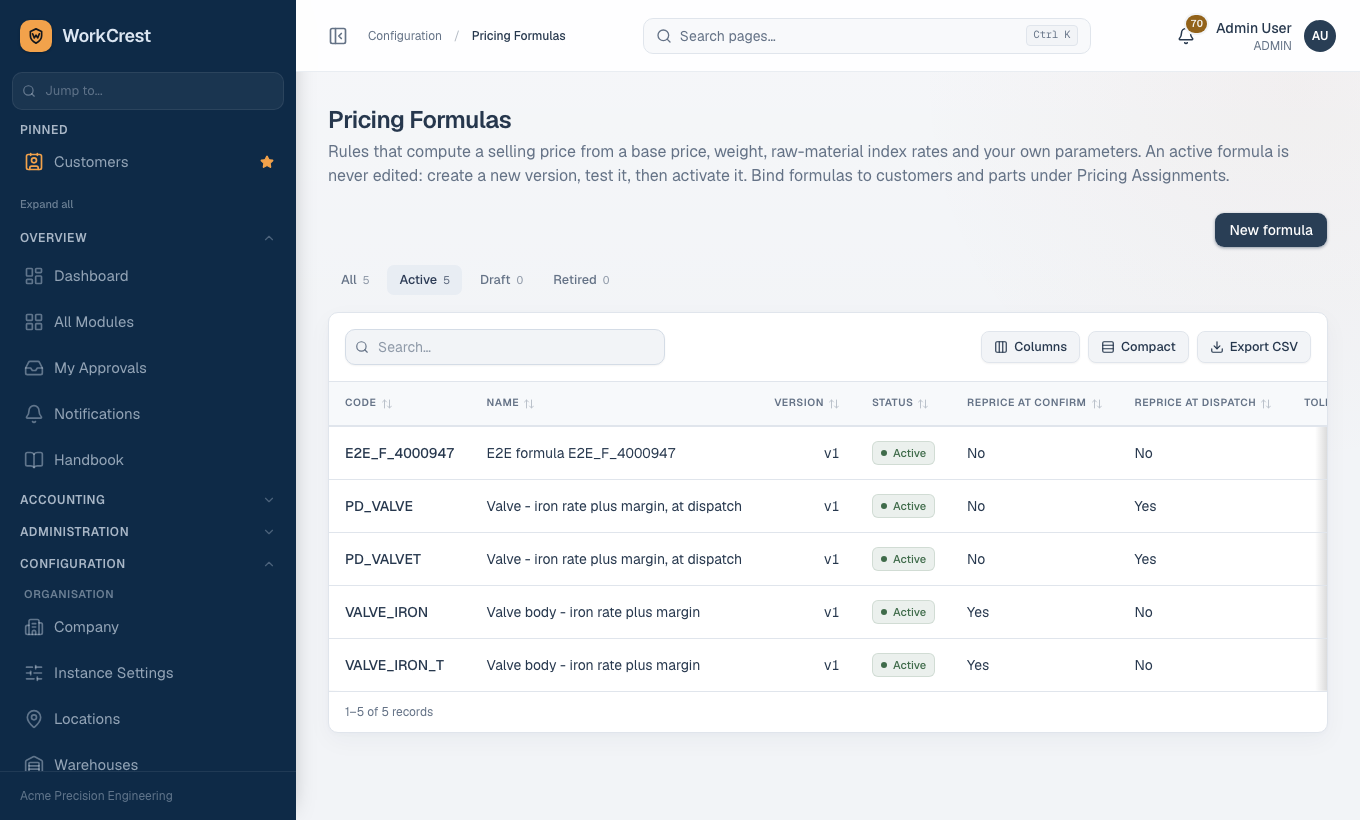
Open and press New formula. A formula has:
- A code, name and expression.
- A Tolerance %.
- Two tick boxes: Reprice at confirmation and Reprice at dispatch.
You can add your own parameters (each with a name, label and default value), for example a markup percentage.
- Versions. A new formula starts as version 1 in Draft.
- A Draft can be edited and deleted (if not yet assigned).
- Once Active it is never edited. Press New version to copy it as a new Draft, then edit and test that.
- Activating a version retires the previously active version of the same code.
- A retired formula cannot be reactivated; create a new version instead. Only one Draft per code can exist at a time.
- The editor has a Test bench so you can try the expression with sample values and see the resulting price before you activate it. The editor also checks the expression and tells you about unknown names.
What a formula can say
A formula is a calculation written with numbers and names. It works in exact decimals, not approximate ones.
| You can use | Details |
|---|---|
| Arithmetic | + - * / and brackets. Dividing by zero gives an error. |
| Comparisons and logic | < <= > >= == !=, with and, or, not. A true result counts as 1 and false as 0. |
| Functions | if(test, then, else), min and max (two or more values), round(value, places), ceil, floor, abs. |
| Raw-material rates | index("CODE") gives the latest rate on the pricing date. index_on("CODE", date) gives the rate on or before another date, for example order_date - 30 for thirty days earlier. The code goes in quotes. |
| Built-in values | base_price, qty, net_weight, gross_weight, quote_date, order_date, phase_date, lead_days, fx_rate. Dates behave as day numbers, so subtracting two dates gives the number of days between them. |
| Your parameters | Any parameter you define on the formula, by its name. |
Things to know:
base_pricecomes from the base lookup.- The formula works in rupees. A foreign-currency price is converted in and back out at the order's rate.
- Weights and lead days come from the part.
- The result is rounded to paise. A formula that gives a negative price is refused.
- Expressions are limited to 2,000 characters.
Two examples, checked against the formula rules:
base_price * (1 + markup)with a parameter calledmarkupset to 0.10: a base price of 100 gives 110.if(qty >= 100, base_price * 0.95, base_price): 5% off for 100 or more, otherwise the base price.
A formula that adds a raw-material cost would use the index, in the form base_price + net_weight * index("STEEL"), where STEEL is an index code you created.
Step 3: Pricing assignments
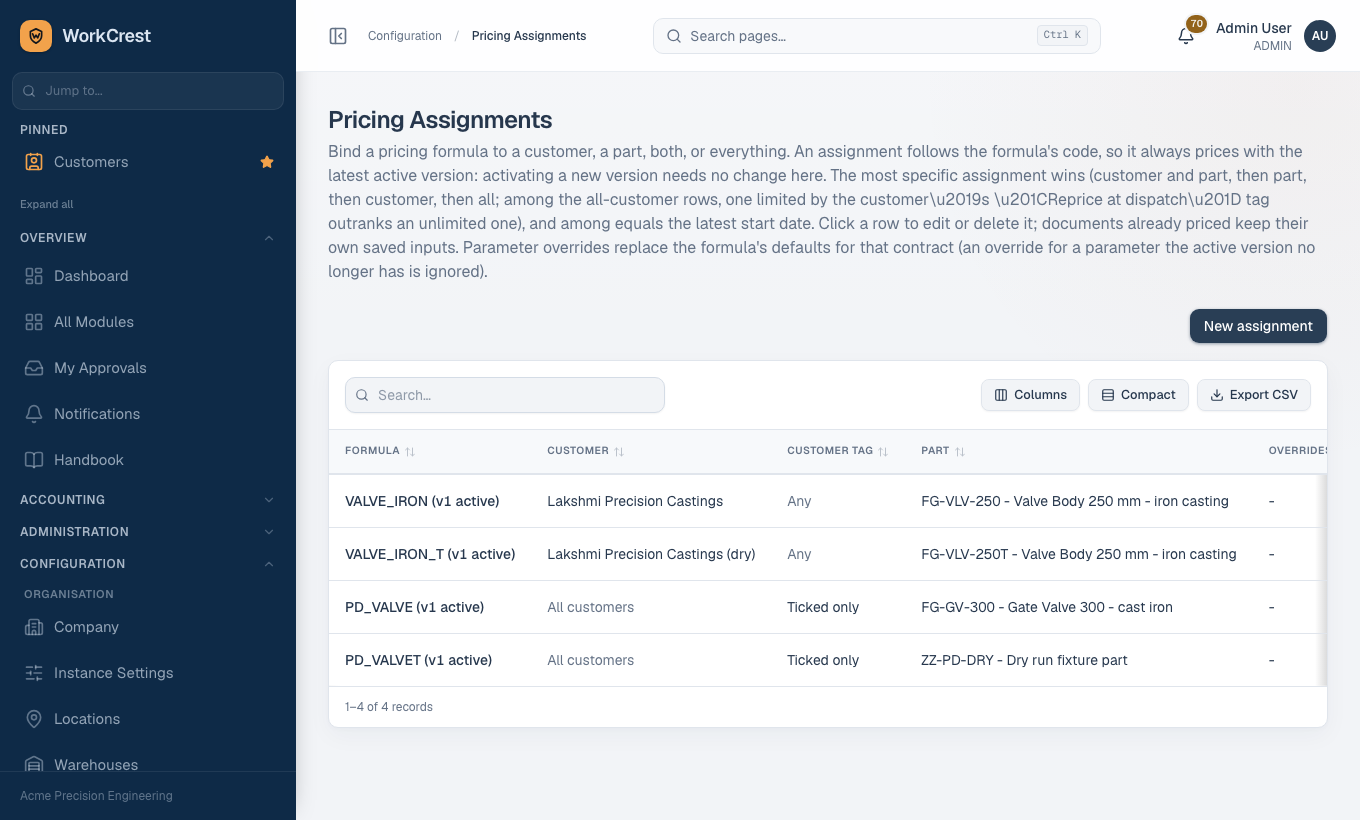
A formula does nothing until it is assigned. Open and add a row with:
- Formula, an optional Customer and an optional Part. Leave customer or part empty to mean all customers or all parts.
- Applies to customers (the customer tag): any customer, only customers ticked for reprice-at-dispatch, or only those not ticked.
- The tag only narrows an all-customers row.
- It does not turn repricing on or off by itself. That comes from the formula's own tick boxes.
- Parameter overrides, to use a different value than the formula's default for this customer or part (for example a higher markup for one customer).
- Valid from and optional Valid to.
Which row wins. Among rows that are in date and match the customer and part, the most specific one is used. The order is:
- Customer and part.
- Part with a customer tag.
- Part only.
- Customer only.
- Tag only.
- All.
- A row with a tag beats an otherwise identical row without one, but never a row that names the customer.
- If two are equally specific, the later valid-from date wins.
An assignment follows the formula code, always using the latest Active version. So when you activate a new version you do not change the assignment.
- A code with no active version is skipped.
- Overrides for a parameter that no longer exists are ignored.
- Assignments can be edited or deleted at any time. Lines already saved keep a snapshot of the numbers they used.
3. When prices are re-worked
When you save a quotation or order line, the system works out the price in this order of authority:
- A quoted price first. No formula is run on it.
- The formula price, if the engine is on and an assignment applies.
- The base lookup.
Then it marks the source. If the price you typed equals the formula price, the line is marked as formula priced. If it equals the base lookup, it keeps that source. Otherwise it is manual.
Formula-priced lines can be re-worked later, but only if the formula's tick boxes allow it:
| When | What happens |
|---|---|
| Order confirmation | On the day you confirm a Draft order, formula lines are re-priced using that day's index rates. A line that still sits on a quote whose validity has not expired keeps its quoted price. Manual lines are never re-priced. Return orders are not re-priced. Confirming twice does not re-work the same lines again. |
| Dispatch | When a delivery challan is created, formula lines whose formula has Reprice at dispatch ticked are priced on the challan date. The new price is stored on the challan line. If it is the same as the order price, the challan line simply bills at the order price. Return orders are not re-priced. |
If a needed index is stale or missing at either point, the confirmation or dispatch is stopped with a readable message and nothing is saved. Add a fresh index rate and try again.
Tolerance and approval
Each change goes through a price revision. The formula's Tolerance % decides what happens:
- Within tolerance (up to and including the percentage, up or down): the new price is applied straight away and logged as an automatic revision.
- Beyond tolerance: the change needs approval and appears in .
- The approver is the Plant Head when the money impact is up to Rs 50,000, and the Admin as well above that.
- The impact is the price difference times the quantity, in rupees.
What a held line means
- At confirmation: the order stays in Draft until the revision is decided. You cannot confirm it again while a revision is waiting. If approved, the line takes the new price. If rejected, the line keeps the old order price.
- At dispatch: the goods and stock still move, but that challan line is held from billing until the revision is decided. If approved, it is billed at the new price. If rejected, it falls back to the order price.
- A line can have only one revision waiting at a time.
When invoicing, an order line that has dispatch-priced challan lines is invoiced one line per challan line, in the order they were dispatched. Held lines are left out until released.
Other lines invoice as before. The Dashboard also has a "Price approvals pending" card.
Manual prices
If you type a price that differs from what the lookup or formula gave, the line is stamped Manual. You can enter a reason, and the line shows up in the Price Overrides report.
- Manual lines are never re-priced at confirmation or dispatch.
- Free-text lines (no catalogue part) are always manual.
4. Reports
All three are under in the sidebar and take a From and To date.
| Report | What it shows |
|---|---|
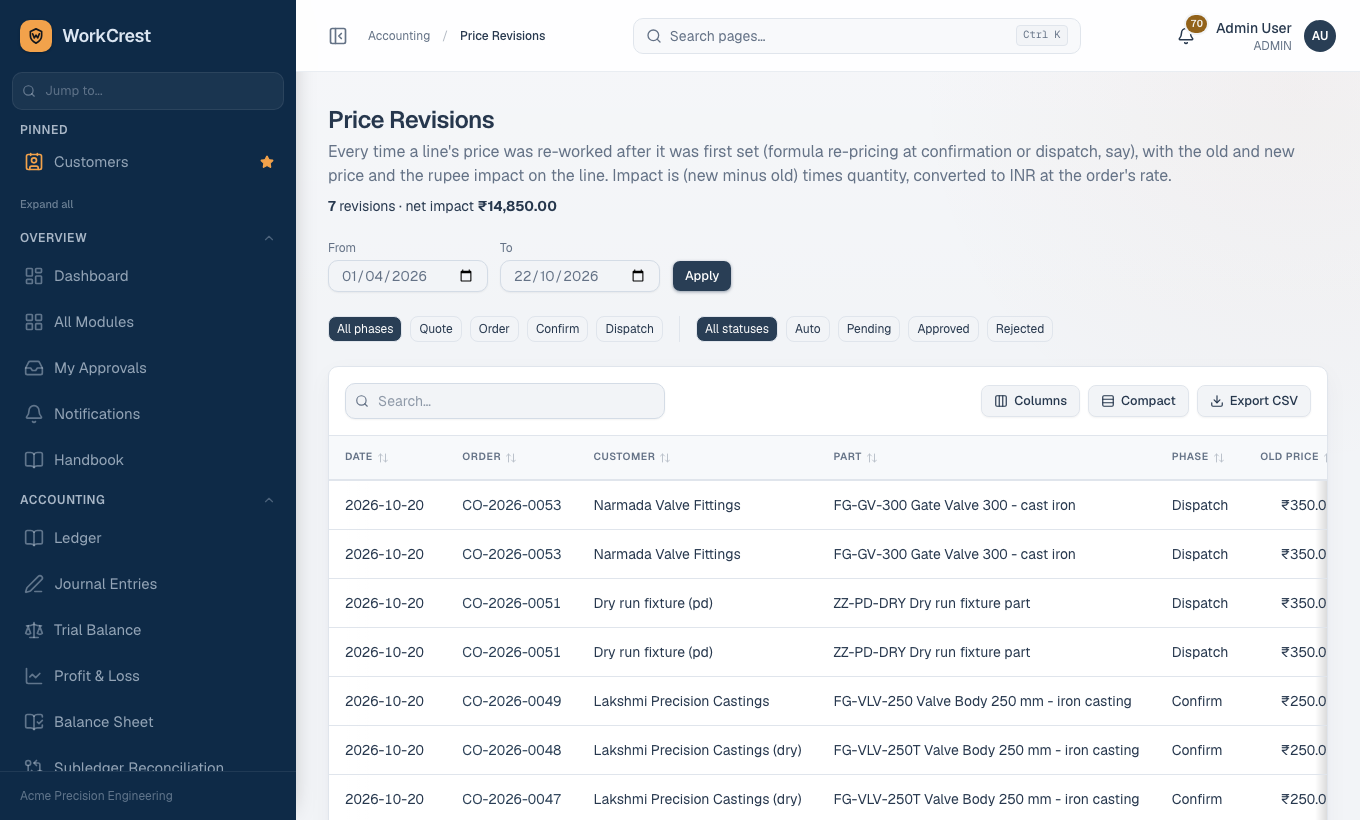
| Every time a line's price was re-worked: date, order, customer, part, phase (quote, order, confirm, dispatch), old and new price, change %, quantity, rupee impact and status (auto, pending, approved, rejected). A footer sums the impact. Filter by phase and status. | |
| Quotation and order lines for catalogue parts whose price was typed by hand: document, customer, part, quantity, saved price, the part's own selling price, the difference %, who entered it and the reason. | |
| For each raw-material index: how many rates fell in the period, first and latest rate, latest date and change %; plus the individual rates with their date and source. |
Use Price Overrides in your monthly review to spot salespeople who regularly type prices instead of using the agreed ones.
5. Who can edit what
| Screen | Roles that can open and change it by default |
|---|---|
| Price Lists, Customer Prices | Sales, Accounts, Admin |
| Price Indices | Sales, Accounts, Procurement, Admin |
| Pricing Formulas, Pricing Assignments | Sales, Accounts, Admin |
| Price Revisions, Price Overrides, Index Rates reports | Sales, Accounts, Plant Head, Admin |
| Sales pricing engine switch (Instance Settings) | Admin |
| Approving a price revision | Plant Head up to Rs 50,000 impact; Admin also above that |
Common mistakes
- Editing instead of adding. Price rows and index rates are never edited. Add a new dated row or rate.
- Valid-from set in the future by mistake. The new price is not picked until that date; the old one keeps applying.
- Currency mismatch. A customer price, or a customer's price list, only applies when its currency matches the document. A USD order will not pick a rupee list.
- No standard list. If a currency has no active standard list, the lookup falls through to the part's selling price.
- Forgetting to assign. An active formula with no matching assignment prices nothing.
- Activating a new version that is only half-tested. Assignments pick up the new version immediately.
- Letting index rates go stale. It blocks pricing, confirmation or dispatch for every formula that uses the index.
- Ticking Reprice at dispatch but not at confirmation (or the reverse) and being surprised when a price does not move at the other step. Each tick box controls its own step.
Why is my price blocked? (FAQ)
| You see | What it means and what to do |
|---|---|
| "Price index ... is stale" | The latest rate is older than the index's stale limit. Add a current rate under (Procurement, Sales or Accounts can). |
| "Price index ... has no rate on or before ..." | No rate exists yet for that date. Add one dated on or before the document or challan date. |
| "Price index ... is inactive" | Someone switched the index off. Make it active again or change the formula. |
| A formula error message naming the formula and version | The expression failed with your inputs, for example a division by zero or a negative price. Fix it in a new version and test it first. |
| "... price revisions are awaiting approval - get them decided before you confirm this order" | A price change beyond tolerance is waiting. Ask the approver (Plant Head, or Admin for larger amounts) to decide it in My Approvals. |
| Order stays in Draft after you pressed Confirm | Confirmation re-priced a line beyond tolerance and is waiting for approval. |
| A challan line is not on the invoice | Its dispatch price is waiting for approval, so the line is held from billing. Once approved or rejected it can be invoiced. |
| "A price revision for this line is already awaiting approval" | That line already has one revision pending. Decide it first. |
| The price chip says Manual | The price you typed differs from the lookup or formula. Retype the suggested price if you did not mean to override, or leave a reason. |
| The formula price is not used | Check that the engine is switched on, the formula has an Active version, an assignment covers the customer and part on that date, and a more specific assignment is not winning. |
| "There is already a price for this ... starting that day" | Use a later valid-from date. |
| "This price has already started. Add a newer price instead of deleting it." | Started prices are kept for history. Add a newer row. |
Back to Training home, the Sales guide or the Admin guide.