Training home / HR and Employee
HR and Employee guide
Apply for leave, approve your team's leave, keep leave balances right, claim expenses back, and keep the employee list up to date.
- Your main tasks: Apply for leave, check your balance, cancel a request, approve team leave (managers), allocate balances (HR), claim expenses back.
- Before you start: Open . Managers need people reporting to them; leave approval depends on each employee's reporting manager.
- Watch out for: Pending leave already uses your balance, and one request must stay inside a single calendar year.
Who this is for
Every employee with a login (leave, reimbursements, notifications), managers who approve their team's leave, and HR staff who look after employees and leave balances. New to WorkCrest? Start with Getting started.
| Screen | Where to find it | Who can open it |
|---|---|---|
| Leave | Everyone (own requests); managers see a Team Queue; HR and Admin see All Requests | |
| Leave Balances | HR and Admin | |
| Reimbursements | Everyone (your own claims) | |
| Employees | HR and Admin | |
| Departments | HR and Admin | |
| Leave Types | HR and Admin | |
| Notifications | Everyone |
1. Apply for leave
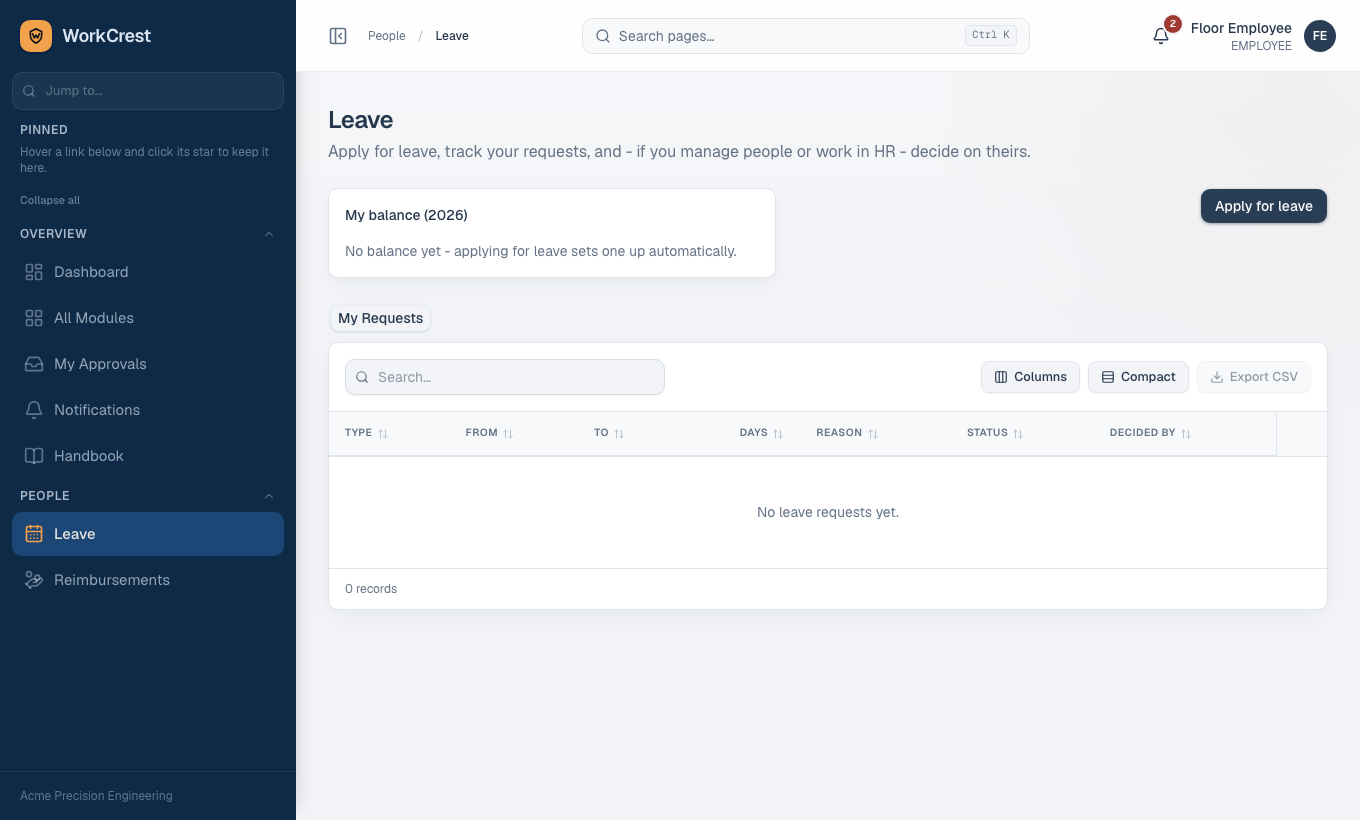
- Open Leave in the sidebar (). You land on the My Requests tab.
- Click Apply for leave.
- Pick the Leave type, then the Start date and End date.
- Submit. Your request shows as pending, and your reporting manager gets a notification.
2. Check your leave balance
A balance is kept per employee, leave type and year. It is created automatically the first time it is needed, using the leave type's annual quota. If the days look wrong, ask HR to adjust them (see section 5).
3. Cancel a request
- Open and find the request under My Requests.
- Click Cancel on that row (it only appears when cancelling is allowed).
Cancelling an approved leave that has not started yet gives the days back to your balance.
4. Approve or reject your team's leave (managers)
- Open and go to the Team Queue tab. It only shows if you have people reporting to you.
- Click Review on a request.
- Choose Approve or Reject in the Decide leave request window and confirm.
5. Allocate or adjust balances (HR)
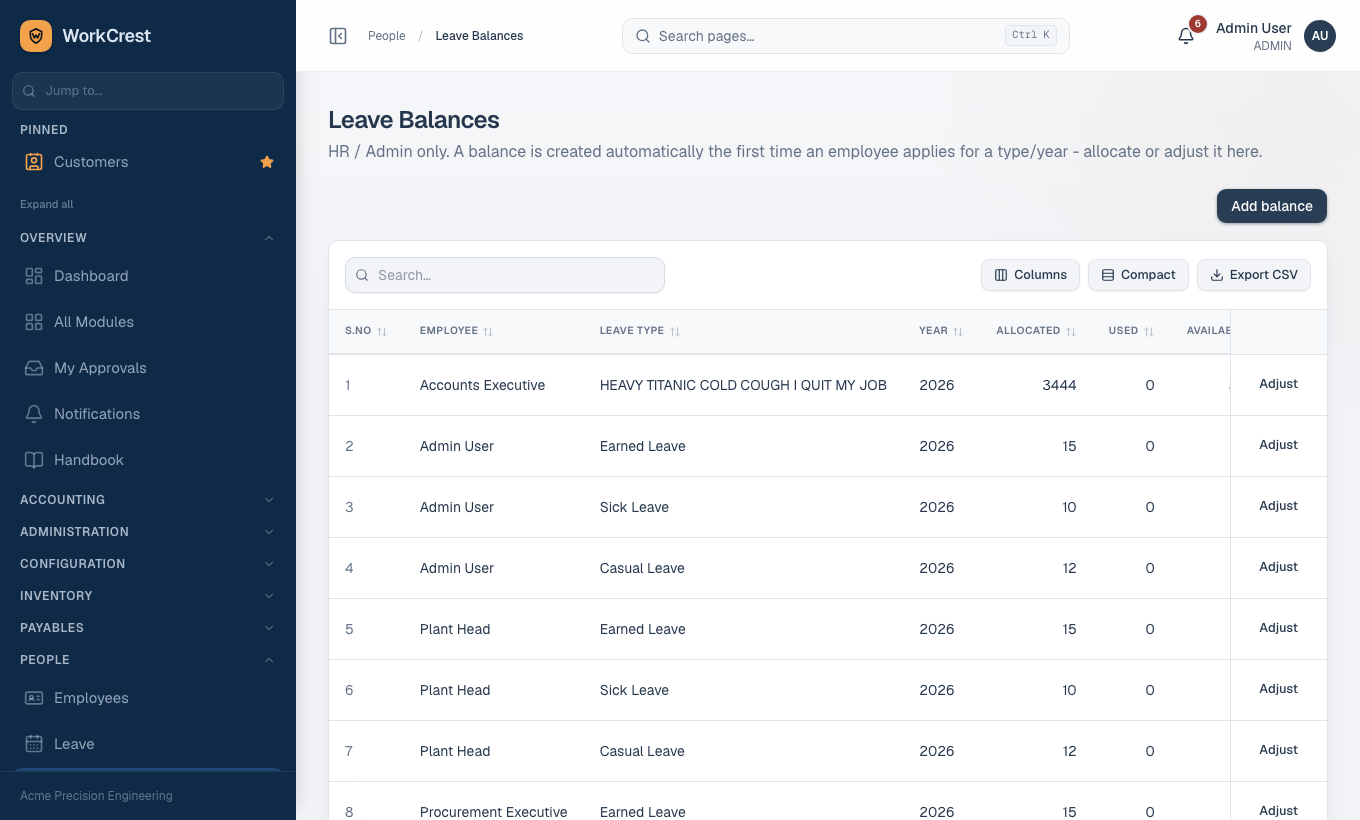
- Open Leave Balances ().
- Add or edit a balance: choose the Employee, Leave type, Year and Allocated (days).
- Save. The employee sees the new balance right away.
HR can also see everyone's requests on the All Requests tab of . Leave types and their annual quotas are set at .
6. Claim an expense back (reimbursement)
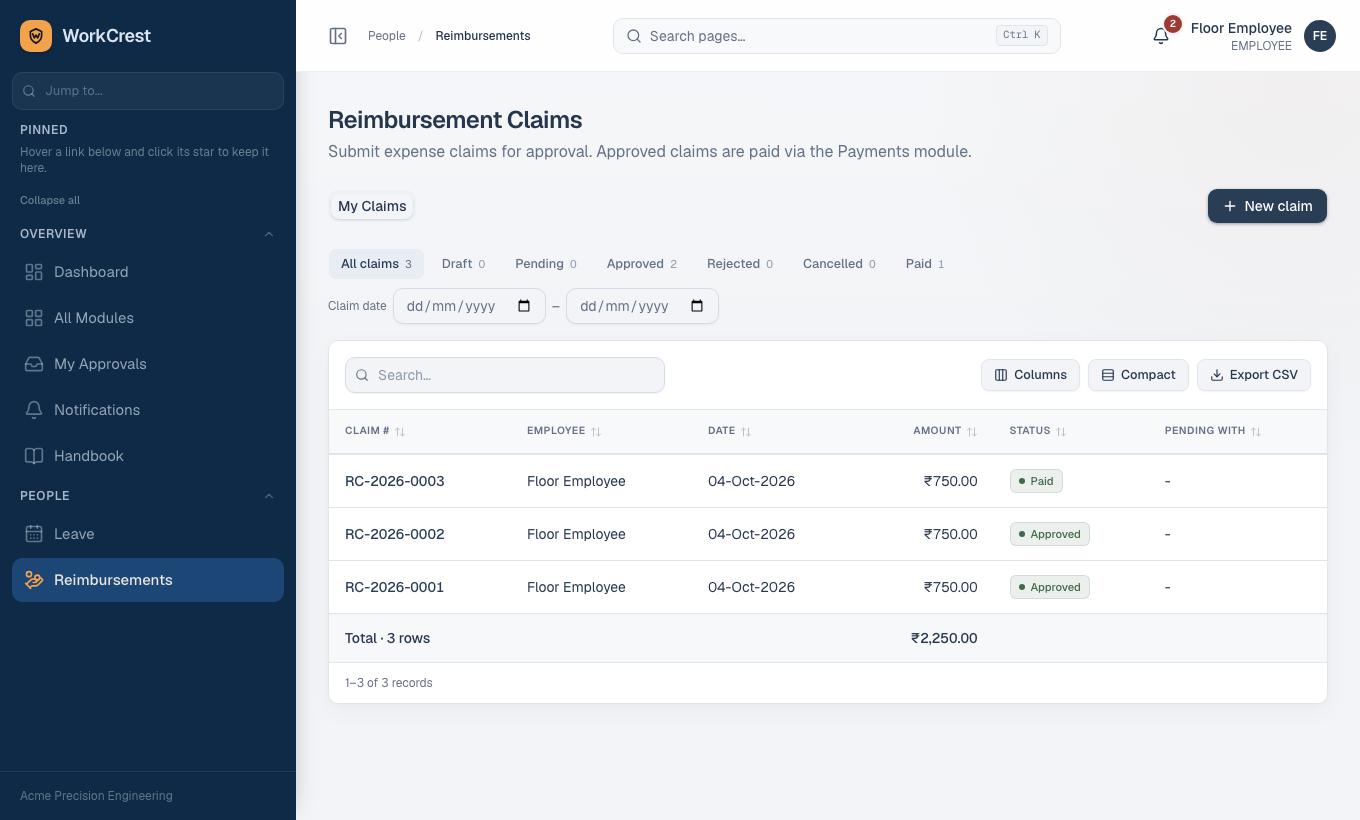
- Open Reimbursements () and start a new claim.
- Fill the Claim Date and optional Remarks.
- For each expense, enter the Category (free text), Description, Amount (₹) and Expense Date. Add as many lines as you need.
- Save the claim, then open it and click Submit for approval. Until you submit, you can still change it, or use Cancel claim.
- Approvers decide in My Approvals (). You are notified when it is approved or rejected.
- After approval, the Accounts team links the claim to a payment and marks it paid. Only then does the claim show as paid.
Who approves, and at what amounts, is set by an Admin in the approval rules. See How approvals work.
7. Keep employees up to date (HR)
- Open . The list opens on Active employees.
- Click a row to edit, or use Add to create one.
- Set the reporting manager for each person, since leave approval depends on it.
Employees exist without logins (for example shop-floor workers). A login, when needed, is created by an Admin and linked to the employee.
8. Notifications
The bell in the header updates about once a minute. Click it for recent items, or open for the full list, where you can mark one or all as read. You will see leave and reimbursement decisions, and approvals waiting on you.
Why can't I...?
| Problem | Reason |
|---|---|
| I cannot see the Team Queue tab | Nobody reports to you in the employee master. Ask HR to check the reporting managers. |
| My request is rejected for dates | A request must fit in one calendar year. Split it at 31 December. |
| Apply says not enough balance | Pending requests count against the balance. Cancel one, or ask HR to adjust the allocation. |
| I cannot approve my own leave or claim | Deliberate. Someone else must decide. (An Admin may allow self-approval for general approvals, but never for leave.) |
| My claim is approved but not paid | Approval does not pay it. Accounts has to link it to a payment and mark that paid. |
| I cannot open Leave Balances or Employees | Those are for HR and Admin. Page access can be changed by an Admin. |