Training home / Plant
Guide for Plant and Shop Floor
Job orders, operations, material, stock and dispatch.
- Your main tasks: Create job orders, release the job, run operations, issue material, record scrap, complete the job, dispatch.
- Before you start: Confirmed customer order, and an output part with a complete routing. Open first.
- Watch out for: Release the job first. Until then you cannot edit operations, issue material or complete it.
Who this is for and what you can open
You use the Plant role (Plant Head or shop-floor staff). Admin can do the same. Sales can view job orders, and Sales and Plant can both create delivery challans.
| Menu section | Screens |
|---|---|
| Production | Job Orders , Job Board , Completed Operations , Bill of Materials , Routing |
| Inventory | Stock Balances , Stock Movements, Reorder Alerts, Supply & Demand, Min/Max Planning, Misc Stock In/Out , Physical Inventory , Stock Counting , Goods Receipts, Purchase Returns |
| Sales | Customer Orders, Delivery Schedule, Delivery Challans , Sales Returns |
| Everyone | My Approvals , Notifications |
1. Create job orders
From a customer order
- Open the Confirmed customer order and choose Generate job orders ().
- For each line pick the output part, which must be a real stockable part, not a service. Each part needs a complete routing (Routing master); without one no job can be created.
- The job copies the routing steps and snapshots the part's active Bill of Materials as the required material.
Make-to-stock and rework
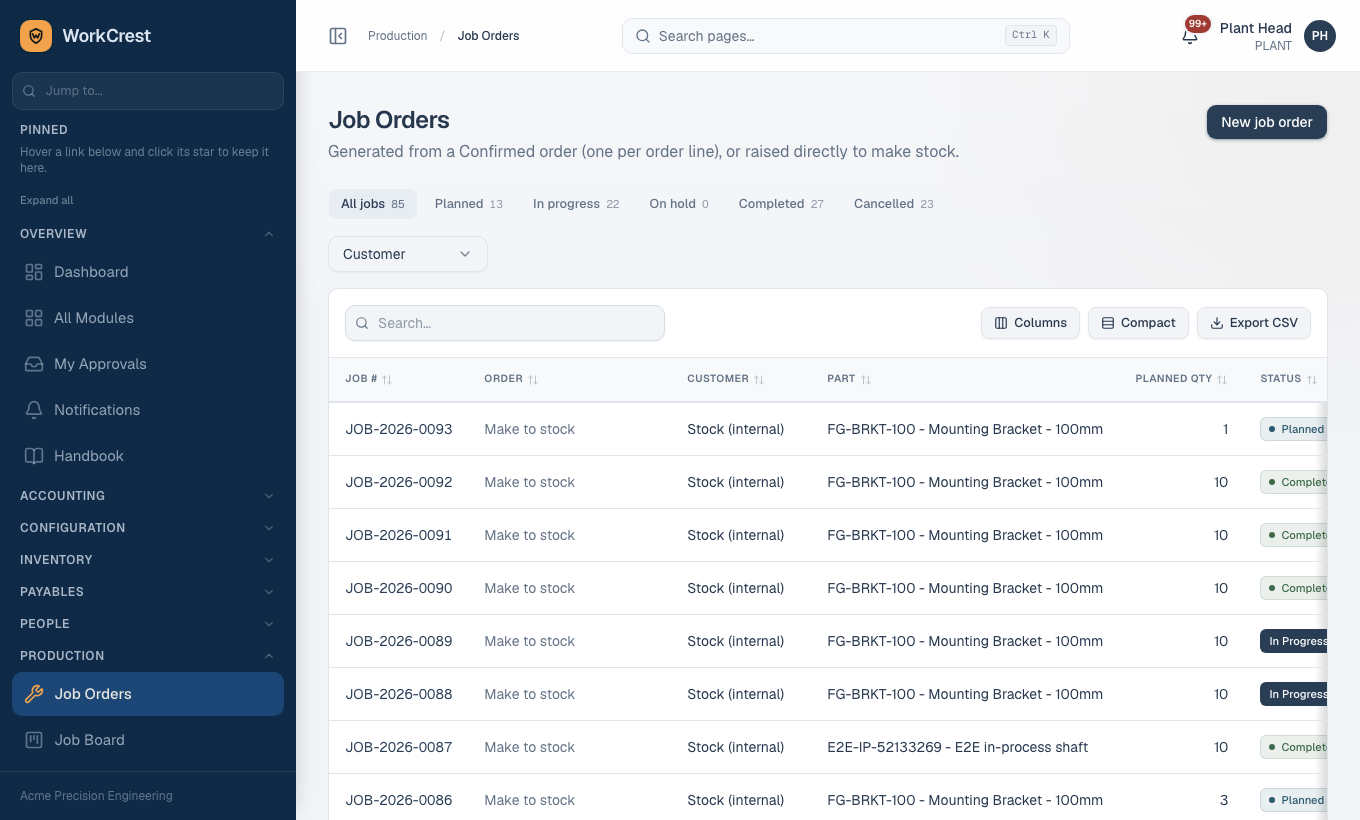
- For stock with no customer order, open Job Orders and create a new stock job (). Finished goods always go to own stock.
- A rework job is not created by hand. Quality creates it from a non-conformance (NCR) disposition. The quarantined pieces are issued to it automatically.
2. Release the job
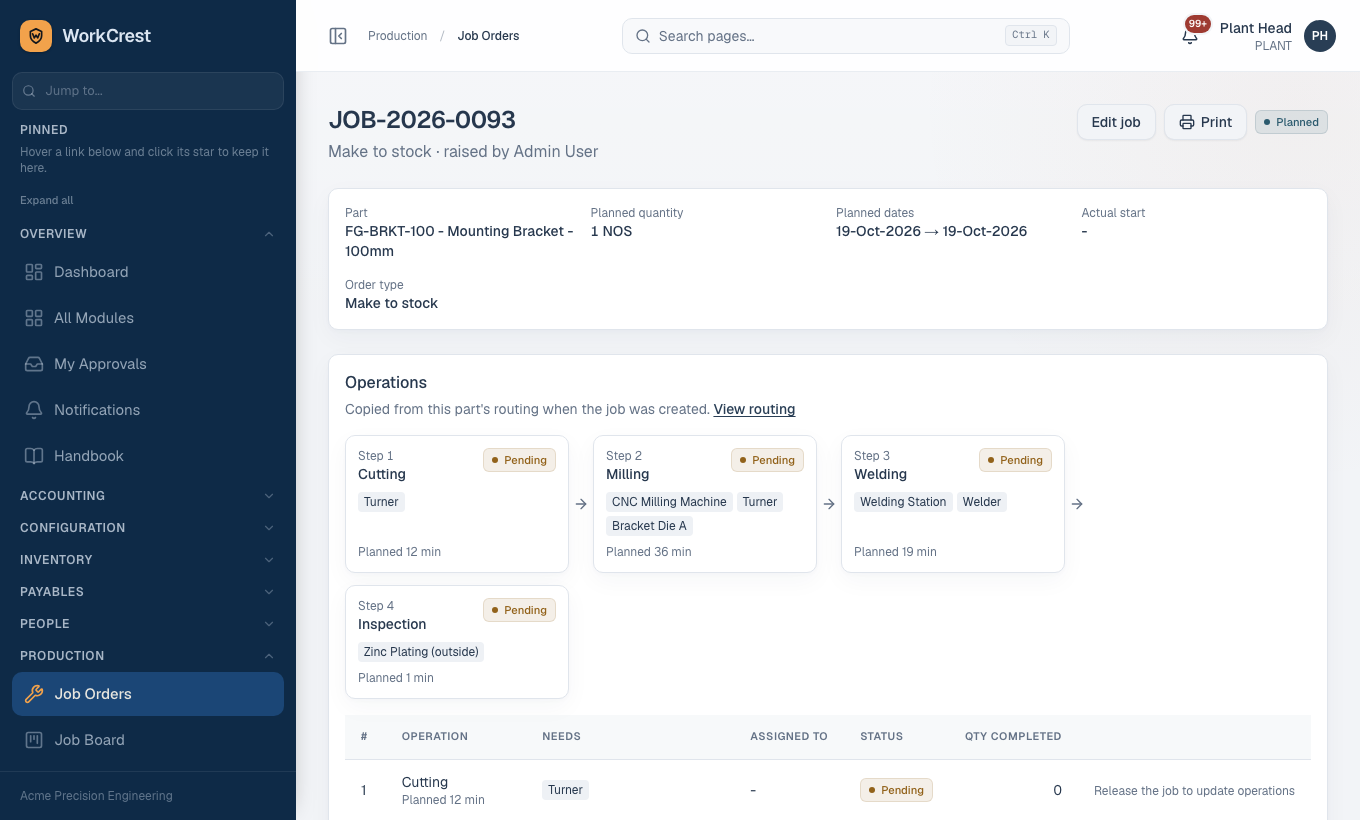
- A new job is Planned. Nothing can be done on it yet.
- Open the job and click Release job. It becomes In progress.
- Releasing may auto-create draft purchase orders for outside-processing steps (see section 6).
- Use Put on hold to pause and Resume job to continue. Cancel is available for a job that has started; a job still Planned is deleted instead.
3. Run the operations
- On the job page each step shows Start when Pending and Complete when In progress. Steps go Pending, then In progress, then Completed. There is no direct completion and no going back.
- Steps must be done in order: a step cannot start or finish until the earlier steps are Completed or Skipped.
- Parallel steps: a step marked "parallel with previous" runs alongside the one before it. The group's members can run at once in any order, and the next ordinary step waits for all of them.
- A step is Completed only at the full job quantity. If pieces were lost, record scrap first (section 5).
- A step that has not started can be Skipped. Completed and Skipped steps are frozen.
- The system stamps actual start and end for you.
4. Issue and return material
- On a released job click Issue material. Choose the component and quantity; "Fill remaining" suggests the unissued balance. The job page shows required, issued, balance, on-hand and shortage.
- Stock posts immediately when the issue is within the planned requirement.
- Unused material goes back with Return material on the job. Issued totals are net of returns.
Over-issue approval
If an issue takes a component beyond the planned requirement (pending issues count too), it is saved as pending and sent for approval. No stock moves until it is approved. The job page shows "Over-issue awaiting a decision". If rejected, no stock ever moved.
5. Record scrap
- On the operation, enter the scrap quantity and choose a scrap reason (from the Scrap Reasons master).
- Finished quantity is planned quantity minus scrap, so scrap must be recorded before the step reaches full quantity.
- Once Quality has decided a step's inspection lot, scrap can no longer be added at that step. Rejected pieces from that inspection are written as scrap for you.
6. Outside-processing steps
A step done by a vendor (an OUTSIDE resource) is finished by receiving the vendor's goods, not by clicking Complete.
- When the job is released, a draft PO is raised automatically if the resource has a default supplier and service part. Otherwise click Raise PO on the step. Procurement approves the PO.
- Start the step first. A goods receipt against a step still Pending is refused, and earlier steps must be done.
- Receive the quantity on a goods receipt against that PO. Receiving advances or completes the step.
7. Complete the job (stock-in)
- Every operation must be Completed or Skipped, and the job must have been started. The Complete job button is greyed with a reason otherwise.
- Click Complete job and fill the completion form. Stock-in is explicit: finished quantity is posted to own stock only through this form.
- Completion is blocked while a final or step inspection is undecided.
8. Job board
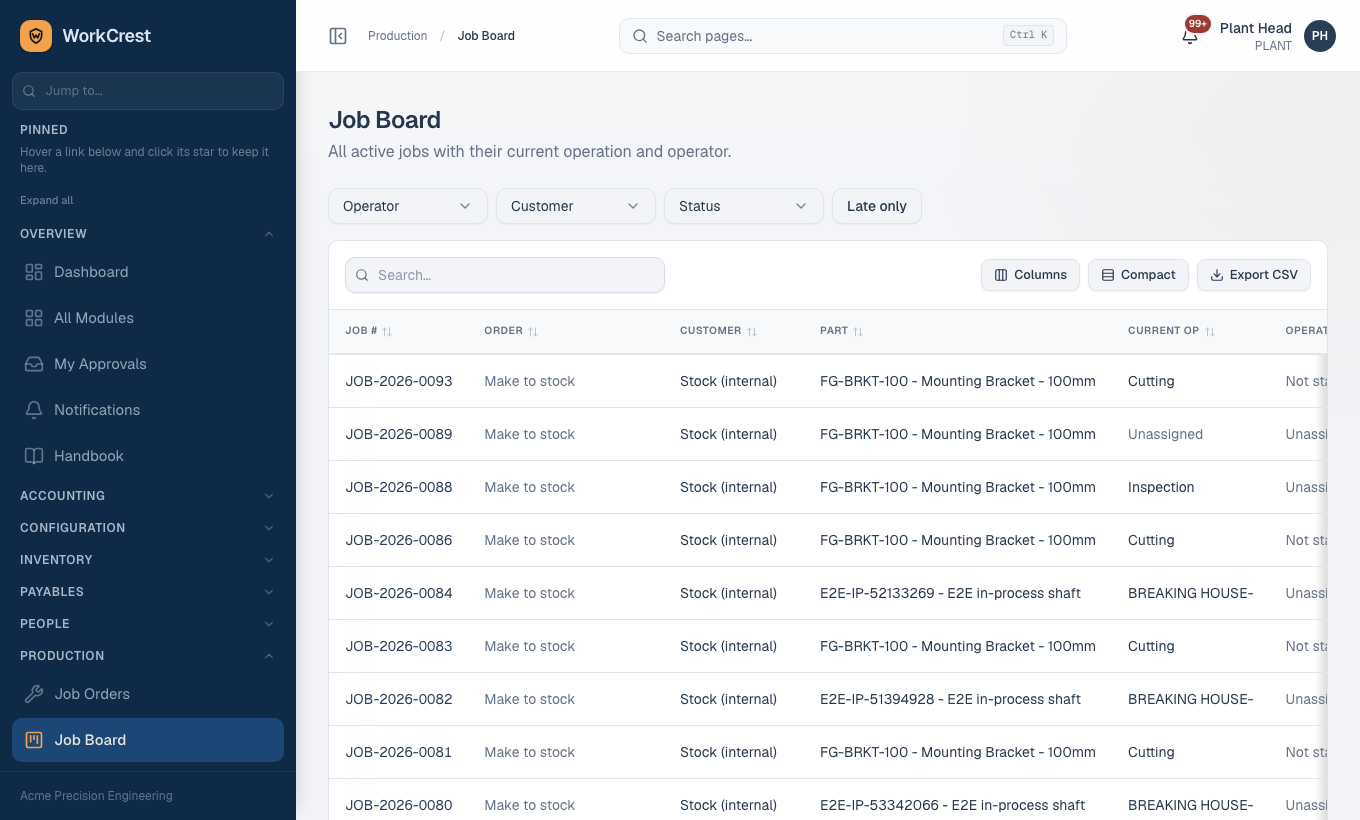
Open Job Board () to see all jobs by status. Filter by customer, status and so on. Stock and rework jobs show as "Stock (internal)" or "Rework" instead of a customer.
9. Miscellaneous stock in and out
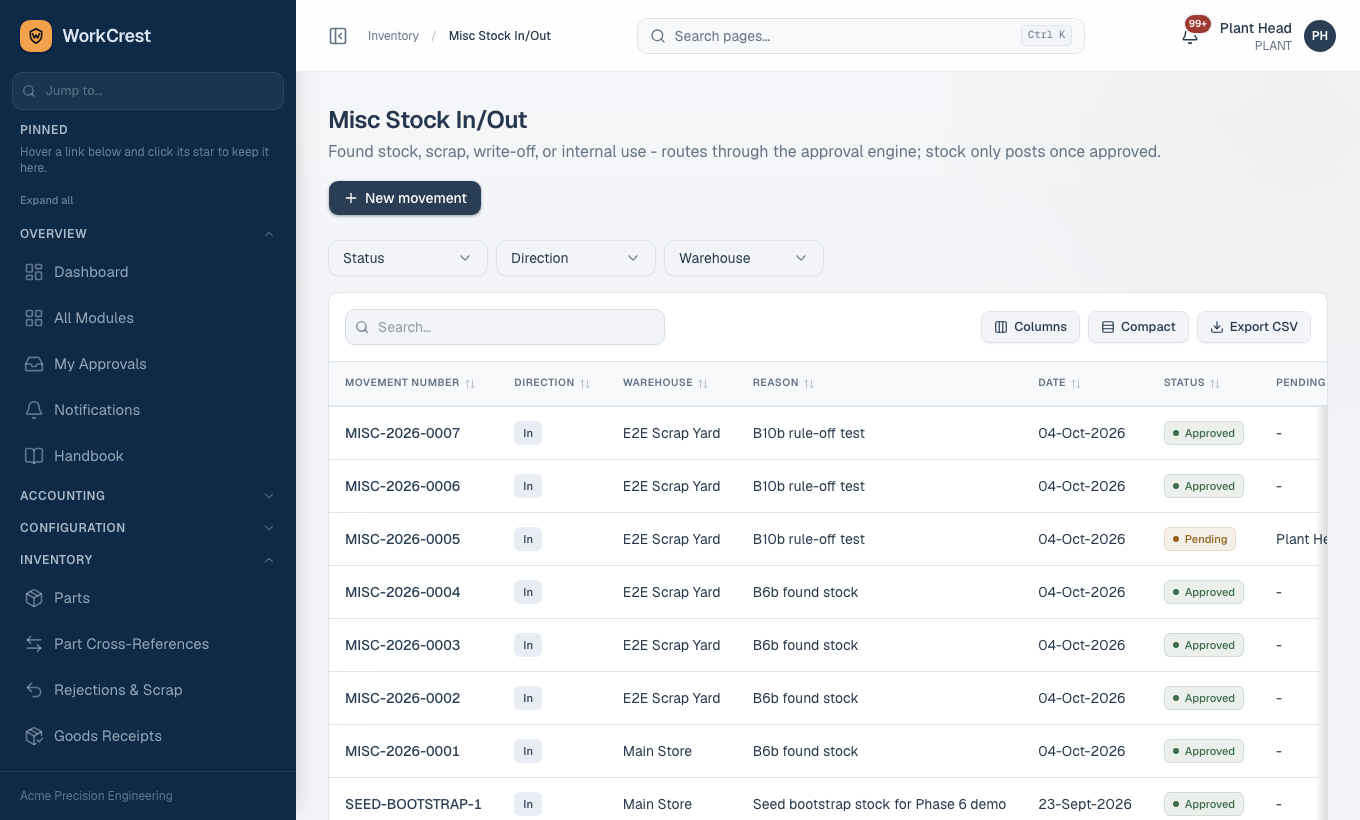
- Open Misc Stock In/Out and create a movement: direction (In or Out), warehouse, a mandatory reason and lines (part, quantity).
- Save as a draft and submit for approval. Value is quantity times standard cost, which decides who approves.
- Stock posts only when fully approved, never at Draft, Pending or Rejected.
10. Stock count
- In Physical Inventory create a count for a warehouse.
- Counters open Stock Counting and click Save counted quantities.
- On the count page click Submit for approval. If rejected use Revise (back to Draft), recount and resubmit. A Draft can be cancelled with Cancel count.
11. Stock balances
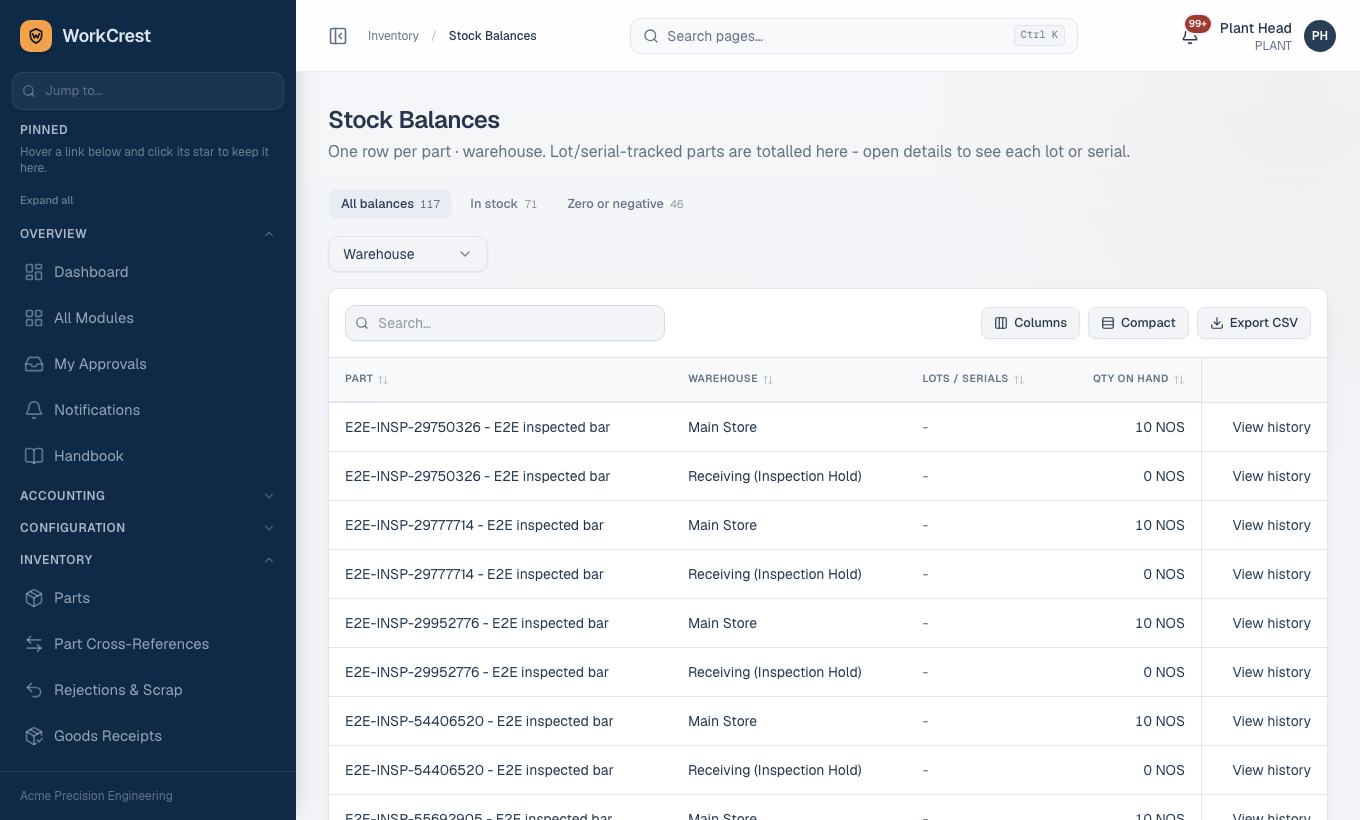
Stock Balances shows own stock by part, warehouse and lot. Stock in the Receiving and Quarantine areas is not counted as available. Stock Movements is the permanent ledger of every change; it cannot be edited.
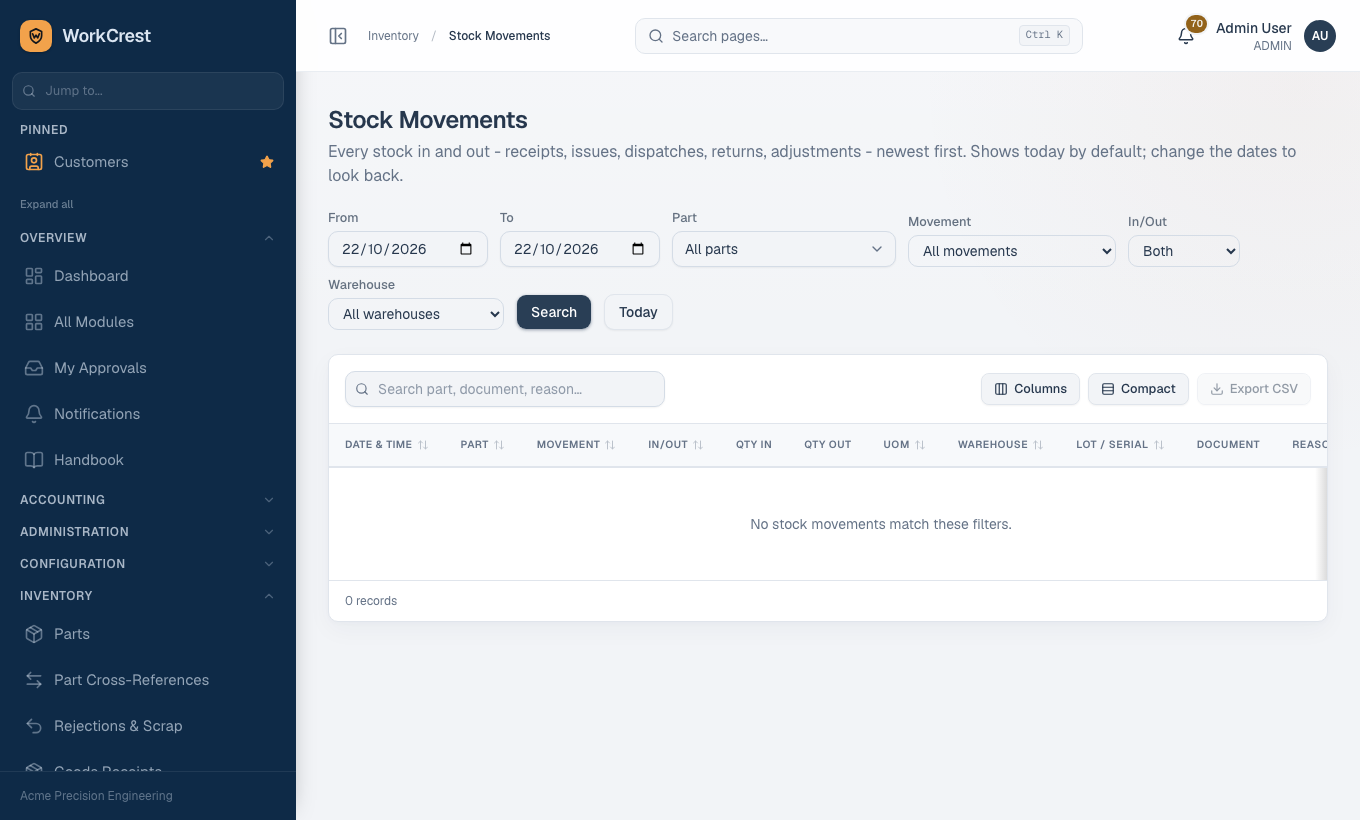
Stock Movements ledger ()
Every change to stock, in or out, is a row in this ledger. It answers "where did this quantity come from and who moved it?".
Who can open it: Procurement, Sales, Plant and Accounts (and Admin), the same access as Stock Balances and Reorder Alerts.
- Open Stock Movements. It shows today by default, newest first; change From and To to look back, and press Today to reset.
- Narrow it with Part (type to search), Movement, In/Out and Warehouse, then press Search. The search box above the table also matches part, document number and reason.
- Read each row: date and time, part, movement type, In/Out, Qty In / Qty Out, UOM, warehouse, lot / serial, document, reason and who did it. The footer totals cover every matching row, not just the page.
- Click a number in the Document column to open the source document.
- Click column headings to sort where available, and use Export CSV to download the filtered rows (each export is recorded for Admins).
Movement types you can filter by
- GRN receipt, and the receiving steps GRN inspection hold / release / reject (goods parked in Receiving, then released or rejected).
- Misc in / Misc out (miscellaneous stock and physical-inventory adjustments).
- DC goods dispatch (delivery challan).
- Job material issue and Job finished goods receipt (shop floor).
- Purchase return and Sales return.
Tracing a movement to its source
The Document column resolves the row to a GRN, misc stock movement, physical inventory count, delivery challan, job order (for material issues and finished goods) or purchase / sales return, and links to it. A row with "-" has no linked document shown. Search for a document number such as a GRN number to list all of its movements.
Why rows can never be edited
The ledger is permanent. Only an approved business document can write to it, and nobody can edit or delete a row, so the history always adds up. Stock Balances is just the running total of these rows.
| Problem | Reason |
|---|---|
| The page looks empty | It shows only today until you change From / To. |
| I cannot find the Stock Movements screen | Your role does not have access to the Inventory stock area; HR and Employee roles do not. Ask an Admin. |
| Stock went out but it is missing from my filter | Check the In/Out and Warehouse filters; stock in Receiving shows under the Receiving warehouse. |
| Stock out was refused | A stock-out cannot take a balance below zero. |
12. Delivery challans
- Open Delivery Challans and create one from a Confirmed or Partially-delivered customer order. There is no challan without an order.
- Pick the warehouse and challan date, add vehicle number, transporter, e-way bill and LR/docket, and enter the quantity to dispatch per line.
- Quantity cannot exceed ordered minus already delivered. Saving takes stock out immediately.
- Service lines cannot be dispatched. Sales marks them done on the order.
Why can't I...
| Problem | Reason |
|---|---|
| Generate a job order | The order is not Confirmed, the output part is a service, or its routing is missing or incomplete. |
| Edit operations or issue material | The job has not been released. |
| Start or complete a step | An earlier step is not finished, or the step needs an inspection decision, or it is an outside step. |
| Complete a step | It has not reached the full job quantity. Record scrap or finish the quantity. |
| See my material issue in stock | It went for over-issue approval and has not been approved. |
| Dispatch more than ordered | The challan is capped at ordered less delivered. |
| See costs | You need the View costs permission. |