Training home / Procurement
Procurement guide
For people with the Procurement role: buy, agree prices, and receive goods. New here? Read Getting started first.
At a glance
- Your main tasks: Create the PO, submit it for approval, receive goods, return rejected goods, plan what to buy.
- Before you start: A part with an approved supplier only accepts POs to approved suppliers. Only an Admin can override that block.
- Watch out for: Print and receive only against an approved PO. Edits to an approved PO send it back for approval.
Screens you can open
| Screen | Path |
|---|---|
| Purchase Orders | |
| Blanket Agreements | |
| Approved Suppliers | |
| Goods Receipts | |
| Purchase Returns | |
| Supplier Bills, Debit Notes | , |
| Suppliers, Parts | , |
| Part Cross-References | |
| Stock Balances, Reorder Alerts, Supply & Demand, Min/Max | , , , |
| Supplier Delivery, Price History | , |
Payments are an Accounts screen. Your Admin can change access, so trust your sidebar.
1. Create a purchase order
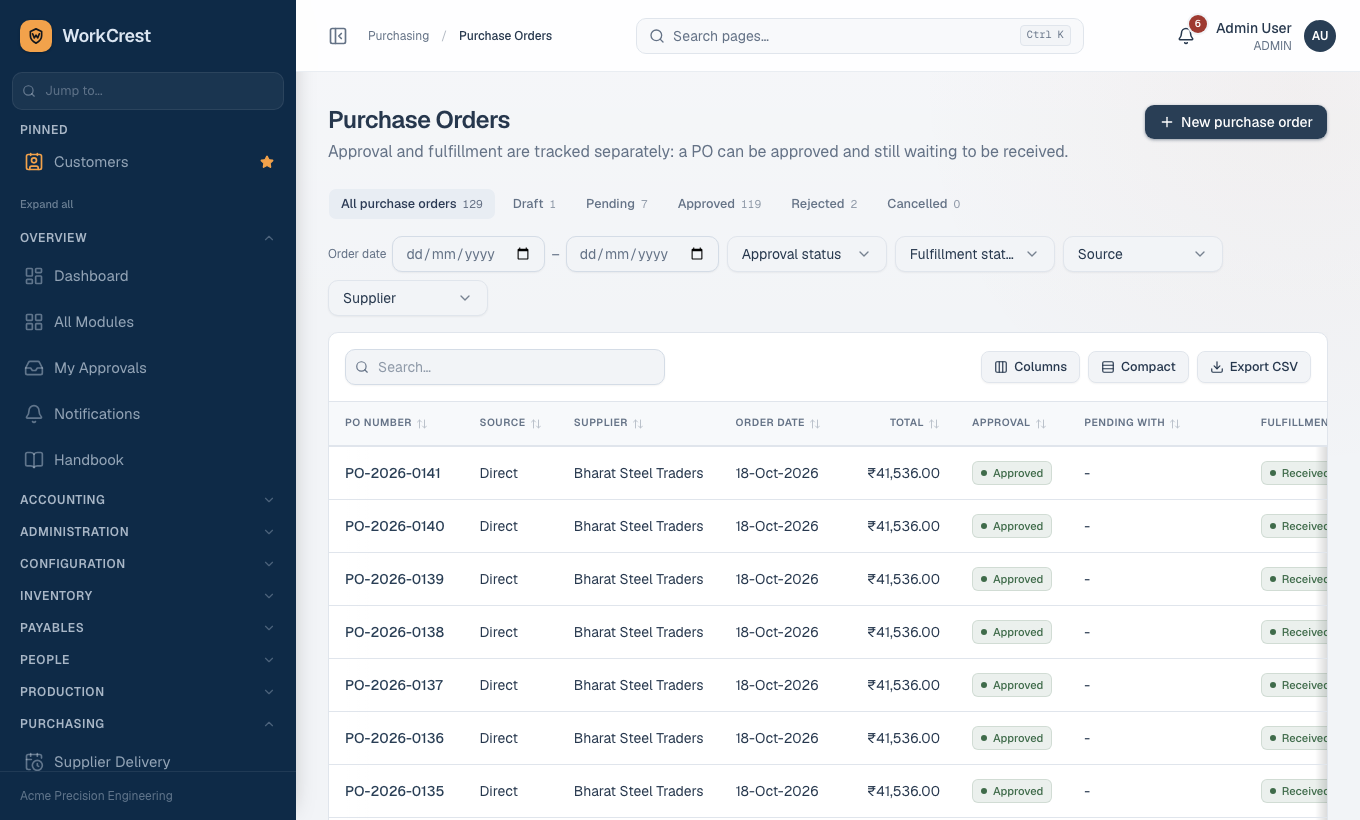
- Go to Purchase Orders and create a new one (or Copy an old PO).
- Pick the supplier, add parts with quantity and price. Prices default from the last purchase price, never from internal standard cost.
- Check the supplier is allowed for each part (see section 4).
- Save. The PO stays Draft; use Edit or Delete (a Draft with no history is deleted outright).
2. Submit for approval, print, revise
- Press Submit for approval. The approver depends on the PO amount.
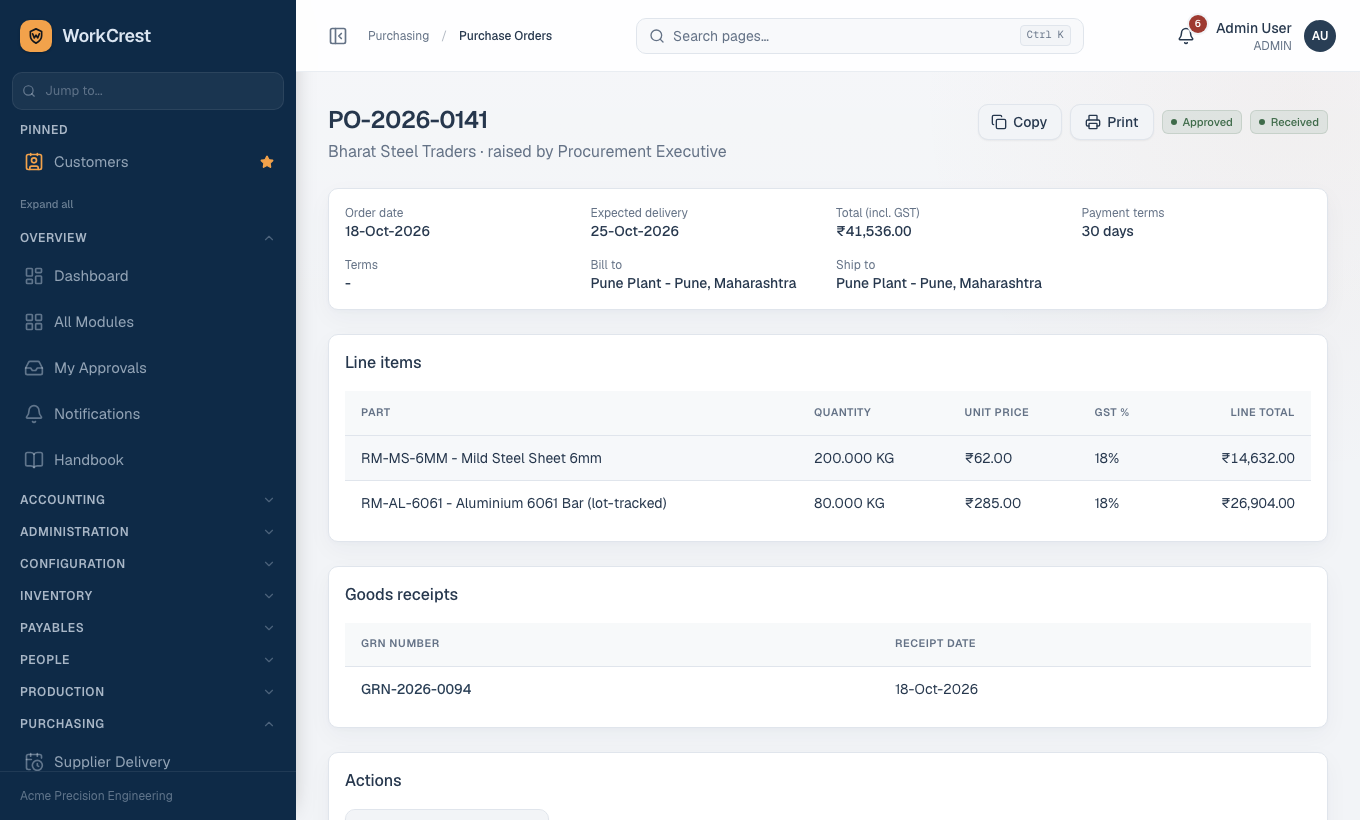
- Print only after Approved (). The print shows your phone and email and does not name the approver.
- If rejected, press Revise (back to Draft) or Resubmit as-is.
- Editing an approved or pending PO saves the old version and sends it for re-approval.
3. Cancel or delete a PO
- Delete: only a Draft with no history.
- Cancel PO: type the reason (required) and press Confirm cancel. If goods or bills already exist, a warning appears and you must choose Cancel PO anyway.
- A cancelled PO takes no more receipts or bills. Existing receipts and bills stay.
4. Approved Supplier List (ASL)
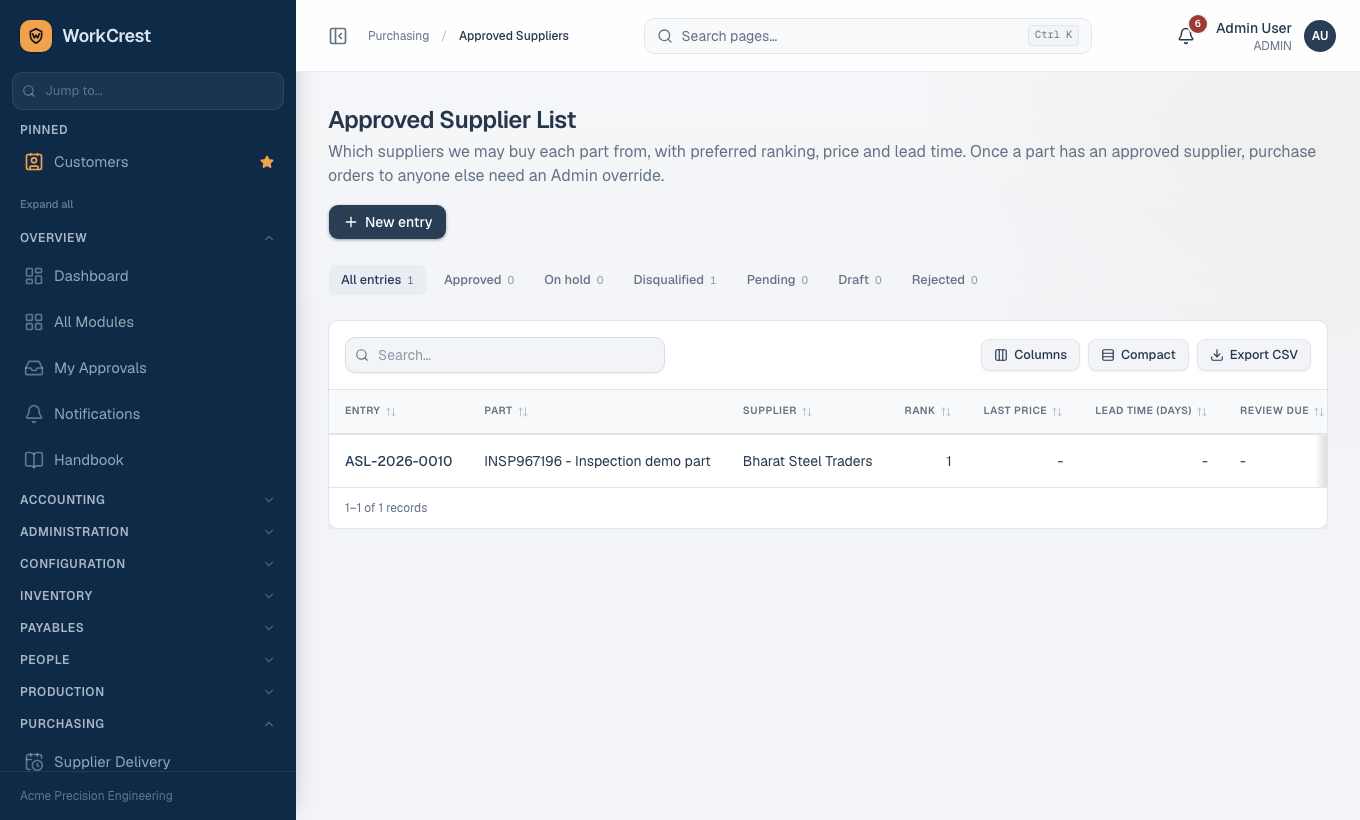
- At each row is one part and one supplier. Create it and submit it for qualification approval (Plant Head).
- Once any supplier is approved for a part, that part is governed: a PO to a supplier that is not approved and in good standing is blocked.
- A supplier can be put On hold or Disqualified straight away with a reason. Reinstating needs approval again.
- Only an Admin can override the block, with a reason that is logged.
Not affected: parts nobody has approved yet, service parts, and blanket release POs.
5. Blanket agreements and releases
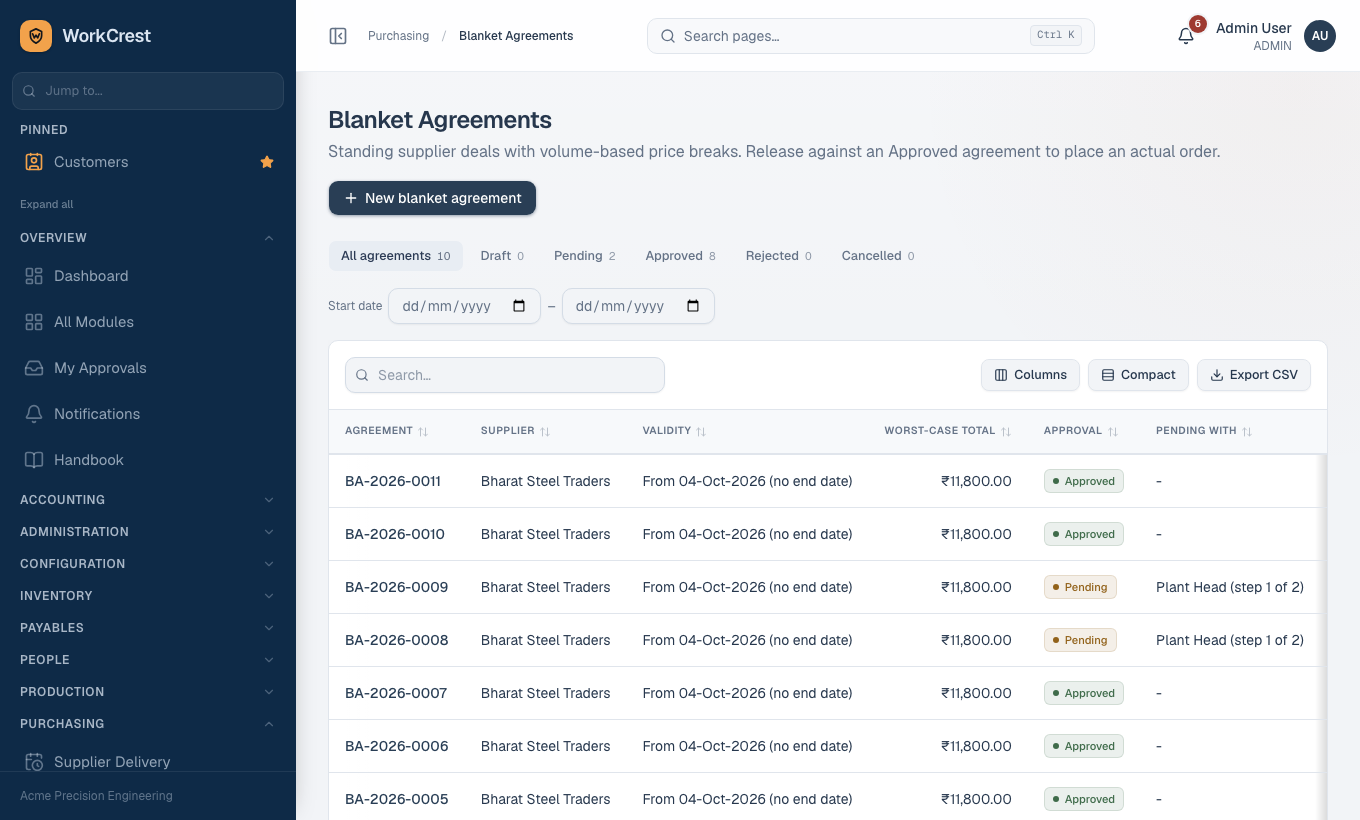
- At create an agreement with a supplier: parts, committed quantity and a price-break table by quantity. Submit for approval.
- When Approved, press Release to draw down quantity. This creates a normal Draft PO. The price tier comes from this release's own quantity.
- The release PO needs its own approval even though the agreement is approved.
- To change an approved agreement press Amend (will need re-approval); new releases wait until it is approved again. Existing releases keep their prices.
- Release quantity is reserved when you create the release and given back if that PO is rejected or cancelled. Edit a release from its own screen; to change lines, cancel and release again.
- An approved agreement can fill the ASL for you from its page.
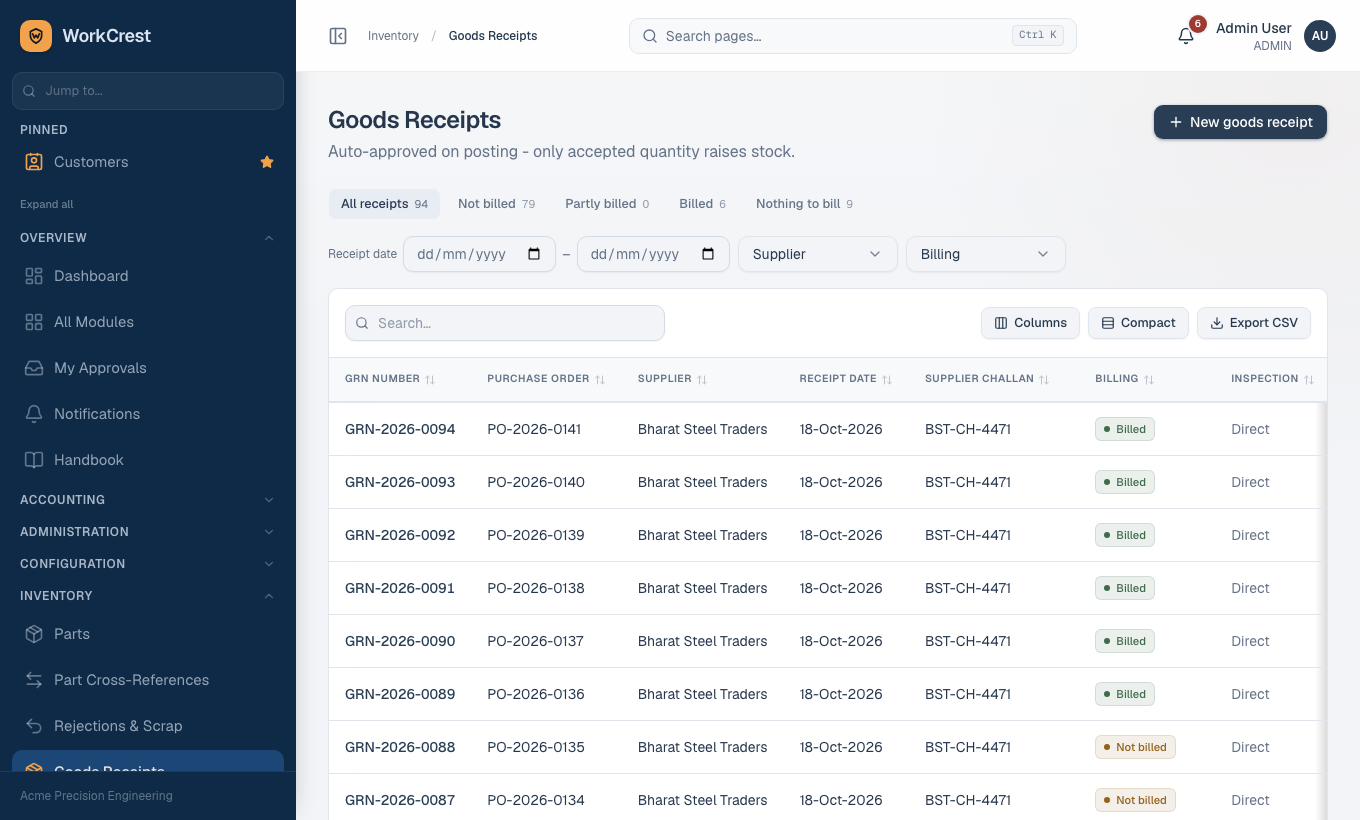
6. Receive goods
- Go to Goods Receipts → new and choose the approved PO.
- Enter received and accepted quantities. Only accepted stock is added to inventory and moves the PO to Partially Received or Received. A goods receipt needs no approval.
- Parts set to Direct go straight to stock.
- Parts set to Inspection are parked in the Receiving area. This is not usable stock.
- With an active receipt inspection plan, Quality gets an inspection lot and decides it.
- Without a plan, use the Inspection form on the goods receipt page.
- Stock is released only after that.
- Service parts on a PO: a receipt is optional and moves no stock.
A rejected quantity from an inspection lot goes to quarantine and raises a non-conformance for Quality to handle (return to supplier, scrap, use as is).
7. Purchase returns
- Go to Purchase Returns → new, and choose the goods receipt.
- Enter quantities to send back and save.
- Press Submit for approval. Stock and accounts are adjusted only on approval. Cancel return is available before that.
- After approval, Create debit note to record the supplier credit.
8. Outside processing (jobwork at a vendor)
- When a job is released, steps done outside can create a Draft PO automatically if the resource has a default supplier and service part. Review and submit it.
- Otherwise use Raise PO on the job page, which opens the New PO already linked to the step.
- For these lines the goods receipt is required and the job step must already be started. The receipt completes the step.
9. Supplier part numbers
At add the supplier's own number for our part (type Supplier). PO lines then show it by default and the PO print includes the column. A number typed on the line wins, and old POs do not change when the mapping changes.
10. Plan what to buy
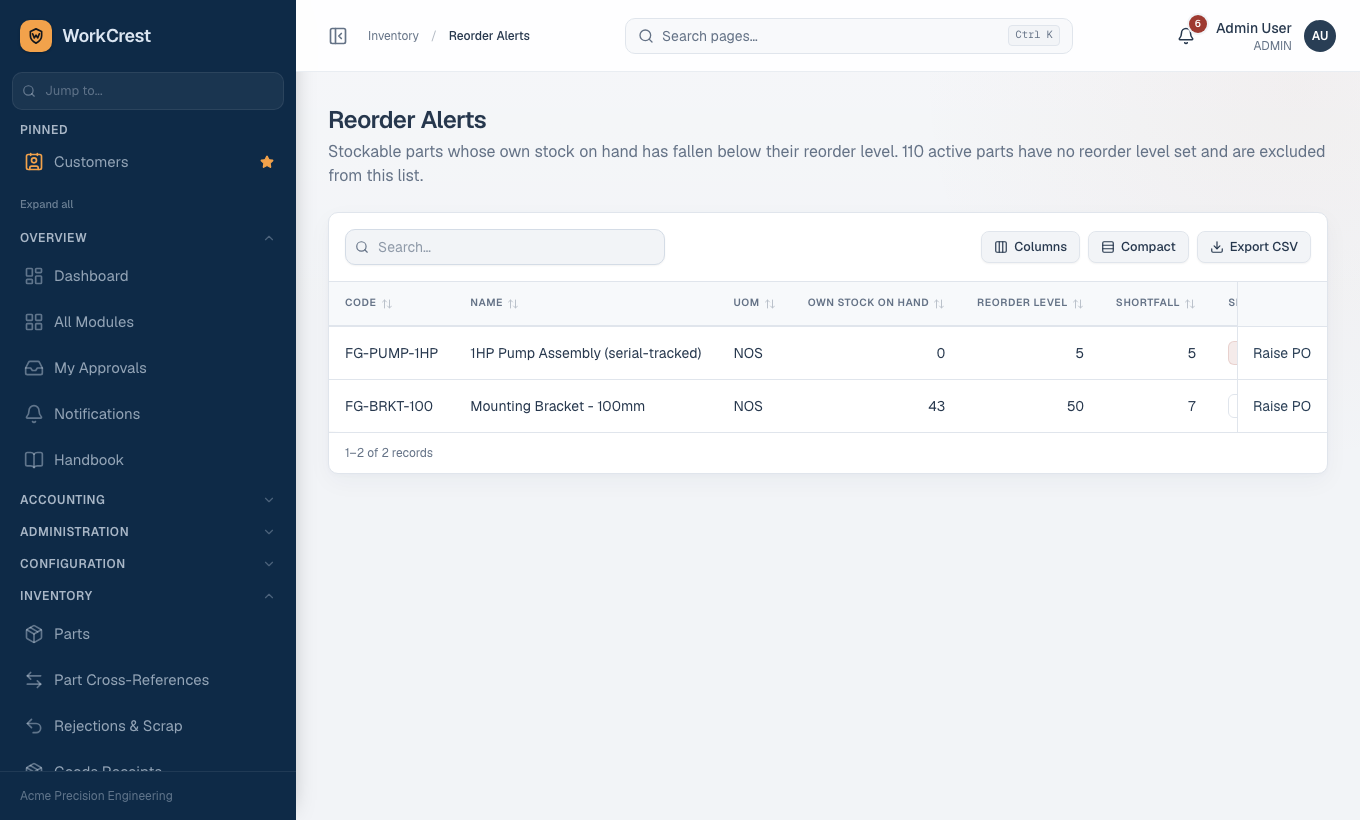
- Reorder Alerts () list parts below reorder level.
- Supply & Demand () nets open job needs against stock and open approved POs, with dated warnings.
- Check Supplier Delivery and Price History reports before negotiating.
"Why can't I..."
| Problem | Reason |
|---|---|
| PO saves with an error about the supplier | The part's approved supplier list does not allow that supplier. |
| Cannot print the PO | Not approved yet. |
| Cannot receive against a PO | It is not approved, or it was cancelled. |
| Received stock not showing | The line is waiting for inspection, or only accepted quantity counts. |
| Cannot release more from an agreement | Committed quantity is used up, or the agreement is being re-approved. |
| Cannot cancel a PO without a reason | A reason is required. |