Training home / Core masters
Core masters: parts, customers, suppliers, people
How to create and look after the four lists that almost every document in WorkCrest points back to, and why each field matters.
- Who it is for: Admin, HR and anyone who creates parts, customers, suppliers or employees.
- What you can do: create and maintain parts, customers, suppliers, departments, employees and part cross-references.
- What you need first: the one-time setup masters (units, item types, shipping terms).
Why these four lists come first
Every quotation, order, purchase order, invoice, stock movement and leave request picks something from these lists: a part, a customer, a supplier or an employee.
What you type here is copied onto the documents later.
This guide covers Parts, Customers, Suppliers, Employees and Departments, plus Part cross-references (what a customer or supplier calls your part).
- The smaller lists that feed them (units, item types, shipping terms, resources) are in One-time setup masters.
- If you are the Admin, also read the Admin guide.
- If you are brand new, start with Getting started.
- Everything is also reachable from the training home.
Setup order
Later records pick from earlier ones, so work top to bottom. You cannot finish a part without a unit and a type, and you cannot finish an employee without a department.
| # | Master | Where to find it | Who can change it | Do this first |
|---|---|---|---|---|
| 1 | Units of measure and item types | , | Admin, Procurement, Sales | See setup masters |
| 2 | Departments | Admin, HR | Nothing (leave the head blank for now) | |
| 3 | Employees | Admin, HR | Departments. Resources, if you will tag skills | |
| 4 | Parts | Admin, Procurement, Sales | Units of measure, item types | |
| 5 | Customers | Admin, Sales | Company state, currencies, shipping terms, price lists (all optional except currency) | |
| 6 | Suppliers | Admin, Procurement | Nothing | |
| 7 | Part cross-references | Sales (customer numbers), Procurement (supplier numbers), Admin (both) | Parts, customers, suppliers |
1. Parts
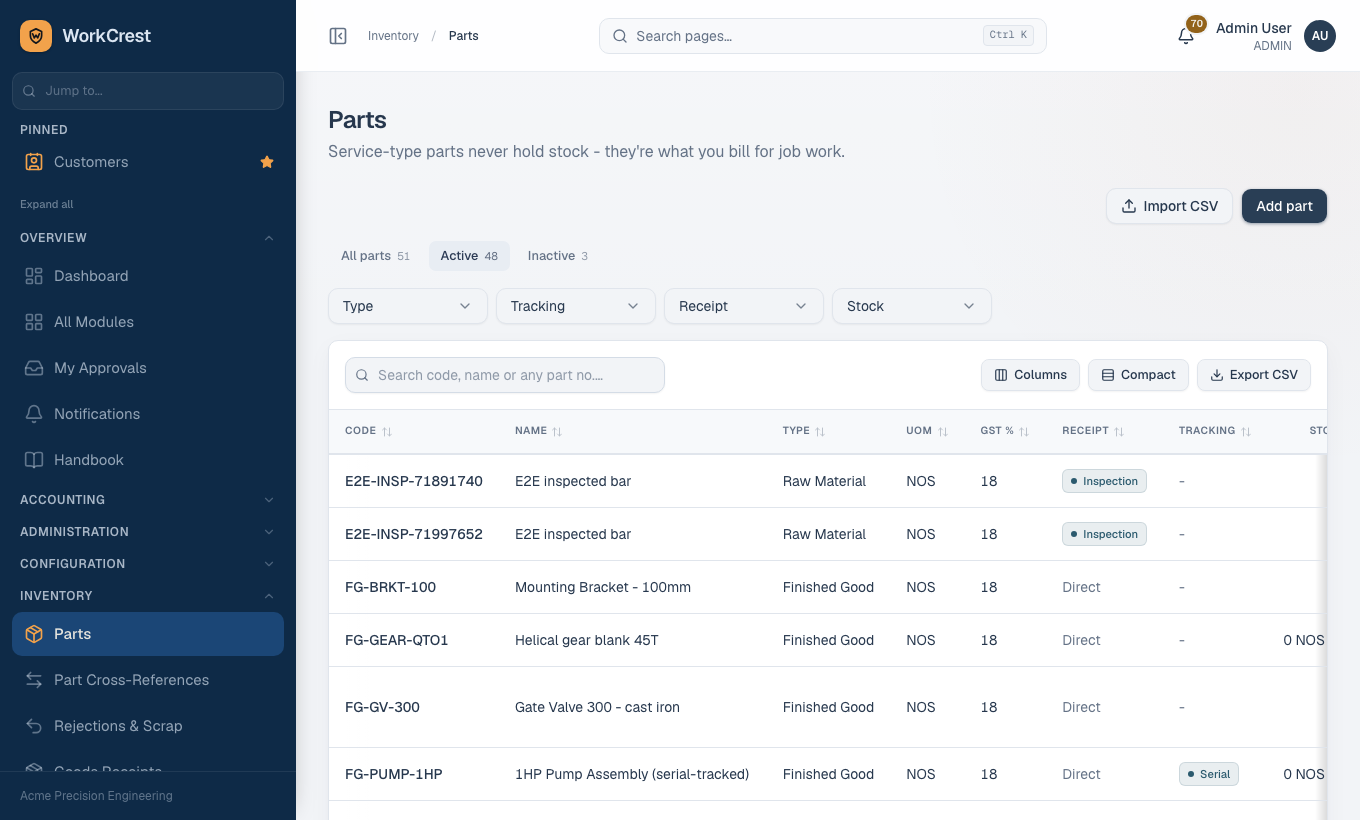
What it is: every item you buy, make, stock or sell, and also every service you bill for (job work, for example). One part record is used on purchase orders, quotations, orders, goods receipts, bills of material, jobs and invoices.
Where to find it: . Who can change it: Admin, Procurement, Sales.
Creating a part
- Open and click Add part. A form opens with two tabs: General and Inventory & pricing.
- On General, fill in Part code and Name. Add a Description if the name alone is not enough for someone to pick the right part.
- Choose the Type and the Unit of measure. Think before you pick the unit: it cannot be changed later.
- Set Tracking and Receipt routing (explained below), then set the four switches: Active, Purchasable, Stockable, Sellable.
- Switch to Inventory & pricing. Fill in the planning fields, the HSN / SAC code, the GST rate %, the Standard cost (if you can see it) and the Selling price.
- Click Create part. If a required field on the other tab is empty, WorkCrest jumps to that tab and marks it with a red dot. Use Discard to close without saving.
Field by field, and why it matters
| Field | What to enter | Why it matters |
|---|---|---|
| Part code | Your own short, unique code (for example RM-001 for a raw material). | It is what people search and pick by on every document. Agree on a pattern (RM- raw material, FG- finished goods) before you start so codes stay consistent. |
| Name, Description | Plain words, as you want them printed. | The name shows in pickers and prints on documents. |
| Type | One of your item types, such as Raw Material, Finished Good or Service. | It groups parts in reports and filters. Choosing the Service type changes the rest of the form (see below). |
| Unit of measure | The unit you count the part in (Nos, Kg, Metre). | Quantities are stored as bare numbers, so the unit gives them meaning. It is locked after the part is created, because changing it would silently change what every old balance and document line means. If you picked the wrong unit, create a new part and deactivate the old one. |
| Tracking | None (quantity only), Lot / batch, or Serial (per unit). | Lot keeps stock by batch so you can trace a problem to a batch; Serial keeps one row per unit. Choose it at the start. Once a part has stock history the mode is locked, because switching would orphan the per-lot or per-serial balances. |
| Receipt routing | Direct (to stock) or Inspection (2-step). | With Direct, goods you receive go straight into stock. With Inspection, the whole received quantity is parked in a holding area first and only the accepted quantity moves to stock after someone checks it on the goods receipt. Use Inspection for items you must check before use (see the Quality guide). |
| Active | On for normal use. | Switch off to retire the part. An inactive part drops out of pickers but stays on old documents. |
| Purchasable / Sellable | Tick what applies. | Tells the pickers whether the part may be bought or sold. |
| Stockable | On for anything you keep a quantity of. | Off means WorkCrest never counts a balance for it. Once a part has stock history you cannot change this switch, because it would orphan existing balances. |
| Reorder level | The quantity at which you want a warning. | The Parts list marks a part as low stock, and reorder alerts use it, when your own stock on hand falls below it. |
| Lead time (days) | How long it normally takes to get the part. | Feeds purchase and production planning. |
| MOQ | Supplier minimum order quantity. | Reference for buyers. |
| Min quantity, Max quantity | Your stock floor and ceiling. | Used by min/max planning. Max cannot be lower than Min (equal is fine, for a fixed order-up-to level). |
| Net weight, Gross weight (kg) | Optional. | Used by pricing formulas that price by weight. Gross cannot be below net. |
| HSN / SAC code | HSN for goods, SAC for services. Required. | It is copied onto every tax invoice line as it was at that moment, and drives the HSN/SAC summary your accountant files. A wrong code lands on the invoice. |
| GST rate % | Pick from the list of standard rates. | The tax rate charged on sales and bills for this part. |
| Standard cost (₹) | Your planned cost per unit. | The single standard cost used for stock valuation, costing and misc stock values. See the cost note below. |
| Selling price (₹) | Your default price per unit. | The starting price on quotations and orders. Customer-specific prices and price lists can override it (see the pricing rules in the setup guide and Sales documents). |
Service parts hold no stock
When you choose the Service type, WorkCrest sets these fields for you:
- Stockable is turned off, Tracking is None, and Receipt routing is Direct.
- Reorder level, standard cost, min and max are zeroed.
- Those fields are greyed out. If you try to force a service to be stockable, the save is refused.
Give a service part a SAC code and a selling price, and use it on quotations, orders and invoices.
Finding parts
- Tabs: All parts, Active, Inactive, each with a count.
- Filters: Type (pick one or more), Tracking (None, Lot, Serial), Receipt (Direct, Inspection) and Stock (Low stock, Not low).
- Search box: searches the code, the name and any other part number.
- A customer's or supplier's number for the part (from Part cross-references, below) finds your part too.
- If a customer phones with their own number, type it here.
- Columns, Compact, Export CSV sit above the table. Click a column heading to sort. Click a row (or the part code) to open and edit it.
Bulk import
For a first load of many parts, click Import CSV. Inside the dialog, download the template, fill it in a spreadsheet, save as CSV and upload it. WorkCrest checks every row and shows errors by spreadsheet row number before anything is saved. Points to know:
- The import only adds parts. A part code that already exists is an error; it never overwrites. Duplicate codes inside the same file are errors too.
- The type and unit columns take the short codes of your existing item types and units, so create those first.
- Numbers must be plain figures with at most two decimals. Active is typed as TRUE or FALSE in capitals. Tracking and receipt routing may be left blank (meaning None and Direct); any other spelling is rejected so a typo cannot slip in.
- If you cannot see costs, standard cost is forced to 0 on import.
- Fix every error and upload again; nothing is saved while errors remain.
- Is the unit of measure right? You cannot change it later.
- Is the type right, and is Stockable on for anything you keep in stock (and off for services)?
- Do you want lot or serial tracking? Decide now; it locks once stock moves.
- Should it be received Direct or through Inspection?
- Is the HSN or SAC code correct, and the GST rate matching it?
- Are Min and Max sensible (Max not below Min)?
- Is the code unique and in your agreed pattern?
2. Customers
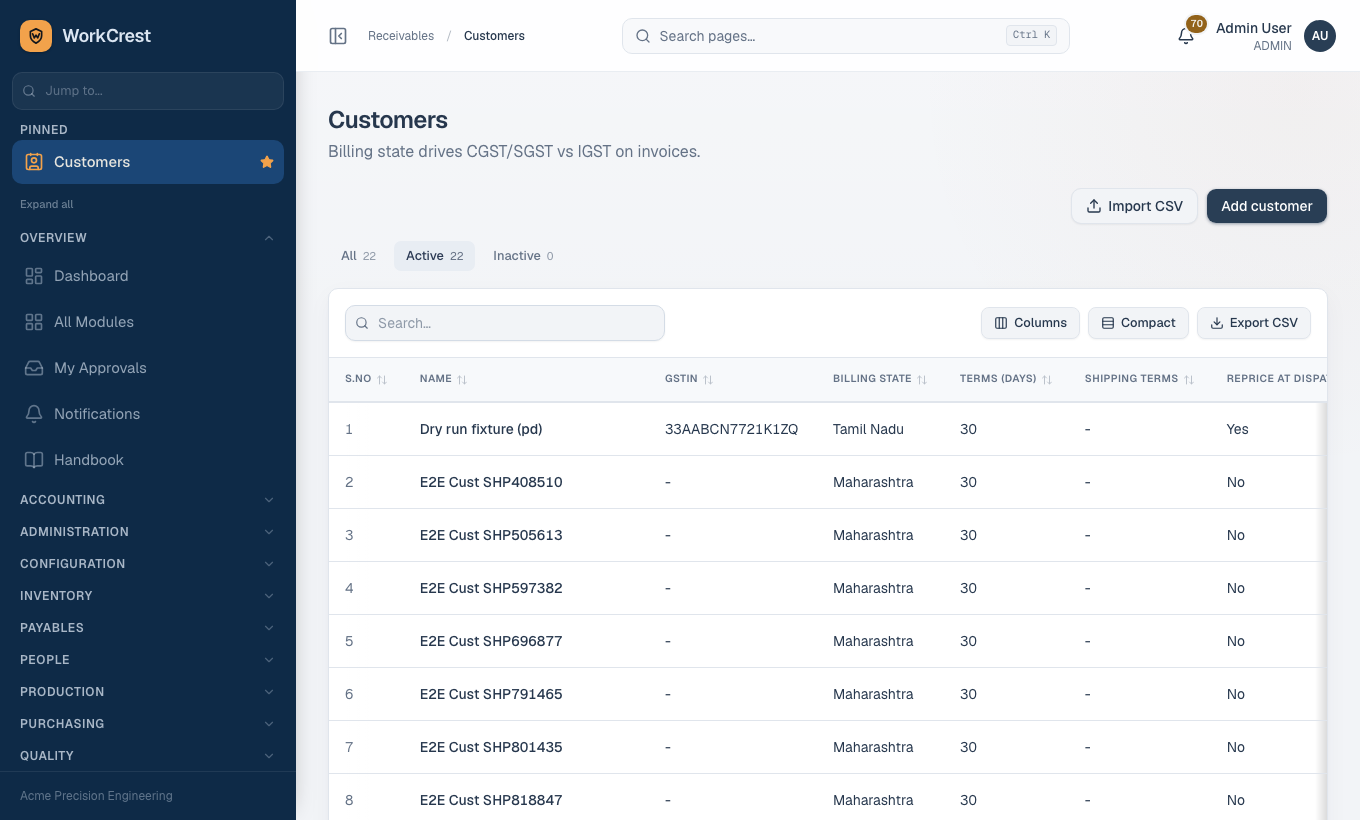
What it is: every business you sell to or quote. It supplies the billing details, the tax treatment, the credit rules and the defaults for new quotations and orders.
Where to find it: . Who can change it: Admin, Sales.
Creating a customer
- Open and click the button to add a customer (or Import CSV for many at once).
- Enter the Name, GSTIN and PAN.
- Under Billing address (place of supply for GST) fill the Address, City, State and Pincode. State is required.
- If goods go to a different address, fill Shipping address (optional, if different) as well.
- Enter the Contact person, Phone and Email.
- Set Payment terms (days), Credit limit (₹) and Default currency. Optionally pick a Price list.
- Under Shipping terms tick the terms this customer may use and click Default beside the one to pre-select.
- Leave Active on and click Create customer.
Field by field, and why it matters
| Field | Why it matters |
|---|---|
| Name | Required. Prints on every quotation, challan and invoice. |
| GSTIN, PAN | Optional on the form, but a registered business should have its GSTIN: it prints on the tax invoice and your buyer needs it to claim credit. Copy it exactly from their registration. |
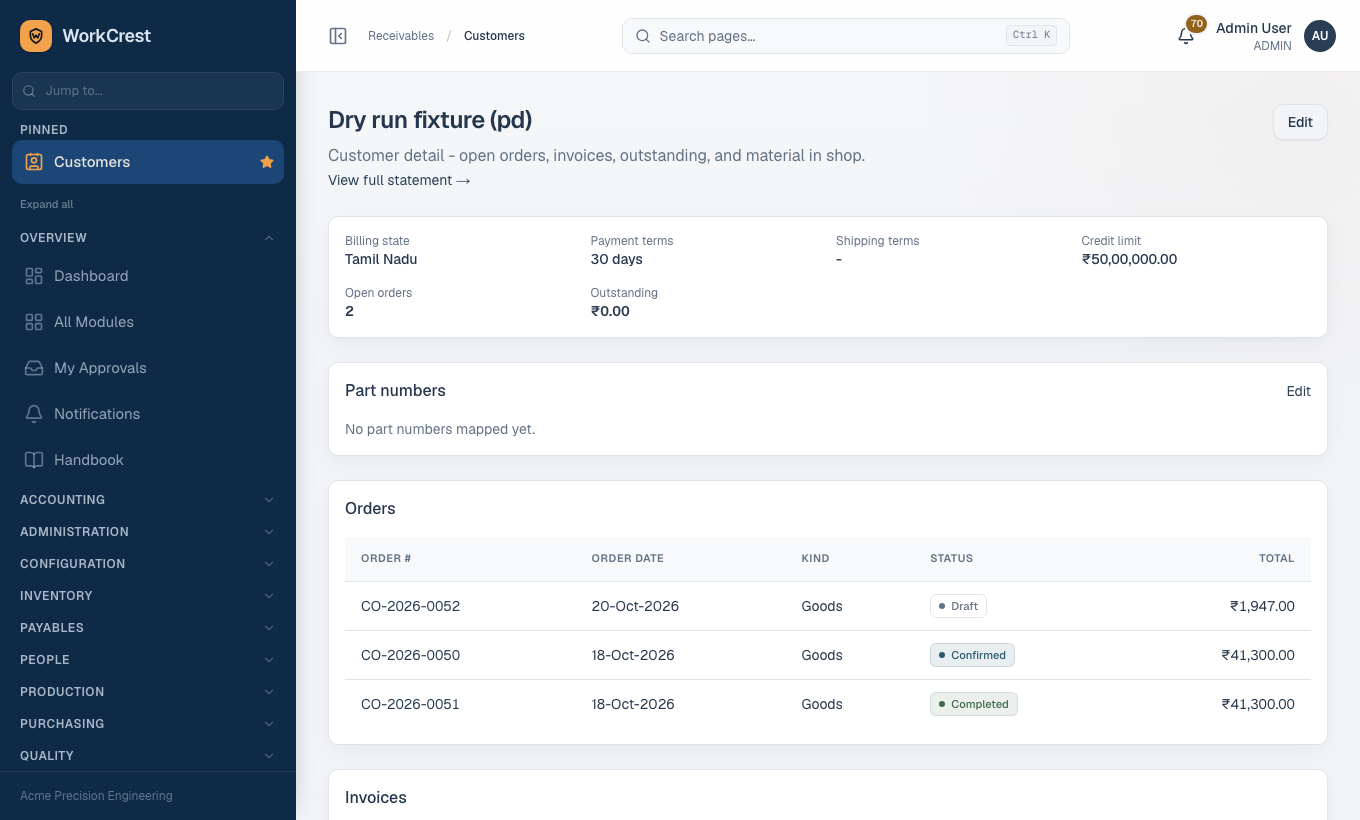
| Billing state | The most important field on the record. It decides the tax split. If the customer's billing state is the same as your company state, invoices charge CGST plus SGST; if it is different, they charge IGST. The split is worked out when the invoice is created and stored, never recalculated, so a wrong state produces a wrong invoice that has to be cancelled and redone. |
| Shipping address | Only needed when it differs from billing. Tax still follows the billing state. |
| Contact person, Phone, Email | For your team's reference. The email must look like a valid address if you fill it. |
| Payment terms (days) | Sets the due date on invoices and drives receivables ageing and collection reports. Use 0 for payment on delivery. |
| Credit limit (₹) | The most this customer may owe you. Order and delivery approvals compare their open exposure against it, so an order that would push them over the limit is flagged. Draft invoices count towards exposure. |
| Default currency | Required. Pre-selected, with the latest reference exchange rate, when you pick this customer on a new order; you can change it order by order. It must be INR or a currency that is switched on in the currencies list. |
| Price list | Optional. Prices from this list are tried before the standard list when quoting this customer. Leave blank to use the standard list only. It must be an active price list. |
| Shipping terms and Default | Limits which terms (for example who pays freight) can be used on this customer's quotations, and pre-selects the default. The list shows only active shipping terms; if it says none exist, add them under first. |
| Reprice at dispatch | A tag only. Pricing assignments can choose to apply to customers with this on or off. It does nothing by itself. |
| Active | Off retires the customer from pickers. History stays. |
- Is the billing state the real place of supply? Check it against the GSTIN (its first two digits are the state code).
- Is the GSTIN copied exactly?
- Are payment terms and credit limit agreed with the customer? A credit limit of 0 will make approvals strict.
- Is the default currency right?
- Have you ticked at least one shipping term and chosen a default (if you use shipping terms)?
- Is there already a record for this customer under a slightly different spelling? Search first.
3. Suppliers
What it is: every business you buy from. Purchase orders, goods receipts, supplier bills and payments all point at a supplier.
Where to find it: . Who can change it: Admin, Procurement.
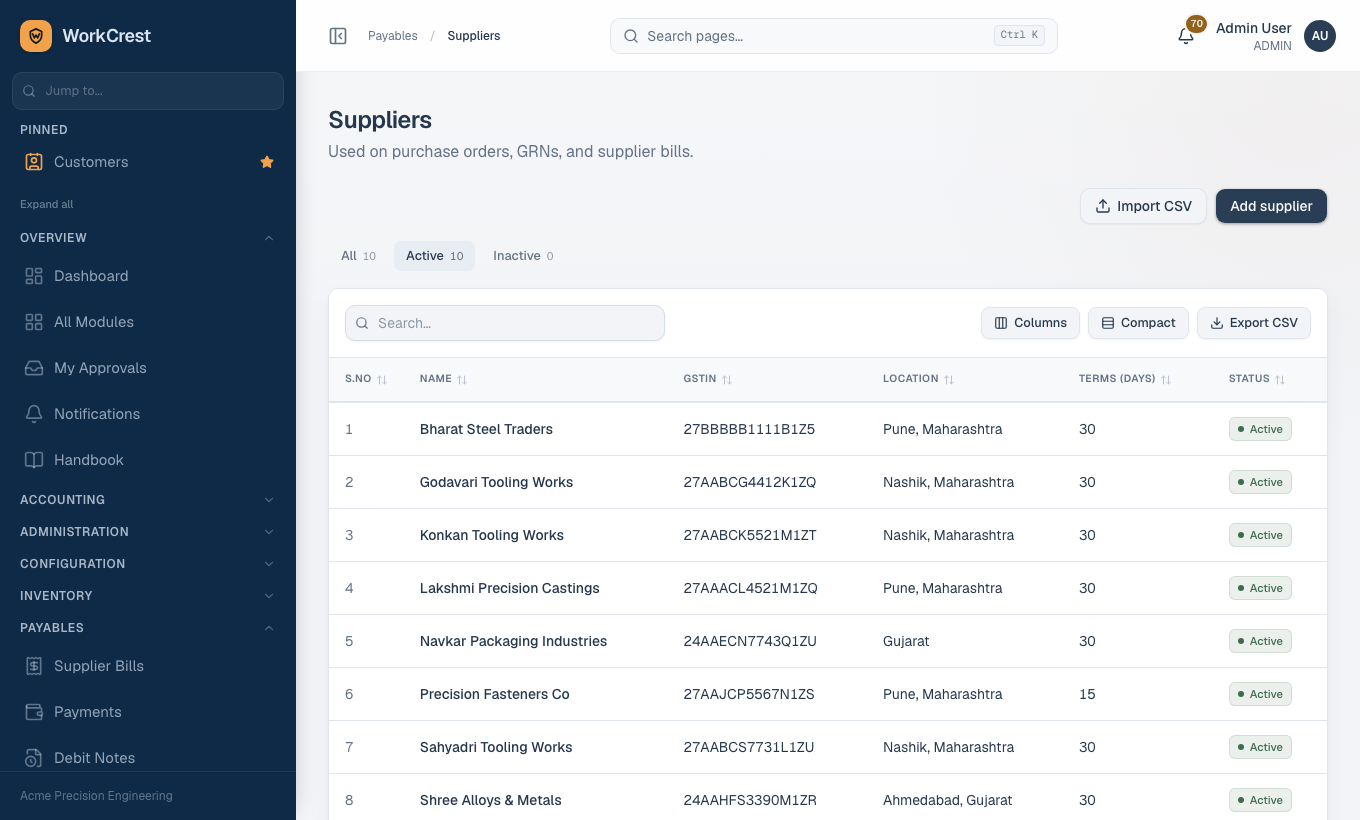
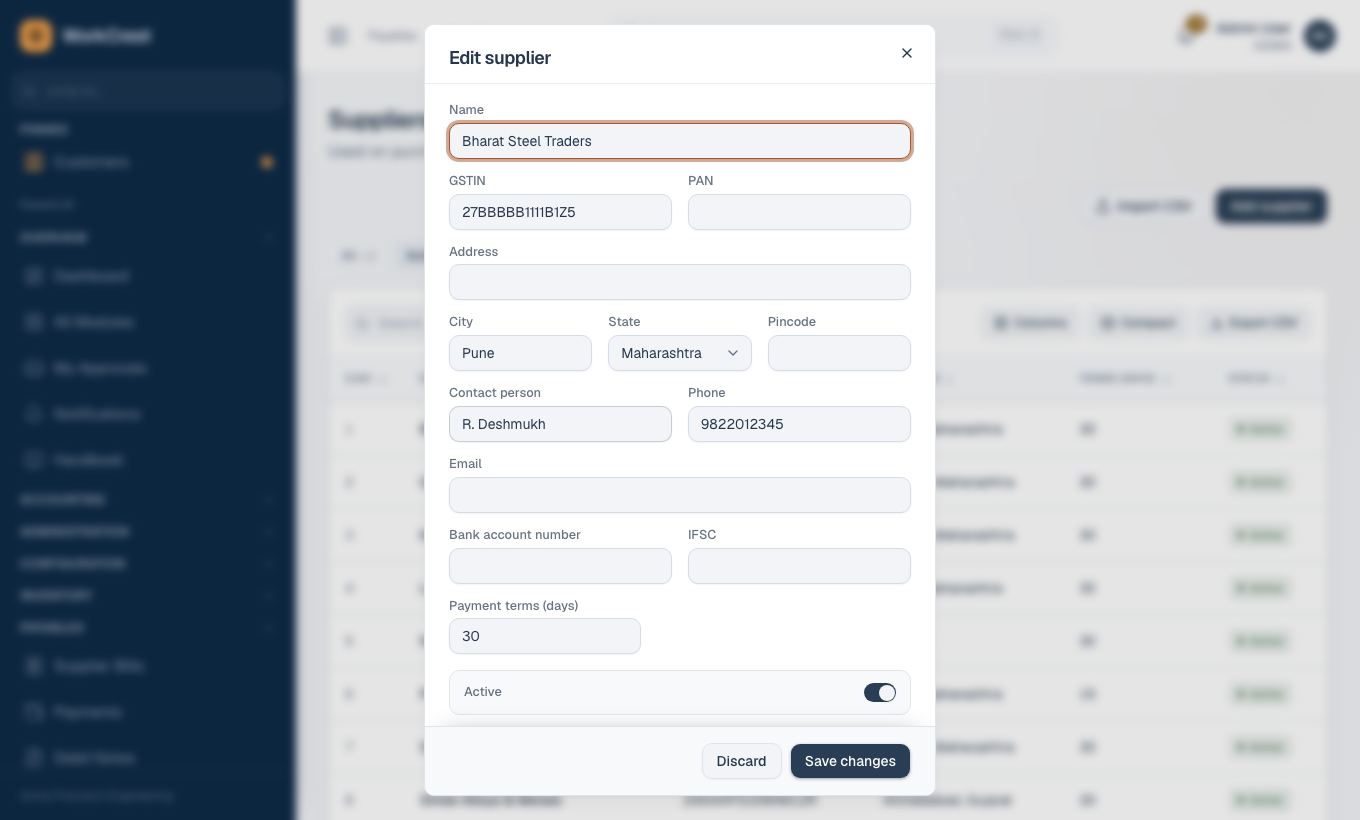
- Open and click the button to add a supplier.
- Enter the Name (the only required text field), GSTIN and PAN.
- Fill the Address, City, State and Pincode.
- Enter Contact person, Phone and Email.
- Enter the Bank account number and IFSC so Accounts can pay without hunting for details.
- Set Payment terms (days), leave Active on, and click Create supplier.
| Field | Why it matters |
|---|---|
| GSTIN | Printed on purchase orders and used when recording supplier bills so you can claim input tax credit. |
| State | On a supplier bill, WorkCrest compares the supplier's state with your company state to split the tax into CGST plus SGST or IGST, the same way it does for customers. An empty or wrong state means a wrong tax split on the bill. |
| Bank account number, IFSC | Used by Accounts when paying. Check them carefully; a typo sends money to the wrong place. |
| Payment terms (days) | Sets the due date of bills from this supplier, which drives and payables ageing. |
| Active | Off hides the supplier from new purchase orders. History stays. |
- Is the State filled in and correct?
- Is the GSTIN copied exactly?
- Have you double-checked the bank account number and IFSC?
- Are payment terms what you agreed?
- Is the supplier already on the list under another spelling?
4. Departments and employees
Employees are the people in your business: office staff, shop-floor workers, approvers. Many things in WorkCrest need an employee: leave, reimbursements, approvals, job assignments and who created a document.
- Who can change both lists: Admin and HR.
- Where to find them: and .
Departments first
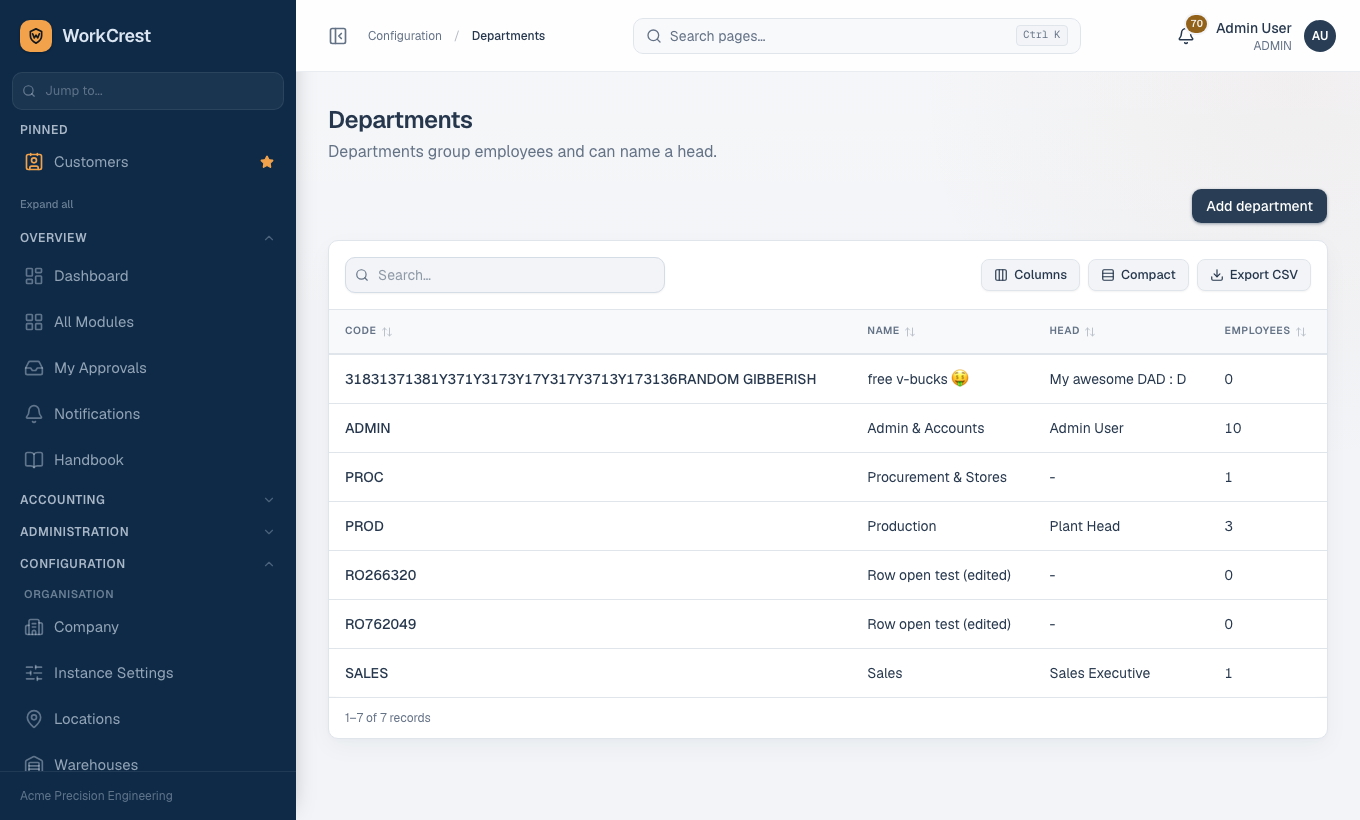
- Open and click the button to add a department.
- Enter a short Code (it is saved in capitals) and the Name.
- Leave Department head as None for now. You can only pick a head once employees exist; come back and set it afterwards.
- Click Create department.
Then employees
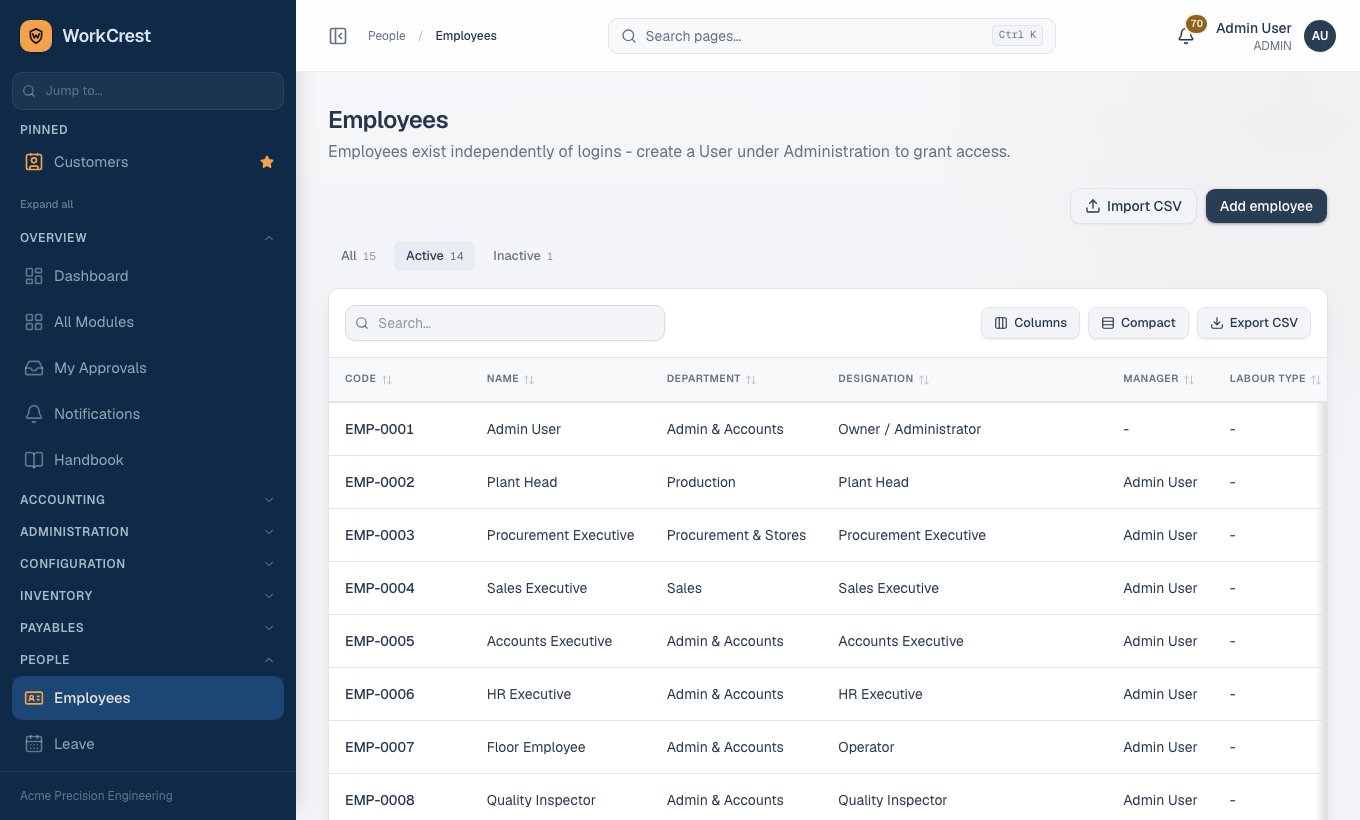
- Open and click the button to add an employee (or Import CSV).
- Enter Name, Gender, Phone and Email.
- Choose the Department, enter the Designation and the Date of joining.
- Pick the Reporting manager (leave as None if there is none) and the Employment type (Full-time, Part-time, Contract or Intern).
- Pick a Labour type / skill if this person does shop-floor work (see below).
- Leave Status as Active, add any Additional information, and click Create employee. WorkCrest assigns the employee code automatically.
| Field | Why it matters |
|---|---|
| Department | Required. Groups people for reporting and leave views. |
| Reporting manager | This decides who approves the employee's leave. Leave requests go to the reporting manager only (one level, outside the main approval rules). If an employee has no manager set, the request falls back to Admin and HR, so set a manager for everyone who should be approved by a real person. A manager cannot approve their own leave. |
| Labour type / skill | Optional. Tags the person with a kind of labour (for example turner, welder). It lists only active resources of the Labour kind from . It links the person to a labour rate that job costing uses for planned time, so set it for shop-floor workers and leave it blank for office staff. |
| Date of joining, Date of leaving | Joining is required. Fill leaving when someone departs, and set Status to Inactive. |
| Status | Active or Inactive. Inactive people drop out of the Active tab and the pickers; their history stays. Employees are never deleted. |
| Designation, Employment type | Reference details. Both are required. |
- Does the department already exist? Create it first.
- Is the reporting manager set correctly? It decides who sees their leave requests.
- For shop-floor staff, is the labour type chosen?
- When someone leaves: set the date of leaving and Status to Inactive.
- After the first employees exist, go back to Departments and set each department head.
5. Part cross-references
What it is: a small table of "what they call our part". A customer may order your bracket as their number KAC-4471-B; a supplier may sell your steel sheet under their own code. A cross-reference ties that outside number to your part.
Where to find it: . Who can change it: Sales maintains customer numbers, Procurement maintains supplier numbers, Admin can do both. Your login must also be linked to an employee record, or WorkCrest will ask you to get an Admin to link one.
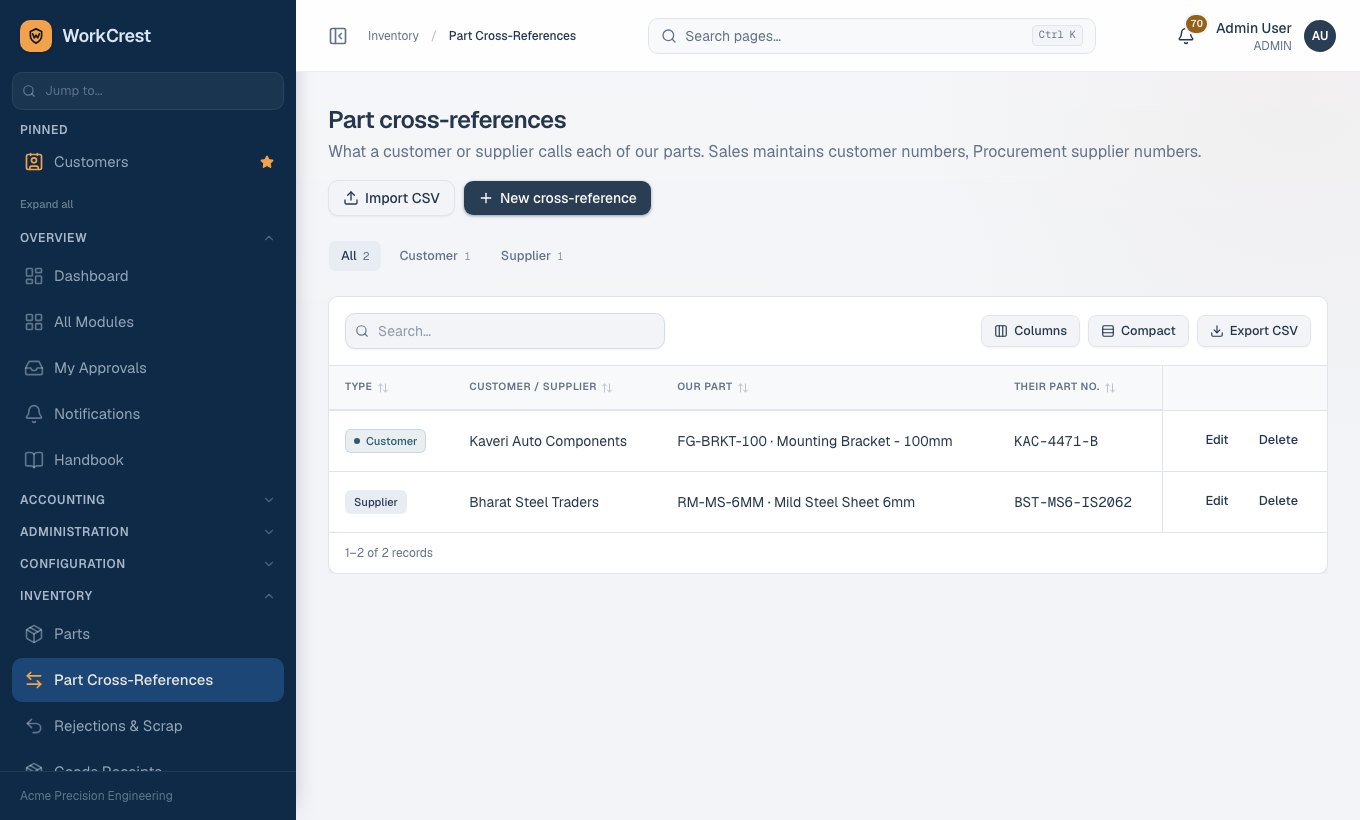
- Open and click New cross-reference.
- Under For choose Customer or Supplier. You only see the choices your role is allowed to maintain.
- Pick the Customer or Supplier.
- Pick Our part. Only active parts can be chosen.
- Type Their part no. exactly as they write it.
- Click Add cross-reference. Use Edit or Delete on a row later; unlike the other masters, cross-references can be deleted. Import CSV loads many at once.
Why it matters: the Parts list search finds a part by any of these numbers, and a customer's page lists what they call each part. That saves staff from guessing which of your parts a purchase order line refers to.
Common mistakes
| Mistake | What happens | What to do |
|---|---|---|
| Wrong unit of measure on a part | It cannot be edited after the part is created. | Create a new part with the right unit and make the old one inactive. |
| Trying to change Tracking or Stockable after stock has moved | The save is refused so balances are not orphaned. | Decide at creation. Otherwise make a new part. |
| Setting a service to Stockable | Refused. Services hold no stock. | Leave Stockable off and use the Service type. |
| Wrong or blank state on a customer or supplier | The tax split (CGST plus SGST versus IGST) comes out wrong on invoices and bills. | Set the state from the GSTIN before the first document. A stored invoice is not recalculated. |
| Wrong HSN or SAC code | It prints on every invoice line and the HSN/SAC summary. | Confirm with your accountant before creating the part. |
| Looking for a Delete button | There is none for parts, customers, suppliers or employees. | Switch Active (or Status) off. Only cross-references can be deleted. |
| No reporting manager on an employee | Their leave falls back to Admin and HR. | Set the manager when you create the employee. |
| Cannot see Standard cost | You do not hold the cost-viewing access. | This is intended. Ask Accounts to set costs, or the Admin about access. |
| Import fails with row errors | Nothing is saved. | Fix the rows named in the error list, check there are no duplicate codes, and upload again. Import never overwrites an existing record. |
| Duplicate customer or supplier under a different spelling | History splits across two records. | Search before adding. Retire the duplicate by switching it to Inactive. |
Where to go next
- One-time setup masters for the smaller lists these depend on.
- Admin guide for users, roles and who can see which screens.
- Getting started for signing in and the wider setup checklist.
- Training home for every guide.