Training home / Quality
Quality guide
Set up what to check, inspect incoming and in-process work, handle rejects, and close the loop with corrective actions.
- Your main tasks: Set up master data, inspect incoming goods, run in-process and final inspection, handle non-conformances, run corrective actions, review reports.
- Before you start: Set the part's Receipt routing to Inspection (2-step) and Activate an inspection plan. Then open .
- Watch out for: A Draft plan inspects nothing, and a receipt line with no Active plan gets no inspection lot.
Who this is for
People with the Quality role (and Admin). Plant, Procurement and Sales can view parts of the module, and anyone who owns a corrective action can open that one action's page. New to WorkCrest? Read Getting started first.
| Screen | Where to find it | What it is for |
|---|---|---|
| Quality Characteristics | The things you check (a dimension, a pass/fail, a note) | |
| Defect Codes | Reasons for rejection | |
| Inspection Plans | Which checks apply to which part, and when | |
| Inspections | Inspection lots to record and decide | |
| Non-conformances | Reject records and what to do with the stock | |
| Corrective Actions | Root cause and fix tracking (CAPA) | |
| Quality Dashboard | Yield, defects, ageing, cost of poor quality | |
| Supplier Quality | Supplier scores |
1. Set up the master data
Do these in order. Each master is on the sidebar under Configuration (group Quality).
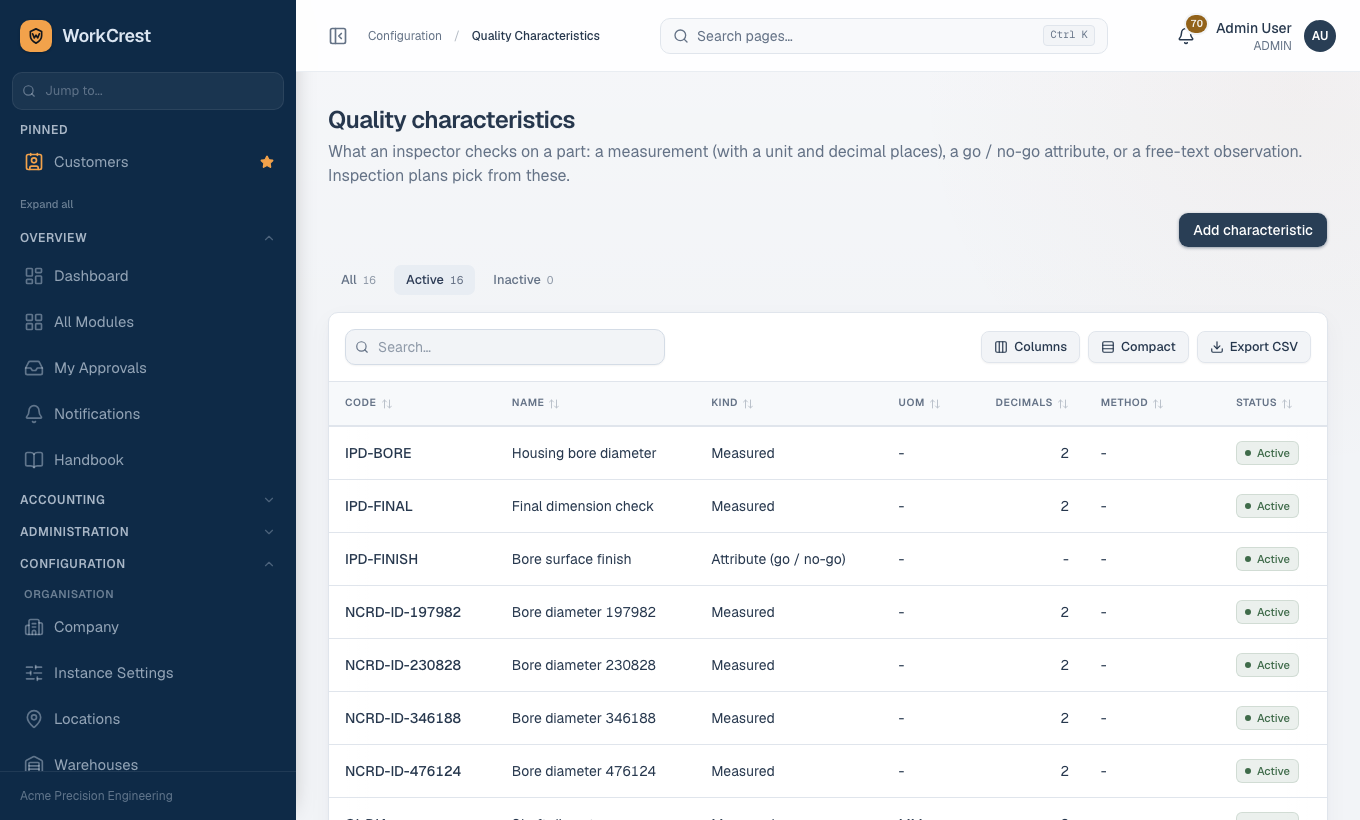
- Quality Characteristics (Add characteristic): fill Code, Name and Kind, then Create characteristic.
- Measured is a number checked against limits. Also set Unit and Decimal places.
- Attribute (go / no-go) and Text are the other kinds.
- Method is optional (for example micrometer or visual).
- Click a row to edit it. Clear Active to retire one.
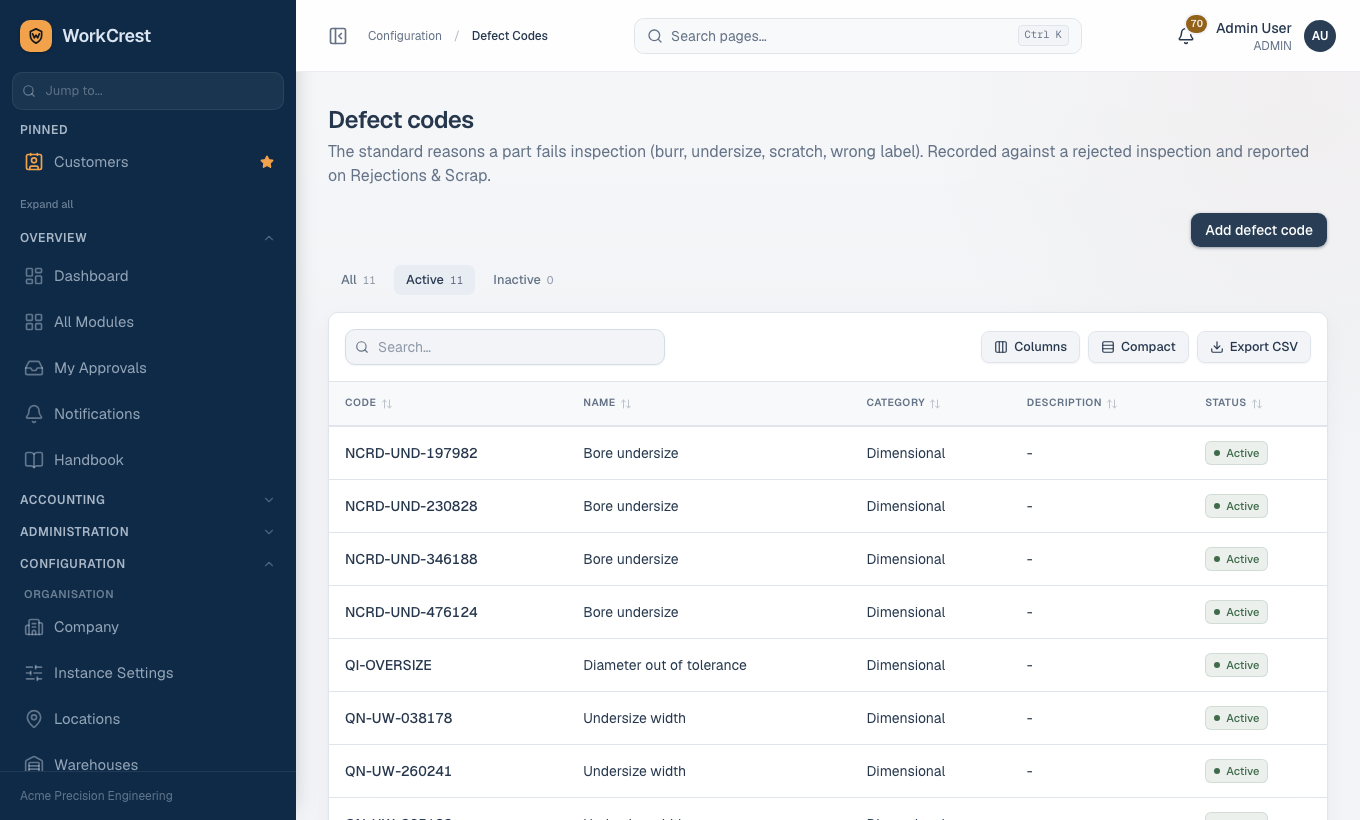
- Defect Codes (Add defect code): Code, Name, Category (Dimensional, Visual, Material, Functional, Packaging or Other) and an optional Description, then Create defect code. A rejection needs one of these.
- On the part itself (Parts master), set Receipt routing to Inspection (2-step). Without this a receipt never gets an inspection lot.
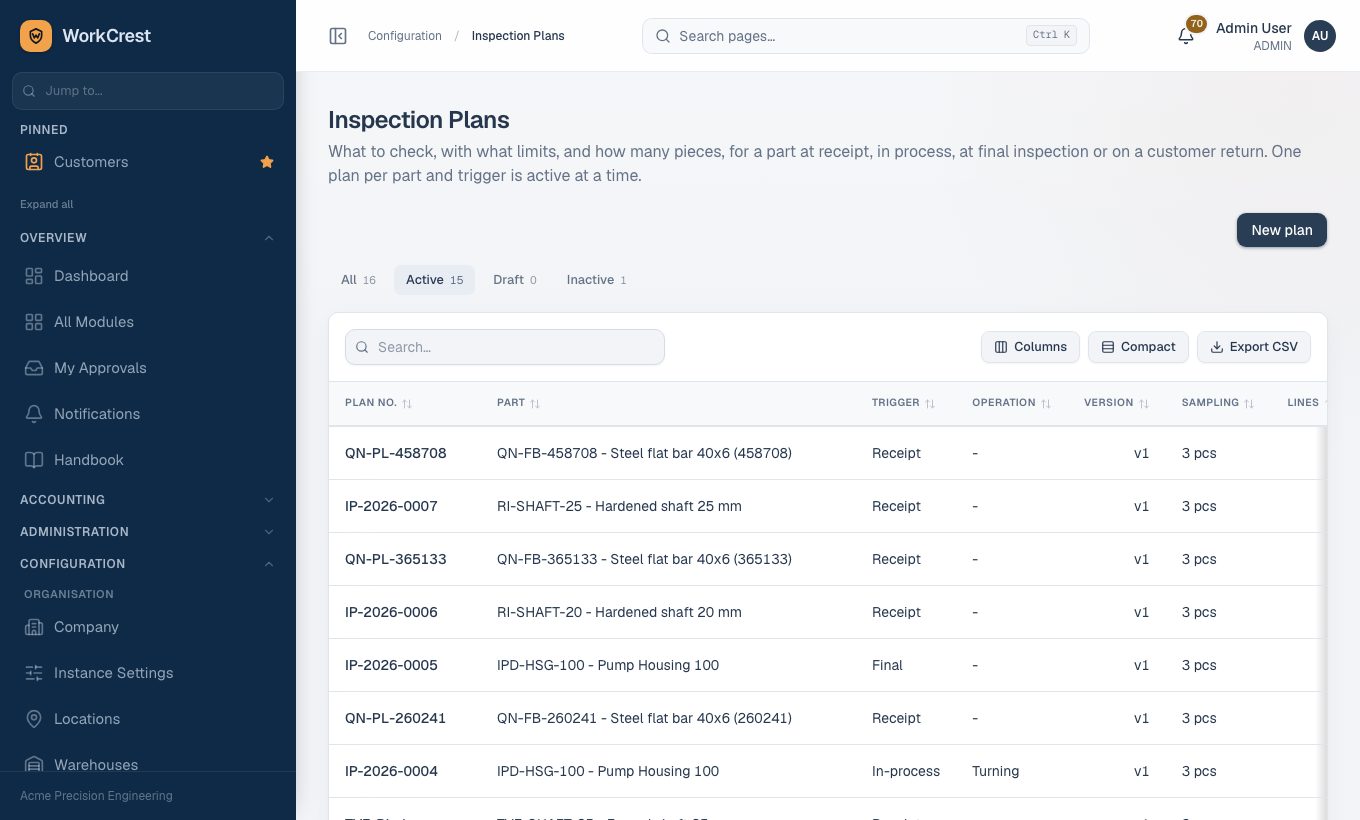
- Inspection Plans → New plan. Under Details, set:
- Part and Trigger: Receipt, In-process, Final or Customer return. For In-process also pick the Operation.
- Sampling: All pieces (100%), Fixed quantity (Pieces) or Percent of lot (Percent).
- Tick First-article inspection if the first piece must be checked separately.
- Notes are optional.
- Under Characteristics click Add characteristic for each check.
- Pick the Characteristic. Enter Nominal, Lower limit and Upper limit (only Measured characteristics take limits).
- Tick Critical where a failure must reject the whole lot.
- Add Instructions if useful.
- Click Create plan.
- The new plan is a Draft. Open it and click Activate. Nothing is inspected from a Draft.
2. Inspect incoming goods (receiving)
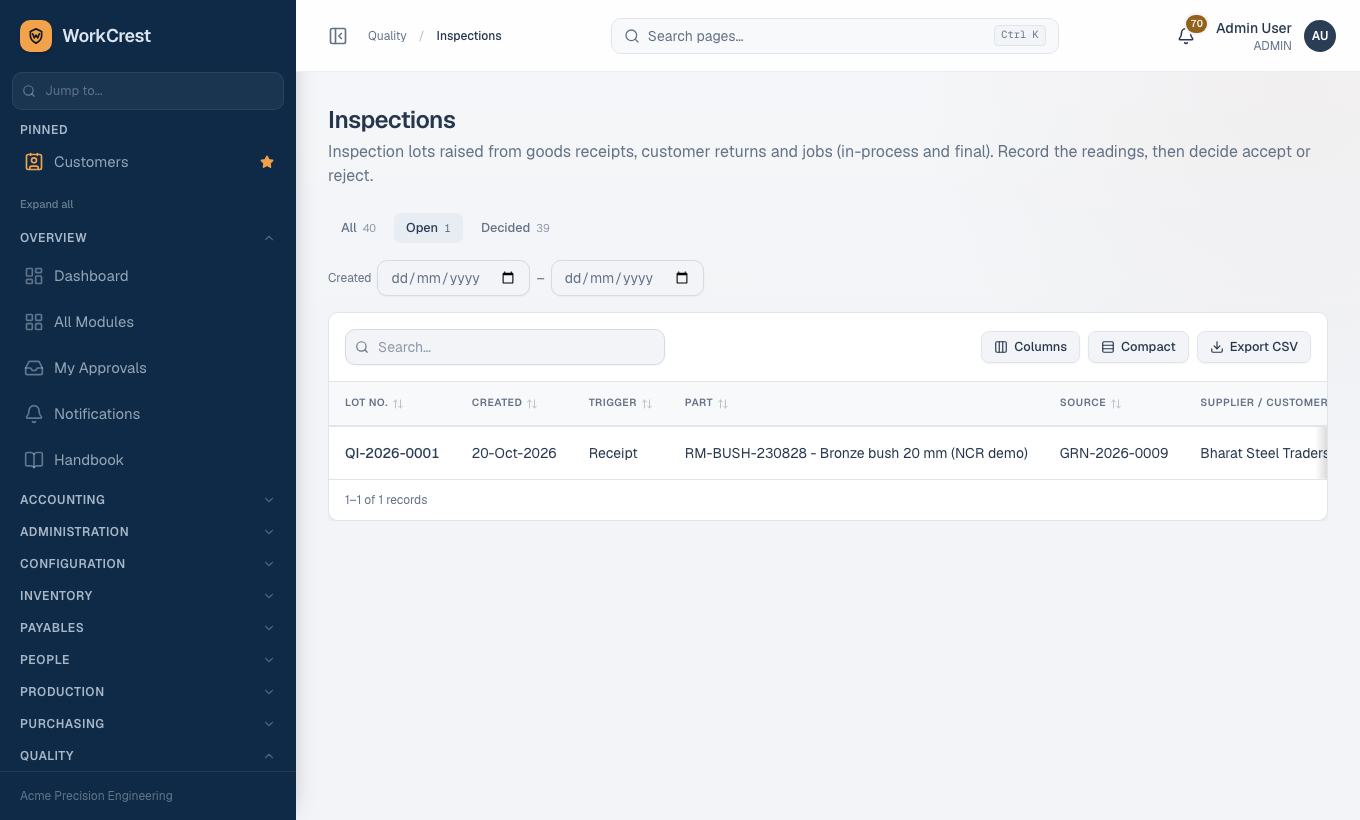
- When Stores books a goods receipt for a part with Inspection (2-step) routing and an Active Receipt plan, an inspection lot (numbered QI-...) is created automatically and Quality is notified. The goods wait in the Receiving warehouse.
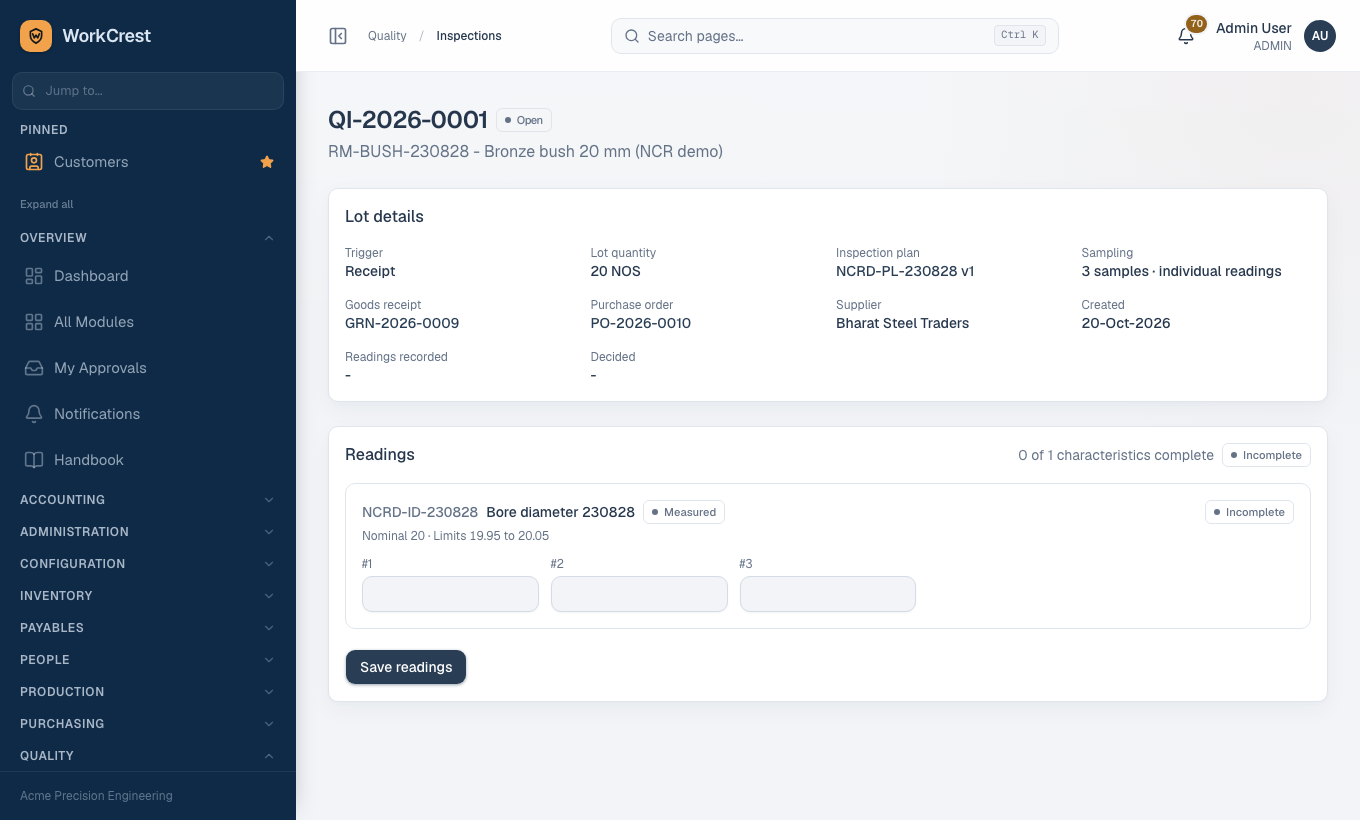
- Open Inspections. The list opens on the Open tab; use Decided or All for others. Click the lot number. The page shows Lot details (trigger, lot quantity, inspection plan, sampling, goods receipt, purchase order, supplier).
- Under Readings, fill each characteristic block.
- Up to 25 samples the sheet shows one box per sample (#1, #2 ...).
- Measured: type the number. Attribute: press Pass or Fail. Text: type text.
- A reading outside the limits turns red.
- Above 25 samples, enter a summary instead: Inspected count, Defective count and, for Measured, Lowest and Highest.
- Click Save readings. The system works out Pass or Fail for each characteristic and for the lot itself; you cannot override it. The header shows how many characteristics are complete.
- When every characteristic is saved, a Decision panel appears. It suggests accept-all when everything passed, or reject-all when a Critical characteristic failed. When something non-critical failed there is no suggestion: you split the lot yourself.
- You may change Accepted qty and Rejected qty. They must add up to the lot quantity.
- Any rejected quantity needs a Defect code.
- If your numbers differ from the suggestion, the page asks you to add Remarks.
- For lot or serial tracked parts, a table lets you split accepted and rejected per lot or serial.
- Click Record decision, then Confirm decision. This cannot be undone. Print report prints the inspection report.
Accepted quantity is released to stock. Rejected quantity moves from Receiving to the Quarantine warehouse and a non-conformance (NCR) is opened for it automatically; the lot page links to it.
3. In-process, first-article and final inspection
Lots appear on their own while a job runs, if an Active In-process or Final plan exists for the job's output part.
The in-process plan also matches the step's operation. The lots show in the same Inspections list, with the job and step in the Source column:
- When a job step starts, an in-process lot is created for that step. If the plan has First-article inspection ticked, a separate lot for one piece is created too.
- When the last open step is completed, a final lot is created.
- Steps done by an outside supplier are not inspected in process.
These lots gate the shop floor:
- A step cannot be completed while its lot is undecided.
- While a first article is pending, the step can only show 1 piece completed, and you cannot decide the main lot.
- Once a step's lot is decided, no more scrap can be added at that step.
- The job cannot be completed while its final lot (or any step lot) is undecided.
You record and decide these lots exactly as in section 2.
- The confirmation says no stock moves now.
- Rejected pieces are recorded as scrap on the job with the defect code.
- An internal NCR is raised and closed out as scrap automatically.
- A rejected first article starts a fresh first-article lot.
4. Handle a non-conformance
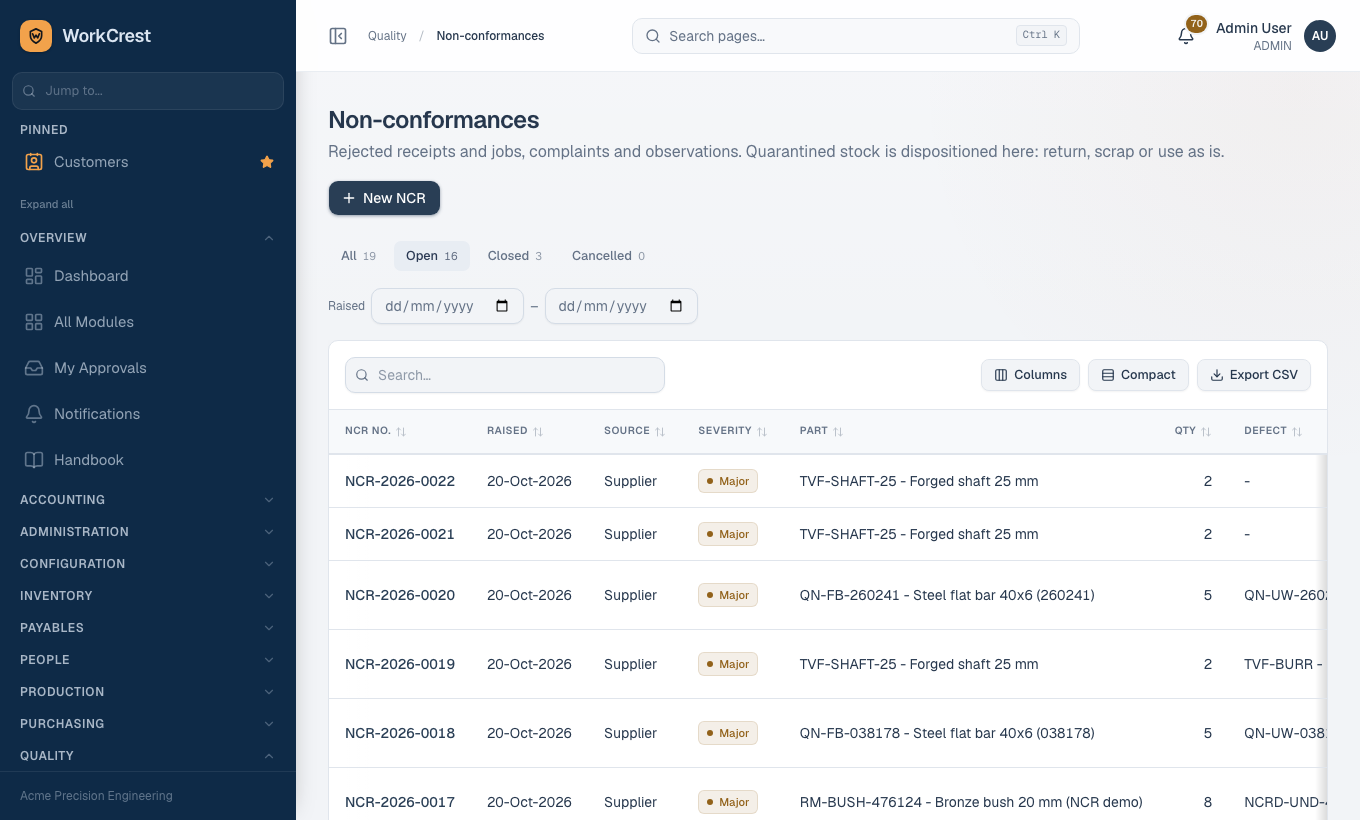
Open Non-conformances. The list opens on Open (which includes Dispositioned NCRs). The other tabs are Closed, Cancelled and All.
- Statuses are Open, Dispositioned, Closed and Cancelled.
- Supplier NCRs come from receiving rejects, Internal ones from job rejects, Customer ones from returns.
- To raise one yourself click New NCR. Fill Source, Severity (Minor, Major or Critical), Supplier or Customer, Part, Quantity affected and Description. Then click Raise non-conformance.
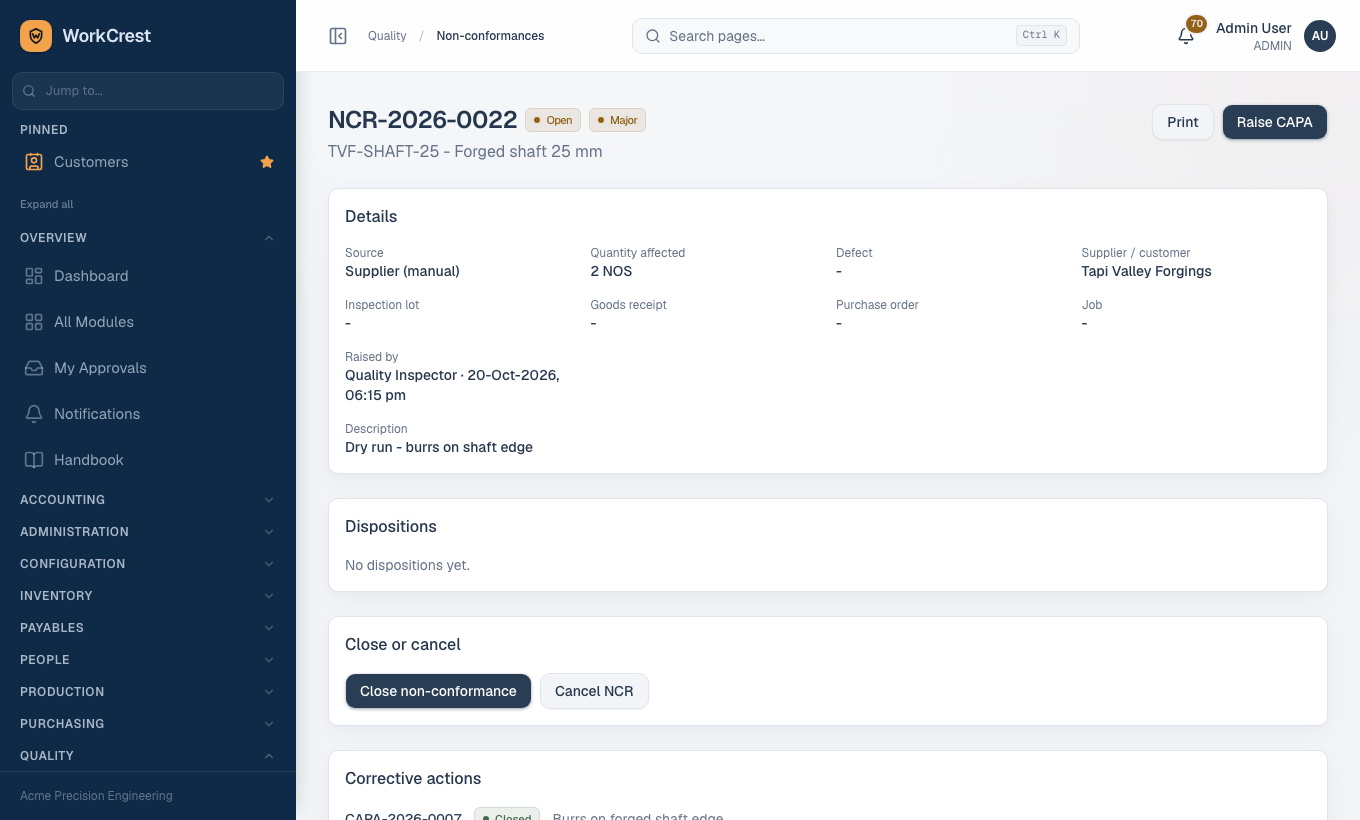
- Click the NCR. Quarantined stock shows quarantined, dispositioned and remaining quantity per lot.
- In Add disposition choose Disposition, the Lot / serial (when tracked), Quantity and Remarks, then press the button for that type (see the table). The quantity cannot exceed what remains.
- Each disposition appears under Dispositions with its status (Pending, Done or Rejected).
- When nothing is left in quarantine and nothing is pending, the NCR becomes Dispositioned. Under Close or cancel click Close non-conformance, write the Closure remarks (required) and click Close NCR. Closing is final.
| Disposition | Button | What happens |
|---|---|---|
| Return to supplier | Create draft return | Supplier NCRs with a goods receipt only. Creates a draft purchase return for Procurement to submit. Stock leaves Quarantine only when that return is approved; if it is rejected or cancelled the quantity is open here again. |
| Scrap | Scrap now | Done at once. The stock leaves quarantine and the loss is booked (to GRN Clearing when the supplier is to blame, otherwise to Quality Scrap Loss). |
| Use as is (concession) | Submit for approval | Supplier NCRs with a goods receipt only. Needs Plant Head approval (it shows as Awaiting approval and in My Approvals). Only when approved does the stock leave quarantine, count as received and become billable. If rejected, the quantity is open here again. |
| Rework | Create rework job | Use Add operation to list the operations to redo (they run in the order listed; optional Planned start). A rework job is created and the quarantined pieces are issued to it at once. Standard cost is not changed. Not offered for in-process rejects, which were already scrapped. |
5. Run a corrective action (CAPA)
- From an NCR click Raise CAPA (part, supplier or customer are pre-filled), or click New CAPA on Corrective Actions.
- Fill Title, Owner, optional Part, Supplier and Customer, Problem, optional Containment and Verify by, then Open CAPA.
- On the CAPA page, 5 Whys and root cause: use Add why (up to five), write the Root cause, click Save analysis. Edit details changes the header fields.
- In Actions click Add action: Type (Containment, Corrective or Preventive), Owner, Due and Action, then Add action. The owner is notified. Open actions can be edited or removed.
- When an action is finished, click Mark done and describe What was done.
- Linked non-conformances lets you link or unlink other NCRs.
Status follows the work: Open until there is a corrective action, In progress while any action is open or the root cause is missing, then Awaiting verification once every action is done and a root cause is written. Then:
- A Quality or Admin user who is not the CAPA owner opens the Verification panel, writes Verification remarks (required) and clicks Effective, close CAPA (status Closed) or Not effective (back to In progress for new actions).
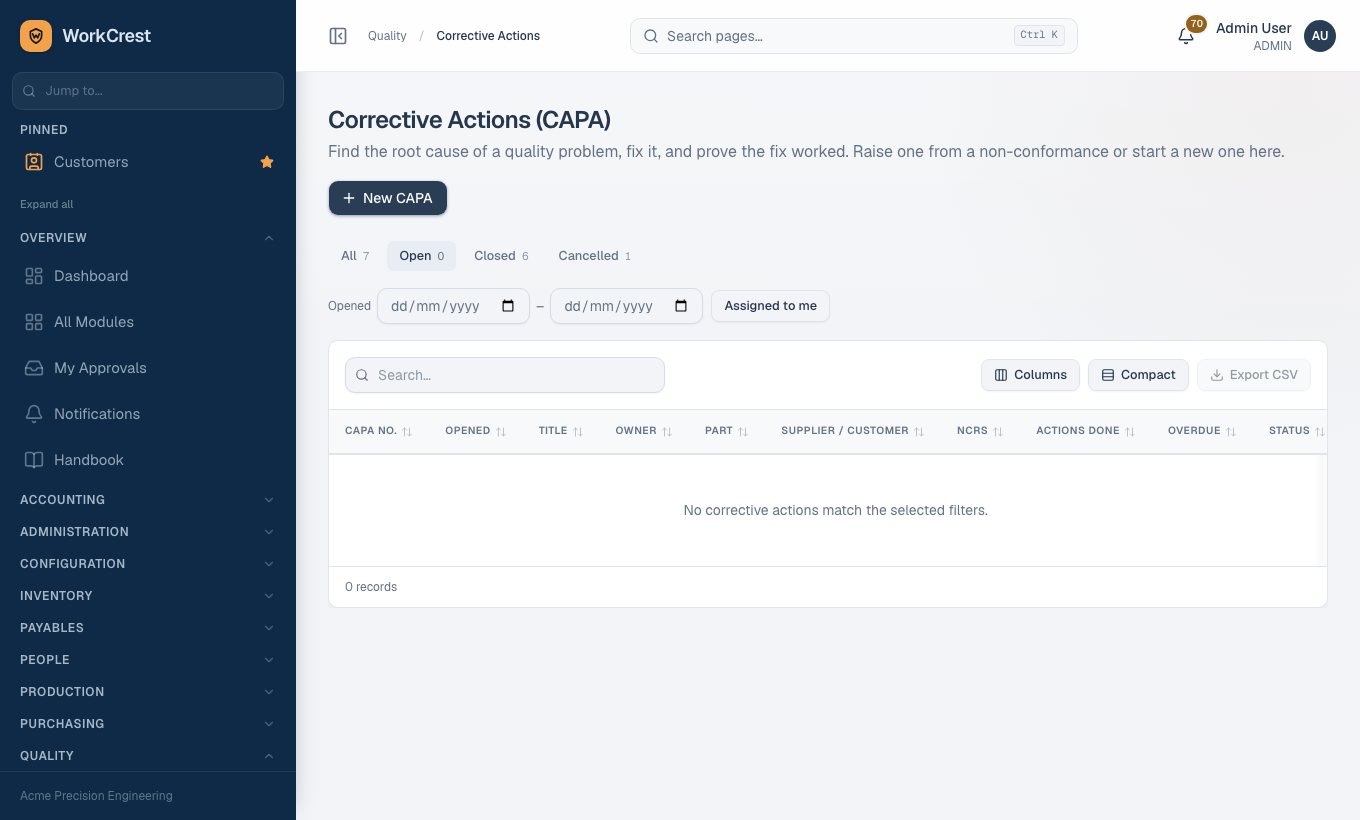
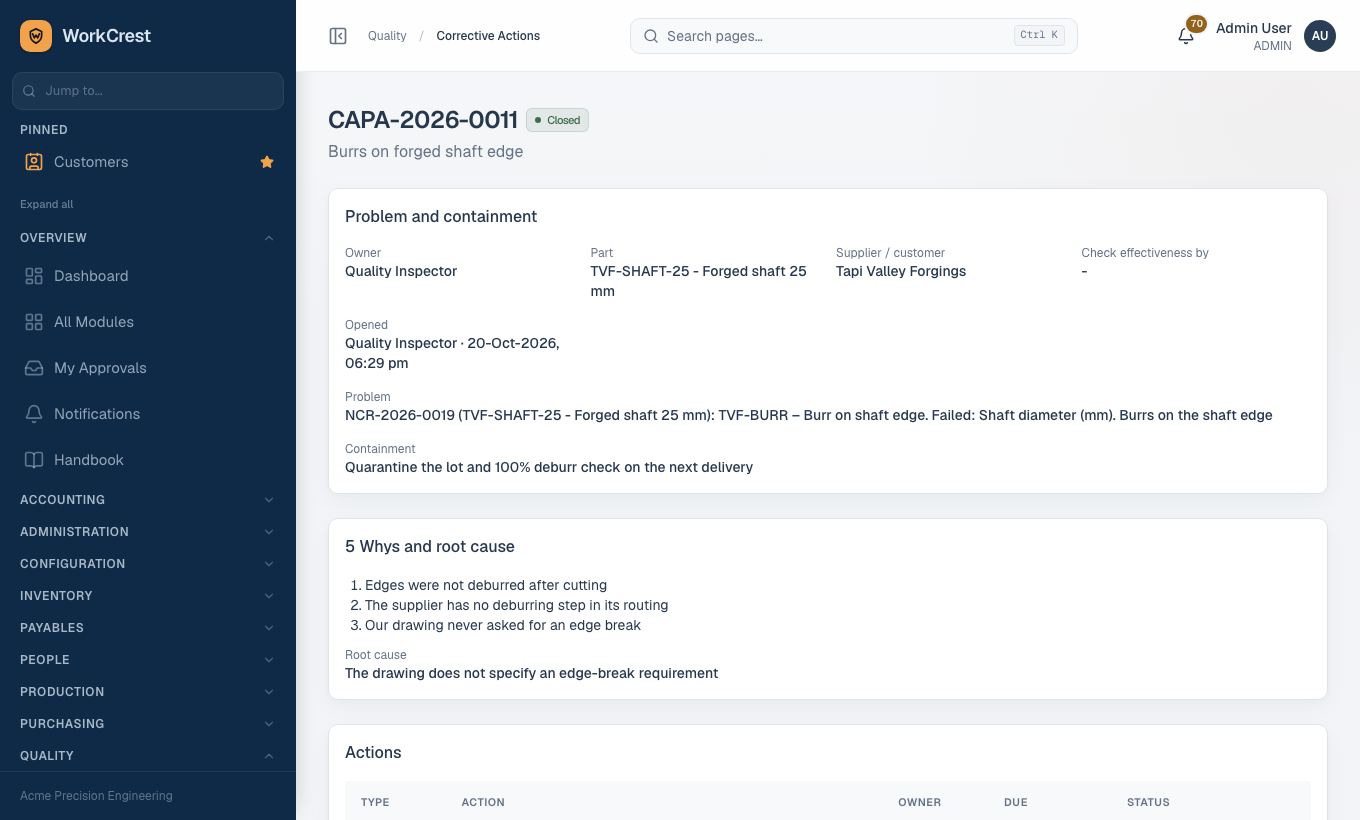
The list opens on Open. Other tabs are Closed, Cancelled and All. Assigned to me filters to your CAPAs.
- Cancel CAPA (reason required) is available only while Open or In progress.
- Action owners without the Quality role can still open their CAPA from the notification link and mark their own actions done. Everything else is read-only for them.
- Overdue actions notify the action owner and the CAPA owner.
6. Reports and supplier scores
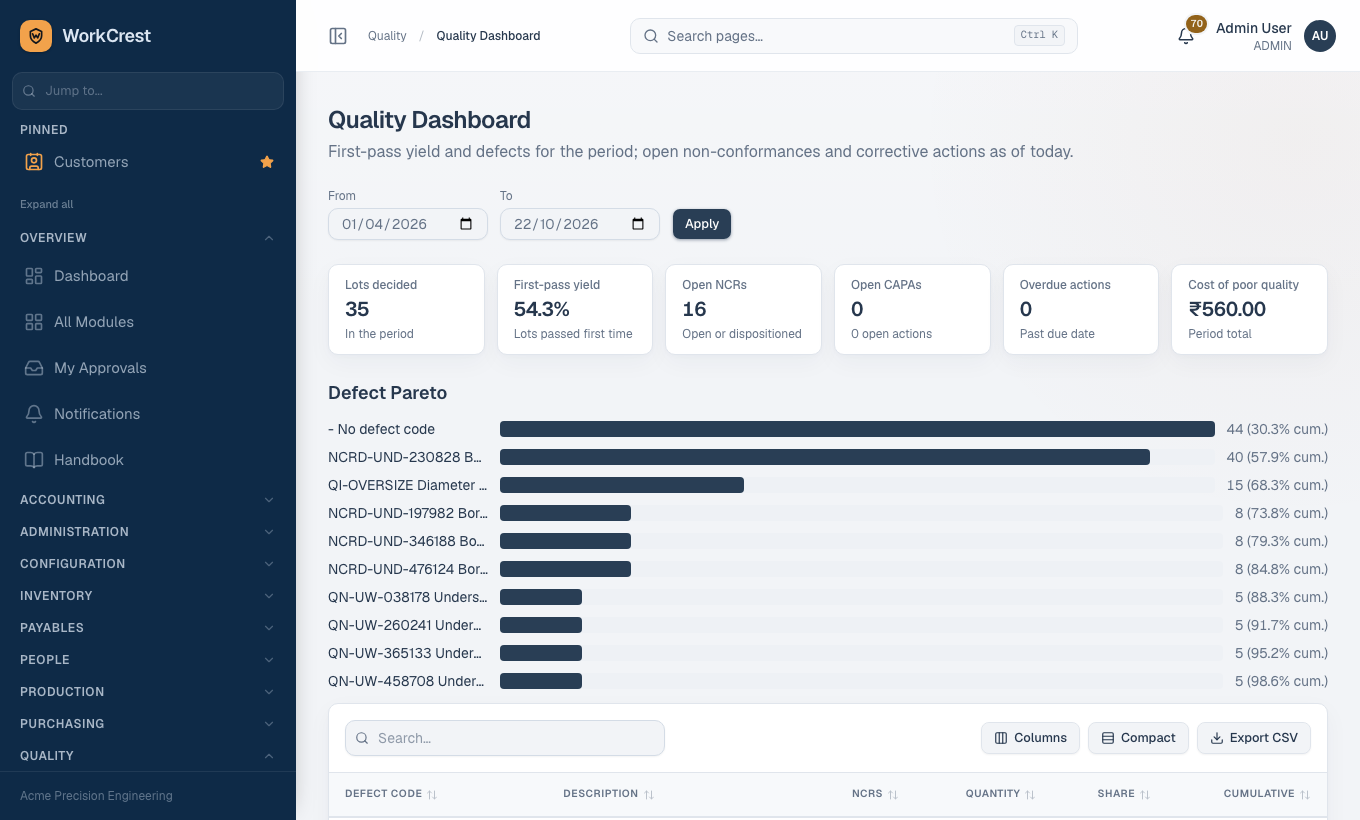
- Quality Dashboard (): first-pass yield, defect Pareto, NCR ageing, CAPA summary. Cost of poor quality shows only to people allowed to view costs.
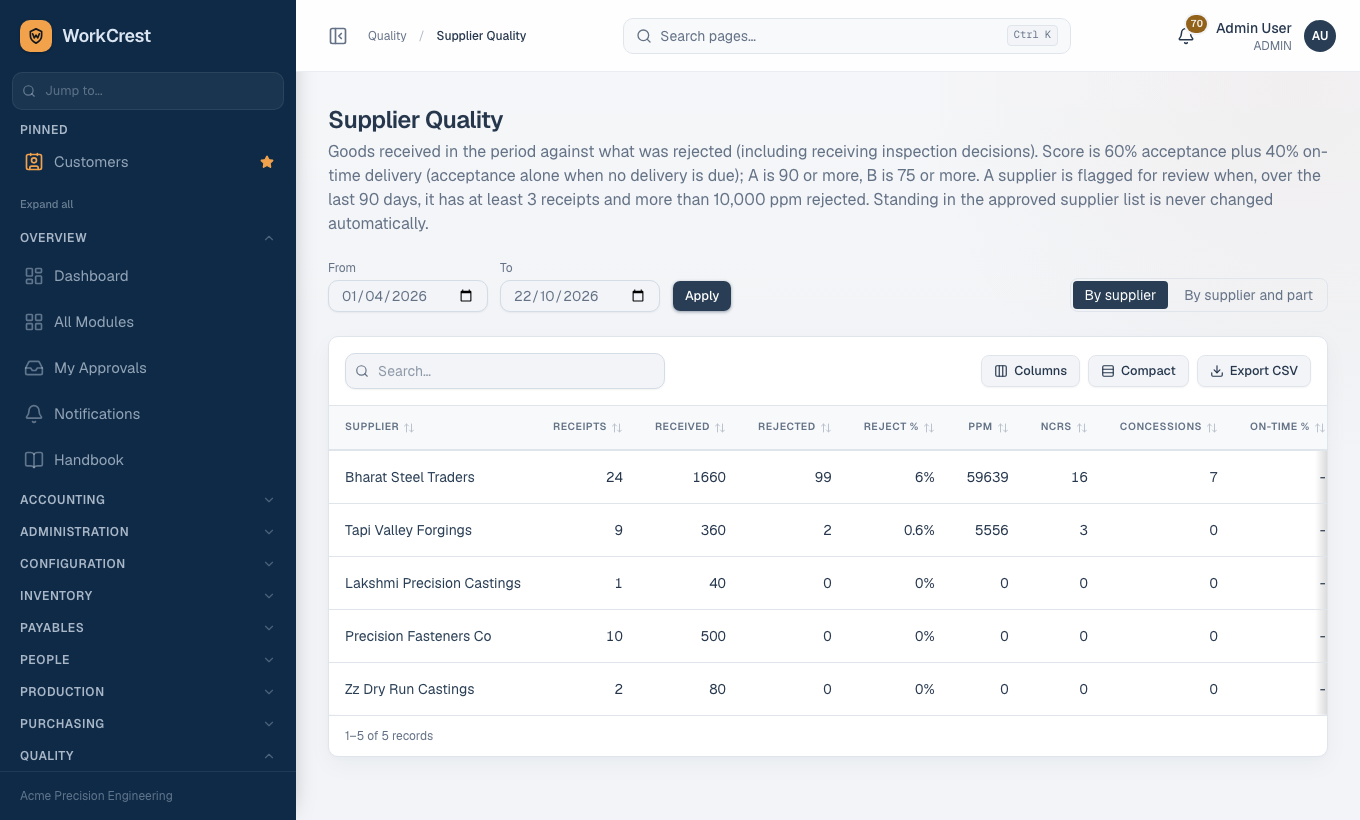
- Supplier Quality (): reject ppm, reject %, on-time %, and a score of 60% acceptance plus 40% on-time.
- Rating is A at 90 or more, B at 75 or more, otherwise C.
- Over 90 days, three or more receipts with ppm above the alert level raise an alert to Procurement and Quality.
- The alert only suggests holding the supplier. It never changes their status by itself.
Inspection reports (Print report on a lot), NCRs (Print) and delivery certificates of conformance (CoC, final inspections only) can be printed from their pages.
Common mistakes and "why can't I..."
| Problem | Reason |
|---|---|
| No inspection lot appeared for a receipt | The part's Receipt routing is not Inspection (2-step), or it has no Active Receipt plan. |
| I cannot edit an Active plan | Click New version, edit the Draft, then Activate. |
| No Decision panel on a lot | Every characteristic must be filled and saved with Save readings first. |
| The shop floor cannot complete a step | Its inspection lot is undecided. Decide it. |
| I cannot decide the main in-process lot | The first-article lot is still pending. |
| Cannot record a rejection | Choose a Defect code; accepted plus rejected must also equal the lot quantity. |
| Cannot close an NCR | Quantity still remains in quarantine, or a return or concession is pending. |
| I cannot verify my own CAPA | Verification needs a different Quality or Admin user. |
| Use-as-is stock is still in quarantine | The concession is waiting for approval. |
| The whole Quality module is missing | An administrator has switched it off. Screens are hidden for everyone, including Admin, but no data is lost. No new inspection lots are created while it is off, and flows behave as they did before Quality. Switching it back on brings everything back. |