Training home / Your first day
Your first day with WorkCrest
For people who have never used an ERP. Plain words, small steps. When you finish, read the short Getting started page for sign-in rules and then the guide for your role (section 8).
- Who it is for: people who have never used an ERP.
- Main things you can do here: learn the words, sign in, read screens, and raise and approve a first Purchase Order.
- What you need first: nothing. Read the Getting started page next.
1. What WorkCrest is and how work flows
An ERP (Enterprise Resource Planning system) is one program where a business keeps its buying, stock, production, selling and money records together, instead of in separate notebooks and spreadsheets. WorkCrest is a small ERP for a job shop: a workshop that buys material, makes parts and sells them to customers.
Everything you do in WorkCrest is writing down something that happened in the real world, in a form the whole team can see. The story of a business runs like this:
| Step | What happens in real life | Document in WorkCrest | Usually done by |
|---|---|---|---|
| Buy | You order material from a supplier. | Purchase Order (PO) | Procurement |
| Receive | The material arrives and is counted and put in a store. | Goods Receipt (GRN) | Procurement / Plant |
| Pay the supplier | The supplier sends a bill; you check it and pay. | Supplier Bill, Payment | Accounts |
| Make | Workers turn material into parts. | Job Order | Plant |
| Sell | A customer asks for a price, then orders. | Quotation, Customer Order | Sales |
| Dispatch | Goods leave in a vehicle with a delivery slip. | Delivery Challan | Sales / Plant |
| Invoice | You bill the customer, with tax. | Invoice | Sales / Accounts |
| Get paid | The customer pays; you match the money to the invoice. | Receipt | Accounts |
Money and stock are kept honest by two rules. First, a document that has been made final is not edited in secret: you cancel it or correct it with another document, and the history stays. Second, nobody approves their own work (by default), so a second person always sees important documents before they count.
2. Glossary: the words you will see
| Word | Plain meaning |
|---|---|
| Document | One record of one event, with its own number: a purchase order, an invoice, a payment. You create it, it moves through statuses, and it is kept for good. |
| Master (master data) | A list you set up once and pick from later: customers, suppliers, parts, warehouses. Documents refer to masters. |
| Status | Where a document is in its life, shown as a coloured badge: for example Draft, Pending, Approved, Rejected, Cancelled. |
| Draft | Still being written. You can change it freely. Nothing has been posted to stock or accounts. |
| Approval | A named person (or role) has to say yes before a document counts. Who approves, and above what amount, is set by Admin rules. |
| Approver | The person whose turn it is to say yes or no. |
| Approval status vs fulfilment status | Two separate things on a purchase order. Approval asks “is the order allowed?”. Fulfilment asks “has the material arrived?”. A PO can be Approved and still Open or Partially Received. |
| Purchase Order (PO) | Your written order to a supplier: what you want, how many, at what price. |
| GRN (Goods Receipt Note) | The record that goods arrived and were counted. It is what adds the quantity to your stock. |
| Challan (delivery challan) | The delivery slip that travels with goods leaving your premises. It records what was sent, to whom. |
| Invoice | The bill you send to a customer, including tax. |
| Receipt | Record of money you have received from a customer, matched to their invoices. |
| Supplier bill | The bill a supplier sends you. Accounts enters it, and it must be approved before it counts as money you owe. |
| Payment | Money you pay out to a supplier. |
| Receivable | Money customers owe you. A draft invoice is not a receivable; it becomes one when it is issued. |
| Payable | Money you owe suppliers. |
| Ageing | A report that groups unpaid amounts by how overdue they are (for example 0-30 days, 31-60 days). |
| Ledger | A permanent, add-only list of entries. The stock ledger lists every movement in and out of stock; the general ledger lists every money entry. Entries are never edited; a mistake is fixed by a new opposite entry. |
| Stock balance | How much of a part you have right now, per warehouse, worked out from the stock ledger. |
| UoM (Unit of Measure) | How a quantity is counted: Nos (pieces), Kg, Metre, and so on. Always check the unit beside a quantity. |
| Part | Any item you buy, make or sell, with a part number. |
| GST | Goods and Services Tax, the Indian sales tax. It is added to invoices and bills and is split in one of two ways: CGST + SGST when the buyer is in the same state as the company, otherwise IGST. WorkCrest works this out and stores it when the document is created. |
| HSN / SAC | Government tax codes. HSN is the code for goods; SAC is the code for services. They appear on invoice lines. |
| Job order | An instruction to the shop floor to make a quantity of a part. |
| Role | A set of permissions given to your login (Sales, Procurement, Accounts, Plant, Quality, HR, Employee, Admin). Your roles decide which screens and buttons you get. |
| Toast | The small message that pops up in the corner of the screen after you press a button, saying it worked (“Submitted for approval.”) or why it did not. |
3. Signing in and finding your way around
Signing in
- Open the web address your Administrator gave you.
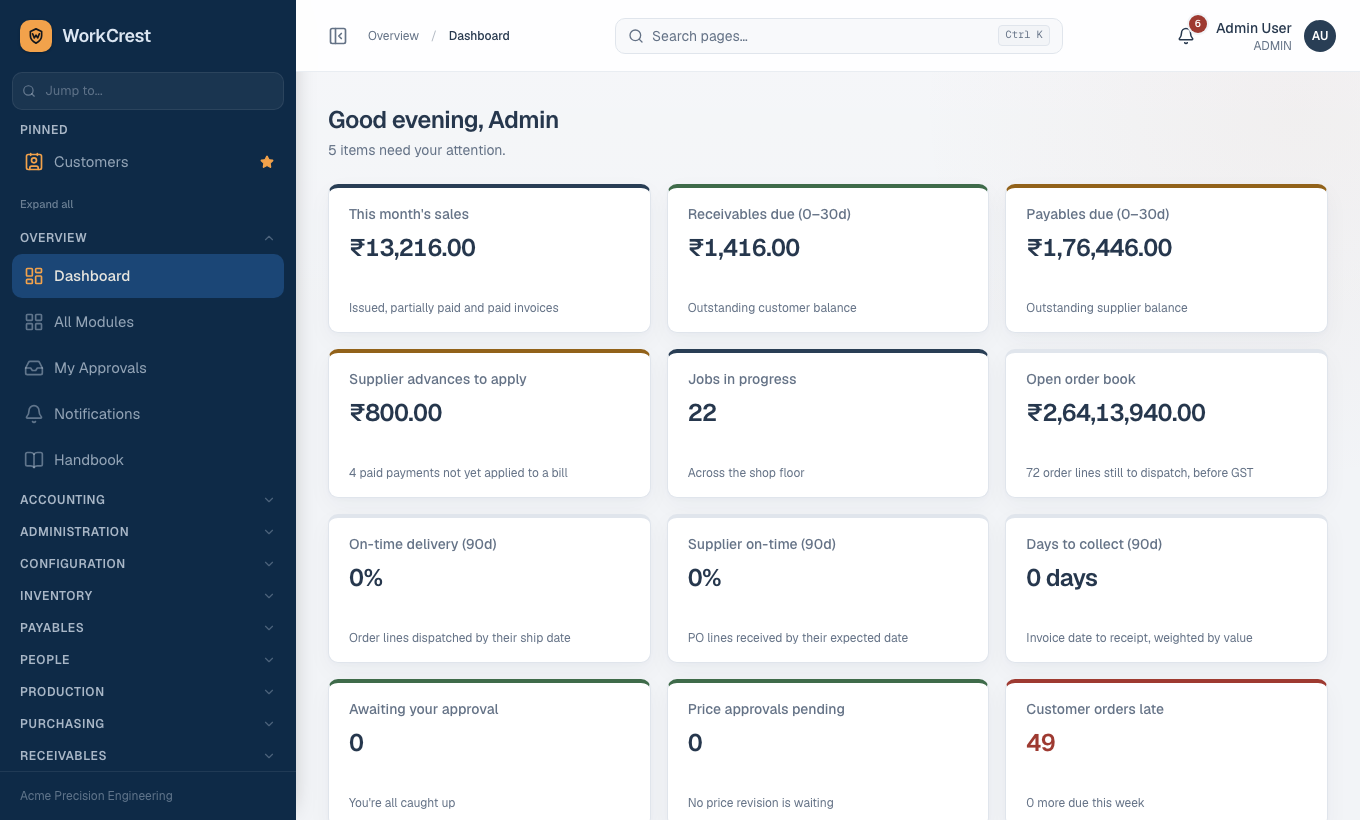
- Type your username and password, then sign in. You land on the Dashboard.
- If you are asked to change your initial password, do it. Never share your login with anyone.
The sidebar
The left-hand sidebar is your main menu. It is split into sections. Which ones you see depends on your roles:
| Section | What is inside (examples) |
|---|---|
| Overview | Dashboard, All Modules, My Approvals, Notifications, Handbook |
| Sales | Quotations, Customer Orders, Delivery Challans, Shipping Tracker, Sales Returns |
| Receivables | Invoices, Receipts, Credit Notes, Receivables Ageing, Customers |
| Purchasing | Purchase Orders, Blanket Agreements, Approved Suppliers |
| Payables | Supplier Bills, Payments, Debit Notes, Payables Ageing, Suppliers |
| Inventory | Parts, Goods Receipts, Stock Balances, Stock Movements, Reorder Alerts, Misc Stock In/Out |
| Production | Job Orders, Job Board, Bill of Materials, Routing |
| Quality | Inspections, Non-conformances, Corrective Actions (only if your company has switched Quality on) |
| People | Employees, Leave, Leave Balances, Reimbursements |
| Accounting | Ledger, Journal Entries, Trial Balance, Profit & Loss, Balance Sheet, GST and other reports |
| Configuration | Company, Warehouses, Units of Measure, Chart of Accounts, Approval Rules and other set-up lists |
| Administration | Users & Roles, Page Access, Approval History, What’s New |
A screen your role cannot open is simply not shown. That is not a fault.
Four ways to find a screen quickly
- Jump to... box. At the top of the sidebar. Type part of a screen name (for example “bill”) and the list shrinks to matching screens. The x button clears it.
- Jump-to search anywhere. Press Ctrl+K (or Cmd+K on a Mac), or / when you are not typing in a box, to open a search box that says “Jump to a page…”.
- Pinned links. Each screen in the sidebar has a star (pin) button. Pin the ones you use daily and they appear under Pinned at the top, in the order you pinned them. Pins belong to your own login.
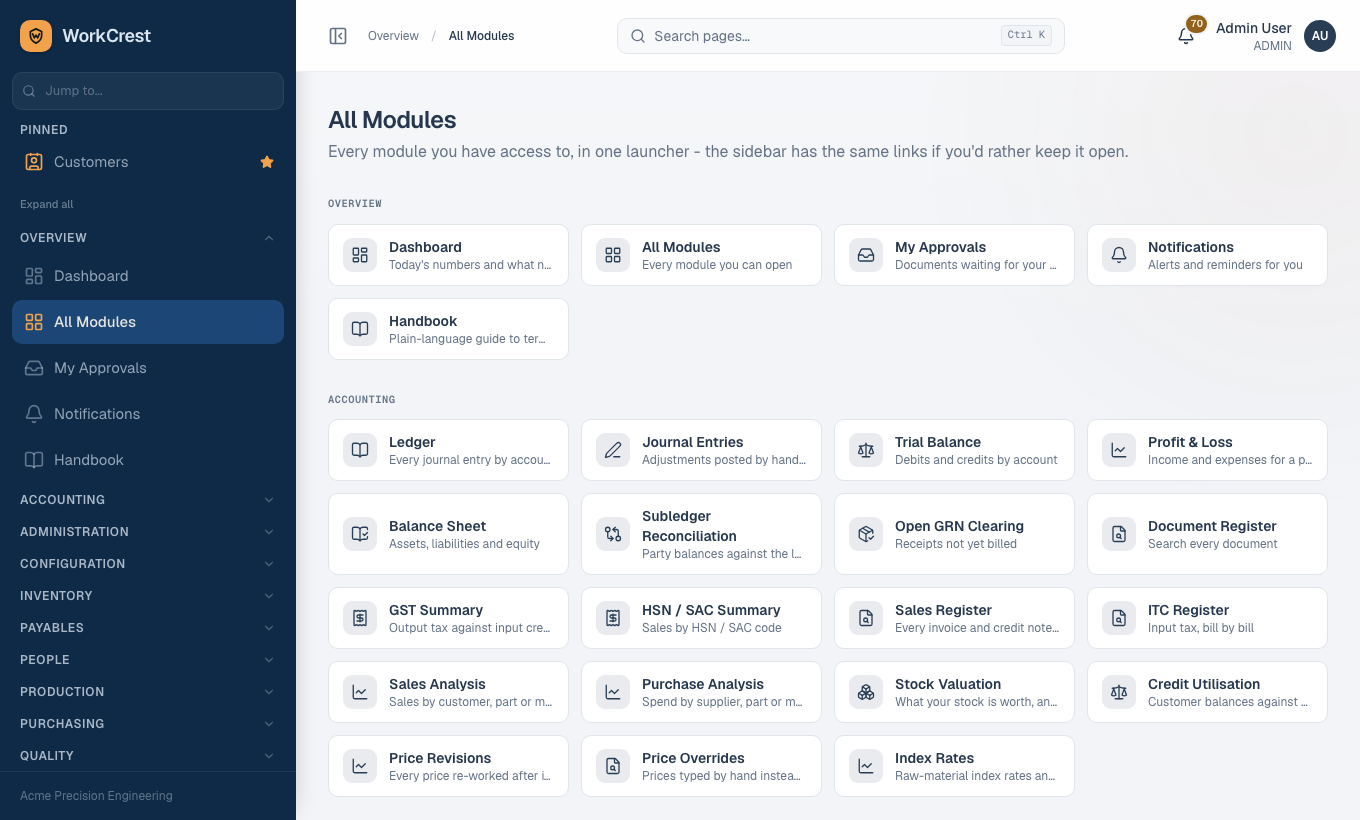
- All Modules. Open it from the Overview section. It shows one card per screen you can open, grouped like the sidebar, with a one-line description.
The Handbook
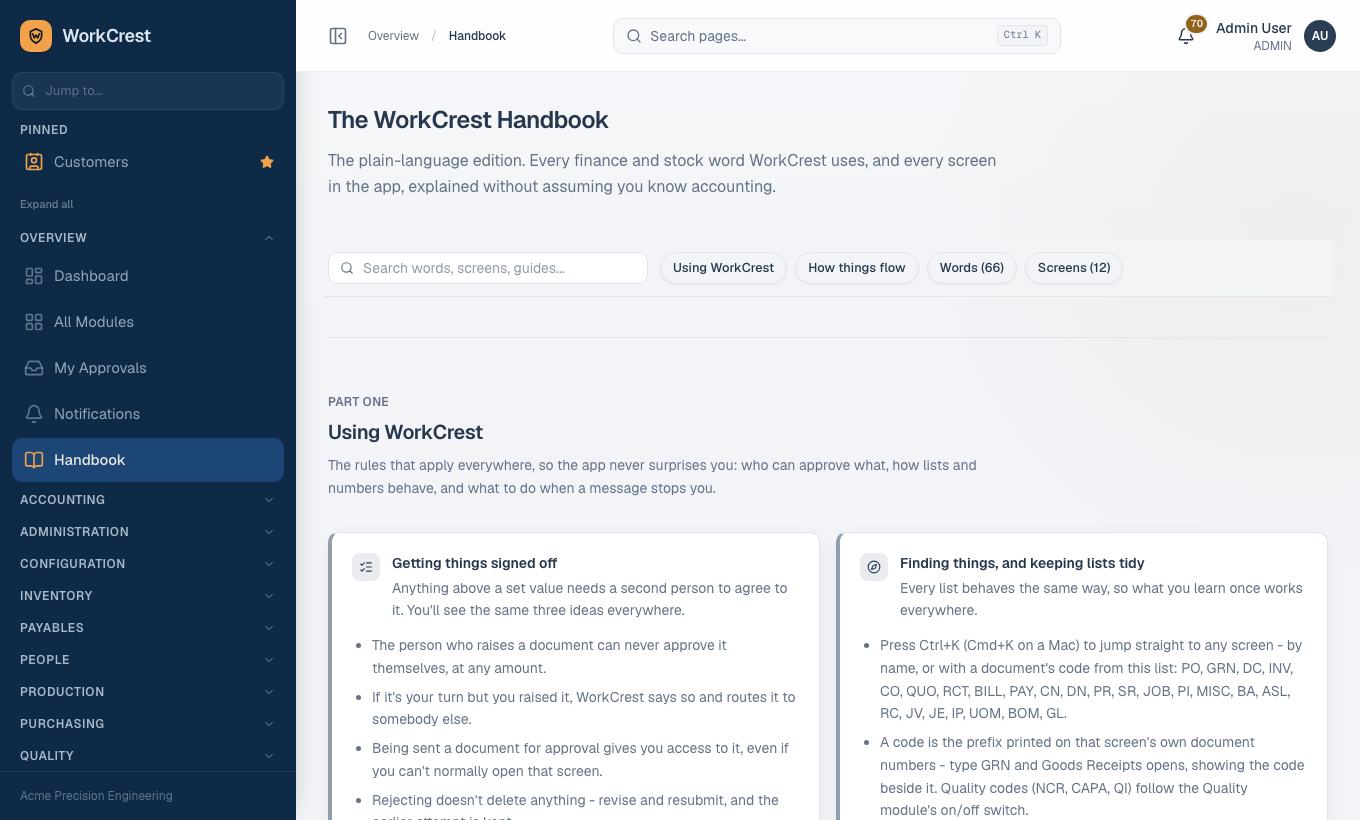
The Handbook (Overview section) is the guide built into the app. It has four tabs: Using WorkCrest (rules that apply everywhere), How things flow (end-to-end journeys), Words (a glossary) and Screens (every screen in detail). Its search box understands plain words: type “tax” and it finds GST.
The bell and your account
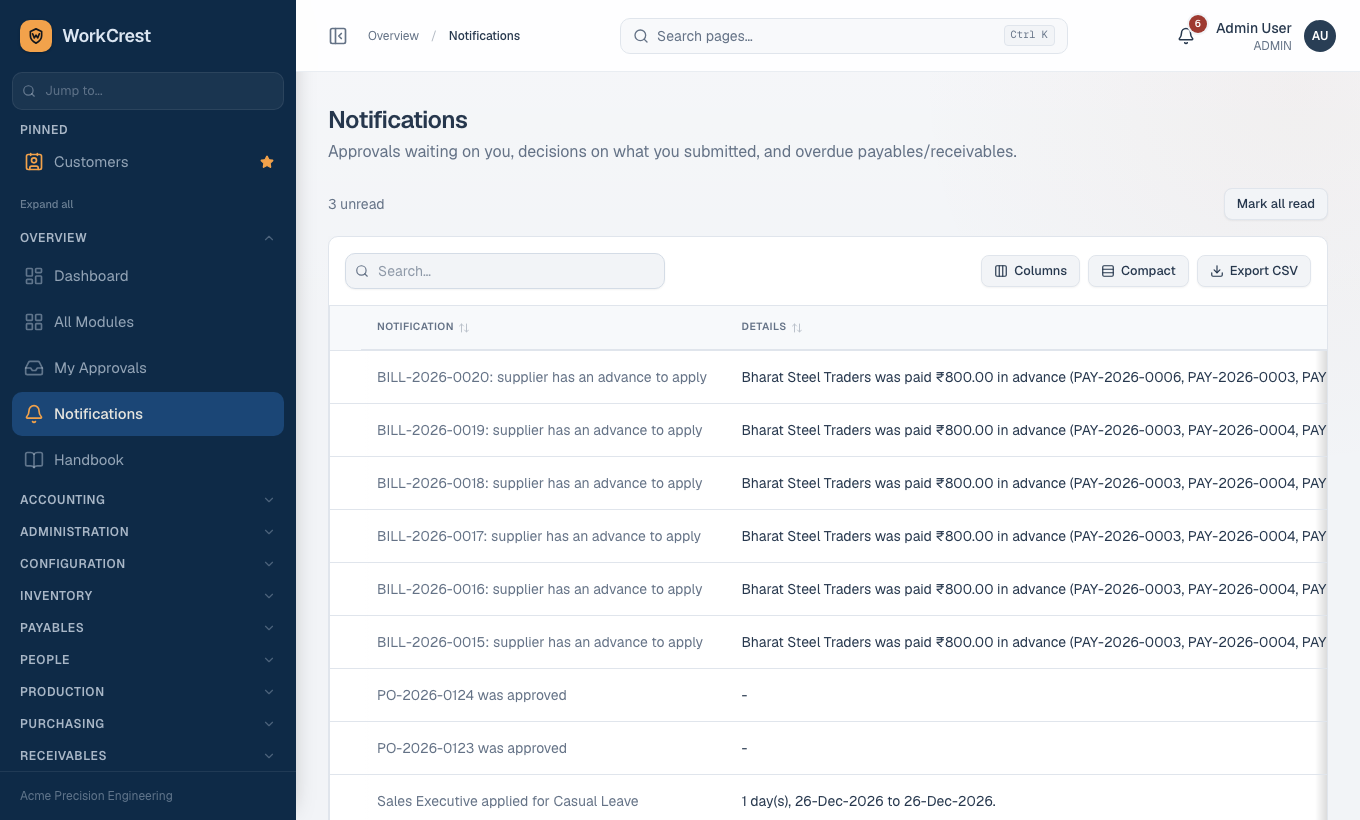
The bell in the top bar shows notifications: something waiting for your approval, your own document approved or rejected, overdue items. Click one to jump straight to the document. The full list is the Notifications screen. The user menu in the corner has Account settings and Sign out.
4. Reading a list page and a document page
A list page
Open Purchase Orders from the Purchasing section. Almost every screen with many records looks like this one.
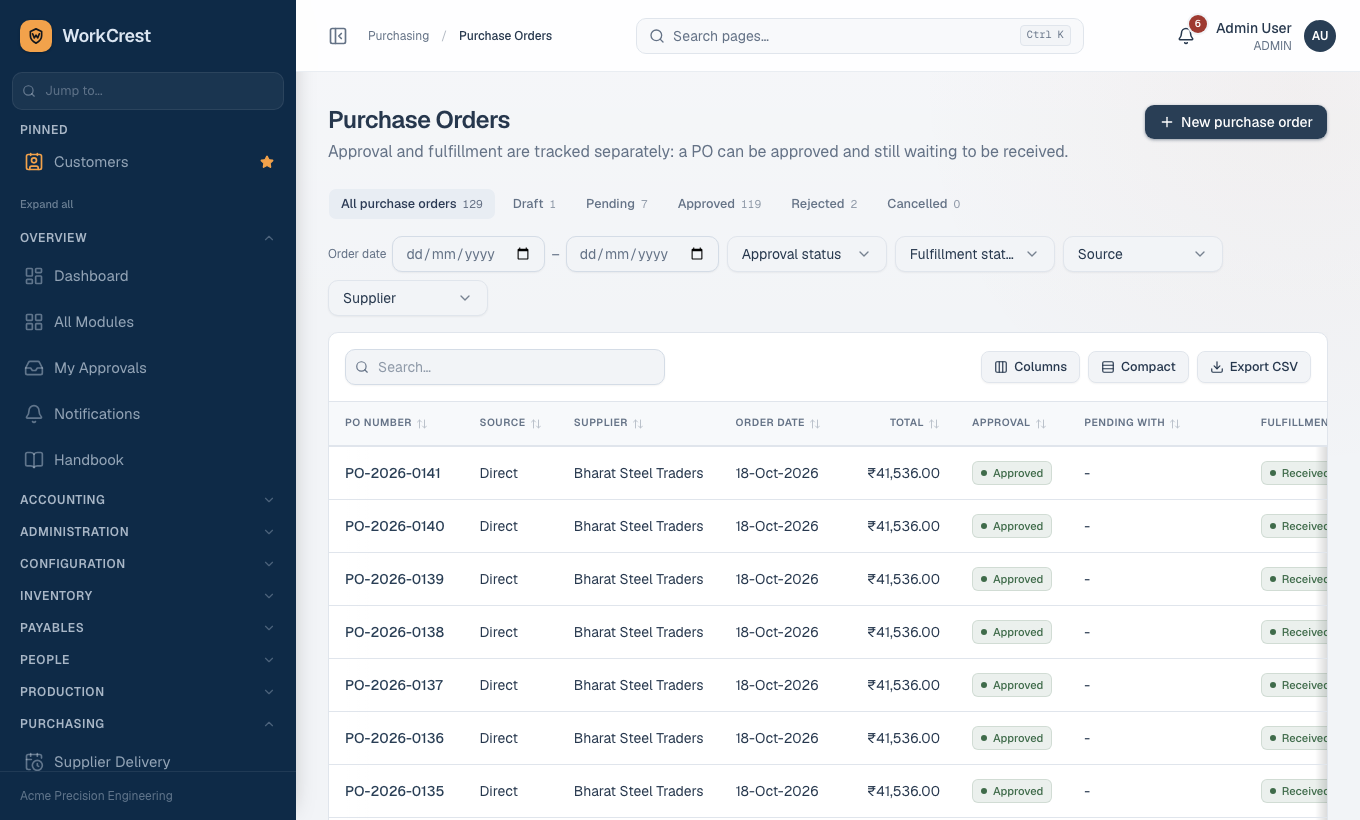
| What you see | What it does |
|---|---|
| Status tabs (All, Draft, Pending, Approved, Rejected, Cancelled) | Show only documents in that status, with a count on each tab. Lists of things like customers or parts open on Active. |
| Search box | Type a number, name or part to narrow the list. |
| Filters and date range | Narrow by supplier, kind of PO, fulfilment status, or by dates. The filter is kept in the web address, so you can bookmark or share a filtered view. |
| Column headings | Click a heading to sort by it. |
| Status badges | The coloured label on each row. On a PO there are two: the approval status and the fulfilment status. |
| Footer total | On money columns, the sum of all rows that match your filters, not just the page you can see. |
| Page size | 25 rows at a time by default; a picker appears on longer lists. |
| Export CSV | Downloads the rows as a spreadsheet file. Exports are logged for the Admin. |
| Clicking a row | Opens that record. You do not look for an Edit button on the list; open the record first. |
A document page
Click a purchase order. Every document page has the same shape.
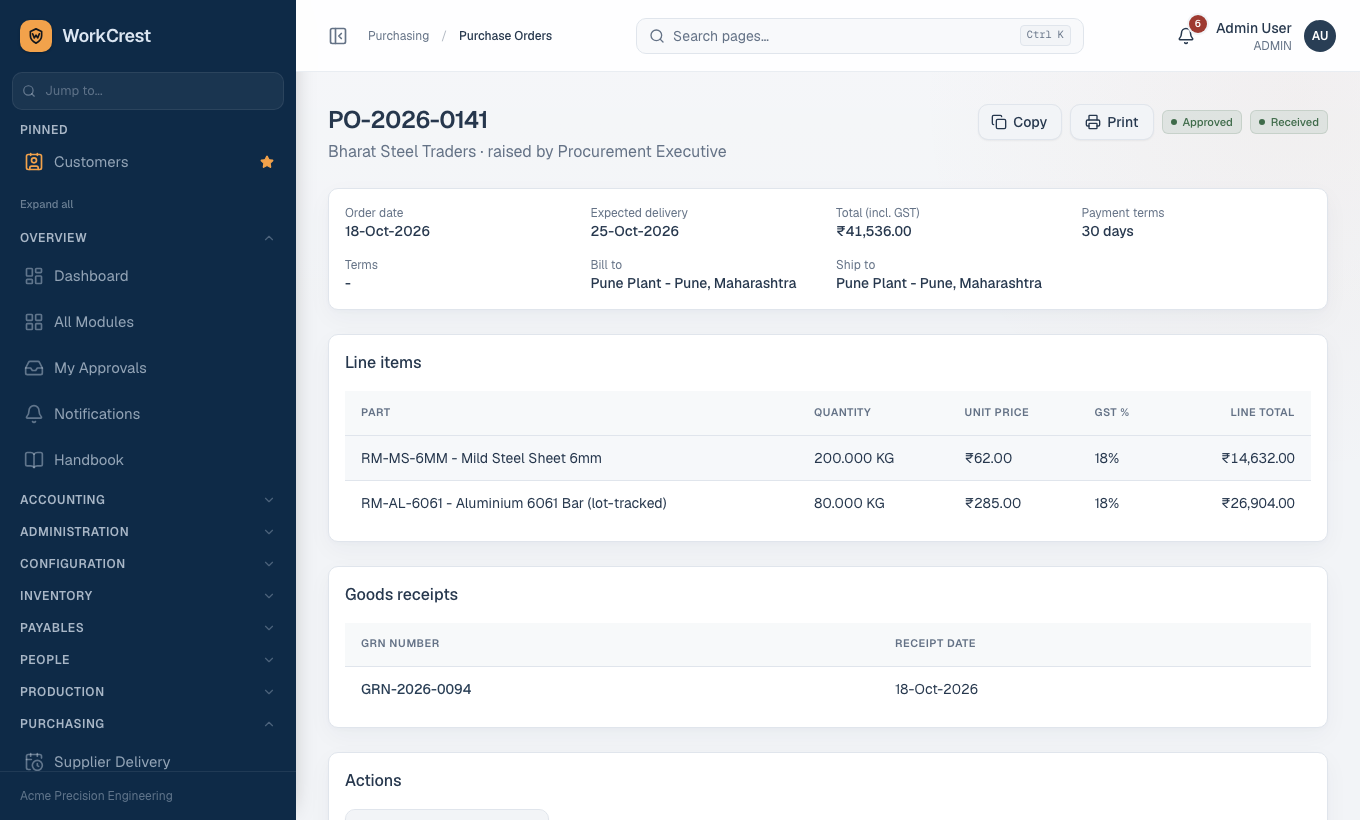
- Heading with the document number and, next to it, the status badges. On a PO you see both the approval status and the fulfilment status.
- Action buttons at the top. They change with the status. A Draft PO offers Edit and Submit for approval (and Delete if you are allowed). A PO waiting for you offers Approve and Reject. An approved one offers Print and Copy.
- Details and Line items. The lines show part, quantity, unit price, GST % and the line total.
- Related documents further down, such as the Goods receipts made against the PO.
- Approval route and activity timeline. A history of who did what and when: created, submitted, approved or rejected, with comments. Nothing is ever erased from it.
5. Worked example: raise a Purchase Order and get it approved
You will create a purchase order, submit it, and then see how the approver decides it. If you only need one of the two halves, jump to 5A or 5B. Practise on test data if your company has any, and ask before creating real orders.
You need the Procurement role (or Admin) to create a PO. You also need the supplier, the parts and a Bill-to and Ship-to location to already exist as masters; if the pickers are empty, ask your Admin (see Masters set-up).
5A. Create and submit
- In the sidebar open Purchase Orders (Purchasing section).
- Click the button to add a new purchase order. A form opens.
- Supplier *: choose from the list (the star means required). The page tells you “Choose a supplier to continue” until you do.
- Order date and Expected delivery: when you are ordering and when you want the goods.
- Bill to * and Ship to *: pick the location the supplier should bill and the location the goods should be sent to.
- Payment terms (days) and Terms: how many days you will take to pay, and any special conditions in words.
- Under line items, press Add line. For each line, fill in:
- Part.
- Quantity (check its unit of measure).
- Unit price (₹).
- GST %.
- Supplier part no., only if the supplier uses their own number.
- Watch the Purchase order total in the bar at the top; it updates as you type. Each line is rounded to the paise, so it matches what is saved.
- If a yellow alert appears about a part and supplier, read it. It is a warning from the Approved Supplier List: the part may only be bought from approved suppliers. Fix the supplier or the part, or follow the instruction it shows.
- Press Create purchase order. If you change your mind press Discard to leave without saving.
- You land on the PO page. The approval status is Draft. A Draft is still only yours; no one is asked to approve it, and nothing has been ordered or posted.
- Check the lines. To change anything press Edit, then Save changes.
- When it is right, press Submit for approval. A message says “Submitted for approval.” and the status becomes Pending. The activity timeline shows who it is waiting on.
5B. Approve it from the inbox
This part is done by the approver the rule names. The approver gets a bell notification.
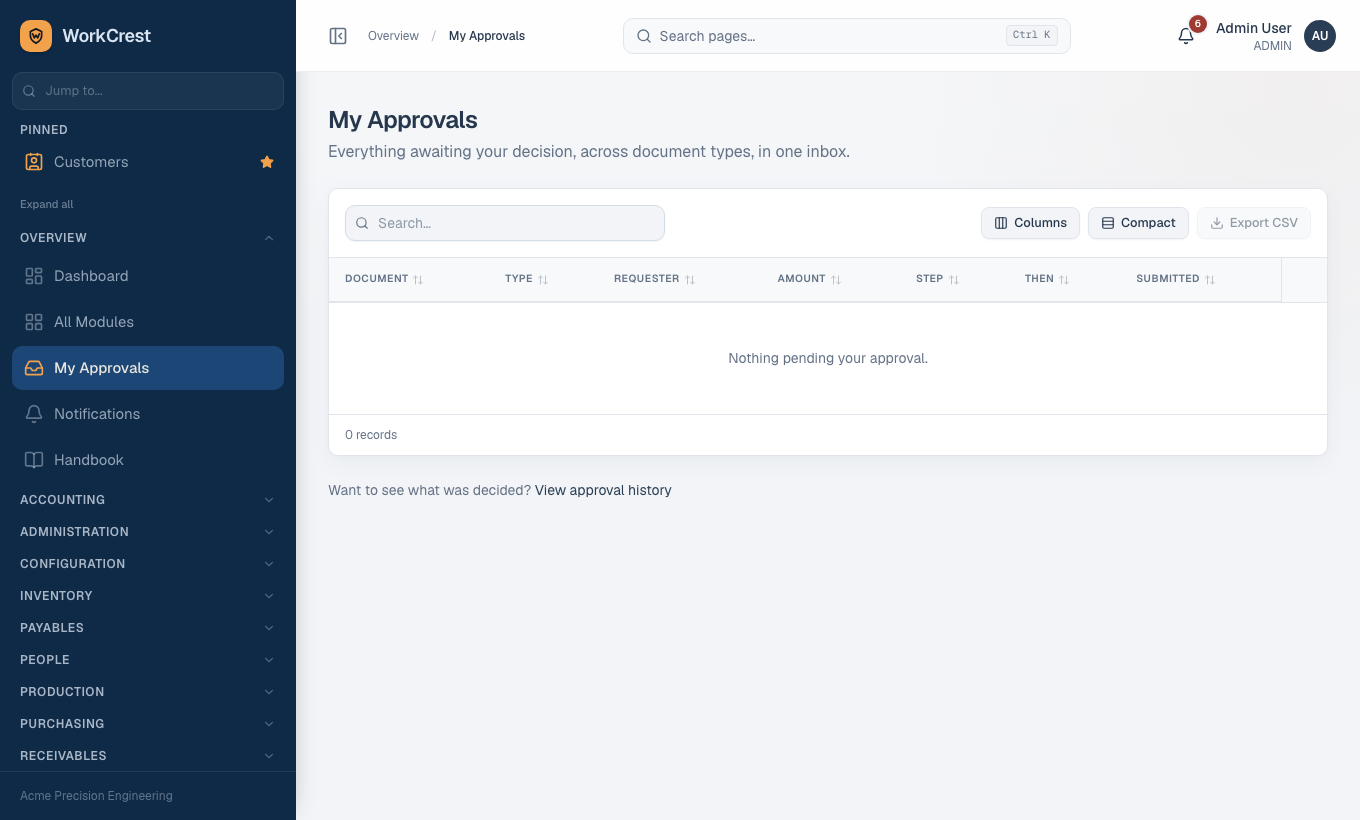
- Open My Approvals in the Overview section. It lists everything waiting for you, across all document types, with a column showing the next approver.
- Click the purchase order row to open it. Read the supplier, the lines, the quantities, the prices and the total. Check them against what you expected.
- In the comment box type a note if you want one (optional, but useful when you reject).
- Press Approve or Reject. A message says “Approved.” or “Rejected.”.
- If the rule has more than one step, the order moves to the next approver and stays Pending. When the last step approves, the status becomes Approved.
- Back on the PO page, the activity timeline shows each decision with the name, time and comment.
5C. What happens next
- The approval status is now Approved and the fulfilment status is Open. The Print and Copy buttons appear.
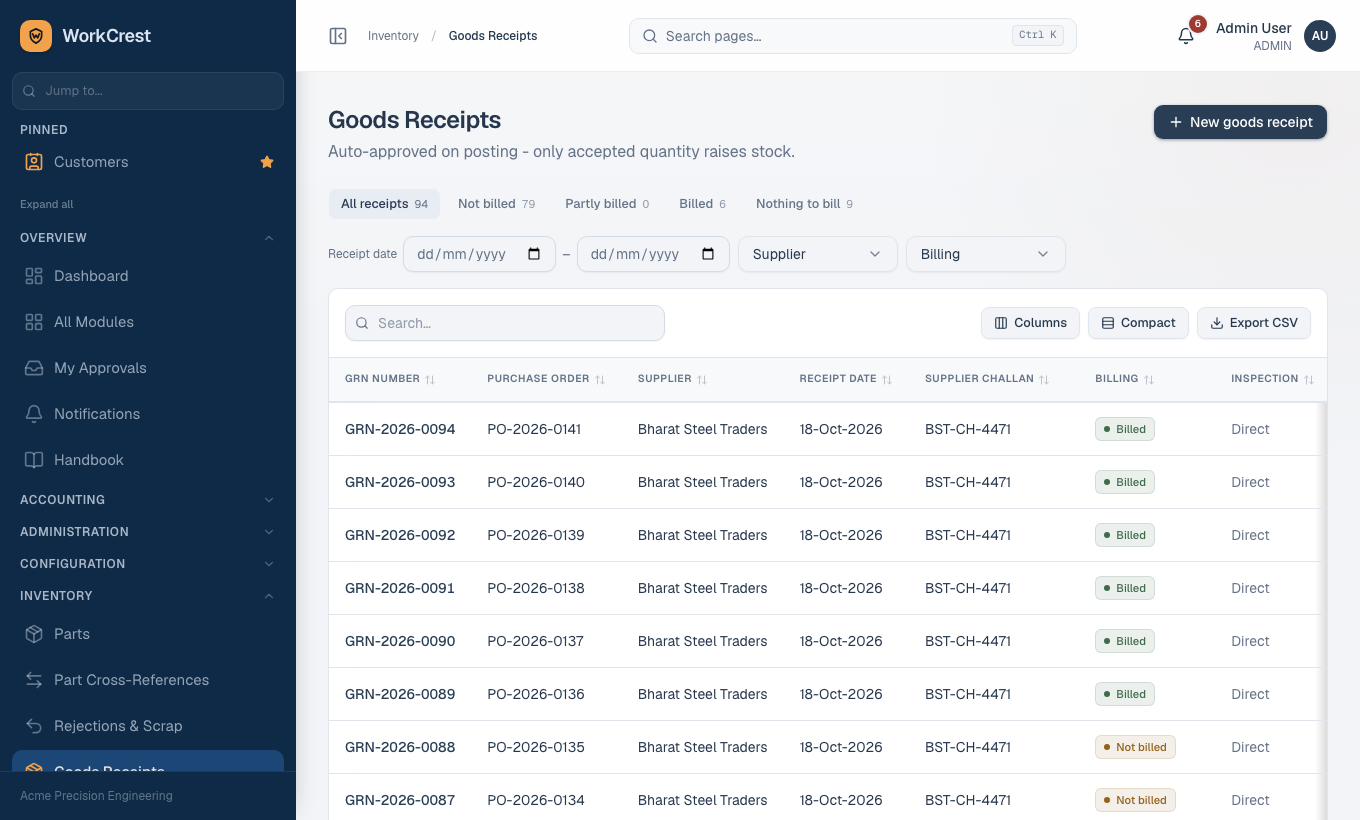
- When goods arrive, a Goods Receipt (GRN) is made against the PO. The fulfilment status moves to Partially Received, then Received.
- If the rejection happened, use the button on the PO page to reopen it as a Draft (“Reopened as Draft - edit and resubmit.”) or to resubmit as it is. A rejected approval is kept in the history; resubmitting starts a new approval.
- Continue the story in Procure to pay.
6. When something goes wrong
- Read the toast. A red message in the corner almost always says exactly what is wrong (“Choose a supplier”, a permission problem, a rule that blocks the action). Read the whole sentence before clicking again.
- Check the status badge. Most “I cannot do that” problems are a status problem. A Pending document cannot be edited. A Draft cannot be printed. A Cancelled document cannot be reopened.
- Check the list filters. A document you cannot find is often hidden by a status tab, a date range or a search word. Clear them. Also check the tab: master lists open on Active.
- Look at the activity timeline on the document. It shows who last acted and what is waiting.
- Missing screen or button? Your role may not allow it. Check All Modules; if it is not there, ask an Admin.
- Signed out unexpectedly? You were idle too long. Sign in again and redo the unsaved form.
- Ask the right person and give them the document number, what you pressed and the exact message.
| Problem | Ask |
|---|---|
| Cannot sign in, locked account, forgot password, missing screen, wrong role | Your Admin |
| A document is stuck Pending | The person named in its activity timeline; or your Admin to check the approval rule |
| Supplier, customer or part is missing from a picker | Whoever maintains masters (usually your Admin) – see Masters set-up |
| Numbers look wrong on a posted document | Accounts. Do not try to edit it; they correct it with a credit/debit note or journal. |
| Anything else | Try FAQ and Caveats, then ask. |
7. Good habits
- One real event, one document. Never reuse an old document by editing it into a new transaction. Use the Copy button (available on quotations, purchase orders, blanket agreements and customer orders), which opens a new form filled from the old one.
- Document numbers are given by the system. Do not make up or retype numbers. Sequences are kept in the database so there are no gaps or repeats.
- Cancel, do not hide. If an order was a mistake, use the Cancel action on the saved document and give the required reason. Cancelled documents stay in the history. Do not create a replacement and quietly ignore the first.
- Discard is not Cancel. Discard just leaves a form without saving. Cancel is a real action on a saved document.
- Keep it Draft until it is right. Check quantities, units and prices before you press Submit. A submitted document goes to someone else’s inbox.
- Check the unit of measure and the currency beside every quantity and price.
- Write useful comments when you approve or reject: the next person reads them in the timeline.
- Never share your login. The timeline records who did each step; it must be you. Sign out on shared computers.
- Do not edit posted records to fix numbers. Posted stock and accounts are append-only. A correction is a new document (return, credit note, debit note, journal).
- Use the Handbook when a word is unfamiliar rather than guessing.
8. Which guide do I read next?
| If you are... | Read |
|---|---|
| Sales (quotes, orders, invoices) | Sales guide, then Order to cash |
| Procurement (buying, receiving) | Procurement guide, then Procure to pay |
| Accounts | Accounts guide, Month end, Reports guide |
| Plant Head or shop floor | Plant guide, then Shop floor |
| Quality | Quality guide |
| HR, or an employee applying for leave or claims | HR and Employee guide |
| Admin | Admin guide, Masters set-up |
| An approver of anything | Approvals |
| Want a quick reminder | Cheat sheets |
| Have a question | FAQ and Caveats |
| Want to know what reports exist | Reports guide |